Getting Started with Twitch | Twitch Thrashing Code Stream

I’d been meaning to get started for some time. I even tweeted, just trying to get further insight into what and why people watch Twitch streams and of course why and who produces their own Twitch streams.

With that I set out to figure out how to get the right tooling setup for Twitch streaming on Linux and MacOS. Here’s what I managed to dig up.

First things first, and somewhat obviously, go create a Twitch account. The sign up link is up in the top right corner.

https://www.twitch.tv/

MacOS Setup

  1. There’s the MacOS Application to download.
  2. Next I downloaded the Open Broadcast Software.
  3. Then I followed the Quickstart for OBS.
  4. For MacOS I also had to download and install audio capture. There were very specific instructions on setting this up here.

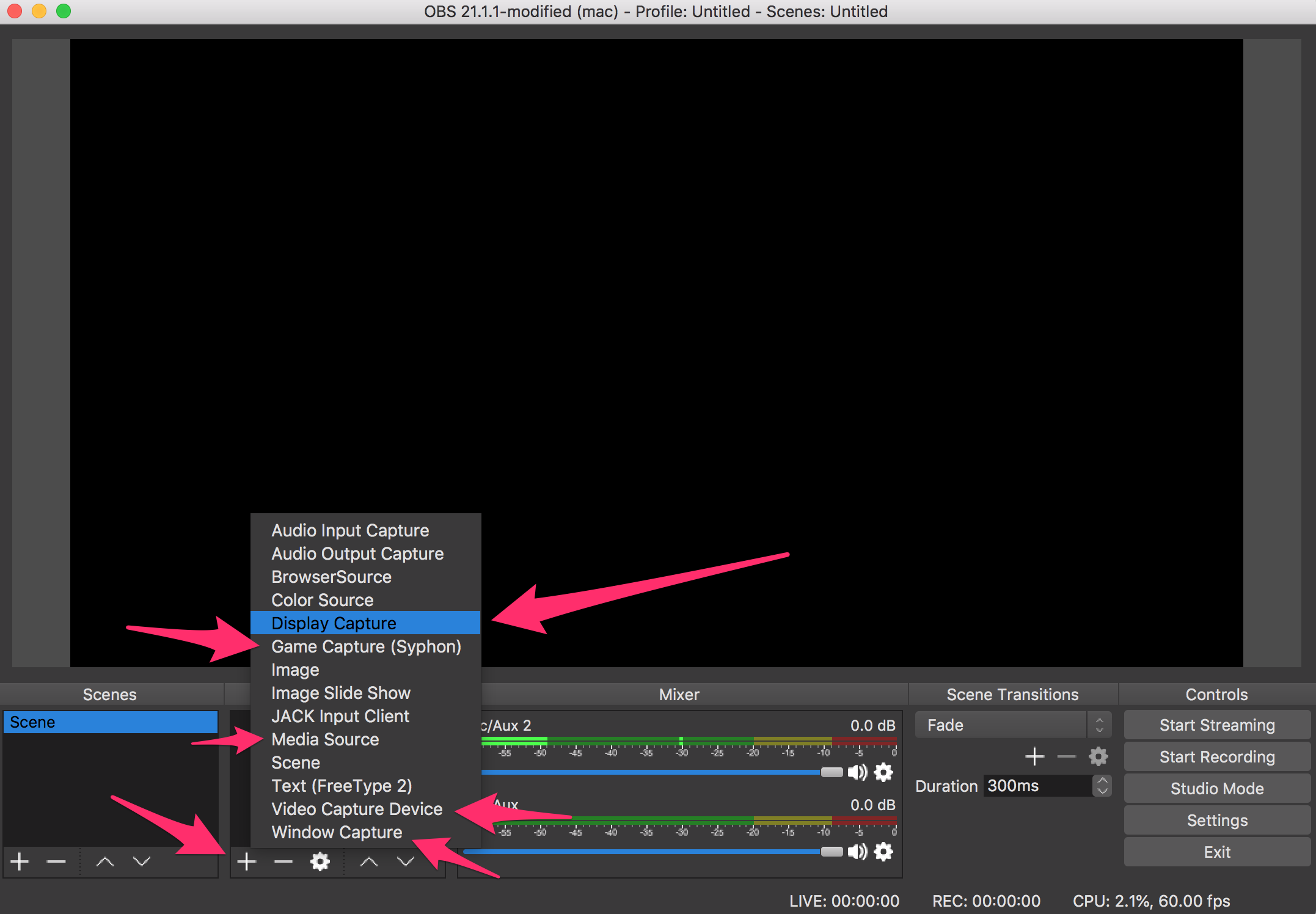
Once all of this is setup, then I had to get OBS to actually take some type of video stream of some sort. I could set the webcam, video, or other means by selecting it.

obs-video-selection.png

One arrow points to the plus arrow that pops the option list up. Each of those settings pointed at then include:

  • Display Capture – grabs the entire screen of the computer.
  • Media Source – lets you select certain options like webcam or other video elements.
  • Game Capture (Syphon) – I didn’t get to work just yet, but it appears that’ll capture specifically the game screen.
  • Video Capture Device – This is also the webcam.
  • Window Capture – This captures a singular window.

Linux Setup

With the Linux setup I’m using Ubuntu 18.04 on a Dell XPS 13 (click for my review) and the System 76 Leopard Workstation (click for my review) I have. For both I went ahead and went the route I went on the MacOS Laptops I have and installed OBS.

  1. For Ubuntu I just used apt-get to install everything, starting with FFmpeg.

    sudo apt-get install ffmpeg
    
  2. Next step is to setup the repository ppa.

    sudo add-apt-repository ppa:obsproject/obs-studio
    
  3. Now update and install OBS for Linux.

    sudo apt-get update
    sudo apt-get install obs-studio
    
  4. When I open the app for the first time, just like on the MacOS version, I went ahead and selected the auto-configuration wizard to start. After stepping through that OBS was pretty much ready to go. Fewer steps than the MacOS.

Curiosities, Experiments, and Things

My next step is to test out the streaming options, make some videos, and also figure out how this is going to fit into my Thrashing Code Show/VLOGing. But also to see what happens when I try variable number of machines streaming and related things. These experiments could be super fascinating depending on how or if certain things are possible. So as always, subscribe to whichever things you’d like, my blog subscription is over on the left of the blog (I’ve no idea how to subscribe on the mobile site, lemme know if you figure it out) or of course just follow me on Twitch.

Dell XPS 13 Re-review of Existing Laptop

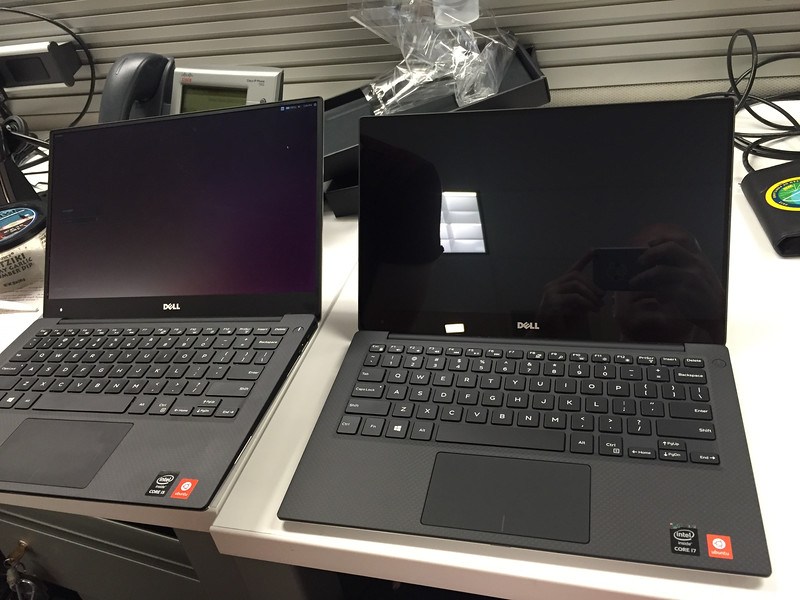
Some years ago, while working with a whole crew of great people at CDK in Portland, Oregon I picked up a new Dell XPS 13. I even wrote a review about it titled “The Latest 5th Generation Dell XPS 13 Developer Edition“. I had been inspired at the time to pick up this laptop after checking out my friend’s XPS 13. Joe (@joeinglish) provided a good sell of the thing to me, and I purchased the laptop less than 24 hours after checking his laptop out!
08

Joe’s laptop, my  laptop, or is it my laptop and Joe’s laptop?

I bought the laptop, and if you’ve read the original review you know I had a few complaints about the laptop. Namely the damned keyboard – out of the box – had a messed up keyboard. After a few BIOS updates and some other tweaks it got marginally better. Even today as I type, it’s vastly better but I’m also still banging away on the keys to make sure each key actually types the stupid letter! But alas I’ve gotten used to it and it isn’t a productivity issue anymore. In addition, Apple released their new Mac Book Pro a year or so ago with the crappy keyboard and this one – through lowering their standards I suppose – now seems super great! Not the best way for things to seem better, but it definitely makes this keyboard the better of the two laptops!

😂🤣😂🤣

Trackpad Nope

Anyway, amid that there’s still one other complaint. At least, it’s sort of a complaint, is that the trackpad isn’t as nice as Apple’s. Especially the latest trackpad, which is even a slight bit better than the older trackpad. But really, that’s as much Apple’s hardware and software support with their trackpad as it is Dell’s trackpad specifically.  Whatever software plus hardware combo exists basically is inferior to Apple’s trackpad in some way or another. Even with the Ubuntu 18.04 OS loaded that I’m on now, the trackpad works perfectly in the way it is supposed to work, but that’s unfortunately still not as capable or useful as Apple’s.

My solution has been to either use a trackball, a wireless trackball or the silent mouse I picked up. The wireless trackball is this sweet m570 from Logitech. The silent mouse I picked up is the m331 Silent Mouse also from Logitech. Between the both of them I really am not bothered by the lack of the Apple trackpad at all.

Sleep Issues Gone

There were a few other complaints, such as the sleeping issue, which appears to be at this point in my use of the laptop entirely gone. This is good, since the sleep issue was originally kind of a production killer when one is going from coffee shop to coffee shop. Sleeping and needing to forcefully reset the laptop just kills things, regardless of operating system.

The Current Situational Report

Alright, got the yucky bits out of the way. Right now, I’ve picked up the laptop for regular use again.  Generally I use it as a home laptop and around the city laptop. I use it for coding, with lots of IntelliJ, Goland, Visual Studio Code, and related IDE use. I also just type a lot, such as this blog entry you’re reading now, on this laptop. It makes it easy to prop up in a hammock and just get super productive while being absurdly comfortable.

The key thing that has enabled me to use this laptop like this is my shift to Linux. Largely Ubuntu but sometimes other distros on this laptop and paired with my main System 76 Leopard Workstation. Having both of these machines running Linux makes it dramatically easier for the coding and back and forth between machines. This however doesn’t mean I’ve left MacOS or that I don’t use Windows anymore, err, well, ok I don’t use Windows anymore because I simply have no reason to do so. But MacOS is still pretty prominent in my daily work almost solely based on presentations.

Which is kind of hilarious that this is the thing that keeps me using a Mac, the ability to use presentation software and have a singular and easy to connect with presentation laptop. The thought of this being the only reason I’m still using a Mac gives me this expression… which I’ll just describe as my “seriously WTF” expression.

the-seriously-wtf-expression

But enough about that, on to the other pluses of the laptop.

Hell Yeah Battery Life

The battery life easily clocks into the 6-8 hour range for the work I’m doing on the laptop. Browser open, internet surfing, IDE open (sometimes on power save), or what not and it still goes for a solid 6-8 hours. This is simply not something that the Mac Book Pro (MBP) can hang with. That includes the latest MBP, or the previous two (three?) generations. It simply outlasts them for similar coding work.

Screen Beauty

The screen, the HiDpi one that I chose for this laptop is still hands down the most beautiful screen on a laptop. The other Mac screens just don’t measure up. Including the fact that it basically goes clean out to the bevel the screen sits in makes for an excellent user experience. I absolutely love the screen!

Weight

This thing is light. I probably mentioned that before. But seriously, I routinely don’t notice if it is or isn’t in my backpack. Which of course has the downside of needing to check if it is actually in my backpack numerous times before leaving just to make sure it is in fact there.

The Power Bricks

I’m not sure we should even call the thing for this a power brick as there isn’t anything heavy, hard, or cumbersome about it. It’s small, elegant, and easy to neatly and cleanly wrap the cord around! It’s easily and vastly superior to the now craptastic Apple USB-C based power supplies. It is also noticeably lighter than any other brick I’ve used with a laptop.

power-brick.jpg

Matter of fact it’s so light I accidentally brought an extra one with my regular one I carry in my pack and didn’t even realize the weight difference, something that is however noticeable with a Mac brick. This also brings up another point…

Price

Oh jeez, this thing is cheap. I don’t mean in a “it’s gonna fall apart cuz it’s crap” type of way but in a purely monetary sense. It’s a decent and overall quality build. I’ve beat up the laptop and tossed it around (4-12 feet) before. It’s held up absolutely fine!

Summary

Here I am, typing up this post just after some Cassandra research and coding experiments and though “I should write up a re-review of this laptop, it’s absolutely paid for itself about 10x over!” So here’s the post, the laptop is worth it, so if you’re going to go in on one of the new ones I’d say it most likely will be a superb purchase decision. My only complaint is they don’t really offer, as far as I can see, a Linux version which seems extraordinarily silly for Dell not to do.

With that, cheers, happy hacking on your 4th!

Go Library Data Generation Timings

Recently I put together some quick code to give some timings on the various data generation libraries available for Go. For each library there were a few key pieces of data generation I wanted to time:

  • First Name – basically a first name of some sort, like Adam, Nancy, or Frank.
  • Full Name – something like Jason McCormick or Sally Smith.
  • Address – A basic street address, or whatever the generator might provide.
  • User Agent – Such as that which is sent along with the browser response.
  • Color – Something like red, blue, green, or other color beyond the basics.
  • Email – A fully formed, albeit faked email address.
  • Phone – A phone number, ideally with area code and prefix too.
  • Credit Card Number – Ideally a properly formed one, which many of the generators seem to provide based on VISA, Mastercard, or related company specifications.
  • Sentence – A stand multi-word lorem ipsum based sentence would be perfect.

I went through and searched for libraries that I wanted to try out. Of all the libraries I found I narrowed it down to three specific libraries. When I add the imports for these libraries, by way of how Go works, it gives you the repo locations:

  • “github.com/bxcodec/faker” – faker – Faker generates data based on a Struct, which is a pretty cool way to determine what type of data you want and to get it returned in a particularly useful format.
  • “github.com/icrowley/fake” – fake – Fake is a library inspired by the ffaker and forgery Ruby gems. Not that you’d be familiar with those, but if you are you have instant insight into how this library works.
  • “github.com/malisit/kolpa” – kolpa – This is another data generator that creates fake data for various types of data, structures, strings, sentences, and more.

I pulled in the imports for these and then created a function for each, that generates as close to the list above that I could get from the library.

import (
	"fmt"
	"github.com/bxcodec/faker"
	"github.com/icrowley/fake"
	"github.com/malisit/kolpa"
	"time"
)

The fake data library function for making data generation calls.

func fakeDataLib(repeat int) {
	for i := 0; i < repeat; i++ {
		fake.FirstName()
		fake.FullName()
		fake.StreetAddress()
		fake.UserAgent()
		fake.Color()
		fake.EmailAddress()
		fake.Phone()
		fake.Gender()
		fake.CreditCardNum("VISA")
		fake.Sentence()
	}
}

The kolpa library function.

func kolpaDataLib(repeat int) {
	k := kolpa.C()
	for i := 0; i < repeat; i++ {
		k.FirstName()
		k.Name()
		k.Address()
		k.UserAgent()
		k.Color()
		k.Email()
		k.Phone()
		k.Gender()
		k.PaymentCard()
		k.LoremSentence()
	}
}

The faker data library calls wrapped up in a function.

func fakerDataLib(repeat int) {
	for i := 0; i < repeat; i++ {
		a := SomeStruct{}
		err := faker.FakeData(&a)
		if err != nil {
			fmt.Println(err)
		}
	}
}

Then back to the top of the code file and I’ll add the Struct for the faker library.

type SomeStruct struct {
	UserName string `faker:"username"`
	FirstNameMale   string `faker:"first_name_male"`
	FirstNameFemale string `faker:"first_name_female"`
	LastName        string `faker:"last_name"`
	Email            string `faker:"email"`
	PhoneNumber string `faker:"phone_number"`
	Word      string `faker:"word"`
	CreditCardNumber string `faker:"cc_number"`
	Name            string `faker:"name"`
	Date string `faker:"date"`
	Time string `faker:"time"`
	Timestamp string `faker:"timestamp"`
	Sentence  string `faker:"sentence"`
	Sentences string `faker:"sentences"`
}

Then I executed these functions with simple calls in main as shown. The repeats for generating data I set at 100,000 so that I’d have a large number of records created during each run but also to ensure that during execution it would really show the trend of time generating the data instead of what might be outlier if I only create just a few at a time. Next I added some print statements so I can easily read what the result is.

func main() {

	timeFormat := time.Stamp
	t := time.Now

	generationRepeats := 100000

	start := t()
	fmt.Printf("Starting tests with fake library at %s.\n", start.Format(timeFormat))
	fakeDataLib(generationRepeats)
	currentTime := t()
	elapsed := currentTime.Sub(start).Seconds()
	fmt.Printf("It took %.0f seconds to execute the fake library data generation ending at %s.\n\n", elapsed, currentTime.Format(timeFormat))

	kolpaStart := t()
	fmt.Printf("Starting tests with kolpa library at %s.\n", kolpaStart.Format(timeFormat))
	kolpaDataLib(generationRepeats)
	kolpaEnd := t()
	kolpaElapsed := kolpaEnd.Sub(kolpaStart).Seconds()
	fmt.Printf("It took %.0f seconds to execute the kolpa library data generation ending at %s.\n\n", kolpaElapsed, kolpaEnd.Format(timeFormat))

	fakerStart := t()
	fmt.Printf("Starting tests with faker library at %s.\n", fakerStart.Format(timeFormat))
	fakerDataLib(generationRepeats)
	fakerEnd := t()
	fakerElapsed := fakerEnd.Sub(fakerStart).Seconds()
	fmt.Printf("It took %.0f second to execute the faker library data generation ending at %s.\n", fakerElapsed, fakerEnd.Format(timeFormat))
}

I ran this via two methods.

go run main.go

Then I also built the package and then ran the executable. In both cases the results showed around this range. Mind you, this first execution was done on my Dell XPS 13 Laptop, so by no means a beast of a machine.

Starting tests with fake library at Jun 30 09:58:57. It took 0 seconds to execute the fake library data generation ending at Jun 30 09:58:57.

Starting tests with kolpa library at Jun 30 09:58:57. It took 31 seconds to execute the kolpa library data generation ending at Jun 30 09:59:29.

Starting tests with faker library at Jun 30 09:59:29. It took 1 second to execute the faker library data generation ending at Jun 30 09:59:30.

Process finished with exit code 0

Wow, what a difference! Kolpa was taking an extremely long time versus the other libraries. That almost instantly narrowed down further examinations to just the fake and faker libraries. But just to be sure I decided I’d try another method and throw in some go routines. I went about that refactor like this.

Just to clean up things a bit I made two immediate changes by adding two new functions to handle the display of messages to the console. This function kicks off with the current time and prints that out with a message of whatever library it is, with that being passed in via a string parameter.

func startTiming(library string) (string, func() time.Time, time.Time) {
	timeFormat := time.Stamp
	t := time.Now
	start := t()
	fmt.Printf("Starting tests with %s library at %s.\n", library, start.Format(timeFormat))
	return timeFormat, t, start
}

Between execution of the above function, I’d have a closing function to finish the timing, calculate the diff and print that out for total time executing.

func finishTiming(t func() time.Time, start time.Time, timeFormat string, library string) {
	currentTime := t()
	elapsed := currentTime.Sub(start).Seconds()
	fmt.Printf("It took about %.0f seconds to execute the %s library data generation ending at %s.\n\n", elapsed, library, currentTime.Format(timeFormat))
}

To manage the go routines so they all finish executing I created a global variable to use the sync wait group functionality.

var wg sync.WaitGroup

Next I refactored the individual functions testing the three libraries. First the faker data function. The startTiming and finishTiming functions are called before and after the data generation is complete, and at the end defer wg.Done() is set.

func fakerDataLib(repeat int) {
	library := "faker"
	timeFormat, t, start := startTiming(library)

	for i := 0; i < repeat; i++ {
		a := SomeStruct{}
		err := faker.FakeData(&a)
		if err != nil {
			fmt.Println(err)
		}
	}

	finishTiming(t, start, timeFormat, library)
	defer wg.Done()
}

On to the next library being tested for kolpa. Maybe, just maybe this will squeeze a little bit more out of it? Naw, not likely.

func kolpaDataLib(repeat int) {
	library := "kolpa"
	timeFormat, t, start := startTiming(library)

	k := kolpa.C()
	for i := 0; i < repeat; i++ {
		k.FirstName()
		k.Name()
		k.Address()
		k.UserAgent()
		k.Color()
		k.Email()
		k.Phone()
		k.Gender()
		k.PaymentCard()
		k.LoremSentence()
	}

	finishTiming(t, start, timeFormat, library)
	defer wg.Done()
}

Then the fake data generation library refactored.

func fakeDataLib(repeat int) {
	library := "fake"
	timeFormat, t, start := startTiming(library)

	for i := 0; i < repeat; i++ {
		fake.FirstName()
		fake.FullName()
		fake.StreetAddress()
		fake.UserAgent()
		fake.Color()
		fake.EmailAddress()
		fake.Phone()
		fake.Gender()
		fake.CreditCardNum("VISA")
		fake.Sentence()
	}

	finishTiming(t, start, timeFormat, library)
	defer wg.Done()
}

Alright. Now I can refactor the main function down to a much more minimal amount of code. Adding the wg.Add(3) for the respective routines being initiated below with the addition of the go keyword, and at the end adding a wg.Wait() and deleting a whole bunch of the other redundant code.

func main() {
	wg.Add(3)
	generationRepeats := 100000

	go fakeDataLib(generationRepeats)
	go kolpaDataLib(generationRepeats)
	go fakerDataLib(generationRepeats)

	wg.Wait()
}

With all those changes, my main.go file contents in totality looks like this. Of course, in totality like this it’s a quick copy & paste if you want to give it a try.

package main

import (
	"fmt"
	"github.com/bxcodec/faker"
	"github.com/icrowley/fake"
	"github.com/malisit/kolpa"
	"time"
	"sync"
)

type SomeStruct struct {
	UserName string `faker:"username"`
	FirstNameMale   string `faker:"first_name_male"`
	FirstNameFemale string `faker:"first_name_female"`
	LastName        string `faker:"last_name"`
	Email            string `faker:"email"`
	PhoneNumber string `faker:"phone_number"`
	Word      string `faker:"word"`
	CreditCardNumber string `faker:"cc_number"`
	Name            string `faker:"name"`
	Date string `faker:"date"`
	Time string `faker:"time"`
	Timestamp string `faker:"timestamp"`
	Sentence  string `faker:"sentence"`
	Sentences string `faker:"sentences"`
}

var wg sync.WaitGroup

func main() {
	wg.Add(3)
	generationRepeats := 100000

	go fakeDataLib(generationRepeats)
	go kolpaDataLib(generationRepeats)
	go fakerDataLib(generationRepeats)

	wg.Wait()
}

func fakerDataLib(repeat int) {
	library := "faker"
	timeFormat, t, start := startTiming(library)

	for i := 0; i < repeat; i++ {
		a := SomeStruct{}
		err := faker.FakeData(&a)
		if err != nil {
			fmt.Println(err)
		}
	}

	finishTiming(t, start, timeFormat, library)
	defer wg.Done()
}

func kolpaDataLib(repeat int) {
	library := "kolpa"
	timeFormat, t, start := startTiming(library)

	k := kolpa.C()
	for i := 0; i < repeat; i++ {
		k.FirstName()
		k.Name()
		k.Address()
		k.UserAgent()
		k.Color()
		k.Email()
		k.Phone()
		k.Gender()
		k.PaymentCard()
		k.LoremSentence()
	}

	finishTiming(t, start, timeFormat, library)
	defer wg.Done()
}

func fakeDataLib(repeat int) {
	library := "fake"
	timeFormat, t, start := startTiming(library)

	for i := 0; i < repeat; i++ {
		fake.FirstName()
		fake.FullName()
		fake.StreetAddress()
		fake.UserAgent()
		fake.Color()
		fake.EmailAddress()
		fake.Phone()
		fake.Gender()
		fake.CreditCardNum("VISA")
		fake.Sentence()
	}

	finishTiming(t, start, timeFormat, library)
	defer wg.Done()
}

func finishTiming(t func() time.Time, start time.Time, timeFormat string, library string) {
	currentTime := t()
	elapsed := currentTime.Sub(start).Seconds()
	fmt.Printf("It took about %.0f seconds to execute the %s library data generation ending at %s.\n\n", elapsed, library, currentTime.Format(timeFormat))
}

func startTiming(library string) (string, func() time.Time, time.Time) {
	timeFormat := time.Stamp
	t := time.Now
	start := t()
	fmt.Printf("Starting tests with %s library at %s.\n", library, start.Format(timeFormat))
	return timeFormat, t, start
}

Executing this it still looks like the libraries performed similarly. Now however I can add record counts a bit more easily to test out. I tried out a thousand records first.

API server listening at: 127.0.0.1:35455 Starting tests with faker library at Jun 30 23:00:48. Starting tests with fake library at Jun 30 23:00:48. Starting tests with kolpa library at Jun 30 23:00:48. It took about 0 seconds to execute the fake library data generation ending at Jun 30 23:00:48. It took about 1 seconds to execute the faker library data generation ending at Jun 30 23:00:48. It took about 5 seconds to execute the kolpa library data generation ending at Jun 30 23:00:53.

Debugger finished with exit code 0

Then bumped it up a bit to ten thousand.

API server listening at: 127.0.0.1:41509 Starting tests with faker library at Jun 30 23:01:40. Starting tests with fake library at Jun 30 23:01:40. Starting tests with kolpa library at Jun 30 23:01:40. It took about 0 seconds to execute the fake library data generation ending at Jun 30 23:01:41. It took about 5 seconds to execute the faker library data generation ending at Jun 30 23:01:46. It took about 52 seconds to execute the kolpa library data generation ending at Jun 30 23:02:32.

Debugger finished with exit code 0

Oh wow. Yeah, with routines executing the different libraries things are getting a bit multiplicative here. Going from 1000 to 10,000 records all of a sudden bumps the fake from sub-zero to sub-zero and the faker lib from ~1 second to 5 seconds, while the kolpa library goes from 5 seconds to a massive 52 seconds. That’s enough for me, next up I’ll tweak the fake and faker libraries a bit and prospectively even use both for future implementations.

…until later, on to next steps!

A Collection of Links & Tour of DataStax Docker Images

Another way to get up and running with a DataStax Enterprise 6 setup on your local machine is to use the available (and supported by DataStax) Docker images. For additional description of what each of the images is, what is contained on the images, I read up on via Kathryn Erickson’s (@012345) blog entry “DataStax Now Offering Docker Images for Development“. Also there’s a video Jeff Carpenter (@jscarp) put together which talks from the 5.x version of the release (since v6 wasn’t released at the time).

I’m adding some lagniappe to that material here and providing additional notes to things. Before continuing however it’s a good idea to read Kathryn’s blog entry and watch Jeff’s video real quick, I promise it’ll only take you minutes of time, so do that and then come back. My post will still be here.

The three images that are available include:

The easiest way to get started with these images since they inter-operate together, and the dse-server image can be used to make a cluster, is to use docker-compose to spin them up. First though, I’ll need to actually pull the images down from the Docker Hub.

docker pull datastax/dse-studio
docker pull datastax/dse-opscenter
docker pull datastax/dse-server

Now that we have the images, there are some docker-compose yaml files available in the DataStax Github Repo here that make it a single command line run to get an environment going locally. Various setups are available on a single machine depending on what you need too. Before running anything though, here are the yaml files with some extra descriptions about what’s going on with each.

This is the file for a server node. The image is datastax/dse-server which is available locally since I ran the commands listed earlier in the post. There’s a DS_LICENSE that is set to accept, ulimits memlock is set to -1, sets environment variables for DS_LICENSE and SEEDS, and some other settings specific to allowing mlock to lock memory. All kind of self-explanatory for each section of the yaml below.

version: '2'
services:
  seed_node:
    image: "datastax/dse-server"
    environment:
      -- DS_LICENSE=accept
    # Allow DSE to lock memory with mlock
    cap_add:
    -- IPC_LOCK
    ulimits:
      memlock: -1
  node:
    image: "datastax/dse-server"
    environment:
      -- DS_LICENSE=accept
      -- SEEDS=seed_node
    links:
      -- seed_node
    # Allow DSE to lock memory with mlock
    cap_add:
    -- IPC_LOCK
    ulimits:
      memlock: -1

This is the studio file contents, which opens up a mapping for port 9091, sets the environment setting for the DS_LICENSE variable, and that’s really it. The image already has DSE Studio installed and ready to run as soon as the image is used to spin up a container.

version: '2'
services:
  studio:
    image: "datastax/dse-studio"
    environment:
      -- DS_LICENSE=accept
    ports:
      -- 9091:9091

The last file is the Ops Center startup. Also has pretty minimal contents since the image is setup and installed with what it needs to get up and running quickly. A port is also mapped to 8888 for use, and seed_node is bound appropriately with the other containers.

version: '2'
services:
  opscenter:
    image: "datastax/dse-opscenter"
    ports:
      -- 8888:8888
    environment:
      -- DS_LICENSE=accept
  seed_node:
    links:
      -- opscenter
  node:
    links:
      -- opscenter

To get these started in various executions, for instance, I’ll start with a 3-node cluster, Ops Center running, and DSE Studio.

docker-compose -f docker-compose.yml -f docker-compose.opscenter.yml -f docker-compose.studio.yml up -d --scale node=2

Breaking that apart, this is a command using docker-compose that uses all three of the yaml files shown above. I start with docker-compose then follow that by pointing to a file with the -f switch and then the file itself, docker-compose.yml. The next with another -f docker-composie.opscenter.yml, then the last -f docker-compose.studio.yml and the sub command up. Then follow this with -d so that the containers are run in a detached state. Follow that with --scale node-2 which will give us the starting node count of two nodes for the server.

With that command, one can then break it apart to startup different combinations to work with such as this command below which just starts up a single node and the studio. A great setup using minimal resources if we just want to work with studio.

docker-compose -f docker-compose.yml -f docker-compose.studio.yml up -d --scale node=0

Another combination might be to just startup a 3 node cluster, of course, one could try more but that will likely decimate a machines resources pretty quickly.

docker-compose  -f docker-compose.yml up -d --scale node=2

If we want to play around with Ops Center a great way to do that is to spin up a 3-node cluster and opscenter by itself.

docker-compose -f docker-compose.yml -f docker-compose.opscenter.yml up -d --scale node=2

That gives us options around what to start and which things we actually want to work with at any particular time. A great way to setup a demo or just test out different features within DataStax Enterprise Ops Center, Studio, or even just setting up a cluster.

If you’d like to get involved, run into an issue, or just simply have a question or two check out the Github repo to file an issue or add a comment in Docker Hub.

Summary

Some days ago I took a quick tour through Azure and GCP Marketplace options for getting a DSE6 Cassandra Cluster up and running. I’ll be taking a look at additional methods for installation, setup, and configuration in the coming weeks and days. So stay tuned, subscribe, or if you’d like to hear about new Cassandra or related distributed systems meetups in the Seattle area be sure to sign up to my Thrashing Code Newsletter (and select Event News Only if you only want to know about events).

Cassandra / DataStax Enterprise 6 Clusters: Marketplace Options

As I have stepped full speed into work and research at DataStax there were a few things I needed as soon as I could possibly get them put together. Before even diving into development, use case examples, or reference application development I needed to have some clusters built up. The Docker image is great for some simple local development, but beyond that I wanted to have some live 3+ node clusters to work with. The specific deployed and configured use cases I had included:

  1. I wanted to have a DataStax Enterprise 6 Cassandra Cluster up and running ASAP. A cluster that would be long lived that I could developer sample applications against, use for testing purposes, and generally develop against from a Cassandra and DSE purpose.
  2. I wanted to have an easy to use cluster setup for Cassandra – just the OSS deployment – possibly coded and configured for deployment with Terraform and related scripts necessary to get a 3 node cluster up and running in Google Cloud Platform, Azure, or AWS.
  3. I wanted a DataStax Enterprise 6 enabled deployment, that would showcase some of the excellent tooling DataStax has built around the database itself.

I immediately set out to build solutions for these three requirements.

The first cluster system I decided to aim for was figuring out a way to get some reasonably priced hardware to actually build a physical cluster. Something that would make it absurdly easy to just have something to work with anytime I want without incurring additional expenses. Kind of the ultimate local development environment. With that I began scouring the interwebs and checking out where or how I could get some boxes to build this cluster with. I also reached out to a few people to see if I could be gifted some boxes from Dell or another manufacturer.

I lucked out and found some cheap boxes someone was willing to send over my way for almost nothing. But in the meantime since shipping will take a week or two. I began scouring the easy to get started options on AWS, Google Cloud Platform, and Azure.

First Cluster Launch on GCP

Ok, so even though I aim to have the hardware systems launched for a local dev cluster, I was on this search to find the most immediate way to get up and running without waiting. I wanted a cluster now, with a baseline setup that I could work with.

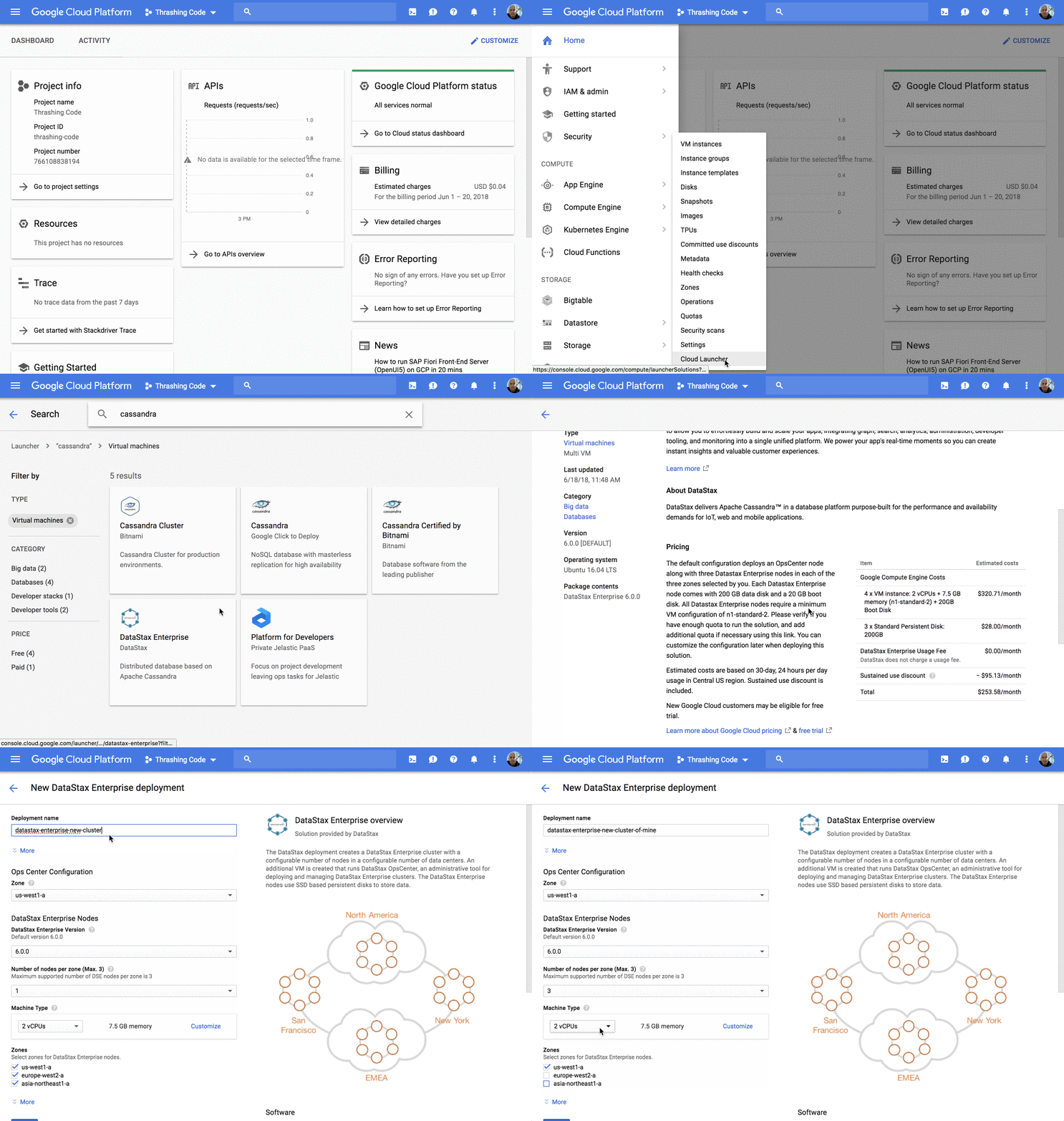
I opened up my Google Cloud Platform account to check out what options there are. The first option I found that is wildly easy to get started with involved navigating to the Cloud Launcher, typing in Cassandra, choosing the DataStax Enterprise option and then clicking on Cloud Launcher. Note that if you do go this route it can get into the $300 or higher range very quickly depending on the selections chosen.

gcp-building-datastax-enterprise-cluster

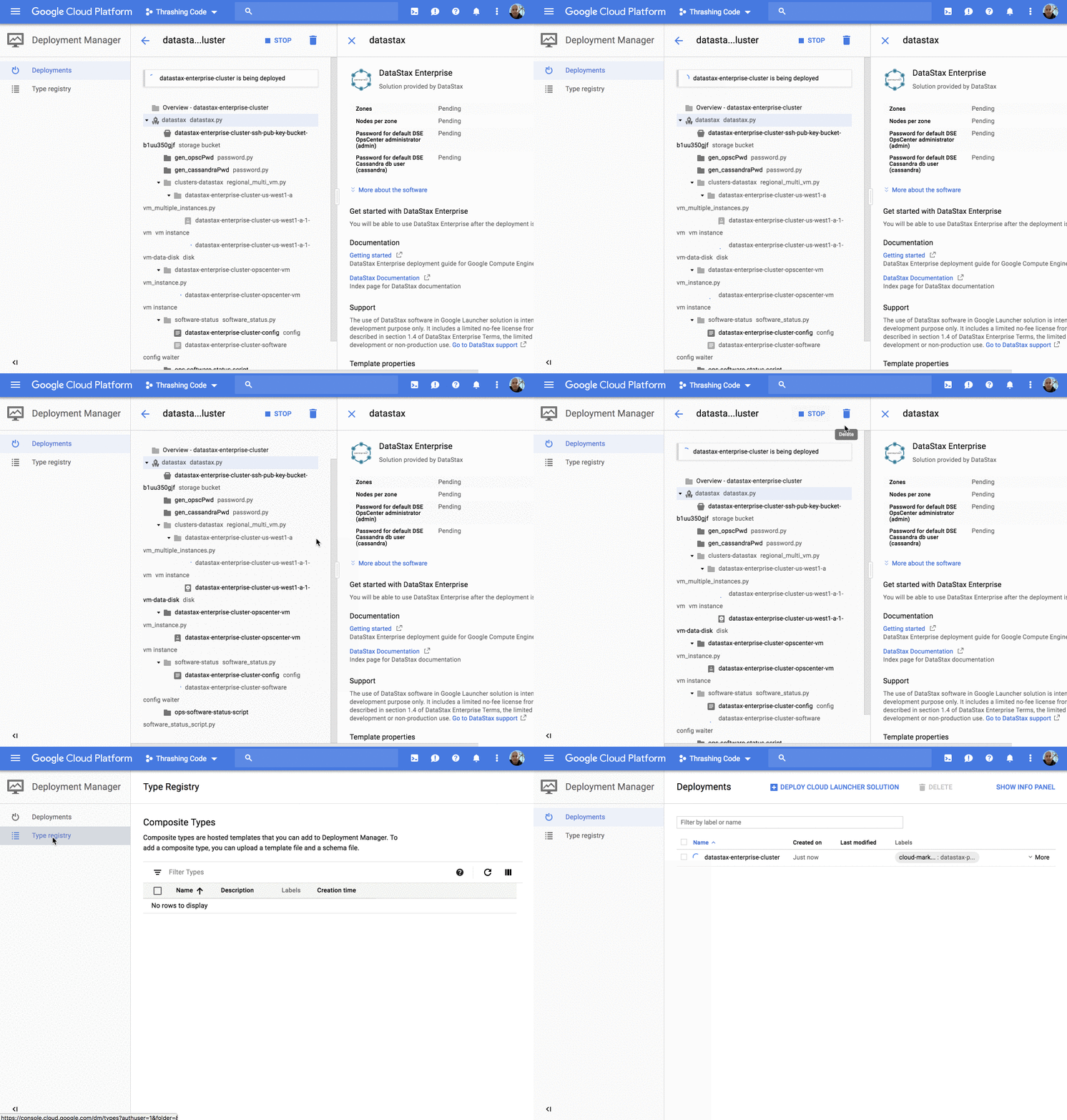
After clicking on create, the process begins building the cluster.

gcp-building-datastax-enterprise-cluster-deployment.gif

Then generally after a few minutes you have the cluster up and running. If you’ve left the check boxes for the regions available, it’s a multi-region cluster, and if you’ve selected multiple nodes per cluster that gives you a multi-cluster, multi-region deployment. Pretty sweet initial setup for just a few minutes and a few clicks.

Second Cluster Launch on Azure

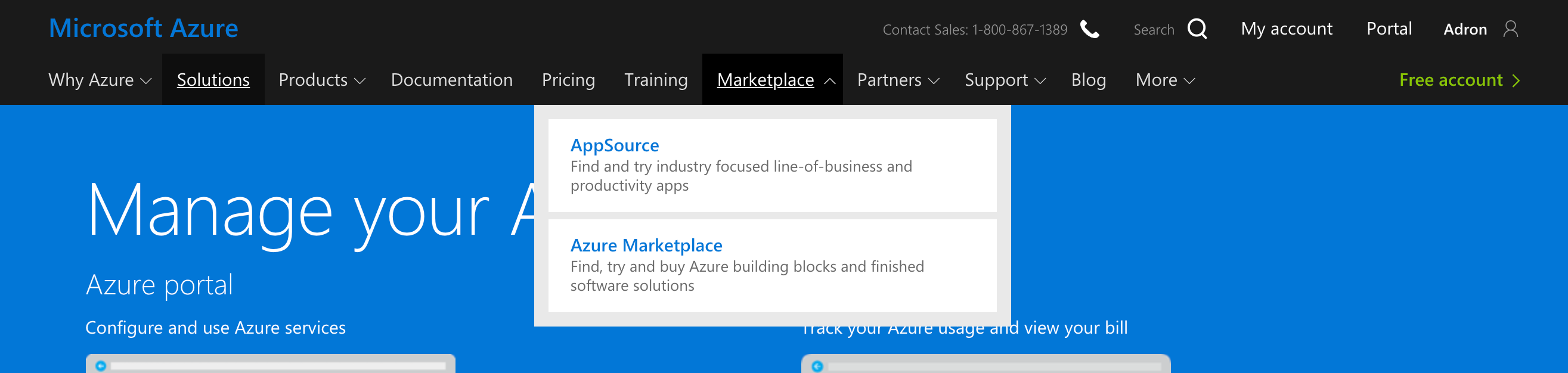
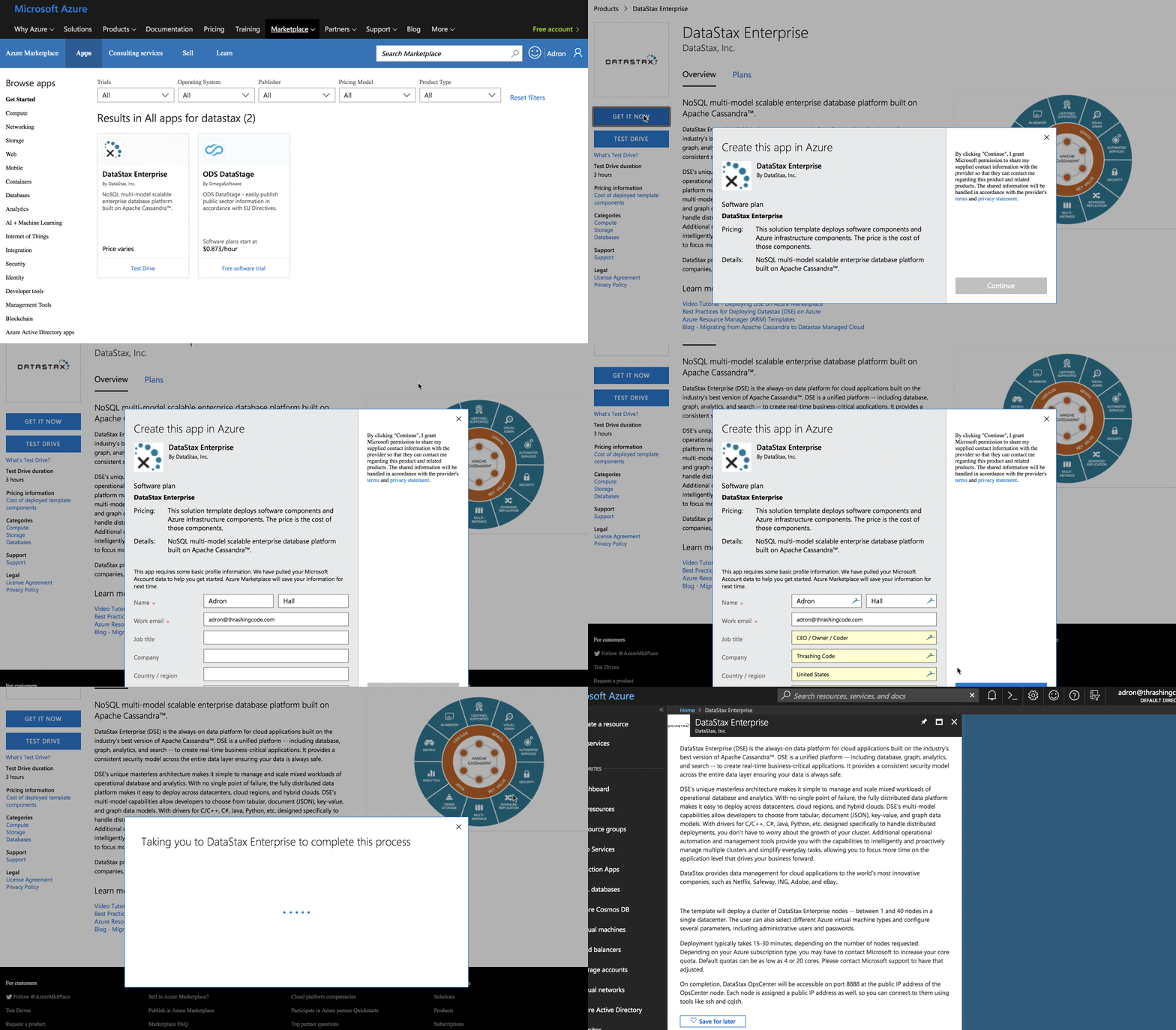
I wanted to check out what the marketplace offered in Azure too, so I opened up the interface and did a quick search for the marketplace. It’s up yonder in the top of the interface on the … not the console, but here.

azure-marketplace

Next we have to fill out a bunch of info per our business. In this case I just used the ole’ Thrashing Code for this particular deployment. This is the first create of the process.

dse1

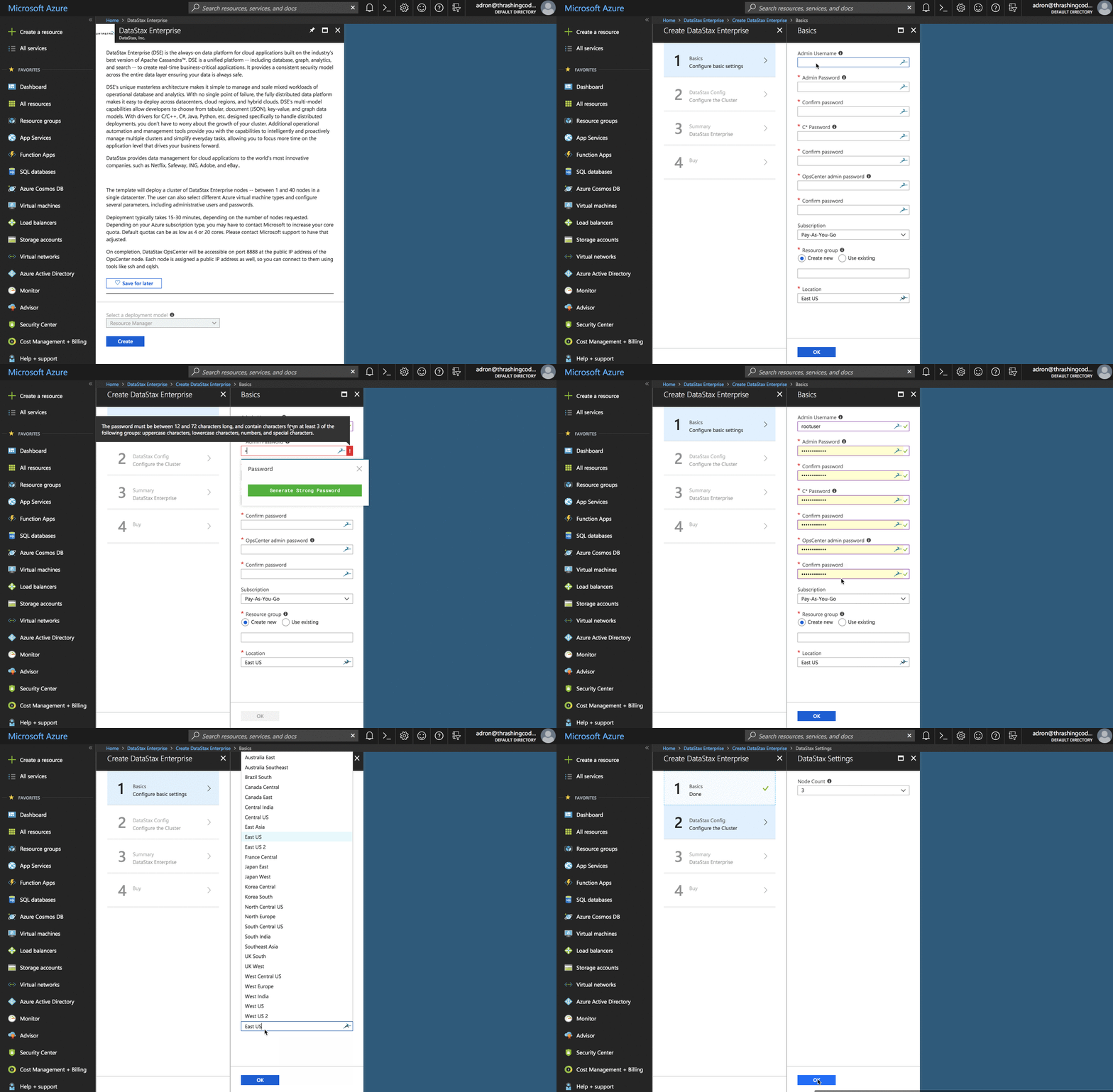
Then roll into that after it does the cross-auth of identity. Click create (this is the second create), and then some additional information around the C* auth password, admin username and password, and then choose the subscription model, name of cluster, and region.

dse2

After all that the cluster will be up and running. Now, I could get into adding another cloud option with AWS but I’ll leave that for another day. I’ve already got two cloud providers up and running so I’ll just stick to working with those for now.

So that is one of the quickest way to get a full fledged cluster running in Azure or GCP. In the next post I’ll show you the ways to get up and running locally with Docker and some the options, and the limitations of running a distributed systems locally. Beyond that, I’ll also be diving in deep into detailed installation and configuration of a Cassandra and DSE Cluster in the coming days. Including building out one with actual hardware – yup, on the metal – so subscribe for all the details. Cheers!