Home Depot Wrap Up and Job Talk

First, I will be available with a possible start date of November the 28th. I’m currently wrapping up some big projects and completing training for the Home Depot Team and the great progress we’ve made over the last year. If your company is looking for someone with my mixed array of technical skills and soft skills, you can check out my resume & details and initiate job talk with me here!

On to the rest of the news. If you’ve seen me speak lately I’ve mentioned the open source efforts we’ve had going on at Home Depot and related efforts I was working on. Some I’m working dilligently to release via the Home Depot OSS Organization on Github and I’ll still be releasing others soon via my Github account (@Adron) and blogging about it here on Composite Code.

Since this is one of those rare times in my career where I’m not 100% sold on what I’ll do next, I’m open to fielding prospects and seeing what is out there. This is a different approach for me, as I usually determine a company, particular work that needs done and go after that gap. But I’d like to get a feel for what companies feel they need at this particular time. Since I have a wide range of skills, I can step into a number of positions and immediately start to contribute to projects within a company.

Here are some positions I’d find attractive and could provide value for (or build) a team immediately!

Building or Expanding a Team

Need someone to hire, build, and create a cohesive, diverse, and powerful culture of core contributors (developers, designers, advocates, evangelists, or similar). I can knock this one out of the park for the right company. Yes, I’m a bit particular, but I’m not just going to whimsically work for any company (the best people won’t work for just any old company anyway). If you are looking to put a team together and want somebody that can do that for you, I’d like to sit down to a conversation soon. Let’s talk jobs.

Coding Architect

Have some architecture problems, that seem a bit unique or problematic? If you need someone to come in and push forward on design, patterns, practices, and actual implementation then this would also be a conversation I’d be interested in having. I’d be happy to dive into whatever the stack might be (or help decide on the stack): Java (Scala/Kotlin), Golang, Node.js or even .NET (C#/F#) for the right company. Let’s talk jobs.

Development & Operations Architect

Have some architecture that needs to go along with an application and want to build or insure a solid continuous integration and delivery pipeline (or messaging based queue for delivery to production)? This is another possibility I’d be happy to talk about. I really love working with systems to build out reliable immutable infrastructure, data storage mechanisms (distributed, RDBMS, whatever the need calls for) and insure development can continue forward with extremely high confidence levels. Let’s talk jobs.

Developer Advocate/OSS Project Lead

If you have an open source project I’d love to take lead on it and also provide advocacy for that project. This role is not to be confused with evangelist, as that’s a fine role for other people, but I want to be in the code and advocating from a position with the team. I’ve done this before with projects like the Iron Foundry for Cloud Foundry and others, and loved it. Let’s talk jobs.

Mergers & Acquisition Technical Evaluations

This is not something one sees everyday, but I’ve worked in a consulting role and have assisted others with this work before. I find it really interesting looking at prospective ROI, current run rates, but also at the specific details of whehter a product or service can even be incorporated and integrated into the acquiring company. In the case of merging, this differs from acquisition in that both entities and both companies’ products and services will both need to polymorph into a new whole. If you’re company is looking to get into some M & A’s, let’s talk about how I can help.

If any of these sound like a need you have, please reach out with additional information and I will be in contact ASAP.

Besides the above theoretical jobs above, here are a few other things that I would like in a job. Things that just make it all worthwhile, here’s a list.

Work Environ / Soft Skills / Culture

  • Flexible hours remote or remote (out of office). Whatever the case, I’d like to work with a company that has the ability and acumen to manage the workflow and efforts among team members remotely. If you’re a company that wants to upgrade the development and operational characteristics of the culture, I can also help your company incorporate highly effective remote capabilities.
Cascadia
  • If there is travel, I prefer to keep it to a productively effective 10-15% of the time. Traveling dramatically decreases overall ability to contribute to actual work in an effective way. I do love to travel, speak, and get involved with the worldwide community but I always like to make sure that this involvement doesn’t stymie me from contributing to actual coding, design, and related efforts. NOTE: If travel is within the Cascadian Bioregion (see image: includes YVR, PDX, SEA, etc) it’s easy to increase my travel to 15-25% of the time as travel within the region is so easy. I probably should include SFO too, it’s super easy to get there and doesn’t cause disruption to daily workflow. (i.e. < 2 hr trip)
  • Design, build, and communicate. These are the things I like to do. I like to create what will work for high volume or high speed systems, then build prototypes and communicate how these work. Maybe I would be the one deploying to production, maybe the system is production that I’m deploying, but whatever the case is I’m happy to lead efforts on architecture and work with teams to build that architecture.
  • I love to provide leadership for teams, I love to build teams, and I like working with teams. Albeit I’m particular about team diversity and culture, I can bring my own skills and the ability to bring people together on a team and expand teams. If the culture is off kilter, I can help with that. If the culture is spot on, I can work effectively with that. Whatever the case, I’m a high communication, GSD type of guy provided the right environment and reigns removed.
Google Cloud Platform

Technical Skills

  • I’ve found Google Cloud Platform (GCP) a pleasure to work with lately. That combined with Terraform, Packer, and related HashiCorp tooling has been a lot of fun and provided an extremely high value for us at Home Depot.
HashiCorp
  • AWS has been another I’ve worked with that has been of stellar value, not particularly at Home Depot but at multitudes of startups and during consulting. AWS is still for many things my go to cloud provider option.
  • Azure is another I’ve used that would be an interesting service to use again. It’s been well over 2 years since I worked with or provided Azure support or consulting. I’ve got a soft spot in my heart for this cloud provider since I led teams back in 2010 writing some of the first white papers for the service!
  • I’m comfortable with C#, JavaScript, Java (mostly), and am looking forward to writing more Golang and happily will dive into Scala, Erlang, F#, and a whole host of other languages.
  • I’m happy to work with container tech (Rocket/CoreOS) or Docker and I’ll also help keep your company grounded that it might not be the panacea you’re looking for. But they definitely have lots of awesome uses!
  • I’d prefer a Unix/Linux environment to work in, but I’ll happily help remove Windows Servers from deployment requirements! 😉

Contact me or let’s talk jobs, cheers!

Nagios on Ubuntu 14.04 LTS Setup and Configuration

1st – The Virtual Machine

First I created a virtual machine for use with VMware Fusion on OS-X. Once I got a nice clean Ubuntu 14.04 image setup I installed SSH on it so I could manage it as if it were a headless (i.e. no monitor attached) machine (instructions).

In addition to installing openssh, these steps also include build-essential, make, and gcc along with instructions for, but don’t worry about installing VMware Tools. The instructions are cumbersome and in parts just wrong, so skip that. The virtual machine is up and running with ssh and a good C compiler at this point, so we’re all set.

2nd – The LAMP Stack

shell-script sudo apt-get install apache2

Once installed the default page will be available on the server, so navigate over to 192.168.x.x and view the page to insure it is up and running.

lampsetup

Next install mysql and php5 mysql.

sudo apt-get install mysql-server php5-mysql

During this installation you will be prompted for the mysql root account password. It is advisable to set one.

Then you will be asked to enter the password (the one you just set about 2 seconds ago) for the MySQL root account. Next, it will ask you if you want to change that password. Select ‘n’ so as not to create another password for the root acount since you’ve already created the password just a few seconds before.

For the rest of the questions, you should simply hit the enter key for each prompt. This will accept the default values. This will remove some sample users and databases, disable remote root logins, and load these new rules so that MySQL immediately respects the changes we have made.

Next up is to install PHP. No grumbling, just install PHP.

sudo apt-get install php5 libapache2-mod-php5 php5-mcrypt

Next let’s open up dir.conf and change a small section to change what files apache will provide upon request. Here’s what the edit should look like.

Open up the file to edit. (in vi, to insert or edit, hit the ‘i’ button. To save hit escape and ‘:w’ and to exit vi after saving it escape and then ‘:q’. To force exit without saving hit escape and ‘:q!’)

sudo vi /etc/apache2/mods-enabled/dir.conf

This is what the file will likely look like once opened.

<IfModule mod_dir.c>
DirectoryIndex index.html index.cgi index.pl index.php index.xhtml index.htm
</IfModule>

Move the index.php file to the beginning of the DirectoryIndex list.

<IfModule mod_dir.c>
DirectoryIndex index.php index.html index.cgi index.pl index.xhtml index.htm
</IfModule>

Now restart apache so the changes will take effect.

sudo service apache2 restart

Next let’s setup some public key for authentication. On your local box complete the following.

ssh-keygen

If you don’t enter a passphrase, you will be able to use the private key for auth without entering a passphrase. If you’ve entered one, you’ll need it and the private key to log in. Securing your keys with passphrases is more secure, but either way the system is more secure this way then with basic password authentication. For this particular situation, I’m skipping the passphrase.

What is generated is id_rsa, the private key and the id_rsa.pub the public key. They’re put in a directory called .ssh of the local user.

At this point copy the public key to the remote server. On OS-X grab the easy to use ssh-copy-id script with this command.

brew install ssh-copy-id

or

curl -L https://raw.githubusercontent.com/beautifulcode/ssh-copy-id-for-OSX/master/install.sh | sh

Then use the script to copy the ssh key to the server.

ssh-copy-id adron@192.168.x.x

Next let’s setup some public key for authentication. On your local box complete the following.

ssh-keygen

That should give you the ability to log into the machine without a password everytime. Give it a try.

Ok, so now on to the meat of this entry, Nagios itself.

Nagios Installation

Create a user and group that will be used to run the Nagios process.

sudo useradd nagios
sudo groupadd nagcmd
sudo usermod -a -G nagcmd nagios

Install these other essentials.

sudo apt-get install libgd2-xpm-dev openssl libssl-dev xinetd apache2-utils unzip

Download the source and extract it, then change into the directory.

curl -L -O https://assets.nagios.com/downloads/nagioscore/releases/nagios-4.1.1.tar.gz
tar xvf nagios-*.tar.gz
cd nagios-*

Next run the command to configure Nagios with the appropriate user and group.

./configure --with-nagios-group=nagios --with-command-group=nagcmd

When the configuration is done you’ll see a display like this.

Creating sample config files in sample-config/ ...

*** Configuration summary for nagios 4.1.1 08-19-2015 ***:

General Options:
-------------------------
Nagios executable: nagios
Nagios user/group: nagios,nagios
Command user/group: nagios,nagcmd
Event Broker: yes
Install ${prefix}: /usr/local/nagios
Install ${includedir}: /usr/local/nagios/include/nagios
Lock file: ${prefix}/var/nagios.lock
Check result directory: ${prefix}/var/spool/checkresults
Init directory: /etc/init.d
Apache conf.d directory: /etc/httpd/conf.d
Mail program: /bin/mail
Host OS: linux-gnu
IOBroker Method: epoll

Web Interface Options:
------------------------
HTML URL: http://localhost/nagios/
CGI URL: http://localhost/nagios/cgi-bin/
Traceroute (used by WAP):

Review the options above for accuracy. If they look okay,
type 'make all' to compile the main program and CGIs.

Now run the following make commands. First run make all as shown.

make all

Once that runs the following will be displayed upon success. I’ve included it here as there are a few useful commands in it.

*** Compile finished ***

If the main program and CGIs compiled without any errors, you
can continue with installing Nagios as follows (type 'make'
without any arguments for a list of all possible options):

make install
- This installs the main program, CGIs, and HTML files

make install-init
- This installs the init script in /etc/init.d

make install-commandmode
- This installs and configures permissions on the
directory for holding the external command file

make install-config
- This installs *SAMPLE* config files in /usr/local/nagios/etc
You'll have to modify these sample files before you can
use Nagios. Read the HTML documentation for more info
on doing this. Pay particular attention to the docs on
object configuration files, as they determine what/how
things get monitored!

make install-webconf
- This installs the Apache config file for the Nagios
web interface

make install-exfoliation
- This installs the Exfoliation theme for the Nagios
web interface

make install-classicui
- This installs the classic theme for the Nagios
web interface

*** Support Notes *******************************************

If you have questions about configuring or running Nagios,
please make sure that you:

- Look at the sample config files
- Read the documentation on the Nagios Library at:
https://library.nagios.com

before you post a question to one of the mailing lists.
Also make sure to include pertinent information that could
help others help you. This might include:

- What version of Nagios you are using
- What version of the plugins you are using
- Relevant snippets from your config files
- Relevant error messages from the Nagios log file

For more information on obtaining support for Nagios, visit:

https://support.nagios.com

*************************************************************

Enjoy.

After that successfully finishes, then execute the following.

sudo make install
sudo make install-commandmode
sudo make install-init
sudo make install-config
sudo /usr/bin/install -c -m 644 sample-config/httpd.conf /etc/apache2/sites-available/nagios.conf

Now some tinkering to setup the web server user in www-data and nagcmd group.

sudo usermod -G nagcmd www-data

Now some Nagios plugins. You can find the plugins listed for download here: http://nagios-plugins.org/download/ The following are based on the 2.1.1 release of plugins.

Change back out to the user directory on the server and download, tar, and change into the newly unzipped files.

cd ~
curl -L -O http://nagios-plugins.org/download/nagios-plugins-2.1.1.tar.gz
tar xvf nagios-plugins-*.tar.gz
cd nagios-plugins-*
./configure --with-nagios-user=nagios --with-nagios-group=nagios --with-openssl

Now for some ole compilation magic.

make
sudo make install

Now pretty much the same things for NRPE. Look here to insure that 2.15 is the latest version.

cd ~
curl -L -O http://downloads.sourceforge.net/project/nagios/nrpe-2.x/nrpe-2.15/nrpe-2.15.tar.gz
tar xvf nrpe-*.tar.gz
cd nrpe-*

Then configure the NRPE bits.

./configure --enable-command-args --with-nagios-user=nagios --with-nagios-group=nagios --with-ssl=/usr/bin/openssl --with-ssl-lib=/usr/lib/x86_64-linux-gnu

Then get to making it all.

make all
sudo make install
sudo make install-xinetd
sudo make install-daemon-config

Then a little file editing.

sudo vi /etc/xinetd.d/nrpe

Edit the file for the line only_from to include the following where 192.x.x.x is the IP of the Nagios Server.

only_from = 127.0.0.1 192.x.x.x

Save the file, and restart the Nagios server service.

sudo service xinetd restart

Now begins the Nagios Server configuration. Edit the Nagios configuration file.

sudo vi /usr/local/nagios/etc/nagios.cfg

Find this line and uncomment the line.

#cfg_dir=/usr/local/nagios/etc/servers

Save it and exit.

Next creat the configuration file for the servers to monitor.

sudo mkdir /usr/local/nagios/etc/servers

Next configure the contacts config file.

sudo vi /usr/local/nagios/etc/objects/contacts.cfg

Fine this line and set the email address to one you’ll be using.

email adronsemail@compositecode.com

Now add a Nagios service definition for the check_nrpe command.

sudo vi /usr/local/nagios/etc/objects/commands.cfg

Add this to the end of the file.

define command{
command_name check_nrpe
command_line $USER1$/check_nrpe -H $HOSTADDRESS$ -c $ARG1$
}

Save and exit the file.

Now a few last touches for configuration in Apache. We’ll want the Apache rewrite and cgi modules enabled.

sudo a2enmod rewrite
sudo a2enmod cgi

Now create an admin user, we’ll call them ‘nagiosadmin’.

sudo htpasswd -c /usr/local/nagios/etc/htpasswd.users nagiosadmin

Create a symbolic link of nagios.conf to the sites-enabled directory and then start the Nagios server and restart apache2.

sudo ln -s /etc/apache2/sites-available/nagios.conf /etc/apache2/sites-enabled/
sudo service nagios start
sudo service apache2 restart

Enable Nagios to start on server boot (because, ya know, that’s what this server is going to be used for).

sudo ln -s /etc/init.d/nagios /etc/rcS.d/S99nagios

Now navigate to the server and you’ll be prompted to login to the web user interface.

nagioslogin

Now begins the process of setting up servers you want to monitor… stay tuned, more to come.

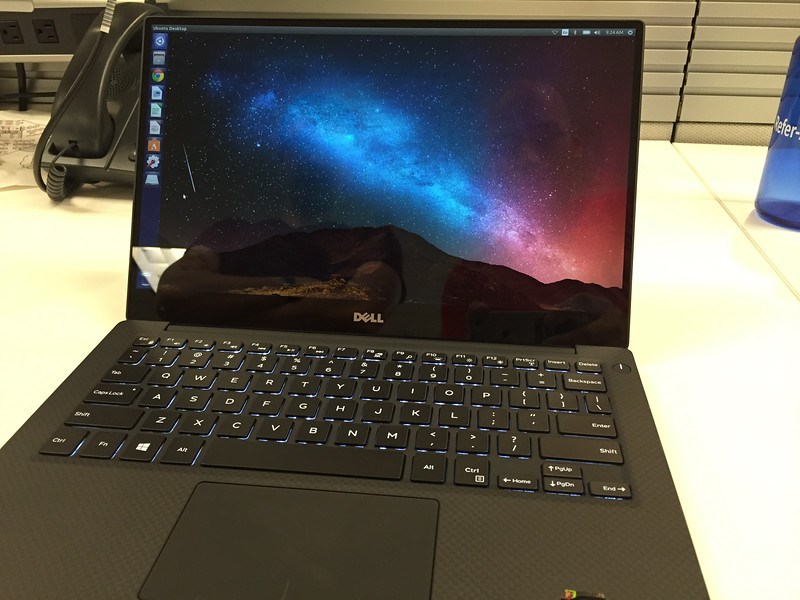
The Latest 5th Generation Dell XPS 13 Developer Edition

Just about 4 weeks ago now I purchased a Dell XPS 13 Developer Edition directly from Dell. The reason I purchased this laptop is because of two needs I have while traveling and writing code.

  1. I wanted something smallcompact, that had reasonable power, and…
  2. It needed to run Linux (likely Ubuntu, but I’d have taken whatever) from the factory and have active support.

Here’s my experience with this machine so far. There are lots of good things, and some really lousy things about this laptop. This is the lowdown on all the plusses and minuses. But before I dive into the plusses and minuses, it is important to understand more of the context in which I’m doing this review.

  • Dell didn’t send me a free laptop. I paid $1869 for the laptop. Nobody has paid me to review this laptop. I purchased it and am reviewing it purely out of my own interest.
  • The XPS 13 Developer Edition that I have has 8GB RAM512 GB SSD, and the stunningly beautiful 13.3-inch UltraSharp™ QHD+ (3200 x 1800) InfinityEdge Touch Display.
  • Exterior Chassis Materials -> CNC machined aluminum w/ Edge-to-edge Corning® Gorilla® Glass NBT™ on QHD+ w/ Carbon fiber composite palm rest with soft touch paint.
  • Keyboard -> Full size, backlit chiclet keyboard; 1.3mm travel
  • Touchpad -> Precision touchpad, seamless glass integrated button

Negatives

The Freakin’ Keyboard and Trackpad

Let’s talk about the negatives first. This way, if you’re looking into purchasing, this will be a faster way to go through the decision tree. The first and the LARGEST negative is the keyboard. Let’s just talk about the keyboard for a moment. When I first tweeted about this laptop, one of the first responses I got in relation to this machine was a complaint – and a legitimate one at that – is the blasted keyboard.

There are plenty of complaints and issues listed herehere, and here via the Dell Support site. Twitter is flowing with such too about the keyboard. To summarise, the keyboard sticks. The trackpad, by association, also has some sticky behavior.

Now I’m going to say something that I’m sure some might fuss and hem and haw about. I don’t find the keyboard all that bad, considering it’s not an Apple chiclet keyboard and Apple trackpad, which basically make everything else on the market seem unresponsive and unable to deal with tactile response in a precise way. In that sense, the Dell keyboard is fine. I just have to be precise and understand how it behaves. So far, that seems to resolve the issue for me, same for the trackpad related issues. But if you’re someone who doesn’t type with distinct precision – just forget this laptop right now. It’s not even worth the effort. However, if you are precise, read on.

The Sleeping Issue

When I first received the laptop several weeks ago it had a sleeping issue. Approximately 1 out of every 3-5 times I’d put the computer to sleep it wouldn’t resume from sleep appropriately. It would either hang or not resume. This problem however, has a pretty clean fix available here.

Not Performant

Ok, so it has 8GB RAM, and SSD, and an i7 Proc. However it does not perform better than my 2 year old Mac Book Air (i7, 8 GB RAM, 256 GB SSD). It’s horribly slow compared to my 15” Retina w/ 16GB RAM and i7 Proc. Matter of fact, it doesn’t measure up well against any of these Apple machines. Linux however has a dramatically smaller footprint and generally performs a lot of tasks as well or better than OS-X.

When I loaded Steam and tried a few games out, the machine wasn’t even as performant as my Dell 17” from 2006. That’s right, I didn’t mistype that, my Dell from 2006. So WTF you might ask – I can only guess that it’s the embedded video card and shared video card memory or something. I’m still trying to figure out what the deal is with some of these performance issues.

However… on to the positives. Because there is also positives about the performance it does have.

Positives

The Packaging

Well the first thing you’ll notice, that I found to be a positive, albeit an insignificant one but it did make for a nice first experience is the packaging. Dell has really upped their game in this regard, instead of being the low-end game, Dell seems to have gotten some style and design put together for the packaging.

01

The box was smooth, and seamless in most ways. Giving a very elegant feel. When I opened up the box the entire laptop was in the cut plastic wrap to protect all the surfaces.

02

03

Removing the cut plastic is easy enough. It is held together with just some simple stickiness (some type of clean glue).

04

Once off the glimmer of the machine starts to really show. The aluminum surface material is really really nice.

05

The beauty of an untainted machine running Ubuntu Linux. Check out that slick carbon fiber mesh too.

06

Here it is opened and unwrapped, not turned on yet and the glimmer of that glossy screen can be seen already.

07

Here’s a side by side comparison of the screens for the glossy hi res screen against the flat standard res screen. Both are absolutely gorgeous screens, regardless of which you get.

08

Booting up you can see the glimmer on my XPS 13.

09

The Screen

The screen, even during simple bootup and first configuration of Ubuntu like this it is evident that the screen is stunning. The retina quality screen on such a small form factor is worth the laptop alone. The working resolution is 1920×1080, but of course the real resolution is 3200×1800. Now, if you want, you could run things at this resolution at your own risk to blindness and eye strain, but it is possible.

The crispness of this screen is easily one of the best on the market today and rivals that of the retina screens on any of the 13” or 15” Apple machines. The other aspect of the screen, which isn’t super relevant when suing Ubuntu is that it is touch enabled. So you can poke things and certain things will happen, albeit Ubuntu isn’t exactly configured for touch display. In the end, it’s basically irrelevant that it is a touch screen too, except in the impressive idea that they got a touch screen of this depth on such a small machine!

10

Here’s a little more of the glimmer, as I download the necessary things to do some F# builds.

Setting up F#

Performance and Boot Time

Boot time is decent. I’m not going to go into the seconds it takes but it’s quick. Also when you get the update for sleep, that’s really quick too. So no issue there at all.

On the performance front, as I mentioned in the negatives there are some issues with performance. However, for many – if not most – everyday developer tasks like building C#, F#, C++, C, Java, and a host of other languages the machine is actually fairly performant.

In doing other tasks around Ruby, PHP (yes, I wrote a little bit of PHP just to check it out, but I did it safely and deleted it afterwards), JavaScript, Node.js, and related web tasks were also very smooth, quick, and performant. I installed Atom, Sublime 3, WebStorm, and Visual Studio Code and tried these out for most of the above web development. Everything loads really fast on the machine and after a few loads they even get more responsive, especially WebStorm since it seems to load Java plus the universe.

Overall, if you do web development or some pretty standard compilable code work then you’ll be all set with this machine. I’ve been very happy with it’s performance in these areas, just don’t expect to play any cool games with the machine.

Weight and Size

I’ll kick this positive feature off with some addition photos of the laptop compared to a Mac Book Pro 15” Retina and a Apple Air 13”.

First the 13” Air.

12

13

No the Mac Book Pro 15” Retina

14

…and then on top of the Mac Air 13”.

15

16

Of course there are smaller Mac Book Pros and Mac Book Air Laptops, but these are the two I had on hand (and still use regularly) to do a quick comparison with. The 13” Dell is considerably smaller in overall footprint and is as light or lighter than both of these laptops. The XPS makes for a great laptop for carrying around all the time, and really not even noticing its presence.

Battery Life

The new XPS 13 battery life, with Ubuntu, is a solid 6-12 hours depending on activity. I mention Ubuntu, because as anybody knows the Linux options on conserving battery life are a bit awkward. Namely, they don’t always do so well. But with managing the screen lighting, back light, and resource intensive applications it would be possible to even exceed the 12 hour lifespan of the batter with Ubuntu. I expect with Windows the lifespan is probably 10-15% better than under Ubuntu. That is, without any tweaks or manual management of Ubuntu.

So if you’re looking for a long batter life, and Apple options aren’t on the table, this is definitely a great option for working long hours without needing to be plugged in.

Summary

beer

Overall, a spectacular laptop in MOST ways. However that keyboard is a serious problem for most people. I can imagine most people will NOT want to deal with the keyboard. I’m ok with it, but I don’t mind typing with hands up and off the resting points on the laptop. If Dell can fix this I’d give it a 100% buy suggestion, but with the keyboard as buggy and flaky as it is, I give the laptop at 60% buy suggestion. If you’re looking for a machine with Ubuntu out of the box, I’d probably aim for a Lenovo until Dell fixes the keyboard situation. Then I’d even suggest this machine over the Lenovo options.

…and among all things, I’d still suggest running Linux on a MBA or MBP over any of these – the machines are just more solid in manufacturing quality, durability, and the tech (i.e. battery, screen, etc) are still tops in many ways. But if you don’t want to feed the Apple Nation’s Piggy Bank, dump them and go with this Dell or maybe a Lenovo option.

Happy hacking and cheers!

Docker Course, Ubuntu, WordPress, Angular.js, Notes, Rich Hickey, Datomic…

Updates, updates, updates…

Docker Course @ Pluralsight

I added a new course on Docker to my Pluralsight list of courses today. This joins my one other course on Riak, which I’m aiming to have more added to that list in the future! Check those out and let me know what you think, how I could improve, what I did right and what you learned (or already knew). I’d greatly appreciate it!

Rich Hickey, Datomic, Clojure, Angular.js and Notes

I started a section on the blog here for notes on topics I’m studying. The first two I’ve hit on are Angular.js and Rich Hickey, Clojure and Hammock Driven Development. I’ll be adding to these over time and will likely report whenever I add good chunks of info or helpful tutorials, how-to docs or just whatever I deem worth mentioning. Simply put I won’t broadcast it much, unless I add some real goodies that are worth it.  😉

Ubuntu & WordPress

I needed a kind of WordPress Workstation to hack around testing some WordPress so I put together quick notes on the fastest and cleanest way to setup a WordPress VM from scratch.

Until later, happy coding, have a metal \m/ \m/ Friday!

Getting Docker Installed on Ubuntu 12.04 LTS

A few days ago I posted the blog entry “Using SSH Locally to Work With Ubuntu VM + VMware Tools Installation via Shell“, it was related to getting a clean Ubuntu Server install running with VMware Tools and so that I could use it as a hosted instance. Simply put, being able to SSH into it just as I would a hosted AWS or Windows Azure Ubuntu Server image. Once I had the default virtual machine running 12.04 LTS I went about another installation that is needed to run Docker. Docker will have issues with anything pre-3.8 kernel. Running the command below will show that kernel 3.5 is the current kernel in 12.04 LTS.

[sourcecode language=”bash”]
apt-cache search linux-headers-$(uname -r)
[/sourcecode]

To update to the 3.8 kernel I ran the following command and then rebooted.

[sourcecode language=”bash”]
sudo apt-get install linux-image-generic-lts-raring linux-headers-generic-lts-raring
sudo shutdown -r now
[/sourcecode]

With the reboot complete, I checked the kernel version again and 3.8 was installed successfully.

[sourcecode language=”bash”]
@ubuntu:~$ apt-cache search linux-headers-$(uname -r)
linux-headers-3.8.0-33-generic – Linux kernel headers for version 3.8.0 on 64 bit x86 SMP
[/sourcecode]

To get Docker installed (as of 0.6) run the following command.

[sourcecode language=”bash”]
sudo sh -c "wget -qO- https://get.docker.io/gpg | apt-key add -"
sudo sh -c "echo deb http://get.docker.io/ubuntu docker main\
> /etc/apt/sources.list.d/docker.list"
[/sourcecode]

Next update the sources, then install lxc-docker.

[sourcecode language=”bash”]
sudo apt-get update
sudo apt-get install lxc-docker
[/sourcecode]

To verify that docker is installed I executed the following command and…

[sourcecode language=”bash”]
sudo docker run -i -t ubuntu /bin/bash
[/sourcecode]

…see similar results just after issuing the command.

[sourcecode language=”bash”]
Unable to find image ‘ubuntu’ (tag: latest) locally
Pulling repository ubuntu
8dbd9e392a96: Download complete
b750fe79269d: Download complete
27cf78414709: Download complete
[/sourcecode]

After that displays then I typed exit to leave docker. I now have a running version of docker on the Ubuntu 12.04 LTS instance ready for testing and hacking with docker.