Speaking Trips, Tech, and Treks

Original Content Post: http://blog.adron.me/articles/speaking-trips-tech-and-treks/

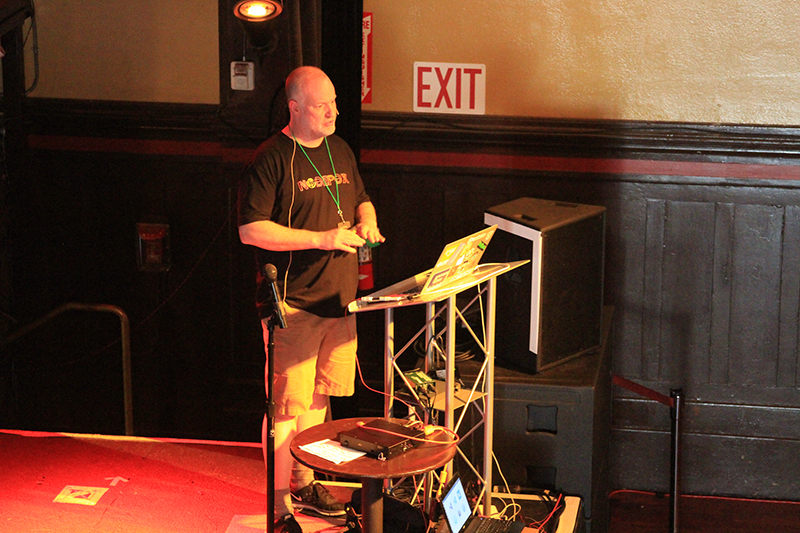
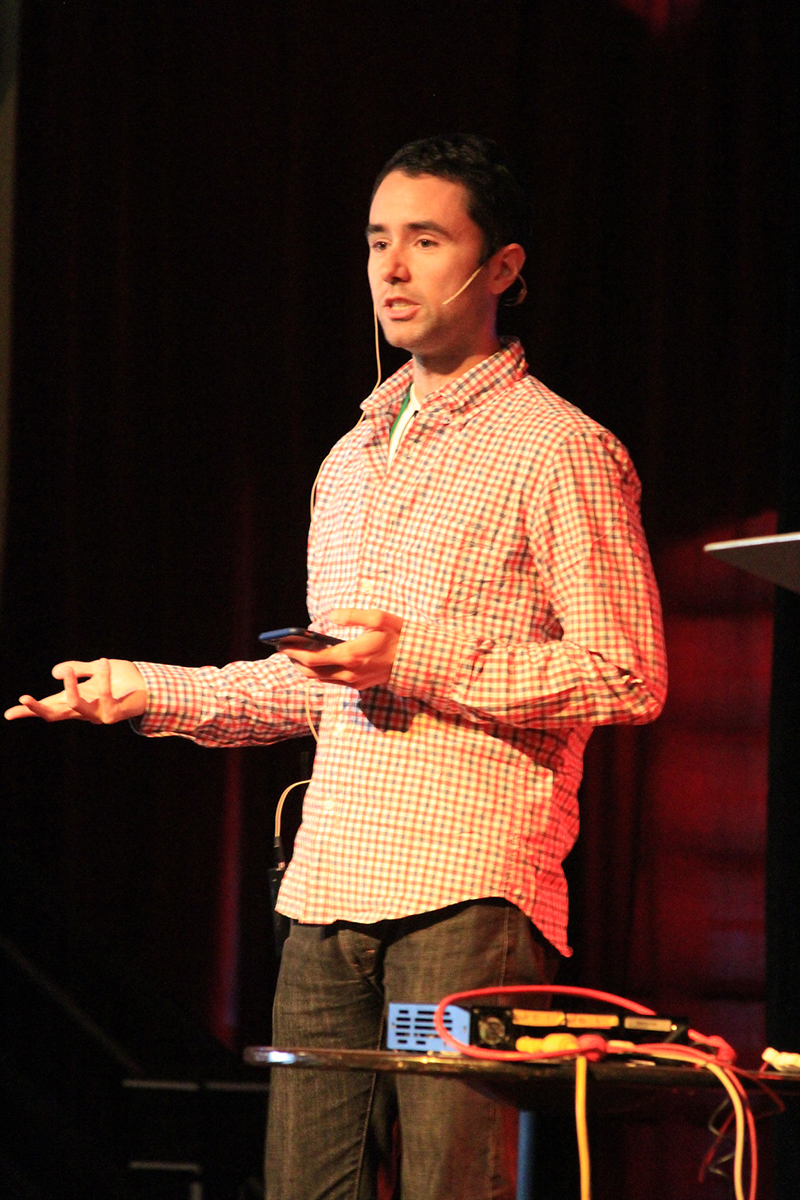
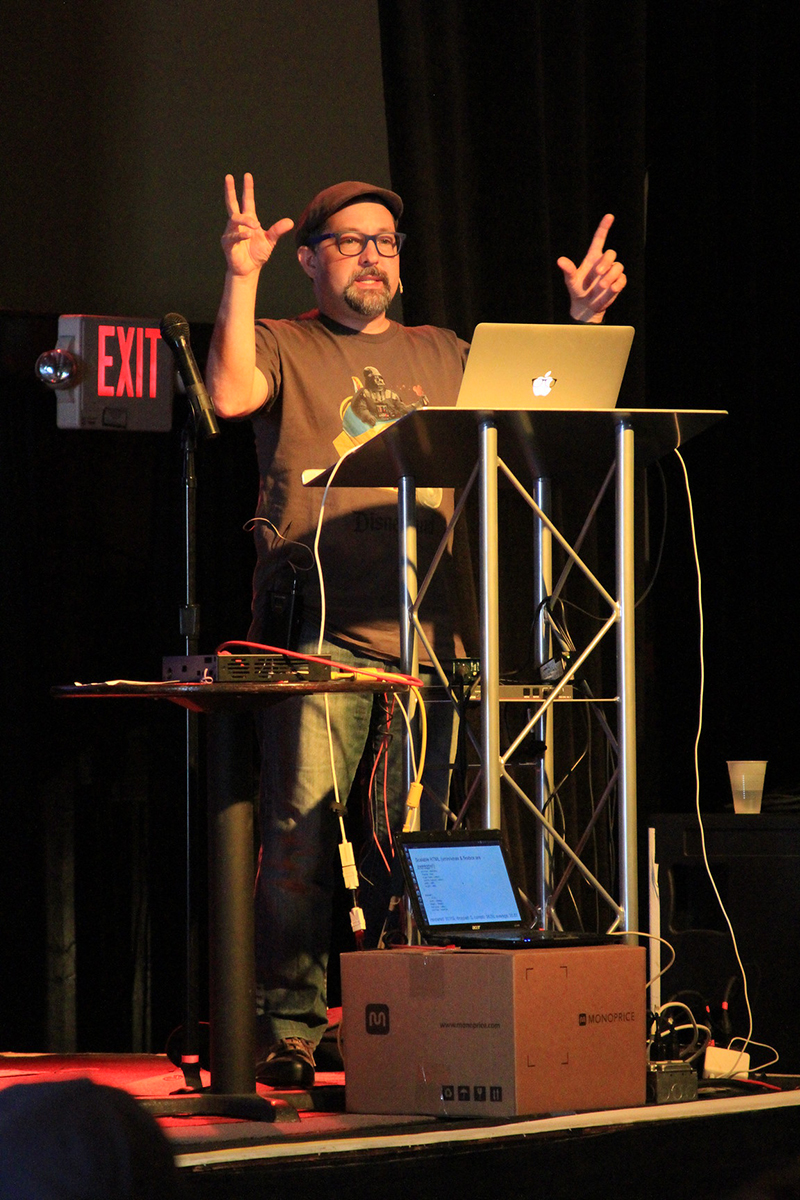
I’ll be off on some coding adventures in the coming months. I also hope to catch up with a lot of people and their respective projects, learn a few things, and if it’s possible maybe teach a few people a thing or three about immutable infrastructure, lessons I’ve learned, and how to avoid infrastructure catastrophes while building the next bad ass awesome application. This blog entry is about the details of my logistics, and I’ll follow up with more details of the coding adventure along the way. For now: details, details, and details.

takes place in London October 19–21, 2016 and San Francisco November 14–16, 2016

Moving Enterprise Practices and Development to Open Source

in London

In this talk I’ll tell the story of our efforts at Home Depot, and provide bullet points and suggestions for helping you to acheive the move to open source practices in your enterprise. The benefits are huge, and overall it’s a lot more fun to boot!

Key Points:

  • Steps we took to get into the open.
  • Practices to take up and start using.
  • Things to avoid when moving to open source models.
  • How to make the most of things for the community and the enterprise.
  • Tooling, interoperability, services, and how to get it done.

Building Immutably to Continuous Delivery with Minimal Inputs

in London and in San Francisco

Official Talk URI:

My Talk URI:

Prerequisite knowledge

Basic understanding of web applications, architecture & design, and basic knowledge of windows & linux server systems.

Materials or downloads needed in advance

Github Account, AWS (or GCE, Azure, etc) Account, and CodeShip Account. Also a computer with OS-X, Windows, or Linux loaded with Node.js is also required.

This workshop focuses on building a continuously delivered pipeline using Node.js (however easily transferable to Ruby/Rails/Java/Scala/.NET etc.). The workshop will trace the steps from inception to deployed application (with a domain pointed appropriately and all) that can then be developed against to continue whatever effort and intent of the developer(s)!

Key Points:

  • The parts: Application, Domain Name, Infrastructure, Integration, & Delivery
  • Build an Application: Steps for building & actually building a simple Node.js Application to deploy.
  • Getting a domain name, determining name servers & DNS servers, setting it up and getting it pointed at our application.
  • Setting up and determining the deployment scenario on AWS & discussion of other infrastructure choices.
  • Deploying the application through the complete process of code, integrate, test, build, deploy.

Organizing Infrastructure Config & Workflow

September 7–8, 2016 @ Napa Valley, California

I’m super stoked about this talk, as I’m getting to co-present with Evan Brown. Evan’s a friend of mine since I met him a whiel back while he worked at AWS, however he’s now a Senior Software Engineer at Google. We’re going to tag team style this talk to bring you as much information as we can about organzing your infrastructure configuration and workflow.

My abstract for this talk goes something like this, “When starting with the various products Terraform, Packer, Vagrant, and others, it isn’t always apparent where and in what way one should organize the actual project. In this talk I’d like to delve into what I’ve done to organize solutions for development, production, and related pipelines. I’ll talk from my point of view and what I’ve seen others do to keep their workloads organized and their infrastructure and application pipelines clean and well organized.“

Original Content Post: http://blog.adron.me/articles/speaking-trips-tech-and-treks/

Startup Things – How Ya Linux Series – 0000

When Linux starts up (or most Unix variants or OS-X for that matter, which is after all a kind of Unix variant) there are particular scrips that execute. The key two are ~/.bash_profile and ~./bashrc. When you log in the ~/.bash_profile executes and when you startup a shell then the ~/.bashrc executes.

These two files are standard executable script files, so any bash will do. For instance, some of the bash script I end up in my ~/.bash_profile includes a git prompt, as shown below.

if [ -f "$(brew --prefix)/opt/bash-git-prompt/share/gitprompt.sh" ]; then
    source "$(brew --prefix)/opt/bash-git-prompt/share/gitprompt.sh"
fi

Another few lines of code actually load my nvm, which is my Node.js Version Manager.

export NVM_DIR="/Users/axh6454/.nvm"
[ -s "$NVM_DIR/nvm.sh" ] && . "$NVM_DIR/nvm.sh"  # This loads nvm

I also have a few functions I’ve created, that load and are ready for my use at any location I open the terminal at.

gimmedocker() { if [ $1 ]; then
    docker-machine start $1
    docker-machine env $1
    eval $(docker-machine env $1)
    docker ps -a
fi };

cleandocker() {
    # Wipe out the images and containers.
    docker rm $(docker ps -a -q)
    docker rmi $(docker images -q)
};

The first function executes simply by entering gimme docker nameOfDockerVirtualMachineImage. It then checks for the virtual machine image parameter (the $1) and then executes various docker-machine commands against that image. Then ends with the evaluation and execution of the docker machine terminal connection.

The second function deletes my docker containers and then deletes my images. This way I can start fresh without deleting an entire docker virtual machine (sometimes the later may actually be easier). It’s a quick way to start fresh with docker images and containers when working through a lot of minor changes.

The last thing I’ll cover real quick that is commonly located in these startup scripts are some environment variables being set. For instance, I use Terraform to build out infrastructure. For that, sometimes I setup some Terraform variables, that are built to work specifically when prefaced with TFVAR. So my variables look something like this when set in script.

export TF_VAR_username="root"
export TF_VAR_password="someSecretPassword"

So that’s some examples and the basic gist of things you might see, and what you might want to run with your ~/.bash_profile or ~/.bashrc files. Happy bash hacking!

All That Tech SitRep – Elastic Meetup and Quote Center Updates

qcI started working with the Quote Center (QC) back in November, and wrote about it in “After 816 Days I’m Taking a Job!” Now that I’m a few months into the effort, it’s sitrep time. Sitrep, btw is military speak for

S ituational R eport.

The three core priorities I have at Quote Center in my role are: Community Contributions, Site Reliability, and Talent Recon.

Community Contributions (and Organizing)

Some of the progress I’ve made, is direct and immediate involvement with some really interesting groups here in Portland. The first seemed a prime option, and that’s the Elastic User Group.

Myself and some of the QC Team traveled late last year to check out the Elasticon Tour stop in Seattle. It was an educational experience where I got some of my first introductions to Elasticsearch and also a new product Elastic had just released recently called Beats. I was fairly impressed by what I saw and several other things aligned perfectly for follow up community involvement after that.

I’ve since kept in touch with the Elastic Team and started coordinating the Elastic User Group in Portland (Join the group on Meetup for future meetings & content). In March the group will be hosting a great meetup from Ward & Jason…

http://www.meetup.com/The-Portland-ElasticSearch-Meetup-Group/events/228064228/

So be sure to RSVP for that meetup as it’s looking to be a really interesting presentation.

The second group I’ve stepped up to help out with is the Docker Meetup here in Portland. The first meetup we have planned at this time is from Casey West.

http://www.meetup.com/Docker-Portland-OR/events/228249211/

Site Reliability

One of the other priorities I’ve been focusing on is standard site reliability. Everything from automation to continuous integration and deployment. I’ve been making progress, albeit at this stage going from zero to something, in the space of a site reliability practice takes time. I’ve achieved a few good milestones however, which will help build upon the next steps of the progress.

We’ve started to slowly streamline and change our practice around Rackspace and AWS Usage. This is a very good thing as we move toward a faster paced continuous integration process around our various projects. At this time it’s a wide mixture of .NET Solutions that we’re moving toward .NET Core. At the same time there are some Node.js and other project stacks that we’re adding to our build server process.

Team City

Our build server at this time is shaping up to be Team City. We have some build processes that are running in Jenkins, but those are being moved off and onto a TeamCity Server for a number of reasons. I’m going to outline these reasons and I’m happy to hear any reasons there may be other better options. So feel free to throw a tweet at me or leave a comment or three.

  1. Jetbrains has a pretty solid and reliable product in Team City. It tends to be cohesive in building the core types of applications that we would prospectively have: Java, .NET, Node.js, C/C++ and a few others. That makes it easy to get all projects onto one build server type.
  2. TeamCity has intelligence about what is and isn’t available for Java & .NET, enabling various package management and other capabilities without extensive scripting or extra coding needed. There are numerous plugins to help with these capabilities also.
  3. TeamCity has fairly solid, quick, and informative support.

Those are my top reasons at this point. Another reason, which isn’t really something I felt should be enumerated, because it’s a feeling versus something I’ve confirmed. That is, the Jenkins Community honestly feels a bit haphazard and disconnected. Maybe I’m just not asking or haven’t seen the right forums to read or something, but I’ve found it a frustrating experience to deal with the Jenkins Server and find information and help regarding getting a disparate and wide ranging set of tech stacks building on it. TeamCity has always just been easy, and getting some continuous integration going the easiest way possible is very appealing.

Monitoring

We use a number of resources for monitoring of our systems. New Relic is one of them, and they’re great, however it’s a bit tough when things are locked down inside of a closed (physically closed) network. How does one monitor those systems and the respective network? Well, you get Nagios or something of the sort installed and running.

I installed it, but Nagios left me with another one of those dirty feelings like I just spilled a bunch of sour milk everywhere. I went about cleaning up the Nagios mess I’d made and, upon attending the aforementioned Elasticon Tour Stop in Seattle, decided to give Beats a try. After a solid couple weeks of testing and confirming the various things work well and would work well for our specific needs, I went about deploying Beats among our systems.

So far, albeit only being a few weeks into using Beats (and still learning how to actually make reports in Kibana) Beats appears to have been a good decision. Dramatically more cohesive and not spastically splintered all over the place like Nagios. I’m already looking into adding additional Beats beyond the known three; Topbeats, Packetbeats, and Filebeats. There are a number of other beats that we could add specific to our needs, that would be good open source projects. Stay tuned for those, I’ll talk about them in this space and get a release out to all as soon as we lay a single line of code for those.

Talent Recon

Currently, nothing to report, but more to come in the space of talent recon.

Nagios on Ubuntu 14.04 LTS Setup and Configuration

1st – The Virtual Machine

First I created a virtual machine for use with VMware Fusion on OS-X. Once I got a nice clean Ubuntu 14.04 image setup I installed SSH on it so I could manage it as if it were a headless (i.e. no monitor attached) machine (instructions).

In addition to installing openssh, these steps also include build-essential, make, and gcc along with instructions for, but don’t worry about installing VMware Tools. The instructions are cumbersome and in parts just wrong, so skip that. The virtual machine is up and running with ssh and a good C compiler at this point, so we’re all set.

2nd – The LAMP Stack

shell-script sudo apt-get install apache2

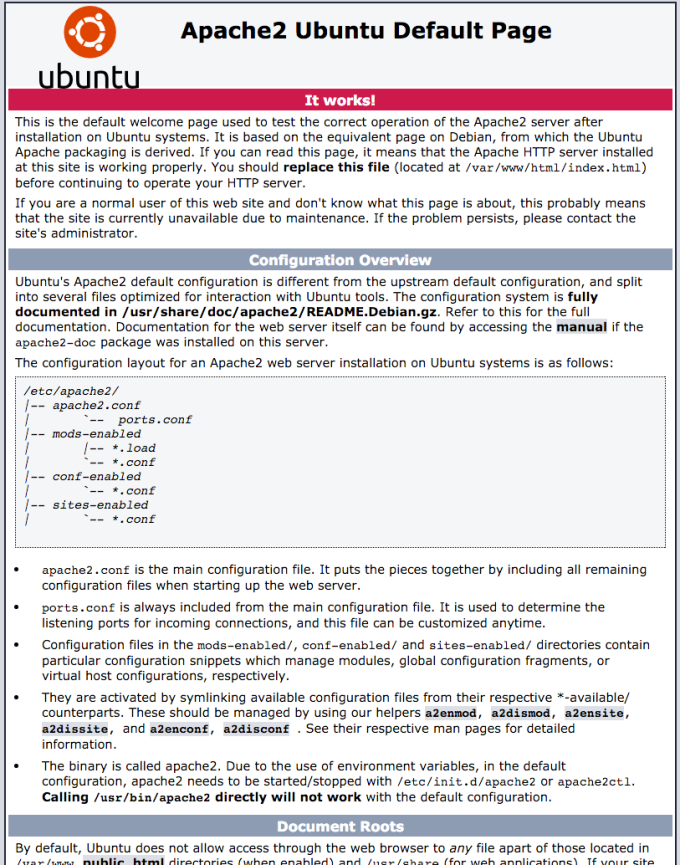
Once installed the default page will be available on the server, so navigate over to 192.168.x.x and view the page to insure it is up and running.
lampsetup

Next install mysql and php5 mysql.

sudo apt-get install mysql-server php5-mysql

During this installation you will be prompted for the mysql root account password. It is advisable to set one.

Then you will be asked to enter the password (the one you just set about 2 seconds ago) for the MySQL root account. Next, it will ask you if you want to change that password. Select ‘n’ so as not to create another password for the root acount since you’ve already created the password just a few seconds before.

For the rest of the questions, you should simply hit the enter key for each prompt. This will accept the default values. This will remove some sample users and databases, disable remote root logins, and load these new rules so that MySQL immediately respects the changes we have made.

Next up is to install PHP. No grumbling, just install PHP.

sudo apt-get install php5 libapache2-mod-php5 php5-mcrypt

Next let’s open up dir.conf and change a small section to change what files apache will provide upon request. Here’s what the edit should look like.

Open up the file to edit. (in vi, to insert or edit, hit the ‘i’ button. To save hit escape and ‘:w’ and to exit vi after saving it escape and then ‘:q’. To force exit without saving hit escape and ‘:q!’)

sudo vi /etc/apache2/mods-enabled/dir.conf

This is what the file will likely look like once opened.

<IfModule mod_dir.c>
DirectoryIndex index.html index.cgi index.pl index.php index.xhtml index.htm
</IfModule>

Move the index.php file to the beginning of the DirectoryIndex list.

<IfModule mod_dir.c>
DirectoryIndex index.php index.html index.cgi index.pl index.xhtml index.htm
</IfModule>

Now restart apache so the changes will take effect.

sudo service apache2 restart

Next let’s setup some public key for authentication. On your local box complete the following.

ssh-keygen

If you don’t enter a passphrase, you will be able to use the private key for auth without entering a passphrase. If you’ve entered one, you’ll need it and the private key to log in. Securing your keys with passphrases is more secure, but either way the system is more secure this way then with basic password authentication. For this particular situation, I’m skipping the passphrase.

What is generated is id_rsa, the private key and the id_rsa.pub the public key. They’re put in a directory called .ssh of the local user.

At this point copy the public key to the remote server. On OS-X grab the easy to use ssh-copy-id script with this command.

brew install ssh-copy-id

or

curl -L https://raw.githubusercontent.com/beautifulcode/ssh-copy-id-for-OSX/master/install.sh | sh

Then use the script to copy the ssh key to the server.

ssh-copy-id adron@192.168.x.x

Next let’s setup some public key for authentication. On your local box complete the following.

ssh-keygen

That should give you the ability to log into the machine without a password everytime. Give it a try.

Ok, so now on to the meat of this entry, Nagios itself.

Nagios Installation

Create a user and group that will be used to run the Nagios process.

sudo useradd nagios
sudo groupadd nagcmd
sudo usermod -a -G nagcmd nagios

Install these other essentials.

sudo apt-get install libgd2-xpm-dev openssl libssl-dev xinetd apache2-utils unzip

Download the source and extract it, then change into the directory.

curl -L -O https://assets.nagios.com/downloads/nagioscore/releases/nagios-4.1.1.tar.gz
tar xvf nagios-*.tar.gz
cd nagios-*

Next run the command to configure Nagios with the appropriate user and group.

./configure --with-nagios-group=nagios --with-command-group=nagcmd

When the configuration is done you’ll see a display like this.

Creating sample config files in sample-config/ ...

*** Configuration summary for nagios 4.1.1 08-19-2015 ***:

General Options:
-------------------------
Nagios executable: nagios
Nagios user/group: nagios,nagios
Command user/group: nagios,nagcmd
Event Broker: yes
Install ${prefix}: /usr/local/nagios
Install ${includedir}: /usr/local/nagios/include/nagios
Lock file: ${prefix}/var/nagios.lock
Check result directory: ${prefix}/var/spool/checkresults
Init directory: /etc/init.d
Apache conf.d directory: /etc/httpd/conf.d
Mail program: /bin/mail
Host OS: linux-gnu
IOBroker Method: epoll

Web Interface Options:
------------------------
HTML URL: http://localhost/nagios/
CGI URL: http://localhost/nagios/cgi-bin/
Traceroute (used by WAP):

Review the options above for accuracy. If they look okay,
type 'make all' to compile the main program and CGIs.

Now run the following make commands. First run make all as shown.

make all

Once that runs the following will be displayed upon success. I’ve included it here as there are a few useful commands in it.

*** Compile finished ***

If the main program and CGIs compiled without any errors, you
can continue with installing Nagios as follows (type 'make'
without any arguments for a list of all possible options):

make install
- This installs the main program, CGIs, and HTML files

make install-init
- This installs the init script in /etc/init.d

make install-commandmode
- This installs and configures permissions on the
directory for holding the external command file

make install-config
- This installs *SAMPLE* config files in /usr/local/nagios/etc
You'll have to modify these sample files before you can
use Nagios. Read the HTML documentation for more info
on doing this. Pay particular attention to the docs on
object configuration files, as they determine what/how
things get monitored!

make install-webconf
- This installs the Apache config file for the Nagios
web interface

make install-exfoliation
- This installs the Exfoliation theme for the Nagios
web interface

make install-classicui
- This installs the classic theme for the Nagios
web interface

*** Support Notes *******************************************

If you have questions about configuring or running Nagios,
please make sure that you:

- Look at the sample config files
- Read the documentation on the Nagios Library at:
https://library.nagios.com

before you post a question to one of the mailing lists.
Also make sure to include pertinent information that could
help others help you. This might include:

- What version of Nagios you are using
- What version of the plugins you are using
- Relevant snippets from your config files
- Relevant error messages from the Nagios log file

For more information on obtaining support for Nagios, visit:

https://support.nagios.com

*************************************************************

Enjoy.

After that successfully finishes, then execute the following.

sudo make install
sudo make install-commandmode
sudo make install-init
sudo make install-config
sudo /usr/bin/install -c -m 644 sample-config/httpd.conf /etc/apache2/sites-available/nagios.conf

Now some tinkering to setup the web server user in www-data and nagcmd group.

sudo usermod -G nagcmd www-data

Now some Nagios plugins. You can find the plugins listed for download here: http://nagios-plugins.org/download/ The following are based on the 2.1.1 release of plugins.

Change back out to the user directory on the server and download, tar, and change into the newly unzipped files.

cd ~
curl -L -O http://nagios-plugins.org/download/nagios-plugins-2.1.1.tar.gz
tar xvf nagios-plugins-*.tar.gz
cd nagios-plugins-*
./configure --with-nagios-user=nagios --with-nagios-group=nagios --with-openssl

Now for some ole compilation magic.

make
sudo make install

Now pretty much the same things for NRPE. Look here to insure that 2.15 is the latest version.

cd ~
curl -L -O http://downloads.sourceforge.net/project/nagios/nrpe-2.x/nrpe-2.15/nrpe-2.15.tar.gz
tar xvf nrpe-*.tar.gz
cd nrpe-*

Then configure the NRPE bits.

./configure --enable-command-args --with-nagios-user=nagios --with-nagios-group=nagios --with-ssl=/usr/bin/openssl --with-ssl-lib=/usr/lib/x86_64-linux-gnu

Then get to making it all.

make all
sudo make install
sudo make install-xinetd
sudo make install-daemon-config

Then a little file editing.

sudo vi /etc/xinetd.d/nrpe

Edit the file for the line only_from to include the following where 192.x.x.x is the IP of the Nagios Server.

only_from = 127.0.0.1 192.x.x.x

Save the file, and restart the Nagios server service.

sudo service xinetd restart

Now begins the Nagios Server configuration. Edit the Nagios configuration file.

sudo vi /usr/local/nagios/etc/nagios.cfg

Find this line and uncomment the line.

#cfg_dir=/usr/local/nagios/etc/servers

Save it and exit.

Next creat the configuration file for the servers to monitor.

sudo mkdir /usr/local/nagios/etc/servers

Next configure the contacts config file.

sudo vi /usr/local/nagios/etc/objects/contacts.cfg

Fine this line and set the email address to one you’ll be using.

email adronsemail@compositecode.com

Now add a Nagios service definition for the check_nrpe command.

sudo vi /usr/local/nagios/etc/objects/commands.cfg

Add this to the end of the file.

define command{
command_name check_nrpe
command_line $USER1$/check_nrpe -H $HOSTADDRESS$ -c $ARG1$
}

Save and exit the file.

Now a few last touches for configuration in Apache. We’ll want the Apache rewrite and cgi modules enabled.

sudo a2enmod rewrite
sudo a2enmod cgi

Now create an admin user, we’ll call them ‘nagiosadmin’.

sudo htpasswd -c /usr/local/nagios/etc/htpasswd.users nagiosadmin

Create a symbolic link of nagios.conf to the sites-enabled directory and then start the Nagios server and restart apache2.

sudo ln -s /etc/apache2/sites-available/nagios.conf /etc/apache2/sites-enabled/
sudo service nagios start
sudo service apache2 restart

Enable Nagios to start on server boot (because, ya know, that’s what this server is going to be used for).

sudo ln -s /etc/init.d/nagios /etc/rcS.d/S99nagios

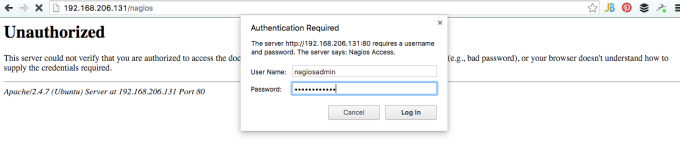
Now navigate to the server and you’ll be prompted to login to the web user interface.
nagioslogin

Now begins the process of setting up servers you want to monitor… stay tuned, more to come.