The #TypeScript Bomb Went off With a BANG Today!

First thing in the morning today the east coast was talking about Mary Jo Foley’s article about the TypeScript release. Later in the day Matt Baxter-Reynolds (@mbrit) released a bit of write up titled “Microsoft TypeScript: Can the father of C# save us from the tyranny of JavaScript?“. My first reactions went something like this:

  1. TypeScript sounds interesting. Anders is on it, so that’s a big plus. It’s a “superset” & “syntactic sugar” which is also interesting.
  2. TypeScript is a lousy name. I wish MS could find people to name things with something entertaining. It just seems disconnected.

After a little bit more review and an explosion on twitter I came to a few other conclusions.

  • The whole large applications notion just doesn’t cut it for me. Writing big applications well is about a good team, not about your language taking up the slack of a bad team.
  • I get that this makes things easier in Visual Studio and other IDEs to do certain “easy button” and F5 type development for coders that use those tools. There’s big plusses and really big negatives to this.
  • If you check out the site http://www.typescriptlang.org/ you’ll see open source with the code available. I’m stoked to see that Microsoft isn’t just playing lip service to this. They’re walking the walk these days, there’s even a pull requests section albeit no requests yet, and it is indeed using Git.  Just (git clone https://git01.codeplex.com/typescript)
  • A huge cool factor too, are the tons of plugins available already.
  • There’s a tutorial, which I plundered through real quick at lunch amid the plethora of pictures I took. Working through this tutorial I found the thing I’m happiest about, more so than the plugins, is that there is indeed an npm package (npm install -g typescript). Remember when installing, you’ll probably need to do a sudo.
  • The TypeScript Playground is a cool feature. Kind of like jsbin, except for toying around with TypeScript. However change the following snippet of code:

[sourcecode language=”javascript”]
class Greeter {
greeting: string;
constructor (message: string) {
this.greeting = message;
}
greet() {
return "Hello, " + this.greeting;
}
}

var greeter = new Greeter("world");

var button = document.createElement(‘button’)
button.innerText = "Say Hello"
button.onclick = function() {
alert(greeter.greet())
}

document.body.appendChild(button)
[/sourcecode]

…and change the instantiation of…

[sourcecode language=”javascript”]
var greeter = new Greeter("world", 123);
[/sourcecode]

…or change it to…

[sourcecode language=”javascript”]
var greeter = new Greeter("world", "WTF");
[/sourcecode]

…and then think about it for a second. I thought the point was to do strong typing, but it seems that isn’t strong typing the bits in the parameter list of the object instantiation. Beyond little nuances like that, I’m generally ok with the enhancements they’ve added with TypeScript. Not sure people that know how to write JavaScript really need to have this. It seems there is a strong case that this is created to make it easier for C# (and by proxy Java) coders to grok and write JavaScript code. That’s fine by me too. The sooner people can stop whining about how horrible the language is (which I also will admit I’m totally fine with the language, just learn it, it isn’t hard).

Summary

In the end, I’m fine with TypeScript. I think Anders & team have put this together in a responsible, positive way and inclusive of prospective community feedback and interaction. After so many years of the opposite, I’m still always impressed when things are done in good faith with the community. Do I think they need to work on how they put these efforts together? Yes. Do I think the approach of bombing the community with this new thing with a whole pre-built MS community around it pre-existing? Yes. But I digress, overall all looks good, and nothing truly negative about it (unless one is personally perturbed). So I’d suggest to try it out, it can definitely make things easier in a number of ways. I might even have some examples cropped up over the next few days.

Setting Up Github for Windows for Powershell CLI Users

Recently I installed the Github for Windows App. It’s a great app, however, I’d rather not use it for the day to day interactions I have with Git. I have a lot of branching, forking and merging to do that just doesn’t happen to well with the app. It’s a great app, but overall I’m just a few dozen times faster with the command line versus using an application.

So why did I download it and install it? The UI is great looking. I wanted to check it out and see how it worked, overall I’ve been fairly impressed. It’s not all that bad. The other cool thing about having it installed is it makes getting started on a fresh machine much faster with Powershell and such, however all the repos are setup with https instead of git as the path. This I’m not a fan of, so I threw this video together real quick to show how I remedy the situation.

Ways to Interact Asynchronously with C#

NOTE: All of this code is available at my Github Project “Remembering” (https://github.com/Adron/Remembering). Feel free to fork it, share it, or send me corrections or pull requests.

While working on the Thor Project there have been numerous situations where I need to fire off an asynchronous callback in C# while maintaining good responsiveness in the actual user interface. Benjamin (@bvanderveen) has been using Reactive Extensions with subscriptions to do this in the Objective-C code for the Cocoa based OS-X Thor user interface. See my previous blog entry for an example of what he’s doing.

For a good example of asynchronous calls against Cloud Foundry I setup the following project using the Iron Foundry Project VCAP Client Library. The first thing I setup was a static class with a few constants to use across the examples for the URI, username and password for the Cloud Foundry Account.

[sourcecode language=”csharp”]
public static class YourSecrets
{
public const string Username = "youremail@someplace.com";
public const string Password = "AnAwesom3HardPassw0rd!";
public const string Uri = "http://api.yourpaas.com";
}
[/sourcecode]

Next step was to setup the delegate and method I’d use for calling out to the Cloud Foundry environment and retrieving data in parallel to my active console or user interface. That code snippet looked like this. I also added a private variable _finished for use in tracking when the request was completed in the begin and end invoke example below.

[sourcecode language=”csharp”]
private bool _finished;

IEnumerable TheMethodToConnectThatWillTakeLongTime(string uri)
{
var client = new VcapClient(uri);
client.Login(TheSecretBits.YourSecrets.Username, TheSecretBits.YourSecrets.Password);

_finished = false;

return client.GetApplications();
}

delegate IEnumerable MethodDelegate(string uri);
[/sourcecode]

Once I had that setup I was ready to create my baseline method that would make a synchronous call. A synchronous call is one that makes the call as if it just called the method directly. There’s no real reason to create one like I’ve done here, but I was just using it to provide a basic example of calling the delegate.

[sourcecode language=”csharp”]
public void SynchronousCall()
{
var starting = DateTime.Now.ToLongTimeString();

var delegateMethod = new MethodDelegate(TheMethodToConnectThatWillTakeLongTime);
var returnedBits = delegateMethod(TheSecretBits.YourSecrets.Uri);

var ending = DateTime.Now.ToLongTimeString();

Console.WriteLine(string.Format("The delegate call returned \n\n{0}\n\nstarting at {1} and

ending at {2} which takes a while of waiting.",
returnedBits, starting, ending));

_finished = false;
}
[/sourcecode]

That gets us a baseline. If you run a synchronous call against anything with a console application or a windows app, WPF or whatever it will lock up the calling thread while it is waiting for a response. In any type of user interface that is unacceptable. One of the best options is to fire of an asynchronous callback. The way I did this, which is an ideal way to make calls with the Iron Foundry Client Library against a Cloud Foundry Environment, is shown below.

This is my asynchronous call.

[sourcecode language=”csharp”]
public void DemoCall()
{
Console.WriteLine("Callback:");
var delegateMethod = new MethodDelegate(TheMethodToConnectThatWillTakeLongTime);

var callbackDelegate = new AsyncCallback(MyAsyncCallback);

Console.WriteLine(" starting…{0}", DateTime.Now.ToLongTimeString());
delegateMethod.BeginInvoke(TheSecretBits.YourSecrets.Uri, callbackDelegate, delegateMethod);
Console.WriteLine(" ending…{0}", DateTime.Now.ToLongTimeString());
}
[/sourcecode]

Now the simple callback.

[sourcecode language=”csharp”]
public void MyAsyncCallback(IAsyncResult ar)
{
Console.WriteLine("Things happening, async state calling.");

var delegateMethod = (MethodDelegate)ar.AsyncState;

Console.WriteLine(" called…{0}", DateTime.Now.ToLongTimeString());

var returnedBits = delegateMethod.EndInvoke(ar);

Console.WriteLine(" end invoked…{0}", DateTime.Now.ToLongTimeString());

foreach (Application application in returnedBits)
{
Console.WriteLine("Application {0} is in {1} state…",
application.Name, application.State);
Console.WriteLine(" with {0} running instances, {1} memory per instance, {2} disk allocated…",
application.RunningInstances, application.Resources.Memory, application.Resources.Disk);
Console.Write(" hosted at ");
foreach (var uri in application.Uris)
{
Console.Write(uri + " ");
}
Console.WriteLine(".");
}
}
[/sourcecode]

That’ll get the call running on a parallel thread and when it is wrapped up it returns the data.

The User Interface Interaction Issue

This is all fine and dandy for the command console. But if you want to give control back to the UI thread in a UI application and make sure that the background thread can actually update a control when fired off, do the same thing as I’ve discussed here except set the control up to invoke the dispatcher, so that the “threads don’t cross” when trying to return information to a control that needs updated. In order to do this take the control that needs updated and set the Dispatcher Invoke method as shown below.

[sourcecode language=”csharp”]
private void Write(string updateText)
{
UpdatingTextBlock.Dispatcher.Invoke(
System.Windows.Threading.DispatcherPriority.Normal,
new Action(delegate
{
UpdatingTextBlock.Text += updateText;
}
));
}
[/sourcecode]

For more on the Iron Foundry Project and the library I’ve used here, check out the Iron Foundry Blog & Site. For more information on Thor and to follow or get involved check out the Thor Project Site (Hosted with Cloud Foundry at Tier 3!).

All of this code is available in my Github Project “Remembering” (https://github.com/Adron/Remembering). Feel free to fork it, share it, or send me corrections or pull requests.

HTML, CSS, JavaScript and Metro App Building on Windows 8 Part 2

In the first part of this seriesI kicked everything off by starting a Windows 8 JavaScript Project and added QUnit-Metro via Nuget. Now that we have a small executable application, I’ll get some things added and cover what exactly it is we’re doing in each part. Open the project up that we created in the previous blog entry of the series. Once open find and open the default.html, default.js and default_tests.js files to work with. In the default.js file you’ll find the following code in the default.js.

[sourcecode language=”javascript”]
(function () {
"use strict";

var app = WinJS.Application;
var activation = Windows.ApplicationModel.Activation;
WinJS.strictProcessing();

app.onactivated = function (args) {
if (args.detail.kind === activation.ActivationKind.launch) {
if (args.detail.previousExecutionState !== activation.ApplicationExecutionState.terminated) {
} else {
}
args.setPromise(WinJS.UI.processAll());
}
};

app.oncheckpoint = function (args) {
};

app.start();
})();
[/sourcecode]

A Bit of Context – default.js

At the beginning you’ll find that all the code is enclosed in a self-executing anonymous function. This gives us the ability to avoid naming conflicts or accidentally modifying variables in other spaces. Kind of the “namespaces” of C# or other organizational code features from other languages (I said kind of, there are other ways to do this too, this is just one). The other cool thing about this is it keeps identifiers out of the global namespace which also helps performance (it’ll also get you called all sorts of stuff if you create global variables in JavaScript! I’m nice, I won’t do it, but be prepared to be appropriately punished for such dissension as global variable creation! I warned ya.).

This next part (reminds me of why I find JavaScript scary in addition to awesome) has a variable that turns “strict mode” on. What this does, just like those of you may know from the Visual Basic days, is turn on a strict mode of additional error checking for code. It helps prevent you from doing all sorts of dumb things, like trying to assign a value to a read-only variable. For more on “strict mode” check out Microsoft’s Strict Mode Page.

The remaining bits of code in the default.js are the handlers for the application activated and checkpoint events. These events are fairly self explanatory, suffice it to say they happen when the application launches and checkpoint fires when a particular checking event happens against the Process Lifetime Management. The Process Lifetime Management handles all of the application suspend, resume and background events.

TDD & BDD For The Win!

Ok, so this isn’t the best example of either really, but to get started we want to wire up an event to a button. But first we want to test if the event is wired up. How does someone tests if an event is wired up in JavaScript? Like this.

[sourcecode language=”javascript”]
test("Where the text box is populated ", function () {
var result = document.getElementById("messageOutput").innerText;
ok(result == "", "should have empty inner text.");
});
[/sourcecode]

Adding a Button & Some Button Functionality

Ok, done with the context. Let’s add a button and make some magic happen. Bring focus to the default.html page and add a button, a text box and the respective components.

[sourcecode language=”html”]
<!DOCTYPE html>
<html>
<head>
<meta charset="utf-8" />
<title>Readingz</title>
<!– These files are included when the project is generated, I don’t really know where they are… –>
<link href="//Microsoft.WinJS.1.0.RC/css/ui-light.css" rel="stylesheet" />
<script src="//Microsoft.WinJS.1.0.RC/js/base.js"></script>
<script src="//Microsoft.WinJS.1.0.RC/js/ui.js"></script>
<!– Turned on the testing. –>
<script src="/js/qunitmetro.js"></script>
<script src="/js/default_tests.js"></script>
<!– Default Metro files. –>
<script src="/js/default.js"></script>
<link href="/css/default.css" rel="stylesheet" />
</head>
<body>
<p>Click the button to run the tests for the default.html and default.js code.</p>
<input id="peripheralParameters" type="text" />
<button id="runTests">Run Tests</button>
<p id="messageOutput"></p>
</body>
</html>
[/sourcecode]

NOTE: I made more than a few changes from the default.html included in the previous part of this series. One hard to notice change is that I switched the style sheet from the dark Metro theme to the light Metro theme.

With those additions add a function to the default.js file as shown below and then add the event handler.

[sourcecode language=”javascript”]
(function () {
"use strict";

var app = WinJS.Application;
var activation = Windows.ApplicationModel.Activation;
WinJS.strictProcessing();

app.onactivated = function (args) {
if (args.detail.kind === activation.ActivationKind.launch) {
if (args.detail.previousExecutionState !== activation.ApplicationExecutionState.terminated) {

} else {

}
args.setPromise(WinJS.UI.processAll());

var runTests = document.getElementById("runTests");
runTests.addEventListener("click", buttonClickHandler, false);
}
};

app.oncheckpoint = function (args) {};

function buttonClickHandler () {
document.getElementById("messageOutput").innerText =
"Parameters Passed: " +
document.getElementById("peripheralParameters").value +
"!";
}

app.start();
})();
[/sourcecode]

I now have one button now working, actually doing something, with a unit tests to verify that the button exists and the event is wired up. Some progress is being made!

If I run the application I get passing tests. That’s it for now. In the next entry we’ll dive deeper into testing and into functionality.

Until next time, happy scripting with the JavaScript on Windows 8.

HTML, CSS, JavaScript and Metro App Building on Windows 8 Part 1

I’m a fan of JavaScript and I’m warming to some of the Metro interfaces on Windows 8. I’ve always found the Windows 7 Phone UI, which is the first iteration of the Metro UI, to be a very slick phone interface. So with this blog entry I’m going to lay out setting up a default Windows 8 Metro application using JavaScript as the language of choice.

Prerequisites:

  • Windows 8
  • Visual Studio 2012

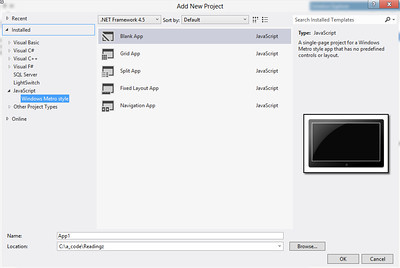
Open Visual Studio 2012 and click on file -> new project -> and then find the JavaScript section and pick the blank metro app.

New Windows 8 Metro Project

Once you have the application created, I’d suggest following good practice and adding QUnit-Metro to your project with Nuget(or get the actual files if you don’t want to use Nuget).

Getting QUnit-Metro via Nuget

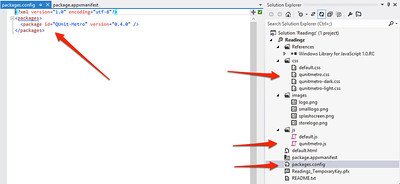
Once you’ve added the QUnit-Metro interface you’re ready to get started writing tests. But before writing a test take a look at the additional files that the QUnit-Metro Nuget Package adds to the project.

Things Added With QUnit-Metro

In the screenshot (click for a full size image), I’ve pointed in a clockwise order:

  • The package is added and listed in the packages file now for Nuget.
  • There are now three CSS files added for QUnit. Two are Metro specific, which gives a more Metro look to the results of the tests.
  • The qunitmetro.js file is the testing framework.

With this collateral added we can setup a test within the default.html page of the project. First add the following code so that your default.html file looks like this:

[sourcecode language=”html”]
<!DOCTYPE html>
<html>
<head>
<meta charset="utf-8" />
<title>Readingz</title>
<!– These files are included when the project is generated, I don’t really know where they are… –>
<link href="//Microsoft.WinJS.1.0.RC/css/ui-dark.css" rel="stylesheet" />
<script src="//Microsoft.WinJS.1.0.RC/js/base.js"></script>
<script src="//Microsoft.WinJS.1.0.RC/js/ui.js"></script>
<!– These are the CSS and JavaScript files that I’ve edited for testing. –>
<script src="/js/qunitmetro.js"></script>
<script src="/js/default.js"></script>
<script src="/js/default_tests.js"></script>
<link href="/css/default.css" rel="stylesheet" />
<link href="/css/qunitmetro-light.css" rel="stylesheet" />
</head>
<body>
<p>Content goes here</p>
<button>Press This!</button>
<!– This is for testing only. It goes away when application is ready to ship. –>
<div id="qunit"></div>
</body>
</html>
[/sourcecode]

The Microsoft.WinJS.1.0.RC libraries are included by default, which I’m assuming when I get fully upgraded to the released version of Windows 8 and Visual Studio 2012 that this might just read Microsoft.WinJS.1.0. The section of scripts and links below that are the added QUnit-Metro files. I included the qunitmetro-light.css file for metro style test results.

In the body of the page the div with the id of qunit…

[sourcecode language=”html”]
<div id="qunit"></div>
[/sourcecode]

is added where the test results will display. That’s how simple it actually is. To add actual tests, I’ve added a default_tests.js file to the js directory. I then added a simple test to the file that I’ve shown below.

[sourcecode language=”javascript”]
test("hello windows world of javascript tests!", function () {
ok(1 == "1", "Passed!");
});
[/sourcecode]

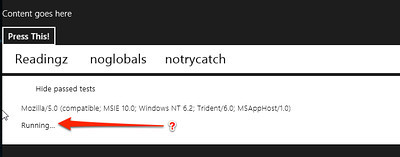
Run the application and you’ll find the following result displayed in your application.

The Running Application

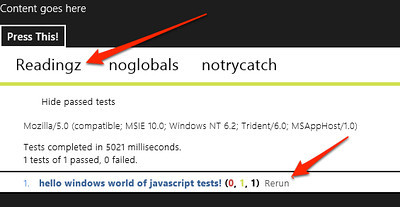
This is one place where an odd thing seems to be occurring (if you have any idea what the problem is, leave a comment, and I’ll do the same when I get the issues resolved). The test just keeps reporting “Running…” until you click on Readingz, noglobals, or somewhere else on the screen in that area to make an action occur. When I click on Readingz the test runs successfully like it should.

Test Ran
Test Ran

What’s up with that? It’s a pretty odd action.

Another issue that I ran into, which was a user error issue on my behalf, was I swapped around the three script files so the qunit-metro file loaded last. I actually stumbled and posted the issue on Stackoverflow here.

Shout it