Using Bosh to Bootstrap Cloud Foundry via Stark & Wayne Consulting

I finally sat down and really started to take a stab at Cloud Foundry Bosh. Here’s the quick lowdown on installing the necessary bits and getting an initial environment built. Big thanks out to Dr Nic @drnic, Luke Bakken & Brain McClain @brianmmcclain for initial pointers to where the good content is. With their guidance and help I’ve put together this how-to. Enjoy…  boshing.

Prerequisites

Step: Get an instance/machine up and running.

To make sure I had a totally clean starting point I started out with an AWS EC2 Instance to work from. I chose a micro instance loaded with Ubuntu. You can use your local workstation if you want to or whatever, it really doesn’t matter. The one catch, of course is you’ll have to have a supported *nix based operating system.

Step: Get things updated for Ubuntu.

[sourcecode language=”bash”]
sudo apt-get update
[/sourcecode]

Step: Get cURL to make life easy.

[sourcecode language=”bash”]
sudo apt-get install curl
[/sourcecode]

Step: Get Ruby, in a proper way.

[sourcecode language=”bash”]
\curl -L https://get.rvm.io | bash -s stable
source ~/.rvm/scripts/rvm
rvm autolibs enable
rvm requirements
[/sourcecode]

Enabling autolibs sets up so that rvm will install all the requirements with the ‘rvm requirements’ command. It used to just show you what you needed, then you’d have to go through and install them. This requirements phase includes some specifics, such as git, gcc, sqlite, and other tools needed to build, execute and work with Ruby via rvm. Really helpful things overall, which will come in handy later when using this instance for whatever purposes.

Finish up the Ruby install and set it as our default ruby to use.

[sourcecode language=”bash”]
rvm install 1.9.3
rvm use 1.9.3 –default
rvm rubygems current
[/sourcecode]

Step: Get bosh-bootstrap.

bosh-bootstrap is the easiest way to get started with a sample bosh deployment. For more information check out Dr Nic’s Stark and Wayne repo on Github. (also check out the Cloud Foundry Bosh repo.)

[sourcecode language=”bash”]
gem install bosh-bootstrap
gem update –system
[/sourcecode]

Git was installed a little earlier in the process, so now set the default user name and email so that when we use bosh it will know what to use for cloning repositories it uses.

[sourcecode language=”bash”]
git config –global user.name "Adron Hall"
git config –global user.email plzdont@spamme.bro
[/sourcecode]

Step: Launch a bosh deploy with the bootstrap.

[sourcecode language=”bash”]
bosh-bootstrap deploy
[/sourcecode]

You’ll receive a prompt, and here’s what to hit to get a good first deploy.

Stage 1: I select AWS, simply as I’ve no OpenStack environment. One day maybe I can try out the other option. Until then I went with the tried and true AWS. Here you’ll need to enter your access & secret key from the AWS security settings for your AWS account.

For the region, I selected #7, which is west 2. That translates to the data center in Oregon. Why did I select Oregon? Because I live in Portland and that data center is about 50 miles away. Otherwise it doesn’t matter which region you select, any region can spool up almost any type of bosh environment.

Stage 2: In this stage, select default by hitting enter. This will choose the default bosh settings. The default uses a medium instance to spool up a good default Cloud Foundry environment. It also sets up a security group specifically for Cloud Foundry.

Stage 3: At this point you’ll be prompted to select what to do, choose to create an inception virtual machine. After a while, sometimes a few minutes, sometimes an hour or two – depending on internal and external connections – you should receive the “Stage 6: Setup bosh” results.

Stage 6: Setup bosh

setup bosh user
uploading /tmp/remote_script_setup_bosh_user to Inception VM
Initially targeting micro-bosh…
Target set to `microbosh-aws-us-west-2′
Creating initial user adron…
Logged in as `admin’
User `adron’ has been created
Login as adron…
Logged in as `adron’
Successfully setup bosh user
cleanup permissions
uploading /tmp/remote_script_cleanup_permissions to Inception VM
Successfully cleanup permissions
Locally targeting and login to new BOSH…
bosh -u adron -p cheesewhiz target 54.214.0.15
Target set to `microbosh-aws-us-west-2′
bosh login adron cheesewhiz
Logged in as `adron’
Confirming: You are now targeting and logged in to your BOSH

ubuntu@ip-yz-xyz-xx-yy:~$

If you look in your AWS Console you should also see a box with a key pair named “inception” and one that is under the “microbosh-aws-us-west-2” name. The inception instance is a m1.small while the microbosh instance is an m1.medium.

That should get you going with bosh. In my next entry around bosh I’ll dive into some of Dr Nic & Brian McClain’s work before diving into what exactly Bosh actually is. As one may expect, from Stark & Wayne we can expect some pretty cool stuff, so keep an eye over there on Stark & Wayne.

Distributed Coding Prefunc: Chicago Boss, Rails Based Erlang Power

Troy Howard and I sat down on a Friday night to do some straight up thrashing of Erlang and Chicago Boss. It seemed like a framework that has a lot of promise. Thus, we wanted to hack at it a bit and see what we could come up with.

First things first, I running OS-X and Troy hacking with the latest Ubuntu, we dove in. I first downloaded from the main Chicago Boss Site, which I immediately decided not to use and went straight for a fork and cloning of the repo.

[sourcecode language=”bash”]
git clone git@github.com:Adron/ChicagoBoss.git
cd ChicagoBoss
make
make app PROJECT=bigonion
cd ../bigonion
./init-dev.sh
[/sourcecode]

The ‘./init-dev.sh’ will launch the server to view whatever is available on the site. Now when I went to the localhost at port 8001, it shows some general mess which is kind of nondescript. But one can identify that the server is running if this works.

Hitting http://localhost:8001
Boardwalk Explosion!

Oh dear, then the explosion…

At this point Troy started running into a number of problems on Ubuntu. Ranch wasn’t building based on what was included. He went through fighting and attempting to manually install this dependency but no go. He had originally downloaded RB14 of Erlang which should have worked. However it did not. It caused all sorts of madness.

I spooled up my VM of Ubuntu and went through the same steps above, even did the quick intro to setup a hello world, and it worked. We then checked out Erlang versions and I was running with R15B01. Troy went with installing that version and lo’ n’ behold, magic of the druids! Mayor Daley kicked this thing and made it run. So if you are running anything besides R15B01 on Ubuntu, we can’t attest to this stuff working. Just sayin’.

So Back to the Chicago Boss

So go back to the bigonion project above that we created and throw in a controller file. Be sure to use the exact naming, because this is seriously like rails, follow the convention or you’ll spend the rest of your life in the jail of convention-less hell!

Add a file at /src/controller/bigonion_greeting_controller.erl and add the following code.

[sourcecode language=”erlang”]
-module(bigonion_greeting_controller, [Req]).
-compile(export_all).

hello(‘GET’, []) ->
{output, "<strong>Daley will tell you how to run the Big Onion!</strong>"}.
[/sourcecode]

Now execute the code, or if you have the server running with ‘./init-dev.sh’ still then just navigate to ‘http://localhost:8001/greeting/hello&#8217; and you’ll get a hello world reality check about Chicago history. 😉

On to next things, let’s get a conformance test in there. Add a file called ‘src/test/functional/bigonion_test.erl’ with the following code snippet of a test in it.

[sourcecode language=”erlang”]
-module(bigonion_test).
-compile(export_all).

start() ->
boss_web_test:get_request("/greeting/hello", [],
[ fun boss_assert:http_ok/1,
fun(Res) -> boss_assert:tag_with_text("strong",
"Daley will tell you how to run the Big Onion!", Res) end ], []).
[/sourcecode]

Now build the project to production.

[sourcecode language=”bash”]
./rebar compile
./rebar boss c=test_functional
[/sourcecode]

…which left me with

[sourcecode language=”bash”]
$ ./rebar boss c=test_functional
==> bigonion (boss)
FATAL: Config file "boss.test.config" not found.
[/sourcecode]

Joy, another completely random error. But hey, that’s software development right. So that’s coming later… for now, I’m out. Keep hacking the Erlang bits. If you know what happened with the last command to run the test above, please leave a comment and help out! 🙂

Getting Github : JavaScript Libraries Spilled EVERYWHERE! Series #003

This is an ongoing effort putting together some JavaScript app code on client and on server that started with blog entry series #001 and #002.

This how-to is going to kind of go all over the place. My goal is to get github data. The question however is, how and with what. I knew there were some available libraries, so writing straight and pulling straight off of the API myself seemed like it would be unnecessary work.

The github API documentation is located at http://developer.github.com/v3/ with the list of client libraries for ease of access listed at http://developer.github.com/v3/libraries/. The first two that I forked and cloned were the gh3 and npm installed the octonode and node-github libraries.

Node.js Based Github Libraries

The two node based projects install via npm, as things go with node and were super easy. The first one I gave a test drive to is the https://github.com/ajaxorg/node-github project. I forked it and dove right in.

[sourcecode language=”bash”]
$ npm install github
npm http GET https://registry.npmjs.org/github
npm http 200 https://registry.npmjs.org/github
npm http GET https://registry.npmjs.org/github/-/github-0.1.8.tgz
npm http 200 https://registry.npmjs.org/github/-/github-0.1.8.tgz
$
[/sourcecode]

After that quick install I took a stab at the test code they have in the README.md.

[sourcecode language=”javascript”]
var GitHubApi = require("github");

var github = new GitHubApi({
// required
version: "3.0.0",
// optional
timeout: 5000
});
github.user.getFollowingFromUser({
user: "adron"
}, function(err, res) {
console.log(JSON.stringify(res));
});
[/sourcecode]

This worked all well and good, so I moved on to some other examples. The following example however needed authentication. To authenticate you’ll need to add the little snippet below with the username and password. However there’s also a Oauth token method you can use too, which I’ve not documented below. To check out other auth methods check out the documentation.

[sourcecode language=”javascript”]
var GitHubApi = require("github");

var github = new GitHubApi({
version: "3.0.0", timeout: 5000,
});

github.authenticate({
type: "basic",
username: "adron",
password: "yoTurkiesGetYourOwn"
});

github.orgs.get({
org: "Basho"
}, function(err, res){
console.log(res);
});
[/sourcecode]

The result is prefect for putting together a good display page or something of the organizations.

[sourcecode language=”bash”]
$ node adron_test.js
{ login: ‘basho’,
id: 176293,
url: ‘https://api.github.com/orgs/basho&#8217;,
repos_url: ‘https://api.github.com/orgs/basho/repos&#8217;,
events_url: ‘https://api.github.com/orgs/basho/events&#8217;,
members_url: ‘https://api.github.com/orgs/basho/members{/member}’,
public_members_url: ‘https://api.github.com/orgs/basho/public_members{/member}’,
avatar_url: ‘https://secure.gravatar.com/avatar/ce5141b78d2fe237e8bfba49d6aff405?d=https://a248.e.akamai.net/assets.github.com%2Fimages%2Fgravatars%2Fgravatar-org-420.png&#8217;,
name: ‘Basho Technologies’,
company: Basho,
blog: ‘http://basho.com/blog/&#8217;,
location: ‘Cambridge, MA’,
email: null,
public_repos: 105,
public_gists: 0,
followers: 0,
following: 0,
html_url: ‘https://github.com/basho&#8217;,
created_at: ‘2010-01-04T19:05:19Z’,
updated_at: ‘2013-03-17T20:29:09Z’,
type: ‘Organization’,
total_private_repos: YYY,
owned_private_repos: XXX,
private_gists: 0,
disk_usage: 788016,
collaborators: 0,
billing_email: ‘not_a_valid_address@basho.com’,
plan: { name: ‘platinum’, space: 62914560, private_repos: billions },
meta: { ‘x-ratelimit-limit’: ‘5000’, ‘x-ratelimit-remaining’: ‘azillion’ }
}
[/sourcecode]

Now at this point there’s a few significant problems. Setting up tests of the integration variety for this library gets real tricky because you need to authenticate, or at least I do for the data that I want. This doesn’t bode well for sending any integration tests or otherwise to Travis-CI or otherwise. So even though this library works, and would be processed on the server-side and not on the client side, having it as a non-tested part of the code base bothers me a bit. What’s a good way to setup tests to verify that things are working? I’ll get that figured out shortly and it’ll have to be another blog entry, maybe. For now though, let’s jump into the client side library and see how it functions.

Client Side JavaScript Github

For the client side I started testing around with the gh3 library. It has two dependencies, jQuery and Underscore.js. jQuery is likely always going to be in your projects. Underscore.js is also pretty common, but sometimes you’ll find you’ll need to go download the library. Upon download and getting the additional libraries I needed installed, I gave the default sample a shot.

[sourcecode language=”html”]
<!DOCTYPE html>
<html>
<head>
<meta charset="utf-8">
<title>gh3 Sample</title>
</head>
<body>
<ul id="user"></ul>
</body>
<script src="js/jquery-1.7.1.min.js"></script>
<script src="js/underscore-min.js"></script>
<script src="js/gh3.js"></script>
<script>
var adron = new Gh3.User("adron")
, userInfos = $("#user");

adron.fetch(function (err, resUser){
if(err) {
throw "outch …"
}
console.log(adron, resUser);
_.each(_.keys(resUser), function (prop) {
userInfos.append(
$(‘<li>’).append(prop+" : "+resUser[prop])
);
});
});
</script>
</html>
[/sourcecode]

This worked pretty seamlessly. Also it got me thinking, “what do I really want to do with the github library?” If it’s a server side service, obviously I’d want to use the Node.js libraries probably. However if it is client side data I want, is it even ideal that the server side actually pull the data anyway? The other issues around cross site scripting and related matters come into play too if it is a client side script, but this might be, even in spite of that, just what I needed. For now, that left me with some solid things to think about. But I was done for now… so until next entry, cheers!

Distributed Coding Prefunc: Rebar Multinode Riak Core

Before diving into this entry, you might want to check out some of my other getting Erlang installed with appropriate testing frameworks entries. Moving on…

At Basho we’re are always trying to make it easier to do big things. A short time ago we pushed forward on Rebar, Riak Core and getting things put together to make it simpler to get kick started working on distributed systems like the Riak Database & distributed system itself. There’s way more that is possible, which I’ll get into in just a minute. Before diving into some of those things, here’s a few quick links & context of what exactly Rebar and Riak Core are.

Riak Core
Github: https://github.com/basho/riak_core

Riak Core has been available for quite some time. We’ve also been hustling for a while getting together a robust array of material around Riak Core. One excellent place to get started on learning about Riak Core is the “Introducing Riak Core” blog article published on the Basho blog a while back. To describe Riak Core, or riak_core, it is the underpinnings of what Riak is built on. It provides many features to get you started building distributed systems. A few of the key features are being able to track and manage the nodes, clusters and related pieces of the distributed architecture within a system.

Rebar
Github: https://github.com/basho/rebar
Wiki: https://github.com/basho/rebar/wiki

Rebar is an Erlang build tool that helps you in putting together projects based on Riak Core.

Rebar Riak Core
Github: https://github.com/basho/rebar_riak_core

The Rebar Riak Core project repository template helps you start writing things like the Riak Database itself. It’s based on setting up Riak Core via template scripting an N Node Cluster devrel, vnodes, etc. Once you’re up and running it can be used to help develop distributed, scalable and fault tolerant applications.

For more on the Rebar Riak Core check out the README.md in the github repository. There are some great examples of how to get a multinode devrel running in a few steps.

Rebar Riak Core Quick Start

The quickest way to get started using the Riak Core and Rebar scripts is to get the prebuilt binaries or you can just clone and install the Rebar scripts if you’d like all the things. To get the binaries and executables you can download and have them ready by wget (or use your preferred method to download).

[sourcecode language=”bash”]
wget http://cloud.github.com/downloads/basho/rebar/rebar && chmod u+x rebar
[/sourcecode]

To get the cloned repository and ready for use.

[sourcecode language=”bash”]
$ git clone git://github.com/rebar/rebar.git
$ cd rebar
$ ./bootstrap
[/sourcecode]

Now the easiest way possible is to use the Riak Core Templates with a quick git clone. After cloning the repo, copy them to the rebar templates directory (note that you’ll need to create this initially) and then create a working directory to put the project in and navigate into that directory.

[sourcecode language=”bash”]
git clone git://github.com/rzezeski/rebar_riak_core.git
mkdir -p ~/.rebar/templates
cp rebar_riak_core/* ~/.rebar/templates
mkdir projectNameHere
cd projectNameHere
[/sourcecode]

Now that a template is available, run the following command to create the Erlang Project.

[sourcecode language=”bash”]
rebar create template=riak_core_multinode appid=rabbits nodeid=rabbits
[/sourcecode]

You’re now ready to go to work using Rebar and the template you’ve created. I followed the try-try-try example repo in the example above to get started, check it out for a great walk through that dives in deeper to Riak Core, each small element of the project and files created, and a multi-node project as the sample.

So what to do now?

This is where it is time to throw around some creativity to get real solutions to real problems. Building distributed systems is becoming more and more paramount to effective usage of infrastructure and systems. Using Riak Core to get started building out your distributed system is an ideal place to start. These are a few ideas that the team was brainstorming on. Over the coming weeks we’ll be putting together material to outline ways to not only get started, but to implement systems like this.

Distributed Web Caching Tier

Caching tiers often come up in conversations, whether related to distributed systems or not, and often end up on the distributed topic. The question resounds, “how do I create a caching tier that can be distributed and provide real session, state management, cached elements, live data and other needs?” Well Riak Core is a great place to start developing a custom distributed caching tier that could even extend to use Riak KV (the Riak Database implemented on Riak Core), Redis, Rabbit MQ or many other solutions by pulling them together to provide appropriate cache at the appropriate tiers of an application architecture.

In House Cluster Monitoring & Smart Resolver

One of the things that the Riak Core would be used to great effect for is a multi-node, clustered and geographically dispersed monitoring system for any multi-data center application. This could be built out and used for almost any actual environment, with custom specifics or a completely generic situation of pizza box servers. Because fo the distributed concepts behind Riak Core it would provide an ideal basis for monitoring – and re-launching or otherwise dealing with systems that need high uptime and recovered as fast as possible if they go down.

Logging, Web, Server, and Business Analytics

In any situation where analytics are collected there are often dozens if not thousands of servers, various systems and even numerous devices that may be emitting data via services or other mediums. Riak Core is a great place to lay the groundwork for a distributed system that could maintain a massive store of managed data for fast searching of analytics. This could be the groundwork for biotech research analytics, analysis of market data or a dozen other things that need highly available systems storing vast data with map reduction or other search capabilities. Think Business Intelligence (BI) with serious technological power.

Multi-node Project

Of course, as the example I used to create the first sample above, dive into the try-try-try tutorial for some great multi-node how to. If you have any questions please jump in ping me on twitter @adron or ping @basho, join the mailing list, the IRC #riak channel on freenode.

Light up a Riak Cluster with AWS, A Few Notes…

I wanted to write up an intro to getting Riak installed on AWS, even though the steps are absurdly simple and already available on the Basho Docs site, there’s a few extra notes that can be very helpful for a few specific points during the process.

Start off by logging into AWS. At this point you can take two different paths that are almost identical. You can follow the path of using the pre-built AWS Marketplace image of Riak, or just start form scratch. The difference is a total of about 2 steps; installing & setting some security port connections. I’m going to step through without using the prebuilt image in these instructions.

Security Group

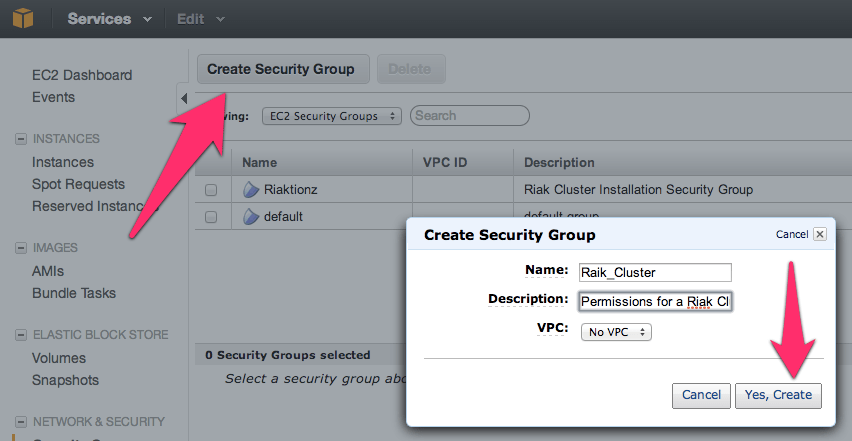
First thing you’ll need to get a security group with the correct permissions setup. For that, you’ll need to make a security group.

NOTE: No, I didn’t mean to misspell Riak, but it’s in there now.  😉

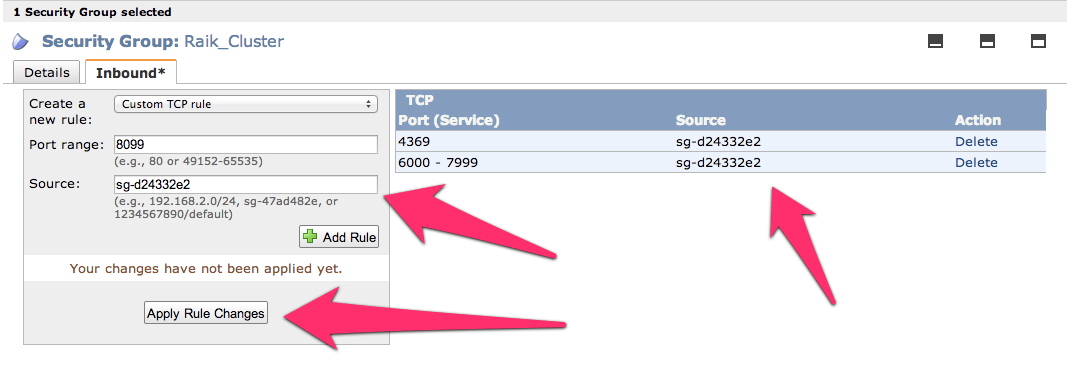
Before adding the ports, go to the security group details tab and copy the security group id. I’ve pointed it out in the image above.

Now add the following three and assign the security group to the ports; 4369, 8099 & 6000-7999. For the source set it to the security group id. Once you get all three added the list should look like this (below). For each rule click the Add Rule button and remember to click the Apply Rule Changes. I often forget this because the screen on some of the machines I use only shows to the bottom of the Add Rule button, so you’ll have to scroll down to find the Apple Rule Changes button.

Now add the standard port 22 for SSH. Next get the final two of 8087 and 8098 setup and we’re ready for moving on to creating the virtual machines.

Server Virtual Machines

For creating virtual machines I just clicked on Launch Instance and used the classic wizard. From there you get a selection of items. I’ve used the AWS image to do this, but would actually suggest using a CentOS image of your choice or Red Hat Enterprise Linux (RHEL). Another great option is to use the Ubuntu 12.04 LTS. Really though, use whatever Linux version or distro you like, there are 1-2 step instructions for installing Riak on almost every distro out.

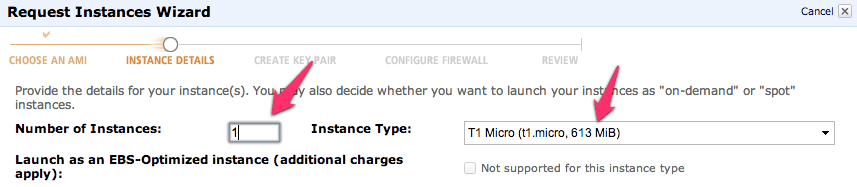
Next just launch a single instance. We’ll be able to launch duplicates of these further along in the process. I’ve selected a “Micro” here but I’m not intending to do anything with a remotely heavy load right now. At some point, I’ll upgrade this cluster to larger instances when I start putting it under a real load. I’ll have another blog entry to describe exactly how I do this too.

Keep hitting continue until you get to the key pair selection. Pick the key pair you want, either making a new one for this cluster or use one you already have. Either way works fine.

Continue again until you can select the security group that we created above.

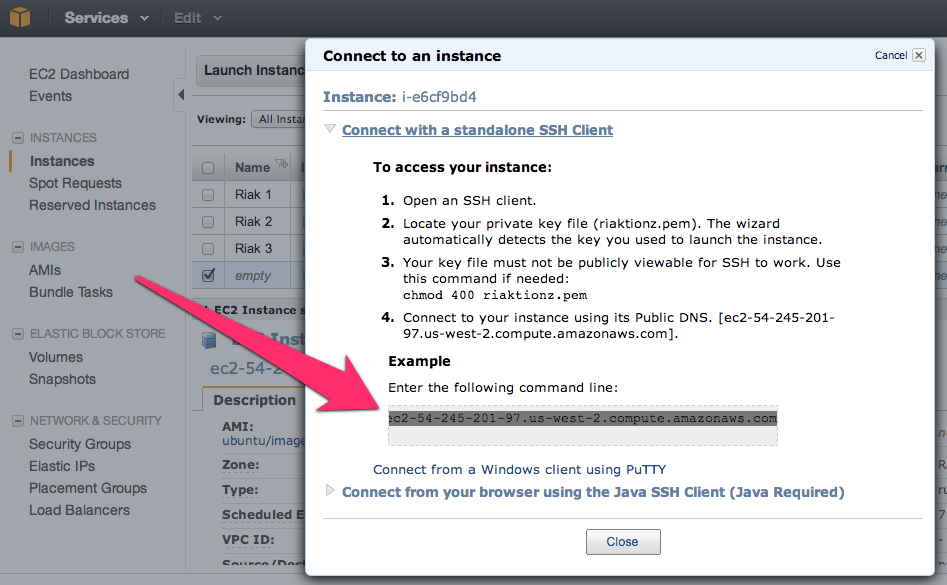
Now keep hitting that continue button, until you get to launch, and launch this thing. Once the instance is launched launch your preferred SSH connection tooling. The easiest way I’ve found for getting the most current private IP to connect to with the appropriate command is to right click on the instance in the AWS Console and click on Connect. There you’ll find the command to connect via SSH.

Paste that in and hit enter in your SSH App, you’ll see something akin to this.

[sourcecode language=”bash”]
$ cd Codez/working-content/
$ ssh -i riaktionz.pem root@ec2-54-245-201-97.us-west-2.compute.amazonaws.com
The authenticity of host ‘ec2-54-245-201-97.us-west-2.compute.amazonaws.com (54.245.201.97)’ can’t be established.
RSA key fingerprint is 31:18:ac:1a:ac:fc:6e:6d:55:e8:8a:83:9a:8f:c7:5f.
Are you sure you want to continue connecting (yes/no)? yes
Warning: Permanently added ‘ec2-54-245-201-97.us-west-2.compute.amazonaws.com,54.245.201.97′ (RSA) to the list of known hosts.
Please login as the user "ubuntu" rather than the user "root".
[/sourcecode]

Enter yes to continue connecting. For some instance types, like Ubuntu you’ll have to do some teaks to log into as “ubuntu” vs. “root” and the same goes for the AWS image or others. I’ll leave that to you, dear reader to get connected via ole’ SSH.

One of the other things, that you may have to do some tweaking about and googling, is figuring out the firewall setups on the various virtual machine images. For the RHEL you’ll want to turn off the firewall or open up the specific connection ports and such. Since the AWS firewall does this, it isn’t particularly important for the OS to continue running its firewall service. In this case, I’ve turned off the OS firewall and just rely on the AWS firewall. To turn off the RHEL firewall, execute the following commands.

[sourcecode language=”bash”]
[root@ip-x-x-x-x]# service iptables save
iptables: Saving firewall rules to /etc/sysconfig/iptables:[ OK ]
[root@ip-x-x-x-x]# service iptables stop
iptables: Flushing firewall rules: [ OK ]
iptables: Setting chains to policy ACCEPT: filter [ OK ]
iptables: Unloading modules: [ OK ]
[root@ip-x-x-x-x]# chkconfig iptables off
[root@ip-x-x-x-x]#
[/sourcecode]

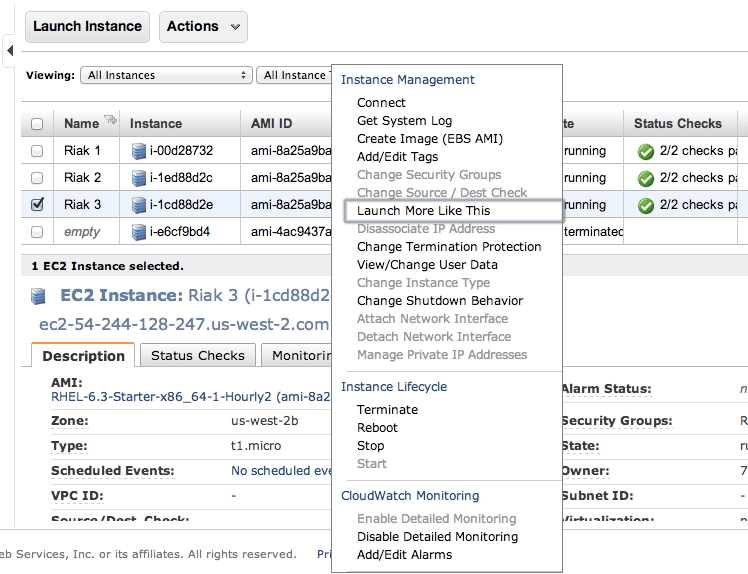
Now is a perfect time to start those other instances. Navigate into the AWS Console again and right click on the virtual machine instance you’ve created. On that menu select Launch More Like This.

Go through and check the configuration on each of these, make sure the firewall is turned off, etc. Then move on to the next step and install Riak and cluster them. So it’s time to get to the distributed, massively complex, extensive list of steps to install & cluster Riak. Ok, so that’s sarcasm.  😉

Step 1: Install Riak

Install Riak on each of the instances.

[sourcecode language=”bash”]
package=basho-release-6-1.noarch.rpm && \
wget http://yum.basho.com/gpg/$package -O /tmp/$package && \
sudo rpm -ivh /tmp/$package
sudo yum install riak
[/sourcecode]

NOTE: For other installation methods, such as directly downloading the RPM or other Linux OSes, check out the http://docs.basho.com/riak/latest/tutorials/installation/Installing-on-RHEL-and-CentOS/.

Step 2: Setup the Cluster

On the first instance, get the IP. You won’t need to do anything to this instance, just keep the IP handy. Then move on to the second instance and run the cluster command.

[sourcecode language=”bash”]
sudo riak-admin cluster join riak@<ip_of_the_first_node>
[/sourcecode]

Do this on each of the instances you’ve added, using that first node. When you’ve added them all, on that last instance (or really any of them) then run the plan. This will get you a display plan of what will take place when the cluster is committed.

[sourcecode language=”bash”]
sudo riak-admin cluster plan
[/sourcecode]

If that looks all cool. Commit the plan.

[sourcecode language=”bash”]
sudo riak-admin cluster commit
[/sourcecode]

Get a check of the cluster.

[sourcecode language=”bash”]
sudo riak-admin member_status
[/sourcecode]

That’s it all done. You know have a Riak Cluster. For more operations to try out your cluster, check out this list of base API Operations.