Vagrant for VMware Fusion with plugin issues… Part 2

After the previous blog entry I wrote up, working through getting vagrant to spool up a vmware image I got a few other suggestions via Twitter.

With that quick delete of the hidden vagrant directory I gave it a shot again with the provider flagh.

[sourcecode language=”bash”]
rm -rf .vagrant/
$ vagrant up –provider=vmware_fusionBringing machine ‘default’ up with ‘vmware_fusion’ provider…
[default] VMware requires root privileges to make many of the changes
necessary for Vagrant to control it. In a moment, Vagrant will ask for
your administrator password in order to install a helper that will have
permissions to make these changes. Note that Vagrant itself continues
to run without administrative privileges.
Password:
[default] Box ‘bosh-solo-0.6.4’ was not found. Fetching box from specified URL for
the provider ‘vmware_fusion’. Note that if the URL does not have
a box for this provider, you should interrupt Vagrant now and add
the box yourself. Otherwise Vagrant will attempt to download the
full box prior to discovering this error.
Downloading or copying the box…
[/sourcecode]

Which this seemed to work. Downloading the helpers and such started and I waited patiently.

A Few Thoughts…

Needing to delete a hidden file struck me as one of those completely arbitrary and random solutions. It worked, which is awesome, but it working is a completely counter intuitive solution. I did a ‘destroy’ previously along with a number of things that were somewhat not intuitive. At this point the steps were fine, I had to ask for help, and I got help really fast. That’s awesome, but needing to go through those steps was unfortunate and ties back around to @jeffsussna‘s tweet earlier.

Anyway, as soon as I did this I decided Virtual Box it is. As it went through a 40 minute download of an image (??) it finished and displayed…

[sourcecode language=”bash”]
$ vagrant up –provider=vmware_fusionBringing machine ‘default’ up with ‘vmware_fusion’ provider…
[default] VMware requires root privileges to make many of the changes
necessary for Vagrant to control it. In a moment, Vagrant will ask for
your administrator password in order to install a helper that will have
permissions to make these changes. Note that Vagrant itself continues
to run without administrative privileges.
Password:
[default] Box ‘bosh-solo-0.6.4’ was not found. Fetching box from specified URL for
the provider ‘vmware_fusion’. Note that if the URL does not have
a box for this provider, you should interrupt Vagrant now and add
the box yourself. Otherwise Vagrant will attempt to download the
full box prior to discovering this error.
Downloading or copying the box…
Extracting box…te: 119k/s, Estimated time remaining: –:–:–)
The box you attempted to add doesn’t match the provider you specified.

Provider expected: vmware_fusion
Provider of box: virtualbox
[/sourcecode]

… because the image isn’t available for vmware according to Vagrant, so for now, with some solutions and more questions I’m just going to go with the Virtual Box Solution and get back on track with the larger picture blog entry I’m writing. Thanks to @brianmmclain, @mitchelh, @jeffsussna and @thoward37.

Vagrant for VMware Fusion with plugin issues…

I’ve started using Vagrant pretty regularly. I downloaded Virtual Box and been tinkering away with some of the vagrant packages. The one huge bummer was that I was under the delusion that it only worked with Vagrant. Then, I was told by a fellow coder that I needed to check out the VMware Fusion plugin. I immediately was stoked! Simply, have you…

[sourcecode language=”bash”]
$ vagrant plugin install vagrant-vmware-fusion
Installing the ‘vagrant-vmware-fusion’ plugin. This can take a few minutes…
Installed the plugin ‘vagrant-vmware-fusion (0.6.1)’!
$ vagrant plugin license vagrant-vmware-fusion license.lic
Installing license for ‘vagrant-vmware-fusion’…
The license for ‘vagrant-vmware-fusion’ was successfully installed!
$
[/sourcecode]

Now mind you, you’ll need to go out and buy the VMware Fusion Plugin from Hashi Corp. From my perspective I was happy with this purchase just to get the stability improvements of VMware Fusion.

Vagrant & Riak

For my first example of the new plugin I forked and then cloned the Bosh Riak Repository. Once that was cloned I simply opened a terminal and navigated to the path of the repository and tried…

[sourcecode language=”bash”]
vagrant up
[/sourcecode]

…and immediately got the message, “Failed to load the “vagrant-vmware-fusion” plugin. View logs for more details.” Noooooooooooooooez! 🙁 I was sad. But dove into the logs by executing vagrant up with…

[sourcecode language=”bash”]
VAGRANT_LOG=INFO vagrant up
[/sourcecode]

…and there was the error amid the log was something about the VMware Plugin requiring Vagrant the latest version.

Doh! I’d forgotten to upgrade first. I installed the upgrade via the downloads for 1.2.2. Once I upgrade I ran into the same error. A quick ‘vagrant -v’ to check the version showed 1.2.2 was installed. Not knowing the special secret sauce at this point, I figured I’d just reboot. It had been about 20-30 days since I had, so who knew what weird service or something needed to be restarted. I guessed correctly and after a restart vagrant kicked off the download of the vagrant image for the Bosh Riak deploy. It went by fast, and since it didn’t spit out an error about not loading the plugin I thought everything had worked…

[sourcecode language=”bash”]
$ vagrant up
Bringing machine ‘default’ up with ‘virtualbox’ provider…
[default] Setting the name of the VM…
[default] Clearing any previously set forwarded ports…
[default] Creating shared folders metadata…
[default] Clearing any previously set network interfaces…
[default] Preparing network interfaces based on configuration…
[default] Forwarding ports…
[default] — 22 => 2222 (adapter 1)
[default] Booting VM…
[default] Waiting for VM to boot. This can take a few minutes.

…more stuff here…
[/sourcecode]

…or so I had thought. Scrolling back up through the log I realized Vagrant had NOT used the plugin for VMware Fusion. I was still stuck with VirtualBox. I went through the plugin install again to see if it just needed re-applied. At this point, since I’d already installed Virtual Box previously I figured maybe I’d just keep plunging forward and mess with the vmware plugin later, however I’d REALLY like to have all my virtualized images running via Fusion. Not sure what I missed I decided to give it one more try…

[sourcecode language=”bash”]
$ vagrant plugin install vagrant-vmware-fusion
Installing the ‘vagrant-vmware-fusion’ plugin. This can take a few minutes…
Installed the plugin ‘vagrant-vmware-fusion (0.6.1)’!
Adrons-MacBook-Air-3:Downloads adronhall$ vagrant plugin license vagrant-vmware-fusion license.lic
Installing license for ‘vagrant-vmware-fusion’…
The license for ‘vagrant-vmware-fusion’ was successfully installed!
$ cd ~/Codez/riak-release/
$ vagrant up
Bringing machine ‘default’ up with ‘virtualbox’ provider…
[/sourcecode]

Ugh… so I almost give up at this point. I read this, it seems ironic.

Being this isn’t the best user experience I stumble forward trying something else. I get a suggestion from a fellow coder (thx Brian) to try this.

[sourcecode language=”bash”]
$ vagrant up –provider=vmware_fusionAn active machine was found with a different provider. Vagrant
currently allows each machine to be brought up with only a single
provider at a time. A future version will remove this limitation.
Until then, please destroy the existing machine to up with a new
provider.

Machine name: default
Active provider: virtualbox
Requested provider: vmware_fusion
$
[/sourcecode]

Well, that didn’t work either. It looks like maybe if I just blew away my VirtualBox images it would work? Well, funny, being I don’t have any VirtualBox images running or installed. Well, just to make sure I checked the VirtualBox directory. Nothing. I went ahead and deleted the entire VirtualBox Application. Tried again.

[sourcecode language=”bash”]
$ vagrant up –provider=vmware_fusionAn active machine was found with a different provider. Vagrant
currently allows each machine to be brought up with only a single
provider at a time. A future version will remove this limitation.
Until then, please destroy the existing machine to up with a new
provider.

Machine name: default
Active provider: virtualbox
Requested provider: vmware_fusion
$
[/sourcecode]

Ok, I’ve no idea now. Any help would be greatly appreciated! This same thing appears to work fine under VirtualBox, but with the plugin added and VirtualBox removed I’m still not able to get this to work. Help!

Red Hat, OpenShift PaaS and Cartridges for Riak

Today I participated in the OpenShift Community Day here in Portland at the Doubletree Hotel. One of the things I wanted to research was the possibility of putting together a OpenShift Origin Cartridge for Riak. As with most PaaS Systems this isn’t the most straight forward process. The reason is simple, OpenShift and CloudFoundry have a deployment model based around certain conventions that don’t fit with the multi-node deployment of a distributed database. But there are ways around this and my intent was to create or come up with a plan for a Cartridge to commit these work-arounds.

After reading the “New OpenShift Cartridge Format – Part 1” by Mike McGrath @Michael_Mcgrath I set out to get a Red Hat Enterprise Linux image up and running. The quickest route to that was to spool up an AWS EC2 instance. 30 seconds later I had exactly that up and running. The next goal was to get Riak installed and running on this instance. I wasn’t going to actually build a cluster right off, but I wanted at least a single running Riak node to use for trying this out.

In the article “New OpenShift Cartridge Format – Part 1” Mike skips the specifics of the cartridge and focuses on getting a service up and running that will be turned into a Cartridge. As Mike writes,

What do we really need to do to create an new cartridge? Step one is to pick something to create a cartridge for.

…to which my answer is, “alright, creating a Cartridge for Riak!”  😉

However, even though I have the RHEL instance up and running already, with Riak installed, I decided I’d follow along with his exactly example too. So I dove in with

[sourcecode language=”bash”]
sudo yum install httpd
[/sourcecode]

to install Apache. With that done I now have Riak & Apache installed on the RHEL EC2 instance. The goal with both of these services is to get them running as the regular local Unix user in a home directory.

With both Riak and Apache installed, time to create a local user directory for each of the respective tools. However, before that, with this version of Linux on AWS we’ll need to create a local user account.

[sourcecode language=”bash”]
useradd -c "Adron Hall" adron
passwd adron

Changing password for user adron.
New password:
Retype new password:
passwd: all authentication tokens updated successfully.
[/sourcecode]

Next I switched to the user I created ‘su adron’ and created the following directories in the home path for attempting to get Apache and Riak up and running locally like this. I reviewed the rest of the steps in making the Cartridge w/ Apache and then immediately started running into a few issues with getting Riak setup just like I need it to be able to build a cartridge around it. At least, with my first idea of how I should build a cartridge.

At this point I decided we need to have a conversation around the strategy here. So Bill Decoste, Ryan and some of the other Red Hat team on hand today. After a discussion with Bill it sounds like there are some possibilities to get Riak running via the OpenShift Origin Cartridges.

The Strategy

The plan now is to get a cartridge setup so that the cartridge can launch a single Riak instance. That instance, then with post-launch scripts can then join itself to the overall Riak cluster. The routing can be done via the internal routing and some other capabilities that are inherent to what is in OpenShift itself. It sounds like it’ll take a little more tweaking, but the possibility is there for the near future.

At this point I sat down and read up on the Cartridge a little more before taking off for the day. Overall a good start and interesting to get an overview of the latest around OpenShift.

Thanks to the Red Hat Team, have a great time at the OpenStack Conference and I’ll be hacking on this Cartridge strategy!

References

Light up a Riak Cluster with AWS, A Few Notes…

I wanted to write up an intro to getting Riak installed on AWS, even though the steps are absurdly simple and already available on the Basho Docs site, there’s a few extra notes that can be very helpful for a few specific points during the process.

Start off by logging into AWS. At this point you can take two different paths that are almost identical. You can follow the path of using the pre-built AWS Marketplace image of Riak, or just start form scratch. The difference is a total of about 2 steps; installing & setting some security port connections. I’m going to step through without using the prebuilt image in these instructions.

Security Group

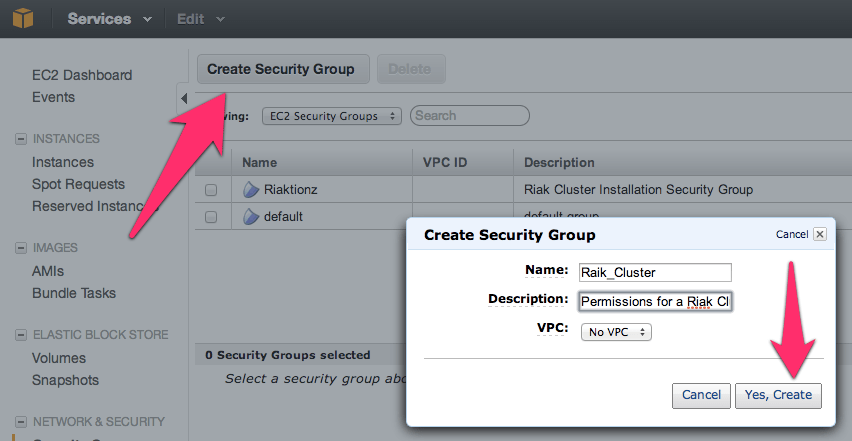
First thing you’ll need to get a security group with the correct permissions setup. For that, you’ll need to make a security group.

NOTE: No, I didn’t mean to misspell Riak, but it’s in there now.  😉

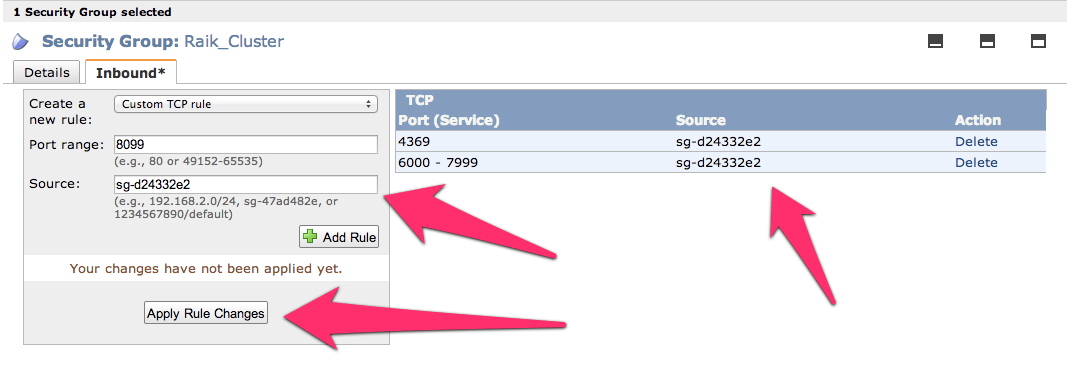
Before adding the ports, go to the security group details tab and copy the security group id. I’ve pointed it out in the image above.

Now add the following three and assign the security group to the ports; 4369, 8099 & 6000-7999. For the source set it to the security group id. Once you get all three added the list should look like this (below). For each rule click the Add Rule button and remember to click the Apply Rule Changes. I often forget this because the screen on some of the machines I use only shows to the bottom of the Add Rule button, so you’ll have to scroll down to find the Apple Rule Changes button.

Now add the standard port 22 for SSH. Next get the final two of 8087 and 8098 setup and we’re ready for moving on to creating the virtual machines.

Server Virtual Machines

For creating virtual machines I just clicked on Launch Instance and used the classic wizard. From there you get a selection of items. I’ve used the AWS image to do this, but would actually suggest using a CentOS image of your choice or Red Hat Enterprise Linux (RHEL). Another great option is to use the Ubuntu 12.04 LTS. Really though, use whatever Linux version or distro you like, there are 1-2 step instructions for installing Riak on almost every distro out.

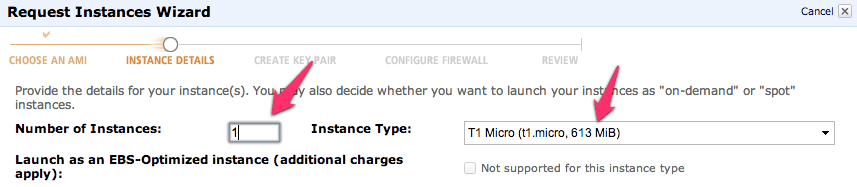
Next just launch a single instance. We’ll be able to launch duplicates of these further along in the process. I’ve selected a “Micro” here but I’m not intending to do anything with a remotely heavy load right now. At some point, I’ll upgrade this cluster to larger instances when I start putting it under a real load. I’ll have another blog entry to describe exactly how I do this too.

Keep hitting continue until you get to the key pair selection. Pick the key pair you want, either making a new one for this cluster or use one you already have. Either way works fine.

Continue again until you can select the security group that we created above.

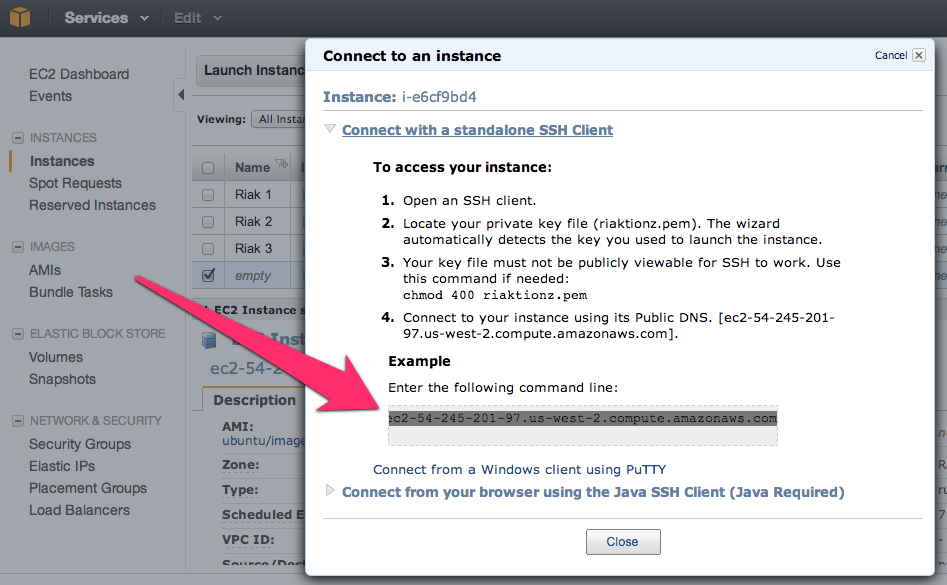
Now keep hitting that continue button, until you get to launch, and launch this thing. Once the instance is launched launch your preferred SSH connection tooling. The easiest way I’ve found for getting the most current private IP to connect to with the appropriate command is to right click on the instance in the AWS Console and click on Connect. There you’ll find the command to connect via SSH.

Paste that in and hit enter in your SSH App, you’ll see something akin to this.

[sourcecode language=”bash”]
$ cd Codez/working-content/
$ ssh -i riaktionz.pem root@ec2-54-245-201-97.us-west-2.compute.amazonaws.com
The authenticity of host ‘ec2-54-245-201-97.us-west-2.compute.amazonaws.com (54.245.201.97)’ can’t be established.
RSA key fingerprint is 31:18:ac:1a:ac:fc:6e:6d:55:e8:8a:83:9a:8f:c7:5f.
Are you sure you want to continue connecting (yes/no)? yes
Warning: Permanently added ‘ec2-54-245-201-97.us-west-2.compute.amazonaws.com,54.245.201.97′ (RSA) to the list of known hosts.
Please login as the user "ubuntu" rather than the user "root".
[/sourcecode]

Enter yes to continue connecting. For some instance types, like Ubuntu you’ll have to do some teaks to log into as “ubuntu” vs. “root” and the same goes for the AWS image or others. I’ll leave that to you, dear reader to get connected via ole’ SSH.

One of the other things, that you may have to do some tweaking about and googling, is figuring out the firewall setups on the various virtual machine images. For the RHEL you’ll want to turn off the firewall or open up the specific connection ports and such. Since the AWS firewall does this, it isn’t particularly important for the OS to continue running its firewall service. In this case, I’ve turned off the OS firewall and just rely on the AWS firewall. To turn off the RHEL firewall, execute the following commands.

[sourcecode language=”bash”]
[root@ip-x-x-x-x]# service iptables save
iptables: Saving firewall rules to /etc/sysconfig/iptables:[ OK ]
[root@ip-x-x-x-x]# service iptables stop
iptables: Flushing firewall rules: [ OK ]
iptables: Setting chains to policy ACCEPT: filter [ OK ]
iptables: Unloading modules: [ OK ]
[root@ip-x-x-x-x]# chkconfig iptables off
[root@ip-x-x-x-x]#
[/sourcecode]

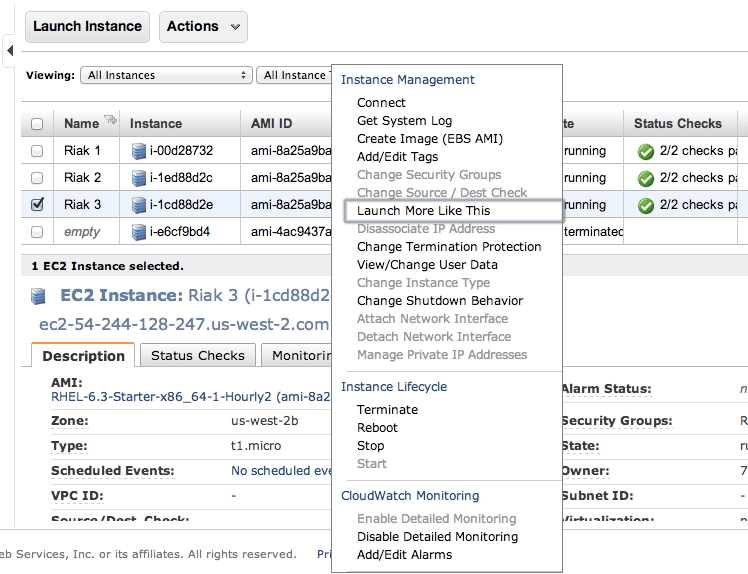
Now is a perfect time to start those other instances. Navigate into the AWS Console again and right click on the virtual machine instance you’ve created. On that menu select Launch More Like This.

Go through and check the configuration on each of these, make sure the firewall is turned off, etc. Then move on to the next step and install Riak and cluster them. So it’s time to get to the distributed, massively complex, extensive list of steps to install & cluster Riak. Ok, so that’s sarcasm.  😉

Step 1: Install Riak

Install Riak on each of the instances.

[sourcecode language=”bash”]
package=basho-release-6-1.noarch.rpm && \
wget http://yum.basho.com/gpg/$package -O /tmp/$package && \
sudo rpm -ivh /tmp/$package
sudo yum install riak
[/sourcecode]

NOTE: For other installation methods, such as directly downloading the RPM or other Linux OSes, check out the http://docs.basho.com/riak/latest/tutorials/installation/Installing-on-RHEL-and-CentOS/.

Step 2: Setup the Cluster

On the first instance, get the IP. You won’t need to do anything to this instance, just keep the IP handy. Then move on to the second instance and run the cluster command.

[sourcecode language=”bash”]
sudo riak-admin cluster join riak@<ip_of_the_first_node>
[/sourcecode]

Do this on each of the instances you’ve added, using that first node. When you’ve added them all, on that last instance (or really any of them) then run the plan. This will get you a display plan of what will take place when the cluster is committed.

[sourcecode language=”bash”]
sudo riak-admin cluster plan
[/sourcecode]

If that looks all cool. Commit the plan.

[sourcecode language=”bash”]
sudo riak-admin cluster commit
[/sourcecode]

Get a check of the cluster.

[sourcecode language=”bash”]
sudo riak-admin member_status
[/sourcecode]

That’s it all done. You know have a Riak Cluster. For more operations to try out your cluster, check out this list of base API Operations.

Portland, Oregon :: Riak Office Hours @ Nedspace

Today, albeit by obliviousness to the holiday, had scheduled “Riak Office Hours” at NedSpace today. Even with the holiday, we had a great turn out. Generally Office Hours & Open Hack type of meets are small, often 2-5 people. Today we had a whopping 10 people turn out!

Open Ended Topics

Each meet we have a variety of topics, from a tutorial on getting started with Riak to discussion around using Riak or Redis to cache data for Riak distributed across geographic regions.

Dark Horse Comics, read them in digital format or original formula, They ROCK!!

In the case today, we dove into the finer nuances of Dark Horse Comics and how their mobile apps use data across caching, tiered access, and on server and on mobile synchronization across the web application. All very interesting and provides insights not to just one person or team, but to anybody and everybody there involved in the conversations. There are lots of solutions to be had, the real problem is just getting to the right one.

Next to bat Ed Borasky, Github @znmeb and Twitter @znmeb and I discussed “Hacks & Hackers”. Ed works a lot these days with Node.js, all sorts of databases, and media collateral. He’s often found digging through data and will soon be digging through some Riak experimentation. For more on Ed’s work and efforts, check out Computational Journalism Publishers Workbench.

Riak Office Hours, Part III

The next Riak Office Hours is coming up on March 4th. To check it out, please RSVP, and even if you can’t make the office hours feel free to join the group to stay abreast of upcoming meetups, presentations, workshops or other events in Portland related to data, data science, distributed computing, Riak, Basho, Erlang, web machine and software in general. We have a good time and look forward to you joining the group. Cheers!

…and now back for my deluge of Erlang, Riak, C#, Node.js + JavaScript and whatever else…