12 Days into 2026 – Status & update of my projects.

As mentioned in my end of 2025 post, there were several projects I intended to start, continue, or finish up in 2026. This is a quick status and an additional few things I’ve started working on.

https://interlinedlist.com – This is live. Albeit not very built out, but the start is live. You can even sign up for an account and play around with it. A caveat though, this is pre-alpha, and not very feature rich at all and I don’t have the programmer oriented tasks integrated in yet. It’s just the micro-blogging. But hey, some progress is better than no progress!

https://www.datadiluvium.com – This is still live and I’ve got some changes to push, but they’re breaking, so as soon as I dig up a bit of free coder time those will get resolved and I’ll get the latest tweaks pushed. I also need to get some basic documentation and also something posted here on the blog about what you can do, or would want to do with it.

dashingarrivals – First commit isn’t done. Working on it, it’ll be coming soon per the pervious post.

collectorstunetracker – No current update. Albeit I need to do something about my collection, cuz it has only grown and not shrunk! 🤘🏻

Writing – This is one of many posts. I wrote this one too, not some AI nonsense.

New News About New Projects

I discussed it a while back on one of the social medias (I’m on Threads, Mastadon, and Blue Sky – join me there) the idea of doing some videos on algorithms and data structures. The intent is to put together some videos similar to these “Coding with AI: A Comparative Analysis“. It could be good, and I’d tack onto the algorithms, data structures some additional lagniappe via concurrency patterns I previously wrote about. If interested, subscript to the blog here or subscribe to my YouTube at https://www.youtube.com/adronhall.

Until then, keep thrashing the code! 🤘🏻

The End

Today is, for the most part, the end of my professional year of 2025. What have I done, what am I looking forward to in 2026?

2025 Year in Review

This year I’ve had the chance to work on some really cool tech. You can read more about it here, where I put together a quick QR code prototype. I also did a ton of documentation writing, but also shipping it as a product, and making sure it was updated and kept up with the products and services it was being shipped with; How Principal Engineers Shape Documentation as a Product + Punch List Lagniappe. Beyond that I’ve shipped tons of AI processing pipeline code that changed about 4,923,123** times because the tools provided weren’t up to snuff, so reinvention and filling the gap in the tools it was. Lots of fun challenges, great tech shipped, and users of said software up and running.

On a personal front I got a reasonable amount of my expectations met for 2025, which mind you, wasn’t a lot considering the changing of the guard and the current state of the tech industry. To which, let’s talk brass talks, not beat around the bush, dispense with formalities, and get to the pending chaos of 2026.

Let’s Talk, No Filter

The specter and haunting horrors of what AI is forcing on society isn’t really great. I’m part of the way through reading enshittification and ouch, does that just sting. To say that book is on point in its complaint is to put it mildly. Many things are just getting bad in the tech space and it’s lost so much of it’s character that was redeemable, the technology that was interesting, the hopefulness of the sector, the independence is also gone, as there are so many negative aspects. Throw on top of that layoffs for spurious reasons, RTO for idiotic ideas – but done largely from incompetence of executive leadership to actually manage communications at their respective companies. Plunging *actual* productivity, economic numbers that are lies conflated with entities still reporting accurate number, and the list of things that made 2025 a trash year and the year ahead looks to be more of the same. The state of America, the world even, is pretty bad in the tech and software development space. Overall, from a professional point of view, I’m just hoping the industry doesn’t crater further and that the United States has opportunities open up. With a big hopeful wish that the overarching dystopian timeline that we’re being forced to live through doesn’t get worse.

Ok, I oddly do have hope!

Beware, not a lot of hope. But some.

What I am looking forward to is getting more active in the Seattle tech space again locally. I intend to either fire up, or join up and contribute to at least one meetup. I want to get involved too so that there’s something besides the endless stream of “Come join us for the next AI scam!!!” meetup and instead something that has some real substance. It might have some AI topics, but none of the “Quick learn this AI thing cuz FUD about jobs and make a million dollars instantly” type nonsense.

On the tech front, I hope to ship some of the sites and apps I’ve actually been working on for longer than I will admit. To get ahead of myself:

interlinedlist – This is a different type of time series based, micro-blogging, programmer oriented tasks and automation wildness! More on this soon, as I’m steaming ahead on this sucker and hoping to get its first version shipped by February.

https://www.datadiluvium.com – This is already shipped, it’s live, but it needs some tender love and care. It’s rough right now and I need to clean up the flow and way the data is generated. I also need to do the opposite of RTFM and follow the practices I’ve written about in this, this, and this on documentation and write it!

dashingarrivals – This is purely a transit oriented app I’ve wanted to build for years and finally have the core skeleton built for it. Basically a more focused, and kind of transit nerd friendly, way to setup alerts for arrivals of different modal options in Seattle or Portland. The side kick of this, I hope, is that I’ll be able to write up metadata that is geography based to arrival points and related things, so you could tag details and such about a particular stop that you want arrivals for. I’m hoping for a mid-August deploy for this one.

collectorstunetracker – This app I started here. This went onto the backburner, cuz’ there is redundancy of functionality in the niche space with Discogs and the fact they they released a mobile app. Didn’t really need most of what I was working on here, but I may put it together as my own custom online tracker of my personal vinyl/CD/music collection and use it to control how and in which way I show that collection. No promised delivery date because it might not get back onto the front burner, but I haven’t forgotten it.

Writing – I also hope to write a lot more this year. Even though it’s routinely claimed when I write professional pieces that it is AI. The LOLz of that. But I digress, I did generate some pictures this year but I’m not really feeding y’all any AI generated text or AI generated ideas. This blog is from my mind, I intend to keep it that way, and will continue as such. I suppose, in that regard, AI can keep stealing my thoughts and regurgitating them into whatever OpenAI slurry they’re being put into. The TLDR, expect to have more original thoughts coming from yours truly, I hope you’ll subscribe to this here blog and throw in some comments now and again, I am always up for a conversation or three!

Overboard?

This coming year I have that little bit of useful hope and I’m going to keep it at that. Seems like the smartest thing as I’m not a fan of over-promising to myself what I want to accomplish and then under deliver. It sucks to under deliver, so I guess that follows previous years’ goals, let’s not under deliver ya’ll!

May 2026 be good to you, let’s hope we can start cleaning up the dystopian disaster it is that we in the industry exist in and bring back some hope to the world. Or maybe we just make it through and keep a stiff upper lip eh?

Cheers! Cin! Cin! Sláinte! Şerefe! 乾杯 Salud! Prost! À votre santé! 건배 Skål! Gesondheid! 干杯 Υγεία Tagay! ชนแก้ว будмо

and especially “Слава Україні, хай горить Російська імперія!” and let the madness and genocide end!

** may be an exaggerated estimation.

Setting Up TimescaleDB for Time Series Data with Postgres.app for all your “Time Scales”!

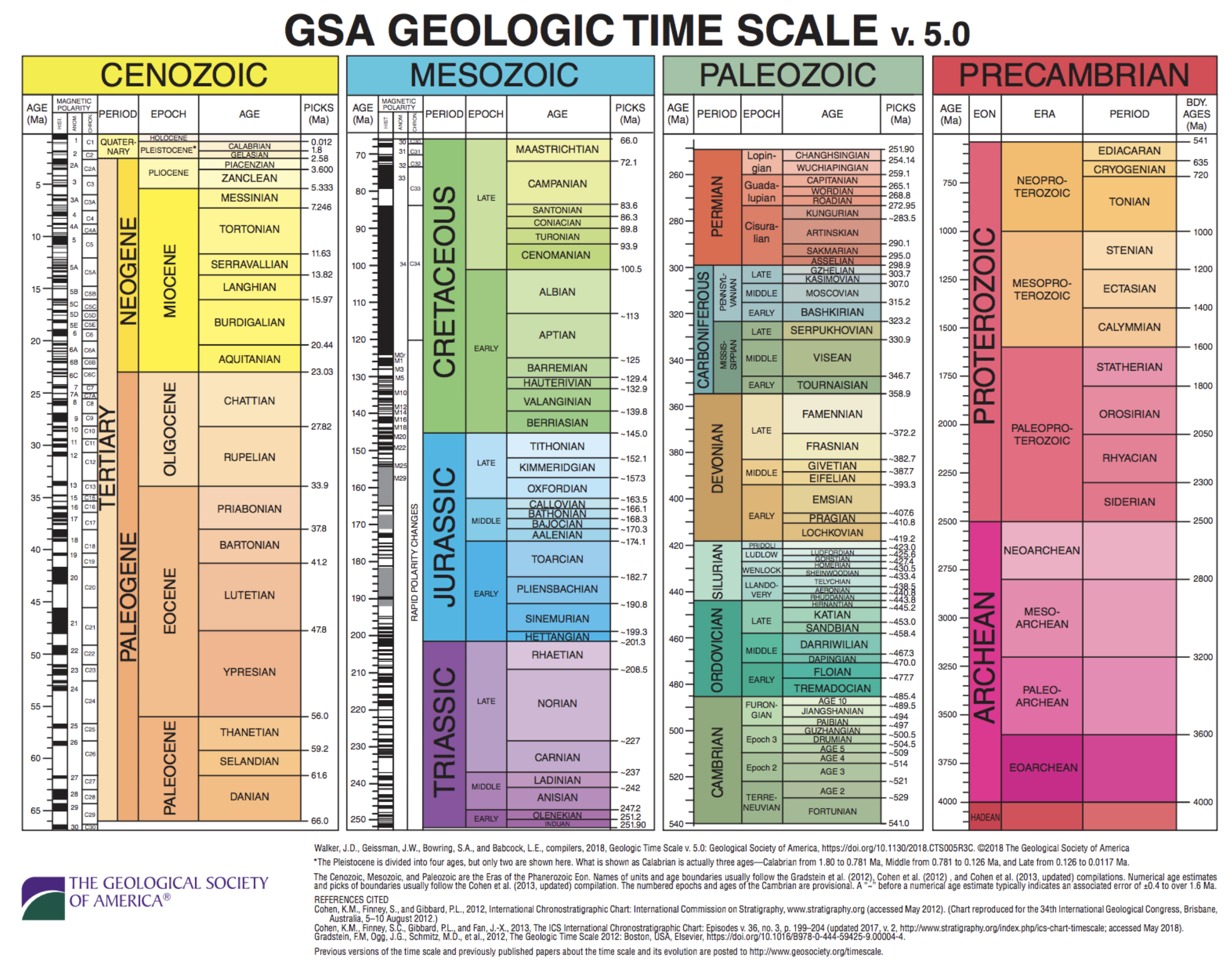
I used an image from The Geological Society of America‘s “Time Scale” but this isn’t about that, but it kind of is and I’ll have a future post about using TimescaleDB to organize “Time Scale” like this, but that’ll be a little bit in the future. For now, I posted that Time Scale for the LOLz. 🤙🏻

I’ve been using TimescaleDB for time-series data on and off for a while now. I recently fired up Postgres.app for local development. It’s one of the cleanest ways to get PostgreSQL running on macOS, and adding TimescaleDB is surprisingly straightforward once you know where to look.

Time-series data is everywhere—sensor readings, application metrics, user events, IoT data. Regular PostgreSQL can handle it, but once you’re dealing with millions of rows, you’ll notice queries slowing down. TimescaleDB solves this by turning your time-series tables into hypertables that automatically partition by time, compress old data, and optimize queries. The best part? It’s still PostgreSQL, so all your existing tools and SQL knowledge work exactly the same.

I’ve built enough dashboards and monitoring systems to know when you need proper time-series handling versus when you can get away with a regular table and a good index. Once you’re dealing with millions of rows and need to query across time ranges efficiently, TimescaleDB is worth the setup.

This assumes you already have Postgres.app installed and running PostgreSQL 18. If you don’t, check out my Postgres.app setup guide first. Make sure you’re running PostgreSQL 18—you can check the version in Postgres.app’s server status or by running psql --version in your terminal.

Here’s what Postgres.app looks like when it’s running. You can see PostgreSQL 18 is active on port 5432 with the default databases ready to go.
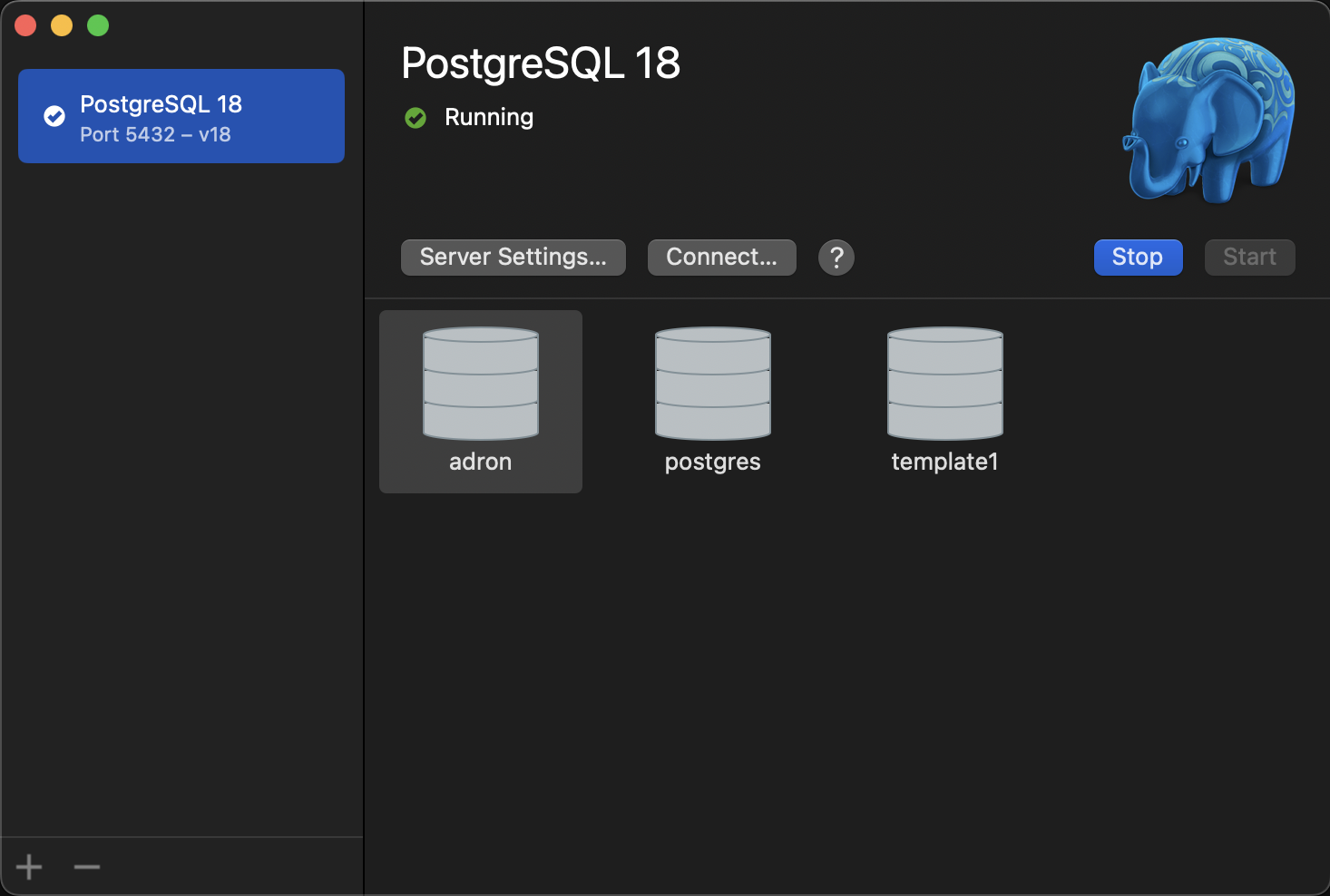
Postgres.app

Postgres.app

Installing TimescaleDB

Postgres.app offers TimescaleDB as a downloadable extension installer. This is way cleaner than trying to build it from source or messing with Homebrew—just download and double-click.

Head over to the Postgres.app Extensions page and grab the TimescaleDB package for PostgreSQL 18. Look for the one labeled “built for PostgreSQL 18” (currently timescaledb 2.23.1). It’s a .pkg file that handles everything automatically.
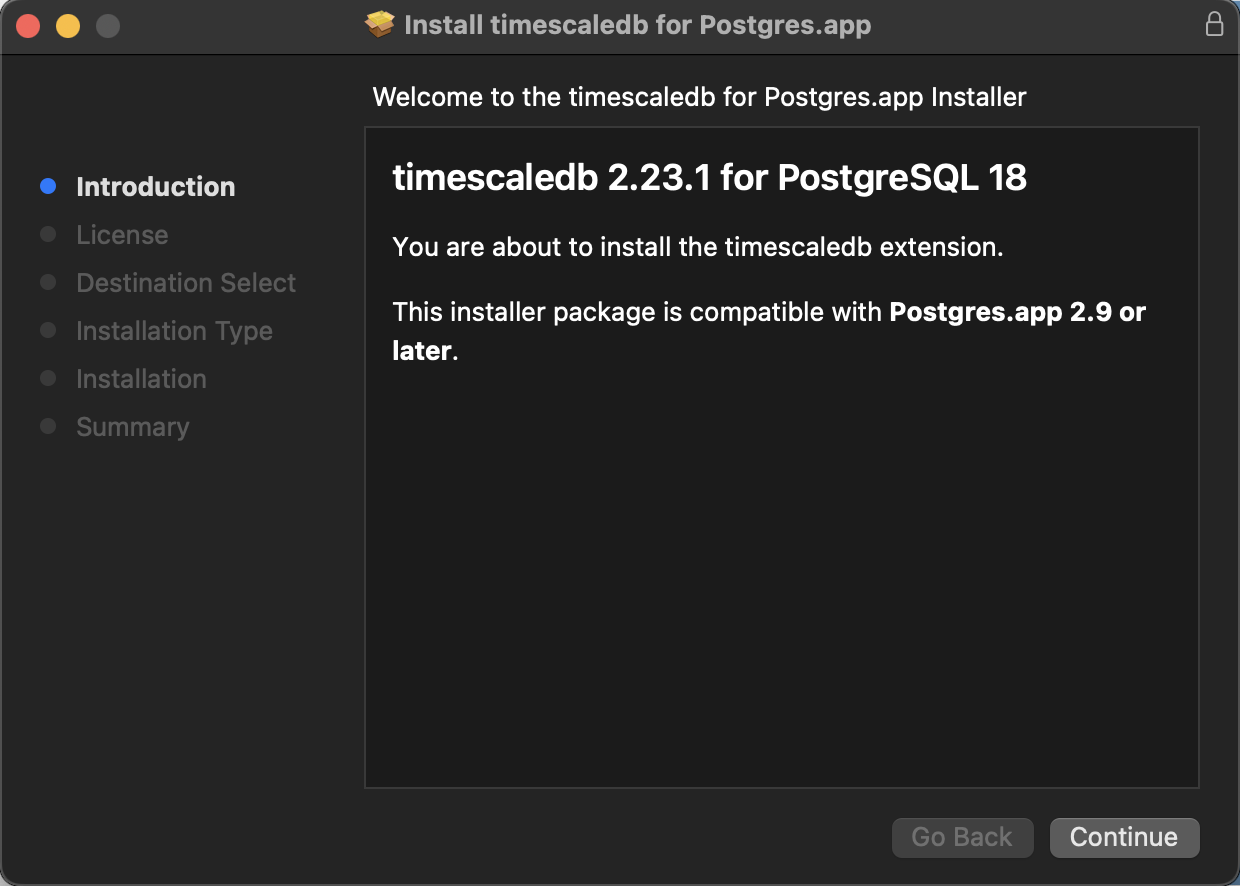
Wizard for installing timescaledb 2.23.1.

Wizard for installing timescaledb 2.23.1.

Once you download it, double-click the .pkg installer and follow the prompts. The installer shows you’re installing timescaledb 2.23.1 for PostgreSQL 18 and handles everything: it drops the extension files into ~/Library/Application Support/Postgres/Extensions/18/ and configures PostgreSQL 18 to find them. Postgres.app automatically configures the search paths for extensions installed in this location, so there’s no manual configuration needed.

After installation, restart Postgres.app (stop and start the PostgreSQL 18 server in the app). The extension is now available and ready to enable.

Setting Up Your First Time Series Database

Let’s create a database for time-series data. I’ll use metrics as an example, but name it whatever fits your project:

createdb metrics

Connect to it:

psql metrics

Postgres.app running the psql CLI app.

Postgres.app running the psql CLI app.

You’ll see psql (18.1 (Postgres.app)) confirming you’re connected to PostgreSQL 18 via Postgres.app. Nice and clean.

Enabling TimescaleDB

Inside your database, enable the extension:

CREATE EXTENSION IF NOT EXISTS timescaledb;

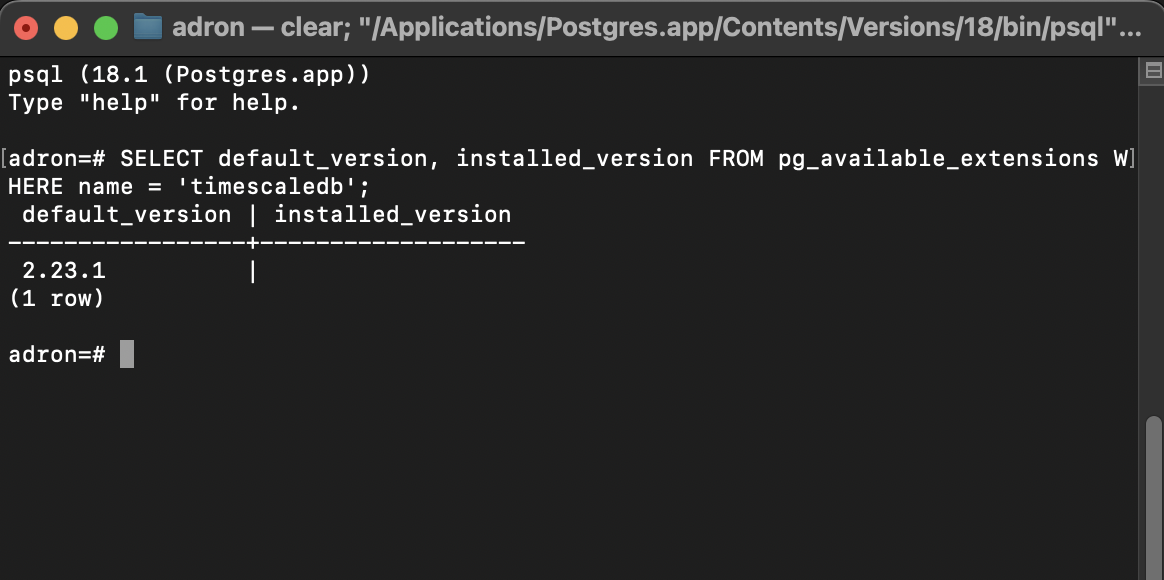
Verify it’s installed:

SELECT default_version, installed_version FROM pg_available_extensions WHERE name = 'timescaledb';
Checking that timescale is installed via psql.

Checking that timescale is installed via psql.

You should see both versions listed. If you get an error about the library not being found, make sure you restarted Postgres.app after installing the extension package. I’ve forgotten this step more than once.

Creating Your First Hypertable

Hypertables are where TimescaleDB gets interesting. They look like regular tables but automatically partition by time behind the scenes. You write queries like normal, but TimescaleDB handles the partitioning magic.

Let’s create a simple metrics table:

CREATE TABLE sensor_readings (
    time TIMESTAMPTZ NOT NULL,
    sensor_id INTEGER NOT NULL,
    temperature DOUBLE PRECISION,
    humidity DOUBLE PRECISION,
    pressure DOUBLE PRECISION
);

Now convert it to a hypertable by specifying the time column:

SELECT create_hypertable('sensor_readings', 'time');

That’s it. TimescaleDB automatically creates partitions (chunks) based on time intervals. By default, it creates 7-day chunks, which works well for most use cases. You can customize this if you need different chunk sizes, but the defaults are usually fine.

Testing It Out

Let’s add some sample data to see it in action:

INSERT INTO sensor_readings (time, sensor_id, temperature, humidity, pressure)
VALUES
    (NOW() - INTERVAL '1 hour', 1, 72.5, 45.2, 1013.25),
    (NOW() - INTERVAL '30 minutes', 1, 73.1, 45.8, 1013.30),
    (NOW(), 1, 73.5, 46.1, 1013.35);

Query it like a regular table:

SELECT * FROM sensor_readings ORDER BY time DESC;

Works exactly like a normal PostgreSQL table. The difference is what happens as your data grows—queries stay fast because TimescaleDB only scans the relevant chunks.

Useful TimescaleDB Features I Actually Use

Continuous Aggregates

These are materialized views that automatically refresh. I use them all the time for dashboards:

CREATE MATERIALIZED VIEW hourly_avg_temperature
WITH (timescaledb.continuous) AS
SELECT
    time_bucket('1 hour', time) AS hour,
    sensor_id,
    AVG(temperature) AS avg_temp,
    MAX(temperature) AS max_temp,
    MIN(temperature) AS min_temp
FROM sensor_readings
GROUP BY hour, sensor_id;

The time_bucket() function is TimescaleDB-specific and groups data by time intervals. Continuous aggregates refresh incrementally, so you’re not recomputing everything every time. This is what makes dashboards fast even with massive datasets.

Compression

Enable compression on older data to save space:

ALTER TABLE sensor_readings SET (
    timescaledb.compress,
    timescaledb.compress_segmentby = 'sensor_id'
);

SELECT add_compression_policy('sensor_readings', INTERVAL '7 days');

This compresses data older than 7 days automatically. TimescaleDB’s compression is impressive—I’ve seen 90%+ compression rates in practice. That sensor data you’re collecting every second? It takes up a fraction of the space it would in a regular PostgreSQL table.

Retention Policies

Automatically drop old data:

SELECT add_retention_policy('sensor_readings', INTERVAL '90 days');

This keeps only the last 90 days of data, dropping older chunks automatically. No cron jobs, no manual cleanup scripts. TimescaleDB handles it.

Connection Strings

Your connection string stays the same as regular PostgreSQL:

postgres://<your-macos-username>@localhost:5432/metrics

Example:

postgres://adron@localhost:5432/metrics

All your existing PostgreSQL tooling works. TimescaleDB is just an extension, so psql, pg_dump, ORMs, and migration tools all work exactly as before. I’ve used it with Rails, Django, Node.js—everything just works.

DDL Patterns I Keep Coming Back To

Here are some patterns I use regularly for time-series tables:

Basic Metrics Table

CREATE TABLE metrics (
    time TIMESTAMPTZ NOT NULL,
    metric_name TEXT NOT NULL,
    value DOUBLE PRECISION NOT NULL,
    tags JSONB
);

SELECT create_hypertable('metrics', 'time');
CREATE INDEX idx_metrics_name_time ON metrics (metric_name, time DESC);

The JSONB tags column is handy for storing arbitrary metadata. TimescaleDB handles JSONB just fine.

Events Table

CREATE TABLE events (
    time TIMESTAMPTZ NOT NULL,
    event_type TEXT NOT NULL,
    user_id INTEGER,
    properties JSONB
);

SELECT create_hypertable('events', 'time');
CREATE INDEX idx_events_type_time ON events (event_type, time DESC);
CREATE INDEX idx_events_user_time ON events (user_id, time DESC) WHERE user_id IS NOT NULL;

The partial index on user_id saves space when you have a lot of NULL values.

Multi-Sensor Table

CREATE TABLE sensor_data (
    time TIMESTAMPTZ NOT NULL,
    device_id TEXT NOT NULL,
    sensor_type TEXT NOT NULL,
    reading DOUBLE PRECISION NOT NULL,
    metadata JSONB
);

SELECT create_hypertable('sensor_data', 'time');
CREATE INDEX idx_sensor_device_time ON sensor_data (device_id, time DESC);
CREATE INDEX idx_sensor_type_time ON sensor_data (sensor_type, time DESC);

This pattern works well when you’re collecting data from multiple devices with different sensor types.

Local Development vs. Production: Postgres.app vs. tigerData

When you’re ready to deploy to production, you’ll likely use a managed TimescaleDB service like tigerData (or Timescale Cloud, AWS RDS with TimescaleDB, etc.). I’ve used both local Postgres.app and managed services, and here’s what’s different.

What You Get with Postgres.app (Local Development)

You manage everything locally. You install the extension, configure databases, and handle backups yourself. It’s perfect for development because you can experiment, break things, and reset without consequences. Your data lives on your Mac, so there’s no network latency and no per-hour billing.

Postgres.app runs one PostgreSQL server on your machine. You’re limited by your Mac’s resources—CPU, memory, and disk space. For development, this is fine. For production workloads handling millions of inserts per second, you’ll hit limits.

You handle backups, updates, monitoring, and scaling yourself. Postgres.app doesn’t automatically scale or replicate. If your Mac crashes, your database goes down. This is fine for local dev, but production needs high availability.

What You Get with tigerData (Production Deployment)

tigerData handles the operational overhead: backups, updates, monitoring, scaling, and high availability. You don’t manage servers, disk space, or replication. You just connect and use TimescaleDB. This is what you pay for—someone else handles the ops so you can focus on your application.

Managed services like tigerData offer distributed hypertables and read replicas. You can scale reads across multiple nodes and distribute hypertables across data nodes. Your local Postgres.app can’t do this—it’s a single instance. For production workloads that need to handle massive scale, managed services provide the infrastructure.

You get automated backups, point-in-time recovery, monitoring dashboards, alerting, and support. tigerData handles the complexity of running TimescaleDB at scale, including managing compression policies, continuous aggregates, and retention policies across distributed systems.

Your application connects over the network, so there’s latency. You pay per hour or per resource usage. For development, this adds friction and cost. For production, the managed infrastructure is worth it.

Performance: What TimescaleDB Actually Does

The performance improvements aren’t marketing fluff. Here’s what TimescaleDB provides that regular PostgreSQL doesn’t:

Query performance. Benchmarks show TimescaleDB can execute queries 1,000x to 14,000x faster than standard PostgreSQL for time-series workloads, depending on query complexity. I’ve seen queries that take 2,400 milliseconds in PostgreSQL run in 45 milliseconds with TimescaleDB—that’s a 53x improvement. Time-based aggregations run 61% faster because TimescaleDB’s query planner understands time-series patterns and optimizes accordingly.

Insert performance at scale. With 1 billion rows, PostgreSQL’s insert rate drops to around 5,000 rows per second as indexes become too large for memory. TimescaleDB maintains 111,000 rows per second at the same scale—over 20x higher insert rates. The automatic partitioning keeps indexes small and in memory, so insert performance stays consistent as your data grows.

Storage efficiency. TimescaleDB’s columnar compression reduces storage by 90% or more. In benchmarks, 1 billion rows that take 89 GB in PostgreSQL compress down to 8.7 GB with TimescaleDB. Compression happens automatically on older chunks, so you’re not managing archive tables or separate storage systems.

Automatic partitioning. Regular PostgreSQL requires manual partition management. TimescaleDB’s hypertables automatically partition data into time-based chunks. Queries that would crawl on a regular table stay fast even as your data grows into billions of rows because TimescaleDB only scans relevant chunks.

Continuous aggregates. Pre-computed materialized views that refresh incrementally. Instead of running expensive aggregations every time, TimescaleDB maintains them automatically. This is what makes dashboards fast even with massive datasets.

The core TimescaleDB features work the same locally and in production. Hypertables, compression, continuous aggregates, and retention policies behave identically. The difference is scale, availability, and who manages the infrastructure. Use Postgres.app for development, tigerData (or similar) for production.

The Downsides

TimescaleDB adds complexity to your stack. You’re managing an extension that needs to be installed and maintained. The automatic partitioning (hypertables) is powerful but adds another layer to understand when debugging. If you’re dealing with small datasets or simple time-series needs, regular PostgreSQL 18 with proper indexing might be enough.

There’s a learning curve. Continuous aggregates, compression policies, and retention policies are powerful but require understanding when and how to use them. You’ll need to learn TimescaleDB-specific functions like time_bucket() and create_hypertable(), though they’re straightforward once you get the hang of them.

Resource consumption can increase. Advanced features like continuous aggregates and compression do use CPU and memory. For small datasets, this overhead might not be worth it. But once you’re dealing with millions of rows, the performance gains far outweigh the resource costs.

Extension compatibility isn’t universal. While TimescaleDB works with most PostgreSQL extensions, some edge cases exist. If you’re using obscure extensions or have complex extension dependencies, test thoroughly before committing to TimescaleDB in production.

For teams that need strict production parity or can’t install extensions, you might need Docker or a managed TimescaleDB service instead. But for local development with Postgres.app on PostgreSQL 18, the downloadable extension installer makes it painless—just download, double-click, restart, and you’re ready to go.

And That’s It

You now have TimescaleDB running on Postgres.app with PostgreSQL 18. Your time-series tables will automatically partition, compress old data, and handle millions of rows efficiently. All while staying in the PostgreSQL ecosystem you already know.

The hypertable abstraction means you write queries like normal, but TimescaleDB handles the partitioning magic behind the scenes. No manual partition management, no complex maintenance scripts—just create the hypertable and start inserting data.

If you need more advanced features like distributed hypertables, custom chunk intervals, or background job scheduling, then TimescaleDB documentation covers those. But for most time-series workloads, what’s here gets you 90% of the way there.

References

  • Adding these shortly, I accidentally deleted them and am re-collecting them. 😬

A Complete Native PostgreSQL Setup on macOS: Homebrew and Launchd

Advantages

Native PostgreSQL installation gives you the best performance and the closest thing to a production Linux environment on macOS. You get full control over configuration, service management, and when PostgreSQL starts. Homebrew makes installation clean, and launchd handles service management reliably. You can run multiple PostgreSQL versions simultaneously on different ports, and you have direct access to all PostgreSQL files and configuration. This is the most flexible option for serious local development.

Disadvantages

Native installation requires more setup and management than Postgres.app or Docker. You’re responsible for starting and stopping the service, configuring auto-start, and managing system-level settings. Updates require manual intervention, and you need to understand launchd and Homebrew service management. It’s easier to accidentally break things or create conflicts with other PostgreSQL installations. For developers who want simplicity, Postgres.app is easier. For those who want isolation and reproducibility, Docker might be better.

Sometimes you want PostgreSQL installed directly on your Mac. No containers, no apps. Just PostgreSQL running as a system service. This gives you the most control, the best performance, and the closest thing to a production Linux environment you’ll get on macOS.

The trade-off is you’re managing a system service. But if you know what you’re doing, it’s straightforward. Homebrew makes the installation painless, and macOS’s launchd handles the service management. You get full control over when it starts, how it’s configured, and what versions you’re running.

This is the complete guide to installing PostgreSQL natively on macOS, configuring it properly, managing the service, and setting up an initial development database named interlinedlist.

Installation via Homebrew

Homebrew is the cleanest way to install PostgreSQL on macOS. If you don’t have Homebrew:

https://brew.sh

Install it, then install PostgreSQL:

brew install postgresql@16

This installs PostgreSQL 16. If you need a different version, swap postgresql@16 for postgresql@15, postgresql@14, or whatever matches your production environment.

Homebrew installs PostgreSQL but doesn’t start it automatically. That’s intentional—you control when it runs.

Start the Service

PostgreSQL on macOS runs as a launchd service. Start it:

brew services start postgresql@16

This starts PostgreSQL and configures it to start automatically on boot. If you don’t want it starting automatically, use:

brew services start postgresql@16 --no-autostart

Check if it’s running:

brew services list | grep postgresql

You should see postgresql@16 listed as started.

Verify It’s Running

Connect to PostgreSQL to verify everything works:

psql postgres

If you see a PostgreSQL prompt, you’re good. Type \q to exit.

Create Your Initial Development Database

Create the database for your project:

createdb interlinedlist

Confirm it exists:

psql -l | grep interlinedlist

Connect to it:

psql interlinedlist

You’re in.

Create a Local Superuser

By default, PostgreSQL creates a superuser matching your macOS username. If that doesn’t exist or you want to set it up explicitly:

createuser -s $USER

This creates a superuser with your macOS username. For local development, this keeps things simple. ORMs, migration tools, and scripts expect you to have full database privileges.

If you want a password for your user:

psql postgres

Then:

ALTER USER adron WITH PASSWORD 'your-password';
\q

Connection String

For most tooling and frameworks, the connection string will look like:

postgres://adron@localhost:5432/interlinedlist

Or if you set a password:

postgres://adron:your-password@localhost:5432/interlinedlist

Drop that into your .env file or wherever your project expects it.

Managing the Service

Stop PostgreSQL:

brew services stop postgresql@16

Start PostgreSQL:

brew services start postgresql@16

Restart PostgreSQL:

brew services restart postgresql@16

Check service status:

brew services list

This shows all Homebrew-managed services and their status.

Configure Auto-Start on Boot

By default, brew services start configures PostgreSQL to start automatically when your Mac boots. If you want to disable this:

brew services stop postgresql@16
launchctl unload ~/Library/LaunchAgents/homebrew.mxcl.postgresql@16.plist

To re-enable auto-start:

brew services start postgresql@16

Or manually:

launchctl load ~/Library/LaunchAgents/homebrew.mxcl.postgresql@16.plist

Finding PostgreSQL Files

Homebrew installs PostgreSQL in a versioned directory:

Binaries:

/opt/homebrew/opt/postgresql@16/bin/

Or on Intel Macs:

/usr/local/opt/postgresql@16/bin/

Data directory:

/opt/homebrew/var/postgresql@16/

Or on Intel Macs:

/usr/local/var/postgresql@16/

Configuration file:

/opt/homebrew/var/postgresql@16/postgresql.conf

Logs:

/opt/homebrew/var/log/postgresql@16.log

Updating PostgreSQL

When a new version is available:

brew upgrade postgresql@16

This upgrades PostgreSQL in place. Your data stays intact. After upgrading, restart the service:

brew services restart postgresql@16

Multiple PostgreSQL Versions

You can run multiple PostgreSQL versions simultaneously on different ports. Install another version:

brew install postgresql@15

Configure it to run on a different port. Edit the configuration:

brew services stop postgresql@15

Edit /opt/homebrew/var/postgresql@15/postgresql.conf and change:

port = 5433

Start it:

brew services start postgresql@15

Now you have PostgreSQL 16 on port 5432 and PostgreSQL 15 on port 5433.

Configuration Best Practices

For local development, you’ll want to adjust some PostgreSQL settings. Edit the config file:

nano /opt/homebrew/var/postgresql@16/postgresql.conf

Or use your preferred editor. Key settings for local dev:

# Increase shared buffers for better performance
shared_buffers = 256MB

# Increase work memory for complex queries
work_mem = 16MB

# Enable logging for debugging
logging_collector = on
log_directory = 'log'
log_filename = 'postgresql-%Y-%m-%d.log'
log_statement = 'all'  # Log all queries (useful for dev)

# Increase max connections if needed
max_connections = 100

After changing configuration, restart PostgreSQL:

brew services restart postgresql@16

Backup and Restore

Create a backup:

pg_dump interlinedlist > interlinedlist_backup.sql

Restore from backup:

psql interlinedlist < interlinedlist_backup.sql

Backup all databases:

pg_dumpall > all_databases_backup.sql

Common Issues and Solutions

Port already in use:

If port 5432 is already taken (maybe by Postgres.app or another PostgreSQL instance):

lsof -i :5432

Kill the process or change PostgreSQL’s port in the config file.

Can’t connect:

Check if PostgreSQL is running:

brew services list | grep postgresql

Check logs:

tail -f /opt/homebrew/var/log/postgresql@16.log

Permission errors:

Make sure your user owns the data directory:

sudo chown -R $(whoami) /opt/homebrew/var/postgresql@16

Uninstalling PostgreSQL

If you need to remove PostgreSQL completely:

brew services stop postgresql@16
brew uninstall postgresql@16

This removes PostgreSQL but leaves your data directory intact. To remove data as well:

rm -rf /opt/homebrew/var/postgresql@16

Summary of Native PostgreSQL Setup

Native PostgreSQL on macOS gives you full control. You manage the service, configure it exactly how you want, and run multiple versions if needed. It’s the closest thing to a production Linux environment you’ll get on a Mac.

Homebrew handles the installation cleanly, launchd manages the service reliably, and you get all the PostgreSQL tools you need without any abstraction layers. For serious local development that needs to match production, this is the way to go.

The service starts when you boot (or doesn’t, if you configure it that way), runs in the background, and stays out of your way until you need it. Clean, predictable, and exactly what you’d expect from a native system service.

A Clean, Production-Parity Way to Run PostgreSQL on macOS: Docker

Advantages

Docker gives you production parity and complete isolation. You can match exact PostgreSQL versions, run multiple instances simultaneously on different ports, and tear everything down with a single command. Docker Compose makes it easy to version control your database configuration and share it with your team. If you’re already using Docker for other services, PostgreSQL fits right into your existing workflow. Containers are predictable, reproducible, and never pollute your system with leftover installs.

Disadvantages

Docker adds overhead and complexity compared to Postgres.app or native installation. You need Docker Desktop running, which consumes system resources. Containers can be slower than native installations, and you’ll need to manage volumes for data persistence. If you’re not already using Docker, this adds another tool to your stack. For simple single-database development, Postgres.app might be faster and easier.

Sometimes you need more than Postgres.app. Maybe you’re matching production versions exactly, running multiple PostgreSQL instances, or you want complete isolation between projects. Docker gives you that control without polluting your system with multiple PostgreSQL installs.

Docker-based PostgreSQL setups are predictable, reproducible, and easy to tear down. You get production parity without the headaches of managing multiple versions on your Mac. If you’re already using Docker for other services, this fits right into your workflow.

This is the short guide to getting PostgreSQL running in Docker, configured, and ready for an initial development database named interlinedlist.

Prerequisites

You’ll need Docker Desktop installed. If you don’t have it:

https://docker.com

Download, install, and make sure Docker is running. You should see the Docker icon in your menu bar.

Run PostgreSQL in Docker

The simplest way to get PostgreSQL running:

docker run --name postgres-interlinedlist \
  -e POSTGRES_PASSWORD=postgres \
  -e POSTGRES_USER=postgres \
  -e POSTGRES_DB=interlinedlist \
  -p 5432:5432 \
  -d postgres:16

This does a few things:

  • Creates a container named postgres-interlinedlist
  • Sets up a database called interlinedlist automatically
  • Exposes PostgreSQL on port 5432 (standard)
  • Runs PostgreSQL 16 in detached mode (-d)
  • Uses the default postgres user with password postgres

If you need a different version, swap postgres:16 for postgres:15, postgres:14, or whatever matches your production environment.

Verify It’s Running

Check that your container is up:

docker ps | grep postgres-interlinedlist

You should see the container running. If you don’t, check logs:

docker logs postgres-interlinedlist

Install the Command Line Tools

You’ll want psql available locally to connect to your Dockerized PostgreSQL. The easiest way is via Homebrew:

brew install postgresql@16

Or if you already have Postgres.app installed, you can use those tools. They’ll connect to Docker just fine.

Verify:

psql --version

Connect to Your Database

Now connect to the database running in Docker:

psql -h localhost -U postgres -d interlinedlist

When prompted, enter the password: postgres

You’re in. Same PostgreSQL, just running in a container instead of directly on your Mac.

If you want to use your macOS username instead of postgres:

psql -h localhost -U postgres -d interlinedlist

Then inside psql:

CREATE USER adron WITH SUPERUSER PASSWORD 'your-password';
GRANT ALL PRIVILEGES ON DATABASE interlinedlist TO adron;
\q

Now you can connect as yourself:

psql -h localhost -U adron -d interlinedlist

Connection String

For most tooling and frameworks, the connection string will look like:

postgres://postgres:postgres@localhost:5432/interlinedlist

Or if you created your own user:

postgres://adron:your-password@localhost:5432/interlinedlist

Drop that into your .env file or wherever your project expects it.

Managing Your Container

Stop the container:

docker stop postgres-interlinedlist

Start it again:

docker start postgres-interlinedlist

Remove the container (this deletes your data):

docker stop postgres-interlinedlist
docker rm postgres-interlinedlist

View logs:

docker logs postgres-interlinedlist

Persisting Data

By default, Docker containers are ephemeral. If you remove the container, your data goes with it. To persist data between container restarts, use a volume:

docker run --name postgres-interlinedlist \
  -e POSTGRES_PASSWORD=postgres \
  -e POSTGRES_USER=postgres \
  -e POSTGRES_DB=interlinedlist \
  -p 5432:5432 \
  -v postgres-interlinedlist-data:/var/lib/postgresql/data \
  -d postgres:16

The -v postgres-interlinedlist-data:/var/lib/postgresql/data flag creates a Docker volume that persists even if you remove the container. Your data stays safe.

For anything more than a quick test, use Docker Compose. Create a docker-compose.yml:

version: '3.8'

services:
  postgres:
    image: postgres:16
    container_name: postgres-interlinedlist
    environment:
      POSTGRES_PASSWORD: postgres
      POSTGRES_USER: postgres
      POSTGRES_DB: interlinedlist
    ports:
      - "5432:5432"
    volumes:
      - postgres-interlinedlist-data:/var/lib/postgresql/data

volumes:
  postgres-interlinedlist-data:

Then:

docker-compose up -d

To stop:

docker-compose down

To stop and remove volumes (deletes data):

docker-compose down -v

Docker Compose keeps everything in one file, version-controlled, and easy to share with your team.

Summary of Production-Parity with Docker

Docker gives you production parity, version control, and complete isolation. You can run multiple PostgreSQL versions simultaneously on different ports, match your production environment exactly, and tear everything down with a single command.

If you need more like multiple databases, extensions, seed scripts, or integration with other Docker services, Docker Compose makes it all straightforward. But for a single PostgreSQL instance that matches production, this gets you there fast.

The container runs when you need it, stops when you don’t, and never touches your system PostgreSQL installs. Clean, predictable, and exactly what you need for local development.