Monster Bits of WCF and Itty Bitty Bits of MVC

I’ve had the pleasure of working with WCF on three specific projects that have brought me to this blog entry.  I haven’t used WCF on only three projects, there are just three that have brought me to write this entry.  I’ve used WCF a lot, since back when it was a beta.  WCF is great when creating SOAP services and you aren’t too worried about the extra overhead.  WCF is great for what it does, for the ideas behind what it does.

But writing RESTful web services doesn’t seem to be its strong point.  On two huge projects WCF has basically been dropped, or so scaled back one really can’t honestly say that WCF is used, and either an alternate framework has been used or a LOT of custom code ends up being written.

The first time I used WCF to implement RESTful service was at Webtrends.  Albeit, there is a single service that returns all types of awesome reporting goodness, however to implement basic auth, logging, polling, and a whole host of other Enterprise Scale needs we had to custom roll most of it.  Keep in mind, when doing this the WCF REST capabilities were brand shiny and new, so there were a few issues to work out.  Now, maybe WCF could be used and a lot of it would be built in.  However as it was, we easily spent 60% of the time writing custom bits because WCF just didn’t have the right options with the right bindings.

But I digress, I recently implemented an architecture using RESTful services using WCF.  But now I’ve come to find myself dropping WCF because of the back and forth and going with ASP.NET MVC controller actions to return JSON instead.  With that, here’s to the lean mean controller actions rockin’ the JSON.  Here’s what I’ve done to port everything from WCF to MVC.

To see what I had done, except on a smaller scale, check out my previous blog entry on ASP.NET MVC with a WCF project smack in the middle of it.  This will give you an idea of what I was using the WCF services for, merely to provide JSON results via RESTful services to an ASP.NET MVC front end requesting data with jQuery.

This is how I’ve setup the controller to return JSON results via an action.

First start a new ASP.NET MVC Project and add a new controller.  Cleanup the controller so that you have the following in the controller.

using System.Web.Mvc;

namespace RestWebServicesWithMvc.Controllers
{
    public class ServicesController : Controller
    {

    }
}

Now create a testing project to create your test first.  Remember to add the reference to the ASP.NET MVC project.  From here we can create the first test.

using Microsoft.VisualStudio.TestTools.UnitTesting;
using RestWebServicesWithMvc.Controllers;

namespace RestWebServicesWithMvc.Tests
{
    [TestClass]
    public class UnitTest1
    {
        [TestMethod]
        public void TestMethod1()
        {
            var controller = new ServicesController();
            var result = controller.GetBiz();
            Assert.IsNotNull(result);
        }
    }
}

Now fill out the basic skeleton of the action in the controller.

using System;
using System.Web.Mvc;

namespace RestWebServicesWithMvc.Controllers
{
    public class ServicesController : Controller
    {
        public ActionResult GetBiz()
        {
            throw new NotImplementedException();
        }
    }
}

Now we should have a good red running on our test.  Let’s create a business model class to return as our result next.

namespace RestWebServicesWithMvc.Models
{
    public class BizEntity
    {
        public string BizName { get; set; }
        public string StartupDate { get; set; }
        public int SalesThisMonth { get; set; }
    }
}

Now let’s return that object with some fake data.  First add [AcceptVerbs(HttpVerbs.Post)] to the action in the controller.  Then return a serializable object to the actual method as shown.

[AcceptVerbs(HttpVerbs.Post)]
public ActionResult GetBiz()
{
    return Json(
        new BizEntity()
            {
                BizName = "Adron's Code Workingz",
                SalesThisMonth = 3429,
                StartupDate = DateTime.Now.AddYears(-5).ToString()
            }
        );
}

This is a quick starter.  There are a few dozen other options around this capability including other verb usage.  For many, this is all you need for your services, especially if their primary purpose is to communicate with a specific website and one doesn’t want the overhead of WCF.

Shout it

Physicists and Richard Feynmen

I snagged this quote from general web surfing.  It stood out to me as something that generally applies to those in sciences, engineering, or software in the way we approach our work with predictions.  Because really, most of what we do is based off of everyday experiments.

“Physicists have learned…that whether they like a theory or they don’t like a theory is not the essential question. Rather, it is whether or not the theory gives predictions that agree with experiment. It doesn’t matter how beautiful your guess is or how smart you are or what your name is.” – Richard Feynman

Richard Feynman rocks, this guy is the quintessential curious rock star of science.  I really agree with his attitude about life in so many ways.

That is all.

What You Need and Want With Windows Azure Part II

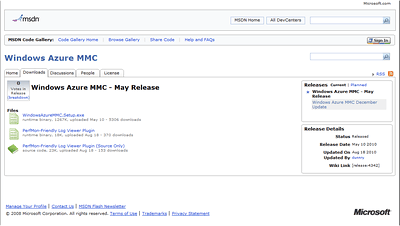
One of the most useful tools to use in Windows Azure Development is the Windows Azure MMC.  The Microsoft Management Console, or MMC, is the management console that many of the Windows Server Management interfaces can plug into.  The Windows Azure Team has put together the Windows Azure specific MMC Console Plugin that is available for download on Microsoft MSDN Code Site at http://code.msdn.microsoft.com/windowsazuremmc.
Windows Azure MMC Code Site

Windows Azure MMC Code Site

When you navigate to the page, click on the tab for downloads and you will find three different files;

  • WindowsAzureMMC.exe
  • PerfMon-Friendly Log Viewer Plugin
  • PerfMon-Friendly Log Viewer Plugin (Source Only)

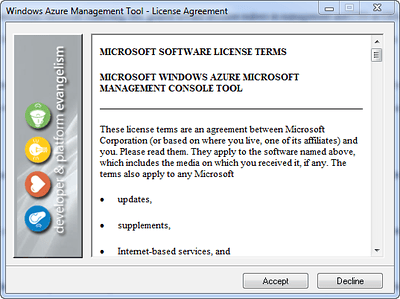
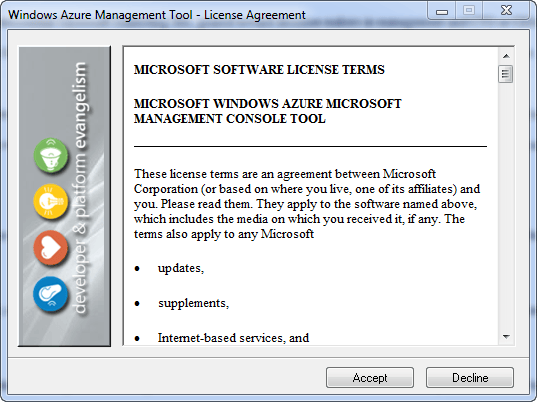
The main file you’ll need to download is the WindowsAzureMMC.exe file.  Once this file is downloaded, run the executable.  An installation wizard will appear, just click next and step through each of the steps accepting any defaults.
Windows Azure Management Tool Installation

Windows Azure Management Tool Installation

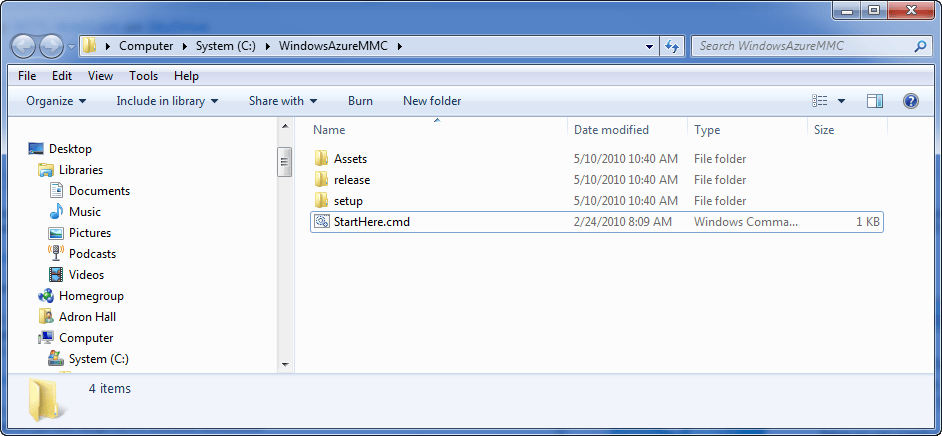
Once the executable runs it should pop up a Windows Explorer Window, if not navigate to where the files where just installed (unzipped) to.  By default the installer places them in C:\WindowsAzureMMC.  Find the file StartHere.cmd located in the installation directory and fun the file.
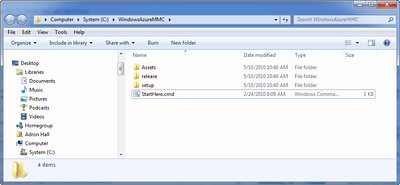
StartHere.cmd

StartHere.cmd

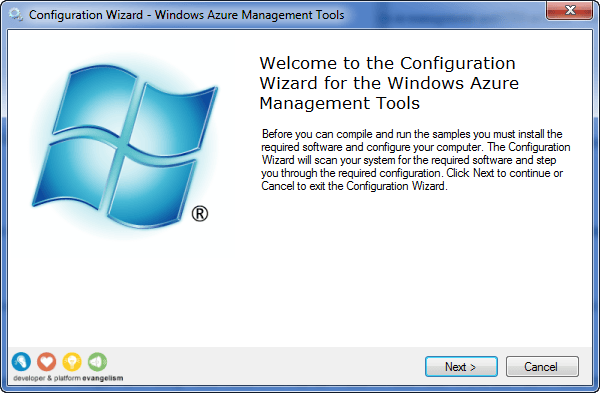
When the file is executed a DOS prompt will flicker, and another configuration wizard titled Windows Azure Management Tools will appear.
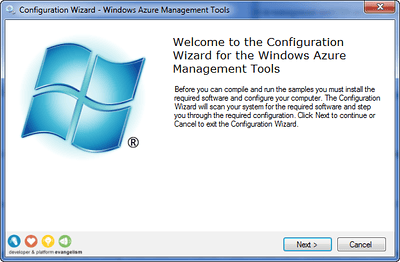
Configuration Wizard for the Windows Azure Management Tools

Configuration Wizard for the Windows Azure Management Tools

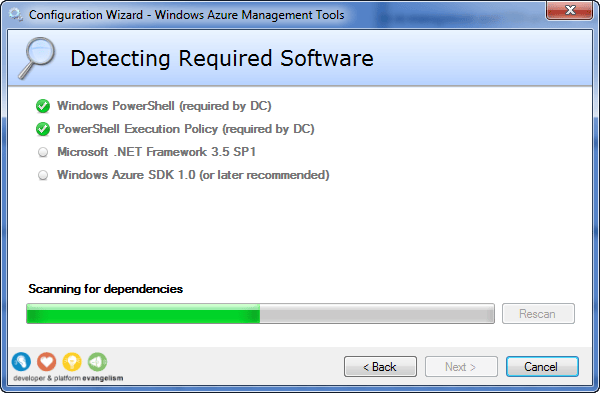
Click next and the installation will start, checking each of the dependencies required to execute the MMC.
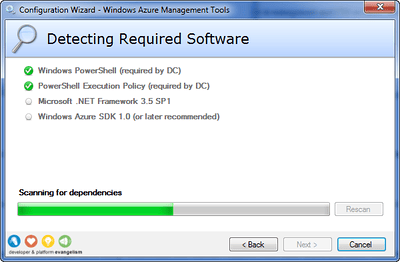
Detecting Required Software

Detecting Required Software

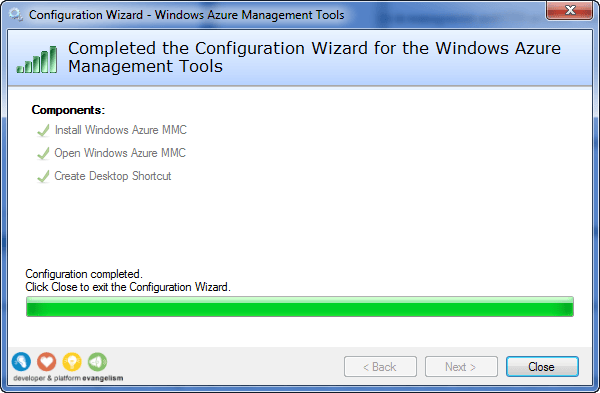
Continue to click any next prompts, and then you will have the Windows Azure MMC Console open once the StartHere.cmd finishes executing.  Click close on the configuration wizard.
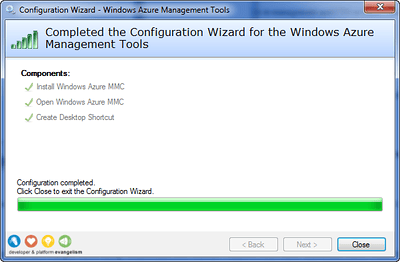
Installation Completed

Installation Completed

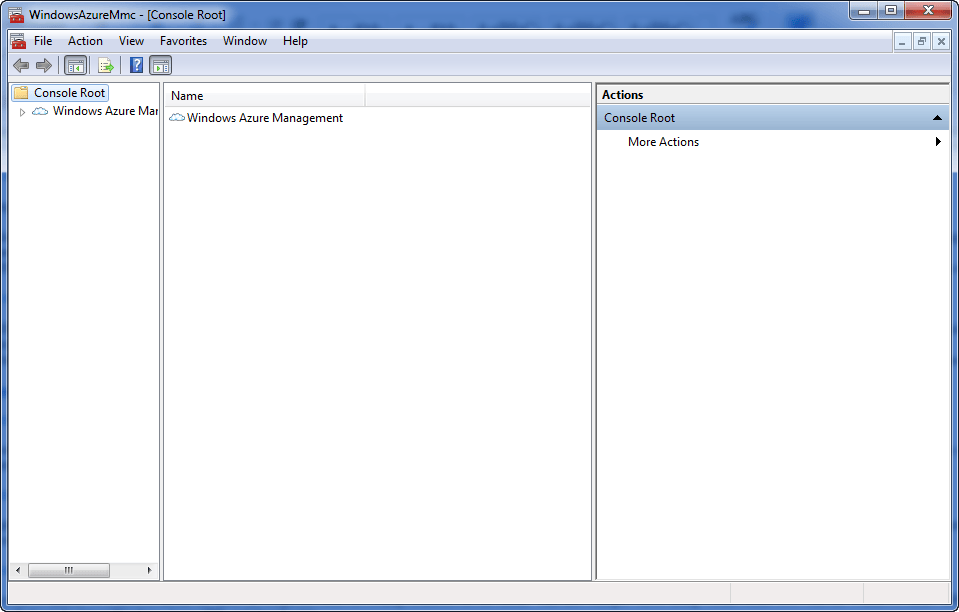
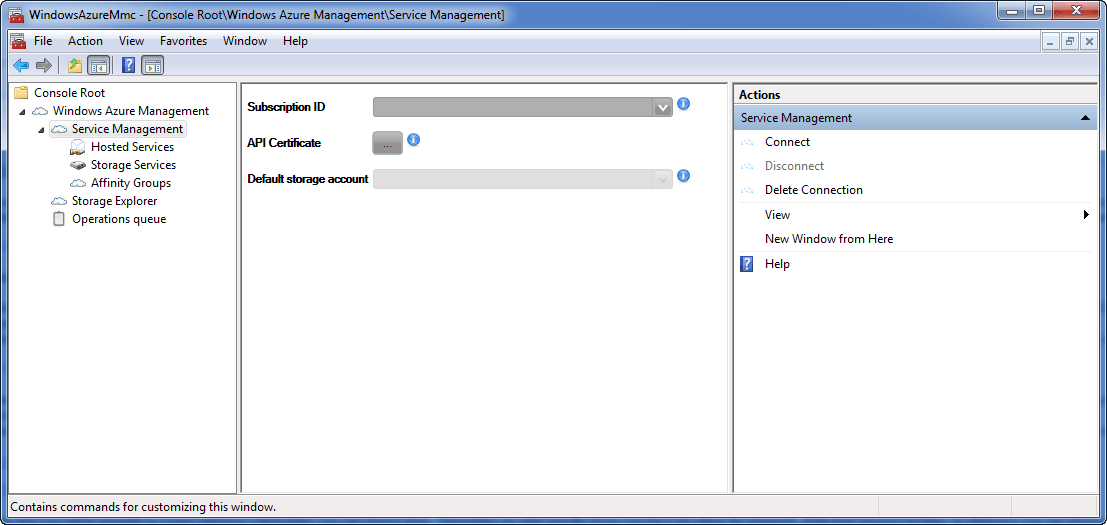
The MMC will now be displayed on screen as shown below.
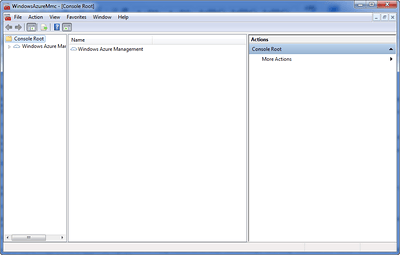
Windows Azure Management Tool (MMC)

Windows Azure Management Tool (MMC)

Open the Windows Azure Management section by clicking on the small tree view arrow on the left hand side.  The tree view will open up to a Service Management Node with a Hosted Services, Storage Services, and Affinity Groups listed underneath the node.  Select the actual Service Management Node so that the middle window shows the connection form shown here.
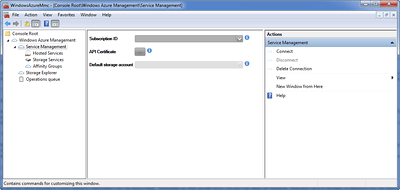
Windows Azure MMC Services Management Node Connection

Windows Azure MMC Services Management Node Connection

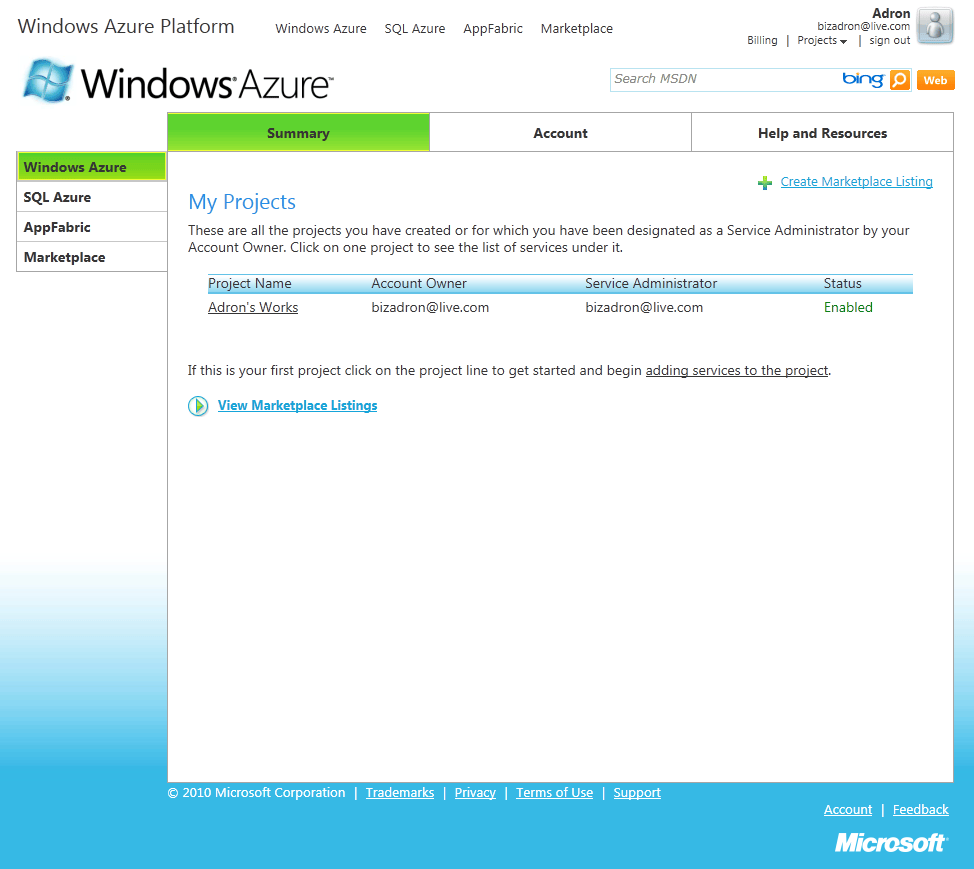
Now navigate back to Windows Azure Platform Web Interface (http://windows.azure.com).  Click on the project displayed on the main screen to select it.
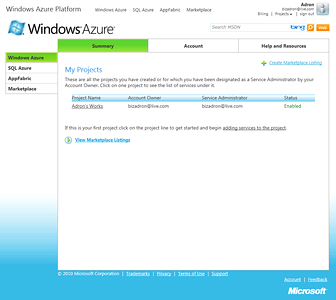
Windows Azure Portland Interface

Windows Azure Portland Interface

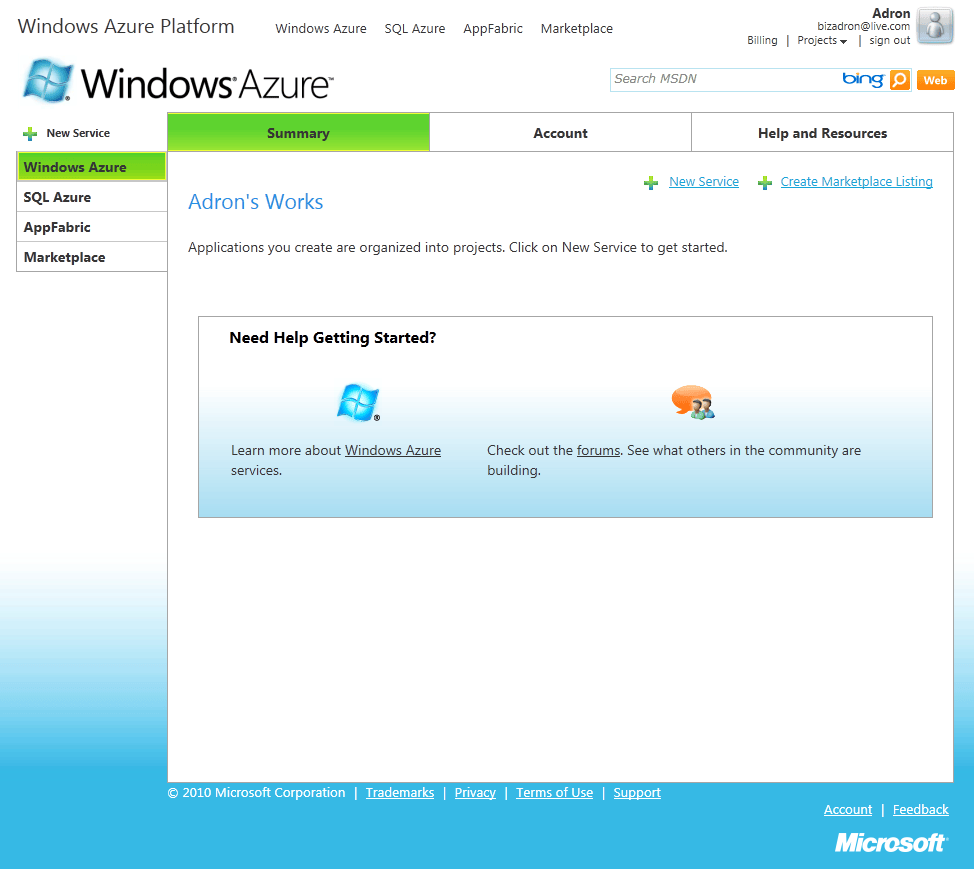
When the follow page displays, click on the Account tab at the center top of the page.
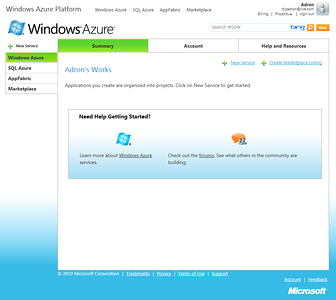
Windows Azure Project

Windows Azure Project

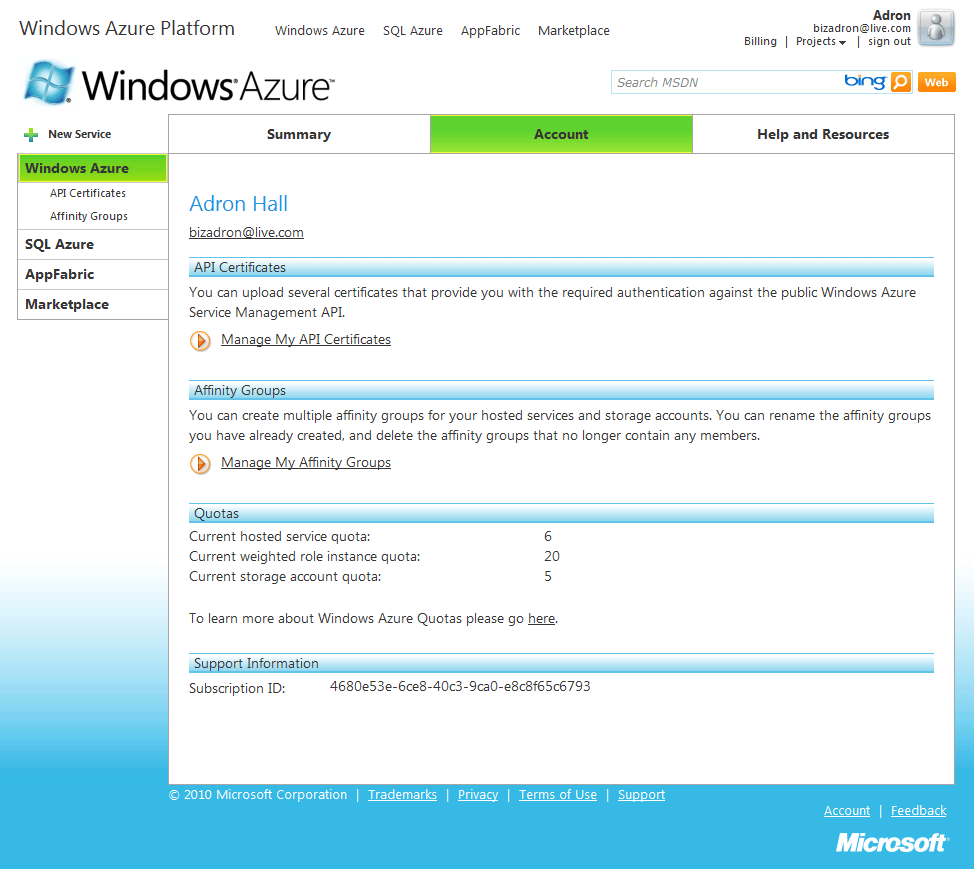
When the Account Page finishes rendering look at the very bottom to locate the subscription ID.
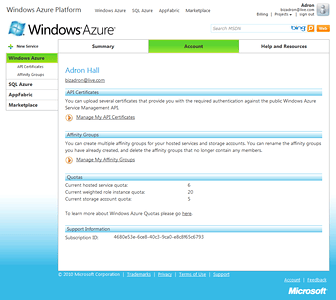
Windows Azure Project Account Properties

Windows Azure Project Account Properties

Enter the subscription ID into the form.  Now click on the ellipsis button on the form so the certificates that are available are displayed.
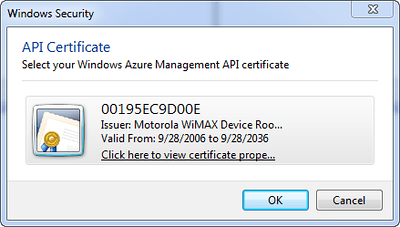
API Certificate

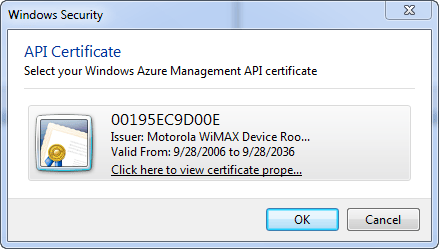
API Certificate

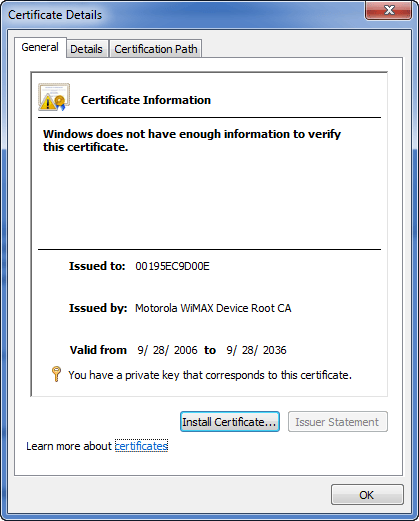
Click on the underlined link on the certificate you want to use (sometimes there are a few options, depending on what is installed on the machine already).  A properties dialog should appear when you click on the underlined link button.
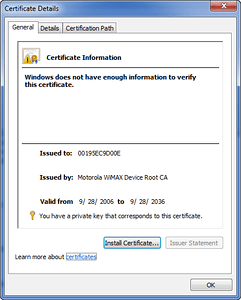
Certificate Details

Certificate Details

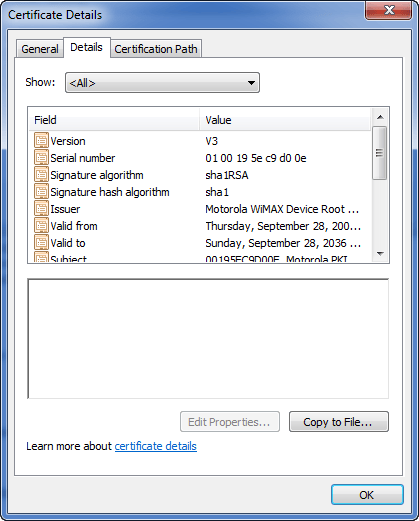
Click on the Details Tab on the top of the properties dialog window.
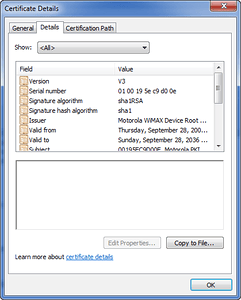
Certificate Details, Details Tab

Certificate Details, Details Tab

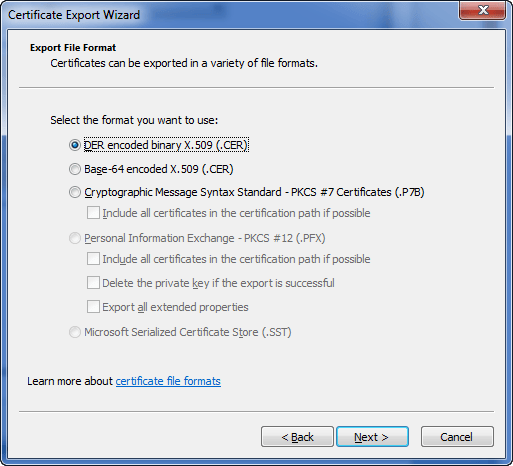
Now click on the Copy to File Button.  An export process will start for the certificate.  Click on next.  On the next screen make sure No, do not export the private key is selected.  The next screen selects the DER encoded binary X.509 (.CER) option.  Verify this setting and then click next.
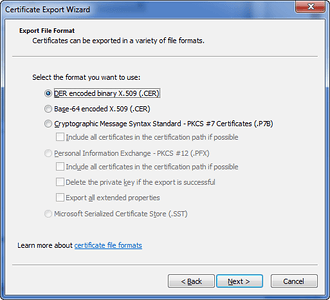
Certificate Export Wizard

Certificate Export Wizard

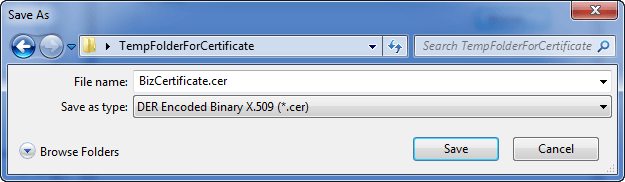
Click on next and then enter the path and filename where you want to save the certificate.
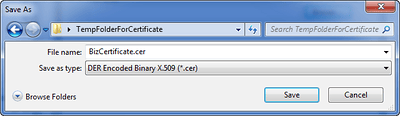
Save As File Name for Certificate

Save As File Name for Certificate

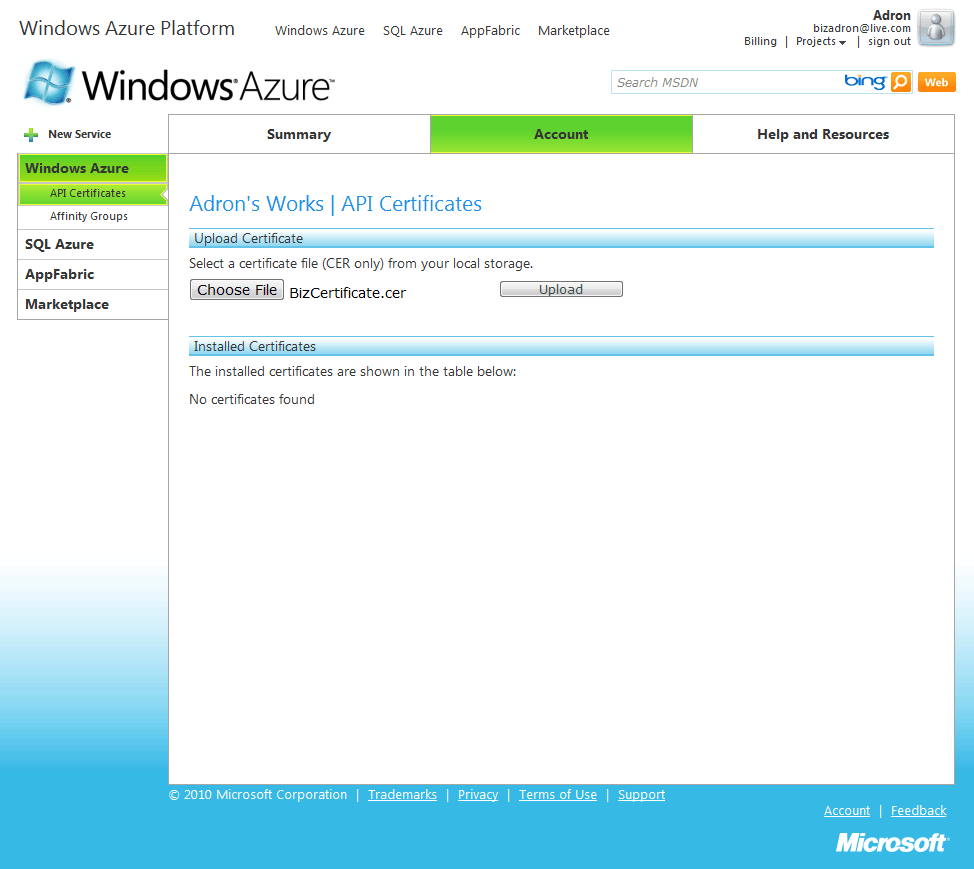
Now that you have the certificate, return to the Windows Azure Platform Web Interface (http://windows.azure.com).  Navigate to the Account Tab section of the site again.  On that page click on the Manage My API Certificates.  This is the same page as shown above in the image captioned “Windows Azure Project Account Properties“.  Once the page displays click on the Choose File button on the page.  Find the location the certificate was saved and select the certificate.  Now click the upload button to upload the file to the Windows Azure Account.
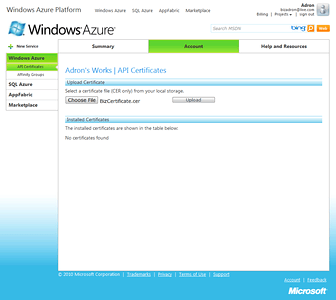
API Certificates Upload

API Certificates Upload

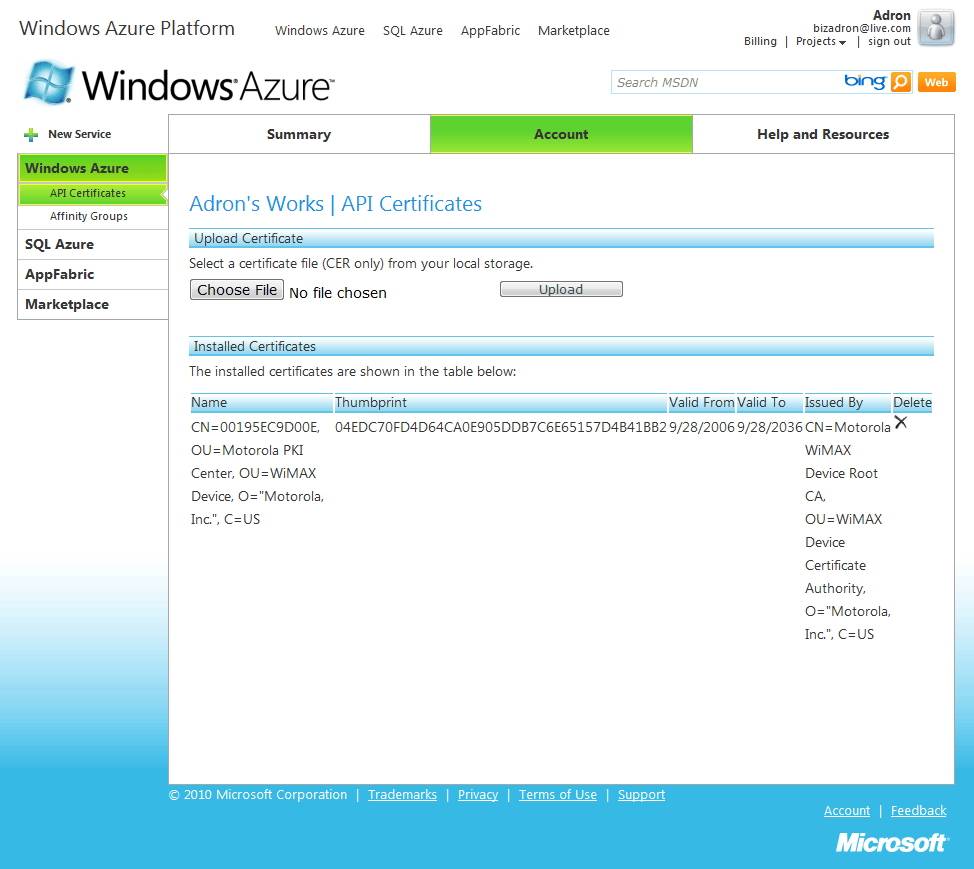
When the file is done uploading the page will update and show something similar to what is shown in the next screenshot.
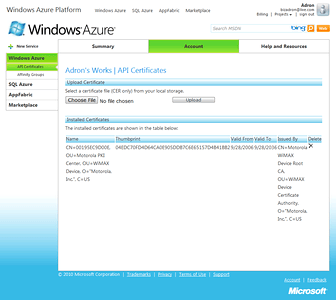
API Certificates, Finished Uploading

API Certificates, Finished Uploading

Now you can click on the OK button, if you haven’t already, to confirm the API Certificate in the Windows Azure MMC.  Click on the Connect button in the far right window area of the MMC.  It should take a second but the connection should occur.  You can tell by the Default storage account form drop down becomes enabled.  At this time though, since we haven’t placed anything in storage or started any storage services there will be nothing displayed in the drop down.

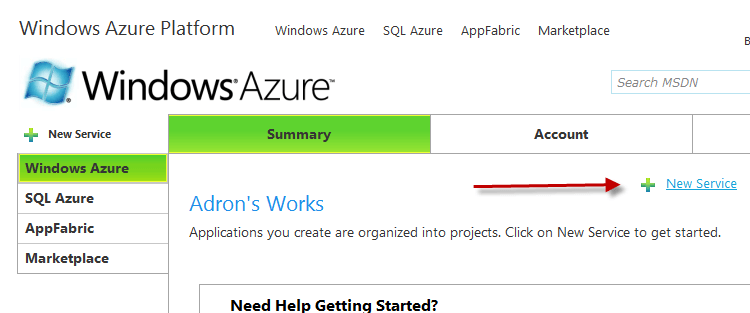
At this point the MMC is functional; there just isn’t much to look at in the Windows Azure Account yet.  So let’s change that and setup some sample services.  First head back over to the Windows Azure Platform Web Interface (http://windows.azure.com).  Once you’re in click on the project as we did before so that it is the focus point.  Click on the +New Service link in the top right of the main page window section.
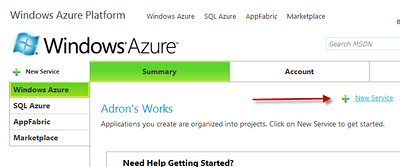
Starting a Windows Azure Service

Starting a Windows Azure Service

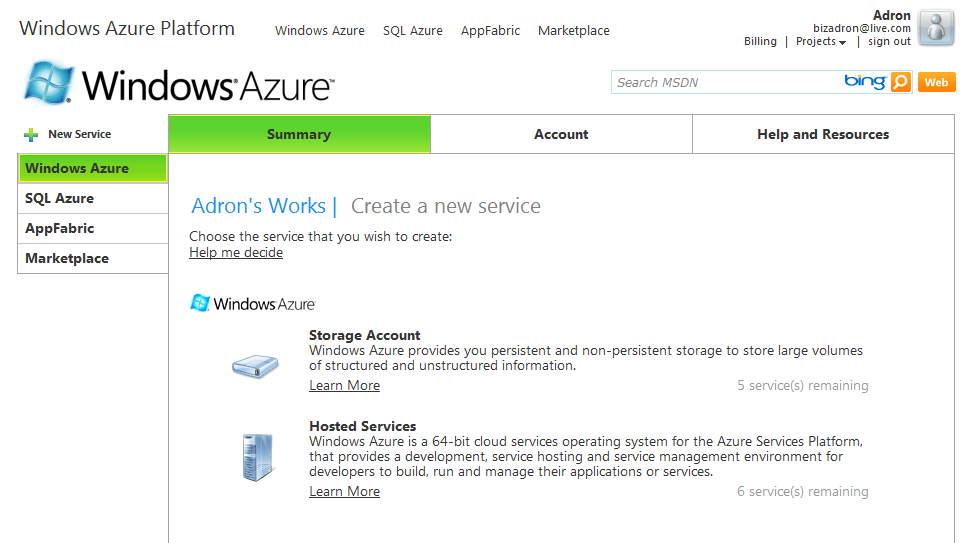
The next screen will display the options to create a Windows Azure Storage Account or a Hosted Services Role.  Click on the Windows Azure Storage Account option.
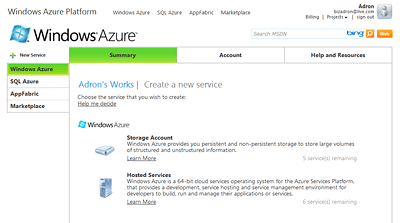
Windows Azure Create a Service

Windows Azure Create a Service

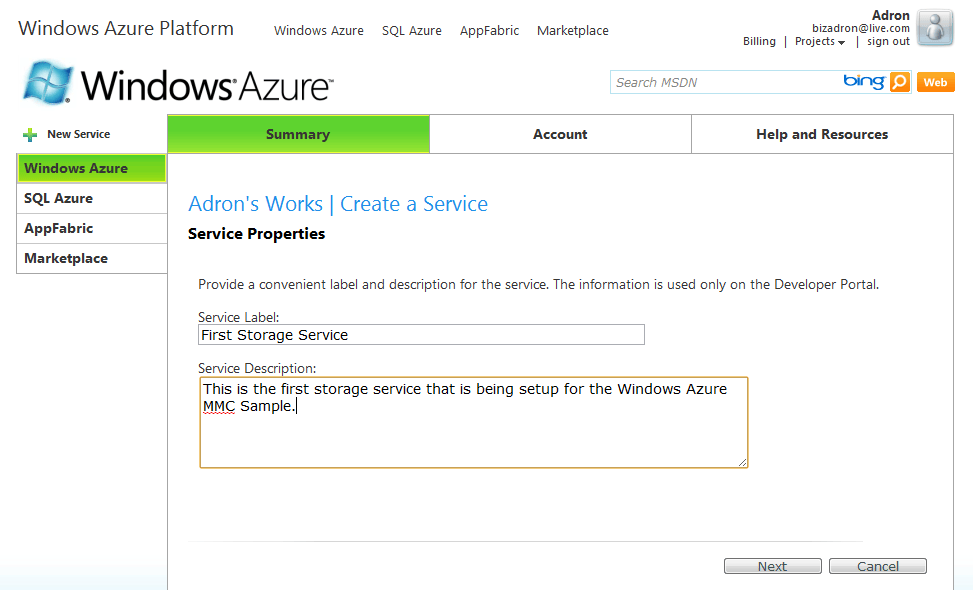
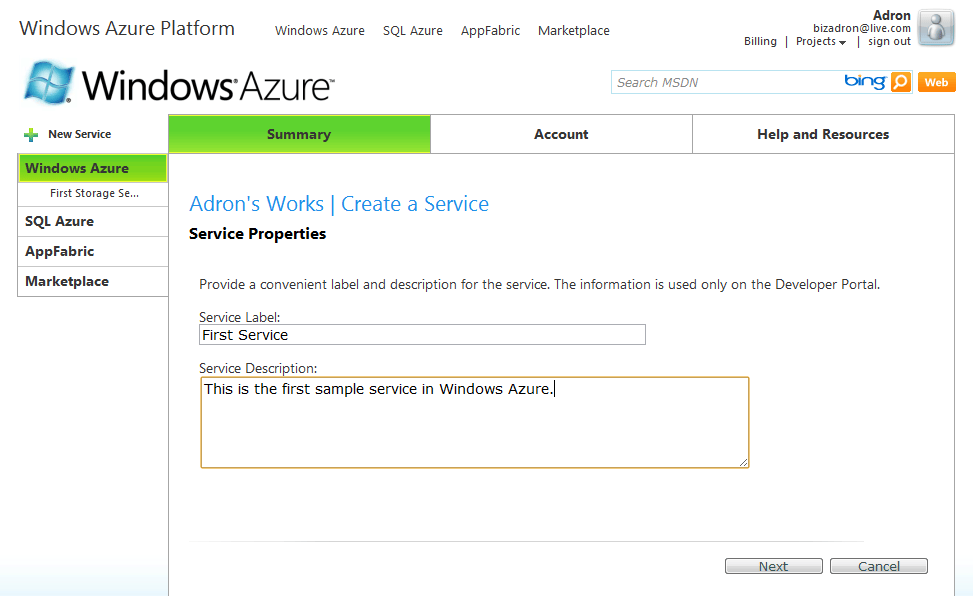
On the screen that renders fill out the service label and description.  Both of these fields are mostly free text, allowing spaces and special characters.  Click next when you have filled out the label and description.
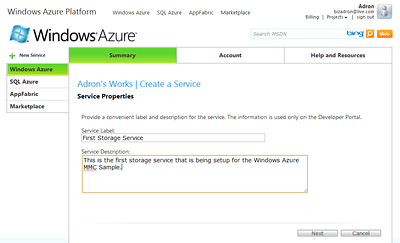
Services Properties

Services Properties

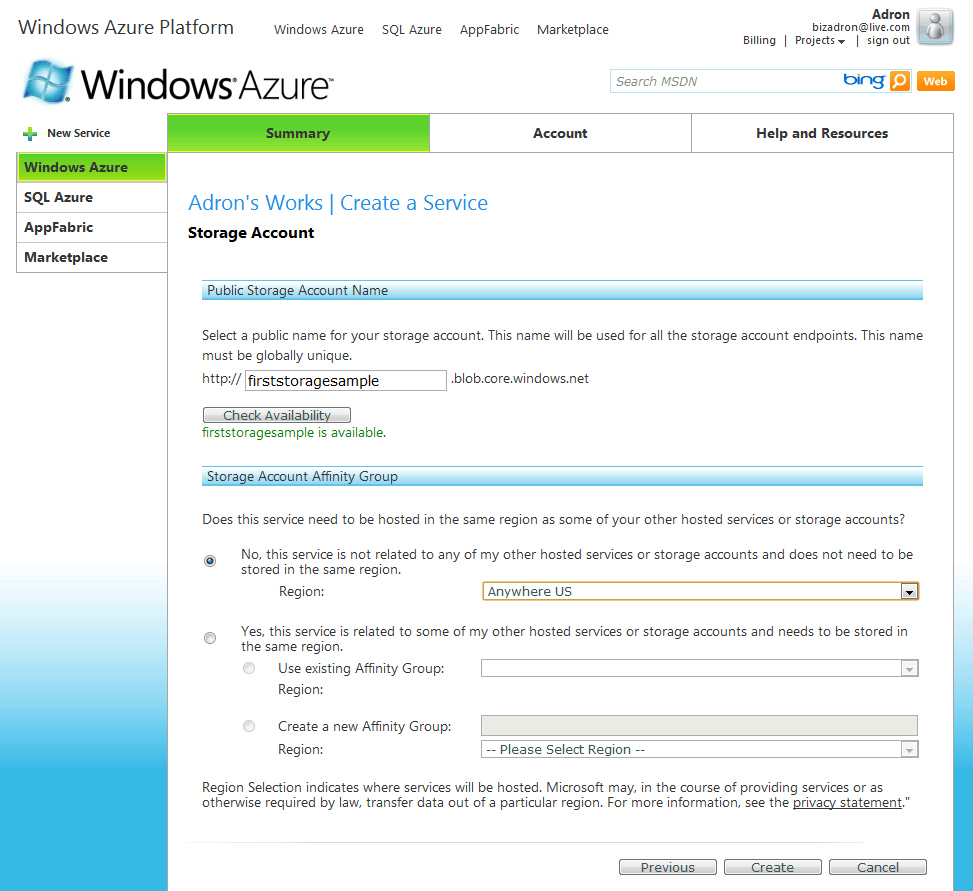
The next form that comes up has the public storage account name.  This field must be compliant with URI naming conventions.  The idea also is that these storage services use a RESTful API, it is best to follow the REST Architecture ideals and name the location something easy to read and to remember.  You can click the check availability button to verify if the name is used or not.  If it is available move down and select Anywhere US for the region.
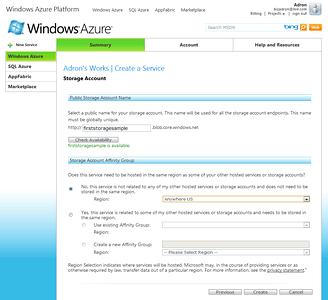
First Storage Sample

First Storage Sample

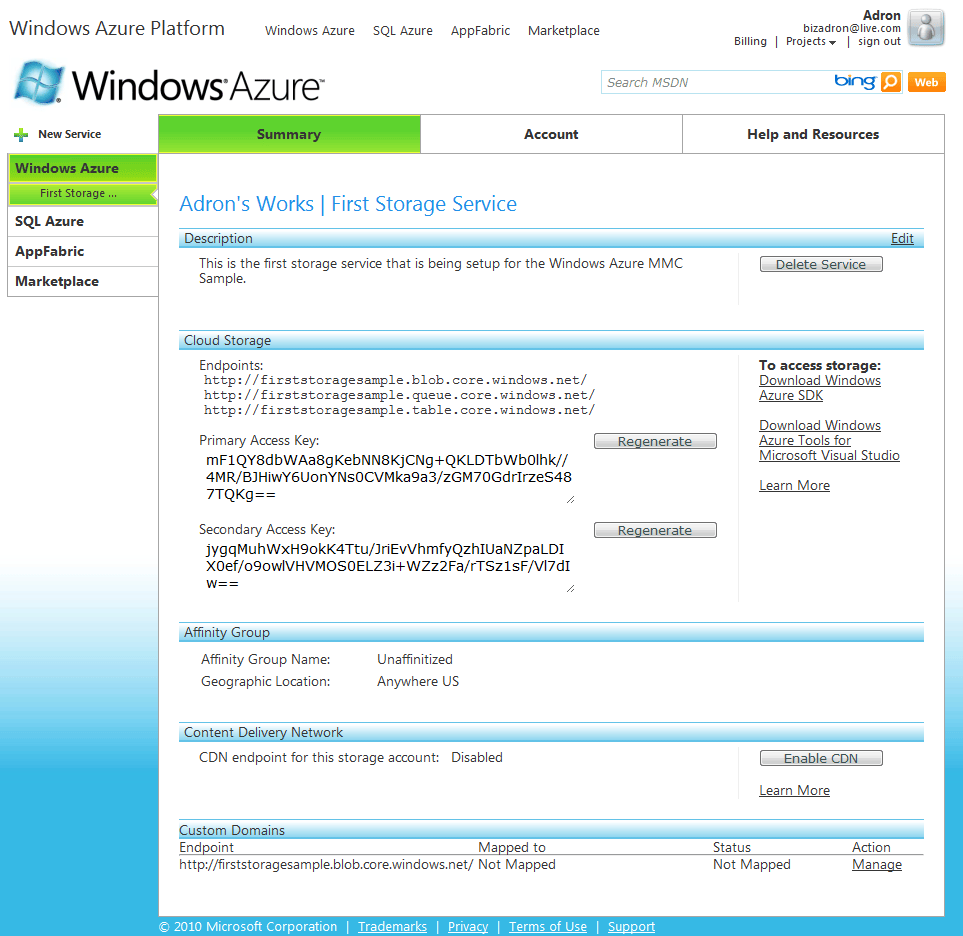
Once you are finished click the create button at the bottom of the form.  The next window will render the results of creating the Windows Azure Storage Account.  This page has all the information you’ll need to fill out the Windows Azure MMC connection information.
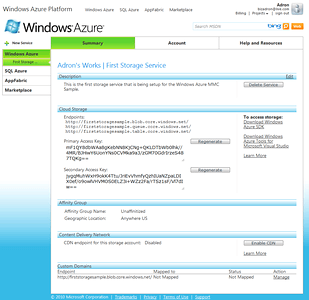
Windows Azure Storage Account Properties

Windows Azure Storage Account Properties

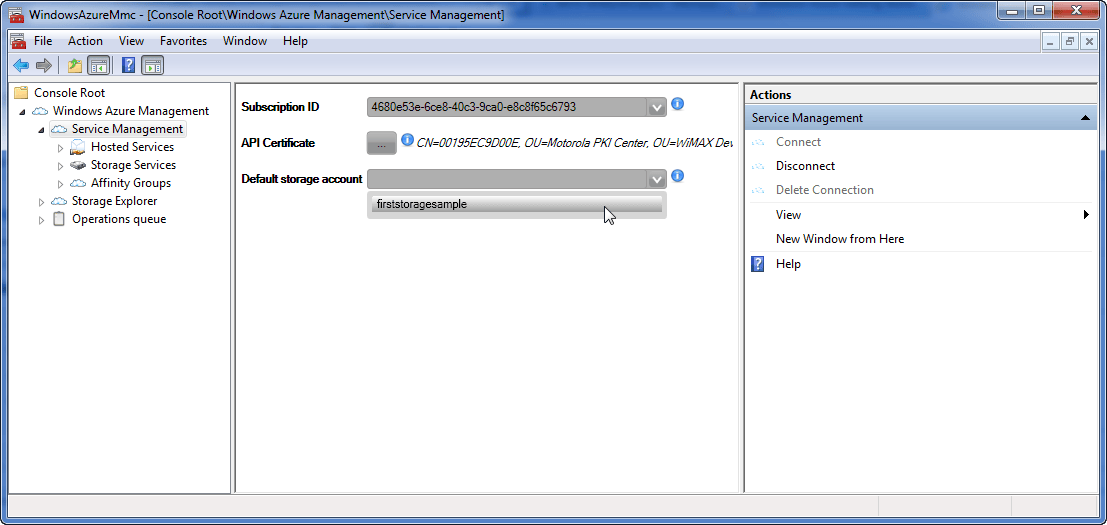
If you still have the Windows Azure MMC open, bring focus to it again.  If not open it back up and open the Windows Azure Management tree view back to the Service Management Node and verify or enter the information for the subscription ID and API Certificate.  Now click on the Connect link button on the right hand window pane.  The MMC will then connect and will populate the Default storage account drop down.  Click on the drop down and you will see your Windows Azure Storage Account that we just created.
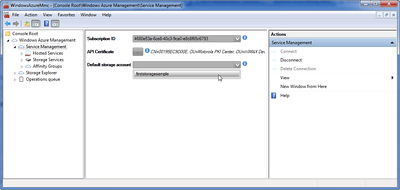
Service Management Node Connected with Default Storage Account

Service Management Node Connected with Default Storage Account

Now that we have a Windows Azure Storage Account, let’s get a Windows Azure Services Role running also.  Navigate back to the Windows Azure Platform Web Interface (http://windows.azure.com).  Once the page has rendered click on your specific project, wait for that page to render and  then on the +New Service link. This time select the Windows Azure Services Role to create.  On the next page fill out the service label and description the same as with the Windows Azure Storage Account creation.
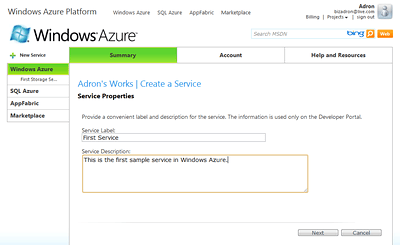
Create a Service (Role)

Create a Service (Role)

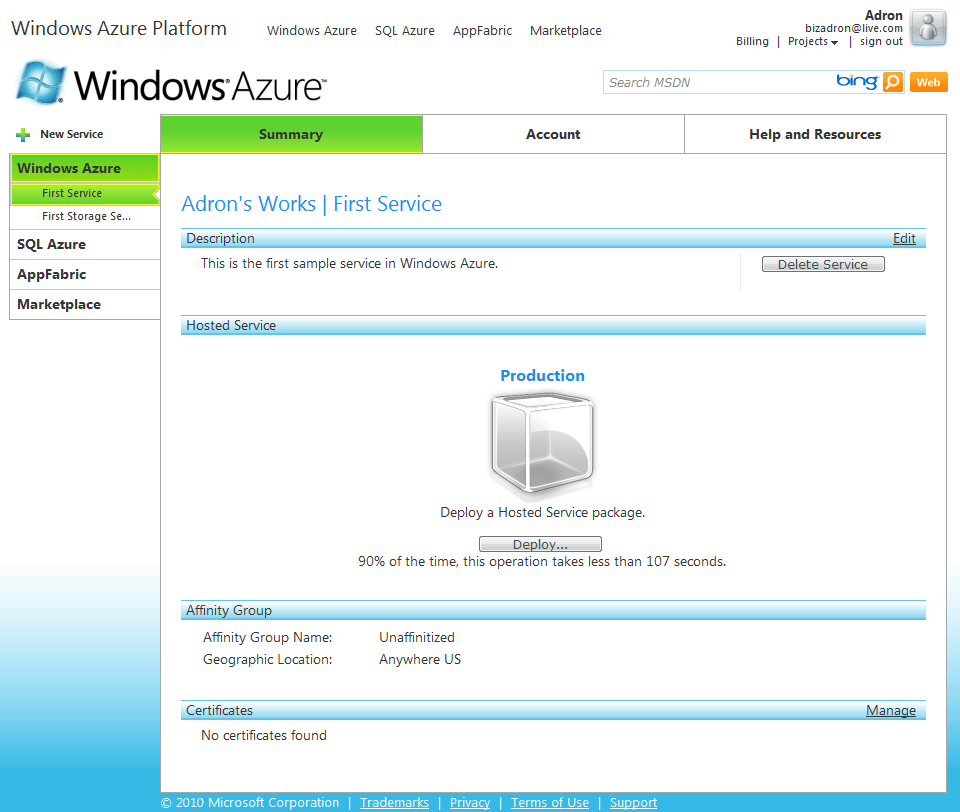
Click next when complete.  On the next page that renders you’ll again pick a public URI subdomain path, which I’ve used firstservicesample as mine, and select Anywhere US from the drop down for the region.  Click on the create button when complete.  The following page will display with a single cube image in the center of the screen, label Production.  For now, the instance role is available, but nothing is deployed and nothing is being charged at this time.  However this is perfect for checking out the Windows Azure MMC display of the services.
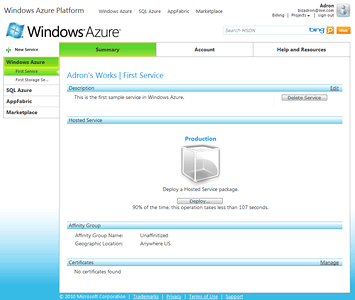
Service Role

Service Role

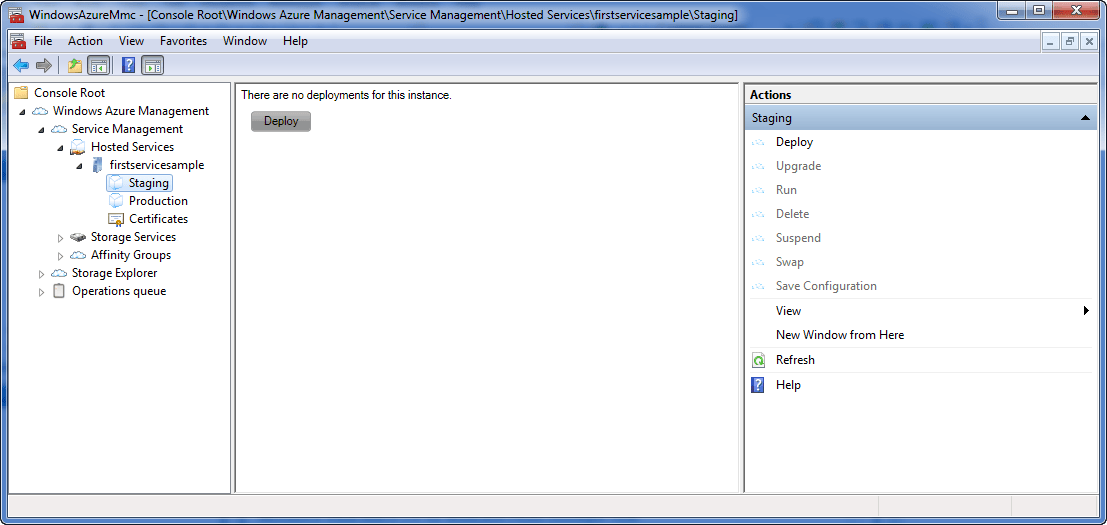
Return to the Windows Azure MMC and click on the Hosted Services node.  Click on Connect in the right hand window pane under actions.  The firstservicesample node, or whatever you may have named the service, will display with the staging, production, and certificates nodes appearing below.  From here you can deploy, upgrade, run, delete, suspend, swap, or even save the configuration of your roles.  This is extremely helpful so that one doesn’t always need to return to the site and can maintain multiple hosted services, storage services, affinity groups, and more from the MMC.
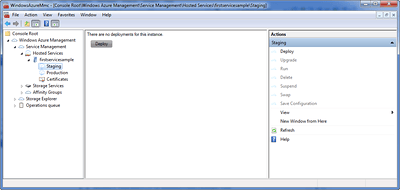
Windows Azure Staging

Windows Azure Staging

Next let’s click on the Storage Explorer Node just below the Service Management Node.  Click on New Connection and enter the Account Name as shown below.
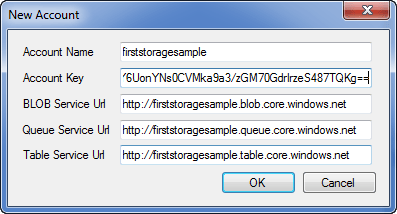
New Account Form

New Account Form

Now that the account name and URIs are filled out.  Return to the storage services properties page in the Windows Azure Platform Web Interface (http://windows.azure.com).

Windows Azure Storage Account Properties

Windows Azure Storage Account Properties

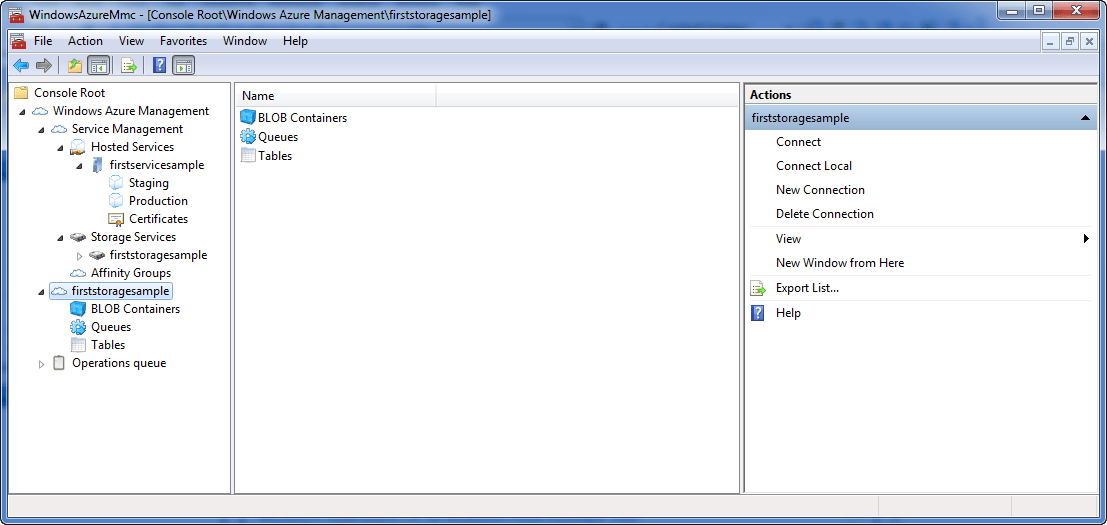
On this page you’ll find the key you need to finish off the form in the Windows Azure MMC.  Once you’ve completed the form click on OK.  The MMC should now populate out the cloud storage account area with a node for BLOB Containers.
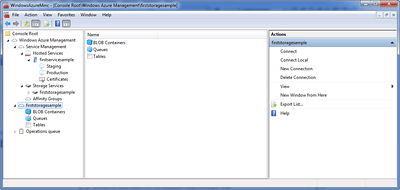
Storage Account Services

Storage Account Services

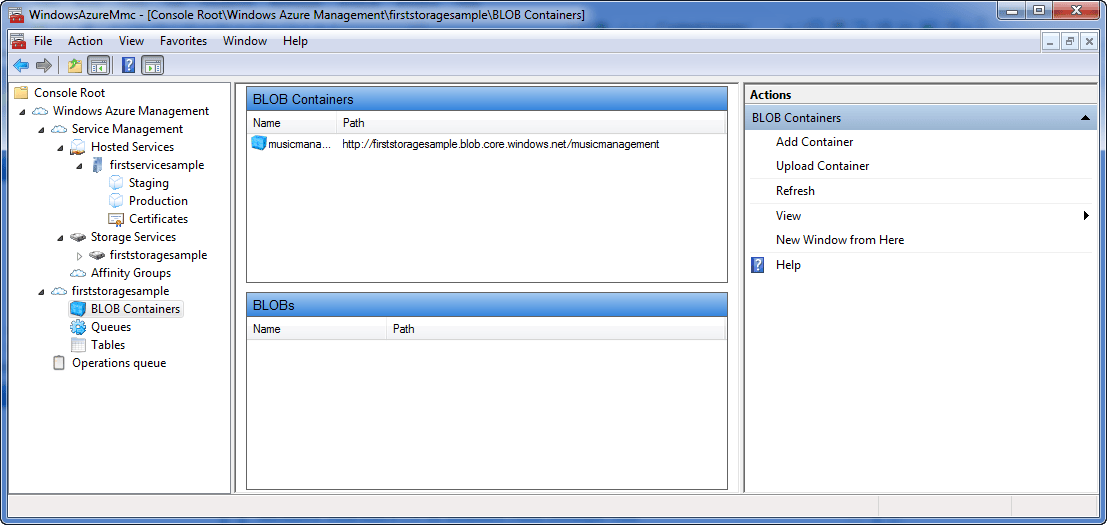
Click on the BLOG Containers so and click on Add Container in the right hand side window pane under actions.  Enter a name, in this case I entered musicmanager, and click OK.  Now you should have a BLOB Storage Container in your Windows Azure Storage Account.
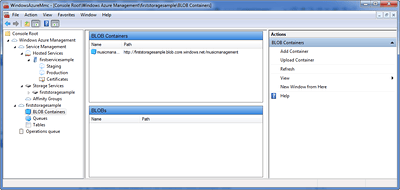
Windows Azure BLOB Container

Windows Azure BLOB Container

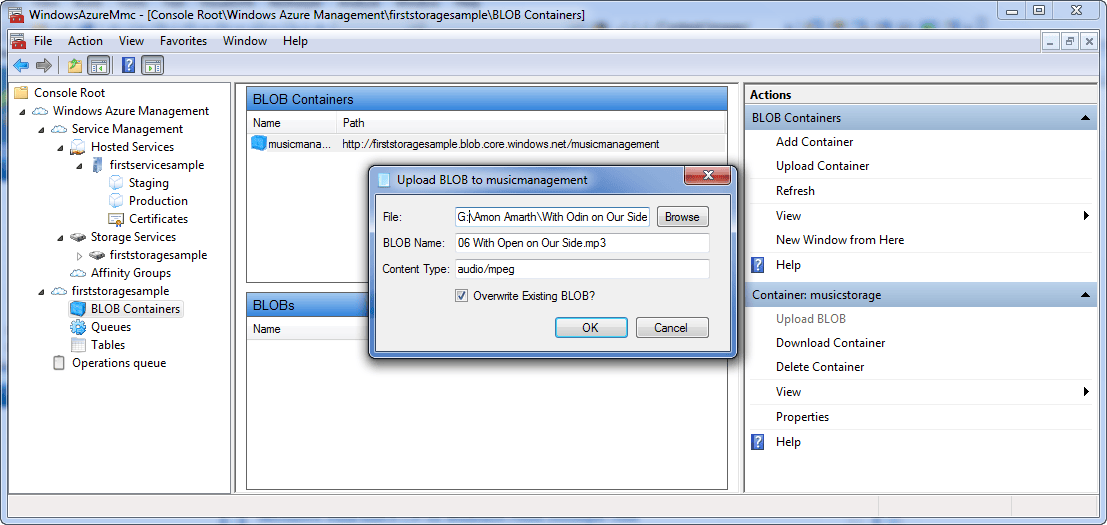
Click on the musicmanager BLOB Container, or whatever you named yours, and then click on Upload BLOB under the actions window on the right hand side.  Select a file, I’ve chosen a music MP3 I have on my local machine.
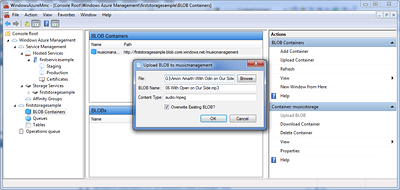
Uploading a BLOG File (A Music MP3)

Uploading a BLOG File (A Music MP3)

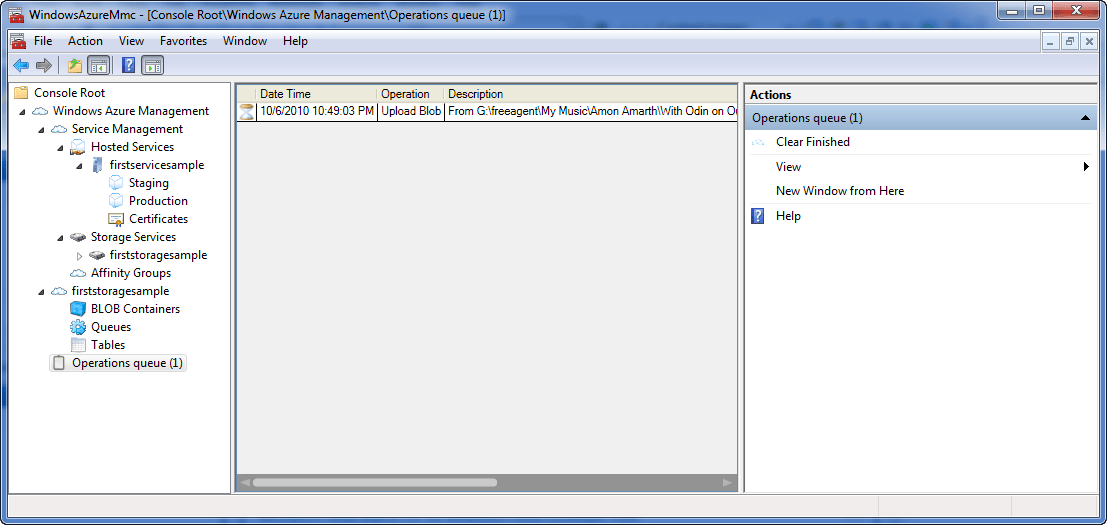
Click OK and you’ll see the Operations queue node on the lower left hand side of the Console Root tree view populate with the upload activity task.
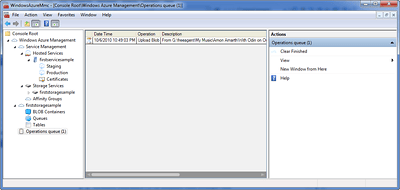
The Upload in the Operations Queue

The Upload in the Operations Queue

After the upload is complete the BLOB Container will then show the BLOBs just below it when selected in the Windows Azure MMC.
What You Need and Want With Windows Azure Part I

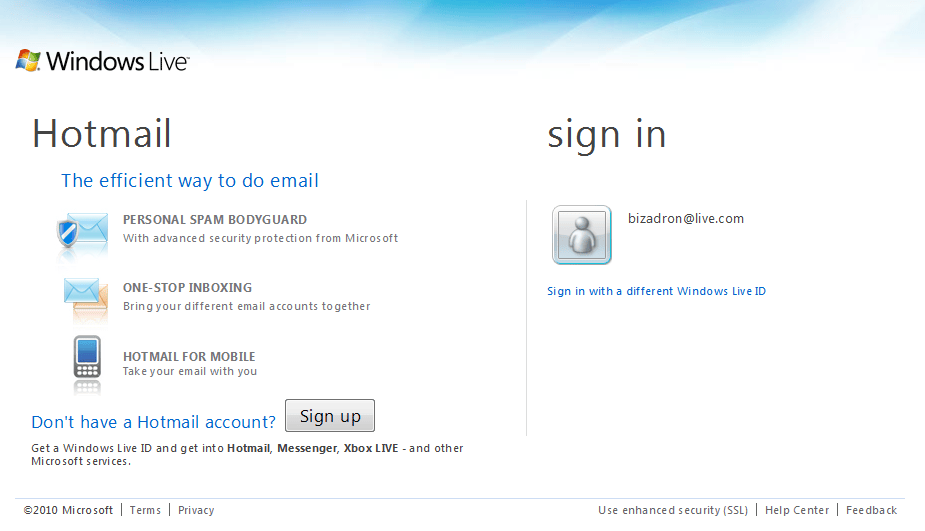
The first thing needed is a Windows Azure Account, which is simply a Live ID.  The easiest way to setup one of these is to navigate to http://www.live.com and click on the Sign Up button.  If you have an existing account that you use to login it should display on this page also.

Windows Live ID Sign Up

Windows Live ID Sign Up

After creating or logging in with an existing account let’s take a look at the various web properties Microsoft has dedicated to Windows Azure.

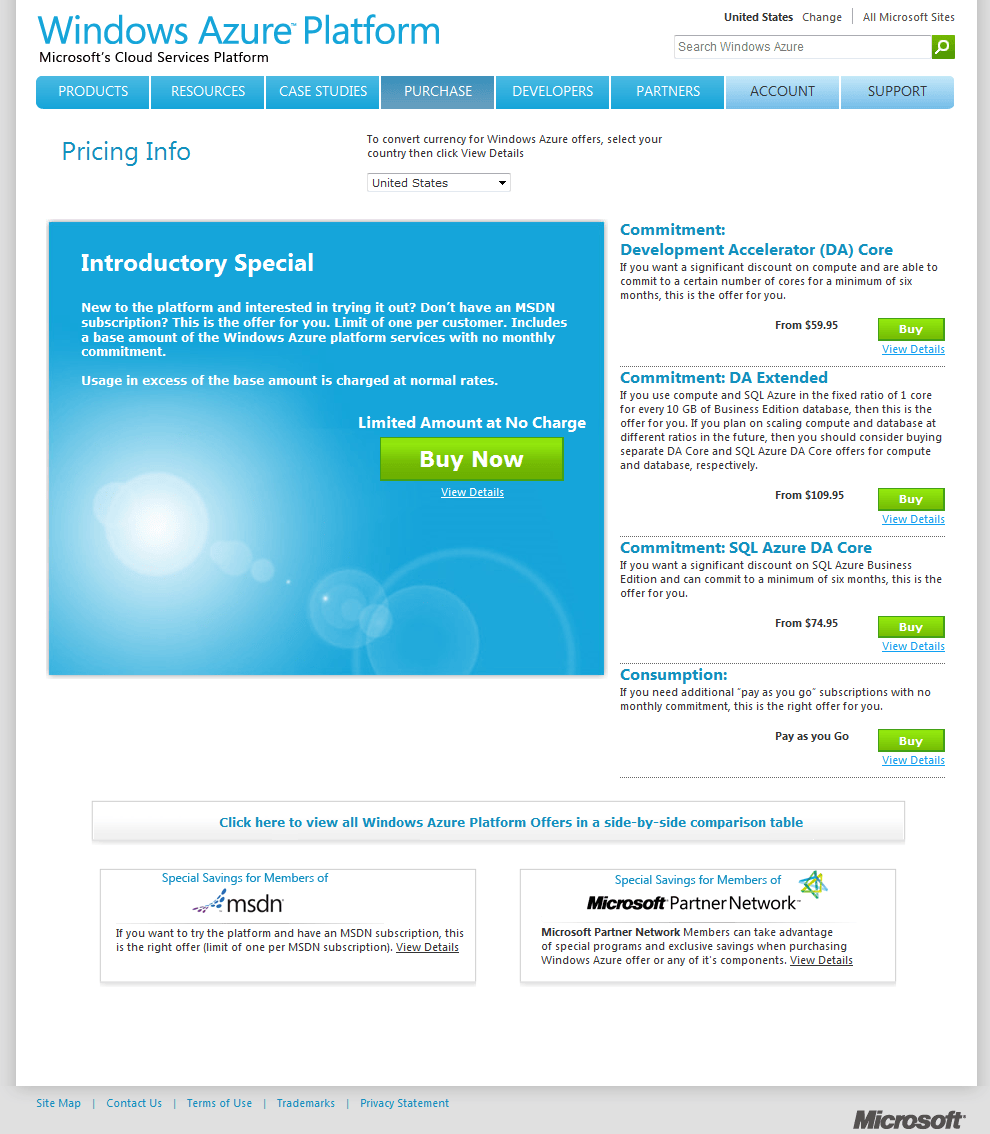
This site is the quintessential Microsoft Windows Azure Marketing Site, geared toward decision makers in management and CTO or CIOs.  There are links to many other web properties that Microsoft has setup from this page.  It’s a great starting point to find management and executive selling points such as white papers, case studies, co-marketing, and more.

Microsoft Windows Azure

Microsoft Windows Azure

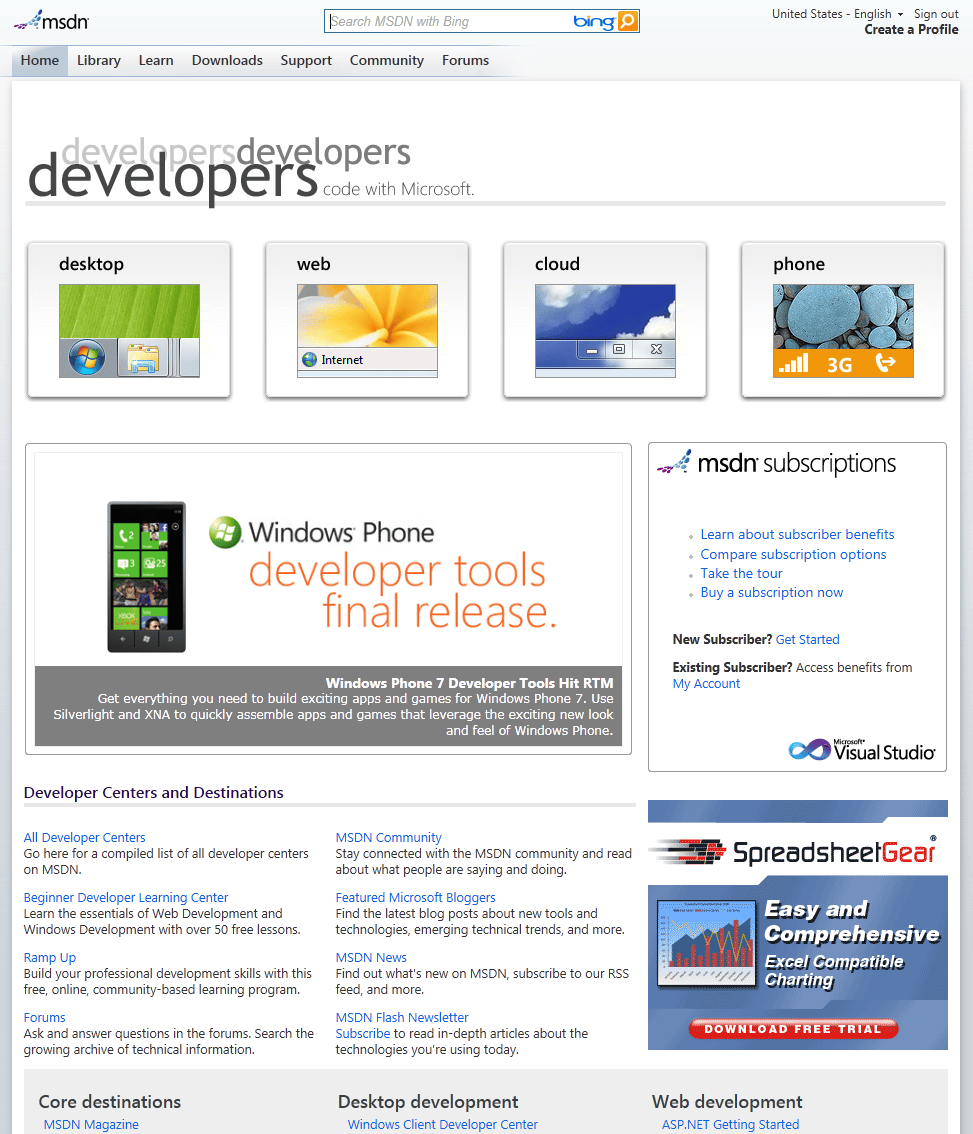
The MSDN Site is the central developer resource Microsoft provides online.  The site recently underwent a massive redesign of almost every element.

MSDN Site

MSDN Site

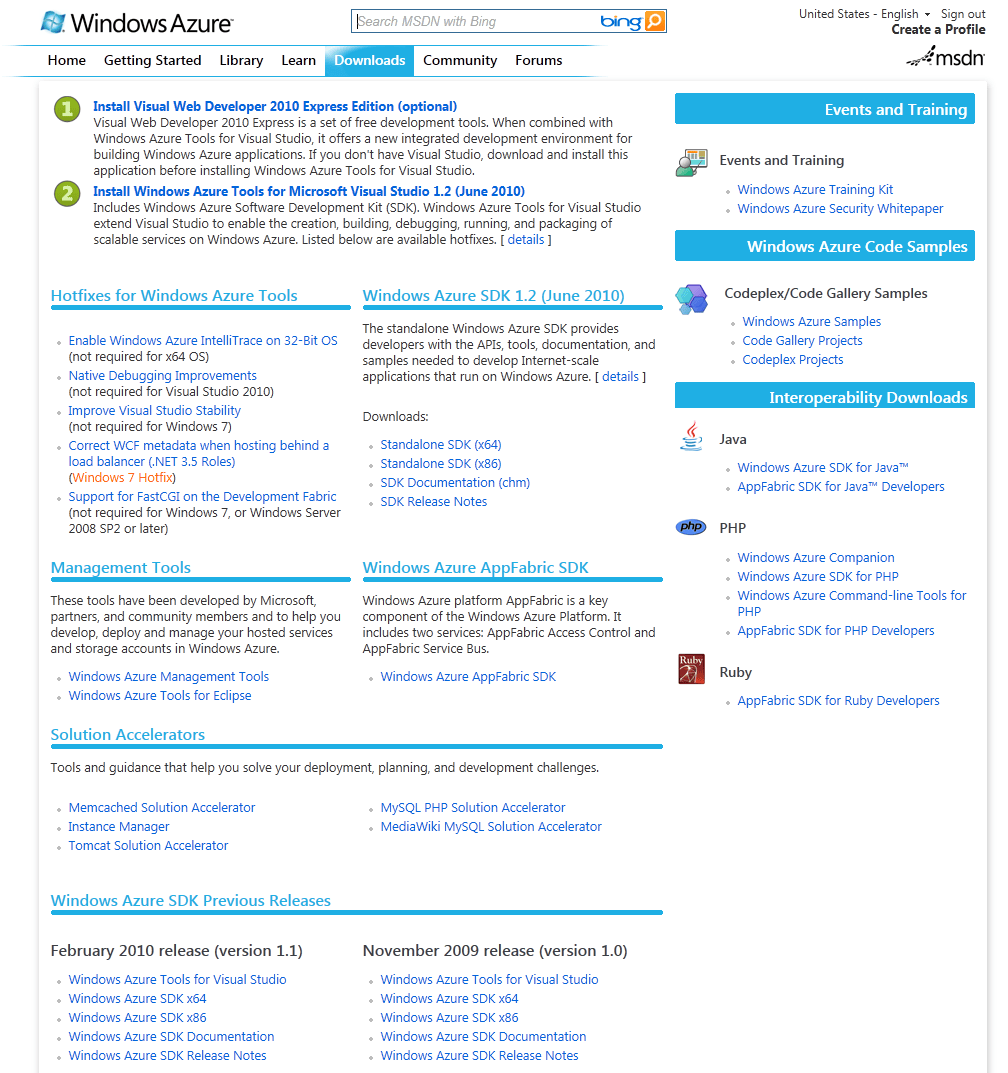
MSDN Developers site is a requirement to bookmark.  This has the shortest navigation to all the sites and services you’ll need for Windows Azure Development.  There is even a login link to the Site #4 below.  In addition there are several key sections of this site; blogs, news, and more information.

MSDN Windows Azure Site

MSDN Windows Azure Site

The Windows Azure Portal site is where we’ll be setting up the roles, storage, and other cloud computing mechanisms that we’ll be writing code against.  Now that each of these sites is reviewed, let’s move forward.

The Windows Azure Portal Site will prompt you to sign up for a cloud services plan.

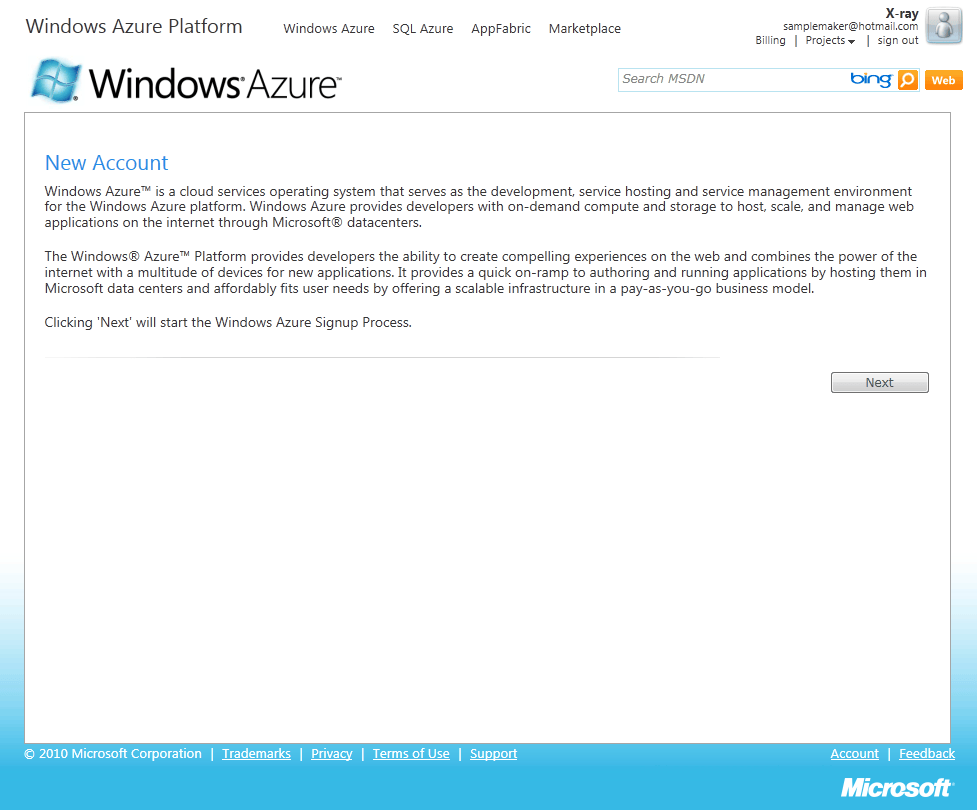
Signing up for a Windows Azure Service

Signing up for a Windows Azure Service

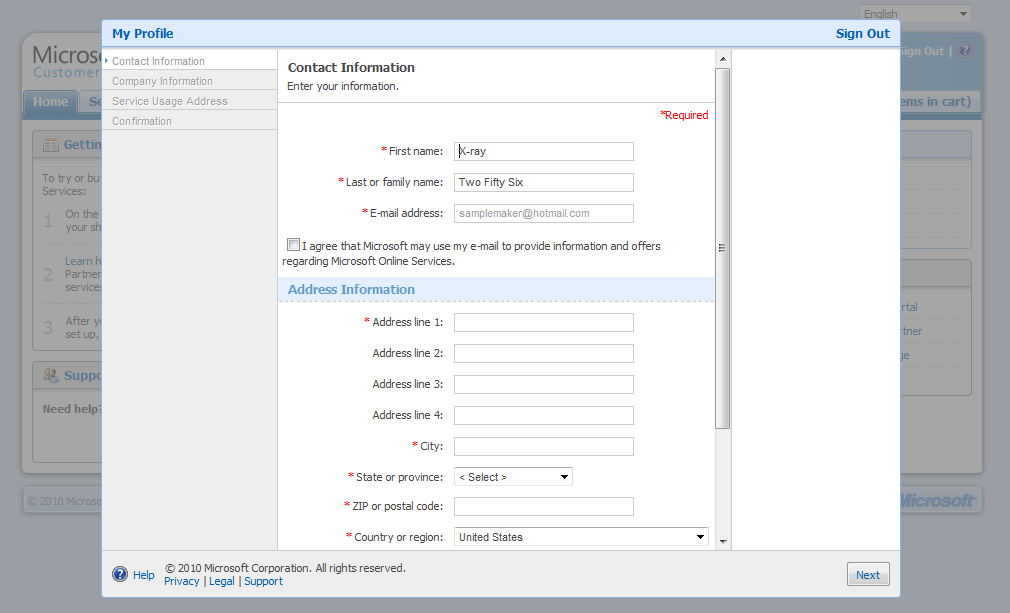
Click on next and you will be brought to a page related to which plans you can choose from.  Depending on what specific focus you have for either development, dedicated services hosting, or otherwise you can choose from the multiple plans they have.  I won’t go into them here, as Microsoft regularly changes the plans for specials and based on market demand and current costs.

Signing up for a specific plan.

Signing up for a specific plan.

After choosing which plan you will be redirected to the billing site, https://mocp.microsoftonline.com/, to setup a line of credit, confirm the type of Windows Azure Subscription you want to start with, and other information as needed.  Once this is setup, you most likely won’t need to look at this site again except to verify billing information, change billing information, or confirm cloud usage.

Microsoft Billing

Microsoft Billing

Now that there is an account available, we’ll need to install the latest development tools for coding solutions for the cloud.  This first example will be using Visual Studio 2010 with the Windows Azure SDK.  If you don’t have Visual Studio 2010 installed yet, go ahead and install that.  Open up Visual Studio 2010 next.  We will use Visual Studio 2010 project templates to find out the latest Windows Azure SDK and download it. To download the latest Windows Azure SDK navigate to the MSDN Windows Azure Developers Site and click on the Downloads option at the top of the site.

MSDN Windows Azure Download Section

MSDN Windows Azure Download Section

Once you have downloaded and installed the latest Windows Azure SDK we will download and install the Windows Azure AppFabric also.  Scroll down midway on the MSDN Windows Azure Download page and the Windows Azure AppFabric SDK should be available for download.  On the Windows Azure AppFabric SDK download page there should be a *.chm help file, two different AppFabric SDK Examples files one for VB and one for C#, and two installation packages one for 64-bit and one for 32-bit.  Download and install the one for your particular system.  I’d suggest downloading the samples also and giving each a good review.

In What You Need and Want With Windows Azure Part II I will cover how to setup the Windows Azure Microsoft Management Console.  So stay tuned, that is coming tomorrow.

Sputtering Windows Instances

I had a concern about Windows OS being used for cloud computing.  The instances in Windows Azure take a significant amount of time to boot up.  In Amazon Web Services the Windows EC2 Instances also take a long time to boot up.  Compared to Linux, Windows takes 2-4x longer to spool up in the cloud.  (Compare a boot time of about ~1 minute for Linux in EC2 vs 8-15 minutes for Windows)

Before today, this just seemed like it might be a problem I was experiencing.  I tend to believe I’m doing something wrong before I go on the warpath, but today that concern that I’d done something wrong has ended.  RightScale posted a blog entry about the difficulties of Windows in EC2.  They’re seeing the same issues I was.

Another issue that they noticed, which I too noticed, was the issues around the clocks being off.  This is a similar problem to Windows being used with VMWare and setting up images.  The clock just doesn’t ync the first time, or subsequent times.  Usually a few manual attempts need to be made.

In another entry I caught another list of issues with Windows that Linux just doesn’t have.  None of these are work stoppage issues, but they are all very annoying and would push one toward using Linux instead if at all possible.

Putting Windows Azure and Amazon Web Services EC2 side by side Network World has found them to be on a collision course.

Boiling it Down, Where Does Windows Stand?

After some serious analysis by individuals of Windows running in Cloud Environments it appears that Windows just isn’t as suited to running in virtualized environments as Linux.  A number of friends have pointed out to me how much friendlier Linux is in virtualized spaces such as VMWare’s ESX Environment.

Also based on hard analysis of VMWare versus Hyper-V, the later doesn’t appear to be as sophisticated or capable of virtualized hosting.  Is this going to cause a price point issue for Windows Azure versus AWS EC2?  Just from the perspective of requiring more hardware for Hyper-V Virtualization versus VMWare & Amazon’s AMI Virtualization it makes me ponder if this could be a major competitive advantage for Linux based clouds.  Already there is the licensing price points, so how does MS own up to that?

I would be curious to see what others have experienced.  Have you seen virtualized differences that cause issues hosting Linux vs. Windows in VMWare, Hyper-V, or AWS?  Do you foresee any other problems that could become big problems?