Chrome OS-X Shortcuts for Developers/Coders

I’d been procrastinating finding most of these, just clicking with the mouse/pointer which is slow. When I’m developing code however, using the mouse/pointer just adds up more and more over time. So here’s the shortcut keys to git’r done!  🙂

  • ⌘-Option-I Opens Developer Tools.
  • ⌘-Option-J Opens the JavaScript Console.
  • ⌘-Option-U Opens the source of your current page.
  • ⌘-0 Sets the zoom back to the default
  • ⌘-+ Zooms in the page.
  • ⌘– Zooms out the page.
  • ⌘-W Closes the current tab.
  • ⌘-R Reloads the current page.
  • ⌘-F Search for content within the current page.

Check out my other pages for even more OS-X Screen Capture Shortcuts and Chrome Shortcuts.

Some JavaScript + REGEX goo to get query strings from your HREF/URI/URL

I guess there is a library somewhere to do this, but I couldn’t find it fast enough so I spit this contraption out. It’s a function that grabs the value from a URI/URL query string. Yes, writing those nasty REGEXs about drove me nuts! 😉 Maybe I can save at least one soul out there some trouble. If you see an enhancement option or have ideas, please comment and let me know!

function GiveMeTheQueryStringParameterValue(parameterName) {
    parameterName = parameterName.replace(/[\[]/, "\\\[").replace(/[\]]/, "\\\]");
    var regex = new RegExp("[\\?&]" + parameterName + "=([^&#]*)");
    var results = regex.exec(window.location.href);
    if (results == null)
        return "";
    else
        return decodeURIComponent(results[1].replace(/\+/g, " "));
}

HTML5 Feature Support Detection

HTML5 is a collect of individual features, that currently are either supported or not by the current array of browsers. The best approach I’ve found at this time, is to write for HTML5 and use other tools to downgrade graceful.

The following are some detection techniques that are in use today:

Input Types: HTML5 defines over a dozen new input types for use in web forms. For determining which of these new form elements is supported use the following code, per element (yes I know, that’s a pain in the ass, but you gotta do what you gotta do)

var input = document.createElement("input");
input.setAttribute("type", "color");
return i.type !== "text";

Aha, but if you don’t want to write these input checks, Modernizr has a hash it builds to detect all of the new input types.

if (!Modernizr.inputtypes.date) {
	// ?? <- See example of this.
}

Video Formats: Video formats, or codecs, is the algorithm which is used to encode video. Checking if a video element object has the canPlayType for a particular codec will determine support.

function supports_video() {
    return !!document.createElement('video').canPlayType;
}

Again Modernizr can make this detection much simpler.

if (Modernizr.video) {
	if (Modernizr.video.ogg) {

	} else if (Modernizr.video.h264) {
		// H.264
	}
}

Canvas: The canvas element is a resolution independent bitmap canvas which can be used for rendering graphs, game graphics, or other visual images on the fly. To check for canvas attempt to create a canvas element on the document object and retrieve the context. Context dictates if there is or is not context support.

function supports_canvas() {
	return !!document.createElement('canvas').getContext;
}

Of course, there is a Modernizr Function to determine support too.

if (Modernizr.canvastext) {
	// let's draw some text!
} else {
	// no native canvas text support available
}

Geolocation: Geolocation is the function of determining where you are by using the UP address, wireless network connection, cell tower, GPS software, or other device. The Geolocation Working Group is actually working on this feature, not particularly the HTML5 Working Group, but the feature is closely correlated to the entire HTM5 spec and is currently being integrated into most browsers.

The code snippet below can be used to determine if geolocation is available.

function supports_geolocation() {
	return !!navigator.geolocation;
}

If you don’t want to write this particular function, you could also use the Modernizer Library.

if (Modernizr.geolocation) {
	// process the location...
} else {
	// no native geolocation support, so start hacking!
}

Service & Scheduler: Using Topshelf, Quartz, & Other OSS Bits Part 2

In the previous entry in this series I setup a service using TopShelf. Now it is time to jump into scheduling with Quartz. I’ve started an entirely new service to work through an example of this service functionality.
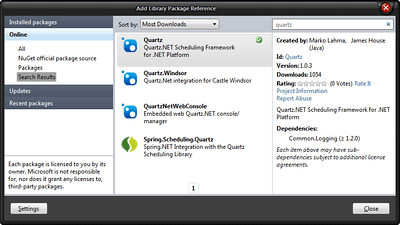
To read more about Quartz.NET from the source, check out the Quartz.NET Project Site or the Github Repo.

Open up Visual Studio and create another Windows Console Project. Next add a reference to Quartz.NET with Nuget.

Adding Quartz.

Adding Quartz.

Next add a class called SomeJob as shown.

using System;
using Quartz;

namespace quartz
{
    public class SomeJob : IJob
    {
        public SomeJob() { }

        public void Execute(JobExecutionContext context)
        {
            Console.WriteLine("DumbJob is executing.");
        }
    }
}

Next add and change the code in Program.cs to the code below.

using System;
using Quartz;
using Quartz.Impl;

namespace quartz
{
    class Program
    {
        static void Main()
        {
            var schedFact = new StdSchedulerFactory();

            var sched = schedFact.GetScheduler();
            sched.Start();

            var jobDetail =
                new JobDetail("myJob", null, typeof(SomeJob));

            var trigger = TriggerUtils.MakeSecondlyTrigger(5);
            trigger.StartTimeUtc = DateTime.UtcNow;
            trigger.Name = "myTrigger";
            sched.ScheduleJob(jobDetail, trigger);
        }
    }
}

NOTES: Working code available on Github under my Quartz Repo.

Service & Scheduler: Using Topshelf, Quartz, & Other OSS Bits Part 1

This how-to entry will detail the steps for getting Topshelf installed, running, and a schedule integrated and timed appropriately using Quartz. Once that is complete I’ll go over how to get custom schedules added to the service.
Topshelf

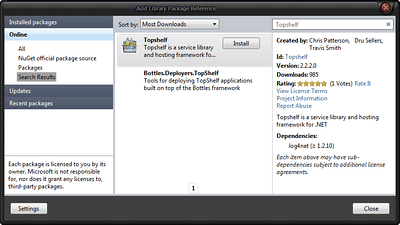
To get Topshelf up and running open up Visual Studio, start a Windows Console Project, and then use Nuget (if you don’t have Nuget installed, I suggest doing that ASAP, you’ll need it to follow along with any reference additions).

Get Topshelf Through Nuget

Get Topshelf Through Nuget

Once you have Topshelf and associated references added via Nuget create a new class file called StatusCheckIn and add the following code.

using System;
using System.Timers;

namespace Sample.Services
{
    public class StatusCheckIn
    {
        readonly Timer _timer;

        public StatusCheckIn()
        {
            _timer = new Timer(5000) { AutoReset = true };
            _timer.Elapsed += TimeHappened;
        }

        static void TimeHappened(object sender, EventArgs eventArgs)
        {
            Console.WriteLine("Status Time: {0} checking in.",
                DateTime.Now);
            Console.WriteLine("Sender Type: {0}",
                sender.GetType());
            Console.WriteLine("Event Argument Type: {0}",
                eventArgs);
        }

        public void Start()
        {
            _timer.Start();
        }

        public void Stop()
        {
            _timer.Stop();
        }
    }
}

After adding the StatusCheckIn Class, open up the Program.cs file and add or change the following code.

using Topshelf;

namespace Sample.Services
{
    class Program
    {
        static void Main()
        {
            HostFactory.Run(hostConfigurator =>
            {
                hostConfigurator.Service<StatusCheckIn>(
                    serviceConfigurator =>
                {
                    serviceConfigurator.SetServiceName("TS");
                    serviceConfigurator.ConstructUsing(
                        name => new StatusCheckIn());
                    serviceConfigurator.WhenStarted(tc => tc.Start());
                    serviceConfigurator.WhenStopped(tc => tc.Stop());
                });

                hostConfigurator.RunAsLocalSystem();
                hostConfigurator.SetDescription("Sample  Host");
                hostConfigurator.SetDisplayName("Display Name");
                hostConfigurator.SetServiceName("Topshelf Service");
            });
        }
    }
}

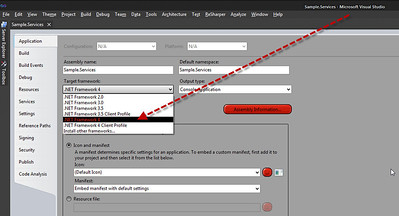
If you run into an odd reference error, it is likely that VS2010 has determined you want the client profile of .NET 4.0 again. If anyone at MS on the VS2010/.NET 4.0 reads this, we DO NOT want this to be the default. It’s ridiculous that it gets set as default without some type of manual change. But I digress, open up the properties of the console/service project and set it under the dialog as shown.

Setting the appropriate .NET 4.0 Version in the Properties Dialog

Setting the appropriate .NET 4.0 Version in the Properties Dialog

NOTES: Working code available on Github under my Topshelf Repo.