Apple iOS / OS-X vs. Windows 8 / RT == OS Goulash & Predictions

All These Thoughts Derived at Seattle Coffee Works in Downtown Seattle
All These Thoughts Derived at Seattle Coffee Works in Downtown Seattle, a good place to enjoy the use of an iPad or Windows RT Tablet.

Ok, I’ll admit it, I have a soft spot in my heart for Windows 8. At least in the tablet form. I honestly prefer it over the iPad model of little icons displayed in a grid over a background with the bar of app icons at the bottom. Don’t get me wrong, I find the iPad remarkably usable and will have one for many years to come. I have sketching, drawing, movie making, picture taking, code writing, code pushing, deployment, comic books, books and other applications that I’m not about to just give up. But Windows 8 is very compelling.

I really hope it pushes Apple to make some change with their own UI to update it a bit. The icon placement and icon bar at the bottom is fine, but I’d really like to have more information available to me at a glance, which is something that Windows 8 on a tablet (or phone for that matter) enables in an extremely easy way.

In addition to that information, the stark design colors of Windows 8 are definitely better than the “we’re Apple and make futuristic devices that disrupt the markets but simulate every physical traditional thing we can”. Matter of fact I find Apple’s inane obsession with making accurate recreations of wood, notebooks, calendars, file cabinets and all that absurdly stupid. It’s great that some graphic artist can do that, but jeez, I’d like my interface to be as futuristic and disruptive as my device.

Overall, the two operating systems for tablet devices – iOS and Windows 8 (or RT, whatever they’re going to call it) – are pretty amazing in their own right. As of this moment though, I’ve come to the conclusion that I will very likely be getting at least one Windows 8 device. Emphasis though, on device – singular. If Microsoft has finally cracked that nut (their other hardware isn’t bad) than I might just start buying some Microsoft “device(s)” in the future that would obviously be running Windows OS. If they haven’t cracked the device nut, then it might be a short lived experiment.

I’m wondering, if you’re really not an Apple or Windows fan and you’re going to give either device an honest kicking in the coming months, I’d love to hear your input on the device. I’m sure I’ll hear a whole bunch of arbitrary ad hominem nonsense from the fans of either platform over the next few months. There will surely be a lot of FUD and propaganda thrown out of every media outlet either corporation can get their money funneled into too, I’m however keeping a close eye on blogs and real people providing feedback that have used both. That notice this or that difference, all those little things.

Being that we’re so flippin’ close to the release of Microsoft’s new flagship OS, Windows 8 and Apple, no doubt, will come back kicking with something this competitive cycle is starting to get interesting again!

Meanwhile, the wild card of Android is sitting in the sidelines. Will someone actually make a move and kick it into the fray? It seems to be the lethargic thing with zero marketing budget and zero existence. It’s sad even though it is such a massively robust environment and ecosystem compared to Windows RT/8 and much more open and capable than the iOS ecosystem.

With all that said, those thoughts thought, here’s my prediction. Yes, I’m going to be one of those guys and make a silly prediction. I’m not taking bets but this is it, this is the SWAG. Along with this SWAG though, I’m throwing out a hope. Because I honestly don’t want them to overtake Apple because I’d be absolutely sick if the absurd hubris of Microsoft came back. Nothing was worse during the 90s and 00s than Microsoft’s hubris (yeah, Apple’s was easy to ignore, Microsoft’s was just annoying)

My Windows 8 / Windows RT Tablet Prediction

  • Prediction: 90 million devices in about 2-3 years.
  • My Hope: 45 million devices in 2-3 years, 90 million in 3-4 years.

…and I leave this blog entry with a single question. What is your opinion and what device have you found that peaks your interest the most? Is it Samsung’s devices, Dell’s or simply the Microsoft Surface?

Thor Project Opens Up, Building the Cloud Foundry Ecosystem with the Community

The Iron Foundry Team are big advocates of open source software. We write code across all sorts of languages, just like many of the development shops out there do. Sometimes we’re heavy on the .NET, other times we’re all up in some Java, Ruby on Rails, spooling up a Node.js Application or something else. So keeping with our love of open source and our polyglot nature we’ve created the Thor Project with three distinct apps.

Before jumping into the applications though, a little context for what and where Thor is in the grand scheme of things. We need to roll back to the Cloud Foundry Project to get into that. The Cloud Foundry Project is an open source project built around software for PaaS (Platform as a Service) which can be used to build your own PaaS internally or externally, in a cloud provider or directly on hardware. It’s your choice how, when and where you want to use it. For more context on PaaS check out my previous entry “The Confusions of IaaS, PaaS and SaaS“.

Thor Project

Cocoa for OS-X

Thor Odinson
Thor Odinson, God of Thunder

You know who Thor is right? He’s this mythic Norse God, also known as the God of Thunder. Since we’re all about bringing the hamma we welcomed Thor into our team’s stable of applications. So starting immediately we’ve released Thor into the realms for contributions and fighting the good open source software battle! If you’d like to join the effort, check out the github project and feel free to join us!

Technically, what is the Thor Application? This is a Cocoa Application built for OS-X that is used for managing, deploying and publishing applications to Cloud Foundry enabled and or Iron Foundry extended PaaS Environments.

.NET for Windows 7

The .NET Metro version of the Thor Application is also released via github with a provided installer. We’ve almost taken the same path, except of course for the very different UX and UI queues with Windows 7 and the Metro UX design guidelines.

WinRT for Windows 8

I wasn’t really sure what to call this version. Is it Metro or WinRT or Windows 8 or something else? Anyway, there is a project, it is albeit empty at this point, but it is the project where the Windows 8 version of Thor will go! For now get the Windows 7 version and install it on Windows 8, it won’t have touch interface support and things, but should work just like a regular application on Windows 8.

The Code

To get started with these, generally you’d just clone the repo and do a build, then get started checking out the code. There is one catch, for the OS-X version you’ll want to pull down the sub-modules with the following command.

[sourcecode language=”bash”]
git clone git@github.com:YourForkHere/Thor.git
git submodule update –init –recursive
[/sourcecode]

Once you do that in XCode just make sure to then select the right project as the starting build project.

…then when the application is launched…

Thor Running in OS-X

I’ll have more in the coming days and weeks about Thor & Iron Foundry. For now, check out the blog entry on the Iron Foundry Blog and subscribe there for more information.

HTML, CSS, JavaScript and Metro App Building on Windows 8 Part 2

In the first part of this seriesI kicked everything off by starting a Windows 8 JavaScript Project and added QUnit-Metro via Nuget. Now that we have a small executable application, I’ll get some things added and cover what exactly it is we’re doing in each part. Open the project up that we created in the previous blog entry of the series. Once open find and open the default.html, default.js and default_tests.js files to work with. In the default.js file you’ll find the following code in the default.js.

[sourcecode language=”javascript”]
(function () {
"use strict";

var app = WinJS.Application;
var activation = Windows.ApplicationModel.Activation;
WinJS.strictProcessing();

app.onactivated = function (args) {
if (args.detail.kind === activation.ActivationKind.launch) {
if (args.detail.previousExecutionState !== activation.ApplicationExecutionState.terminated) {
} else {
}
args.setPromise(WinJS.UI.processAll());
}
};

app.oncheckpoint = function (args) {
};

app.start();
})();
[/sourcecode]

A Bit of Context – default.js

At the beginning you’ll find that all the code is enclosed in a self-executing anonymous function. This gives us the ability to avoid naming conflicts or accidentally modifying variables in other spaces. Kind of the “namespaces” of C# or other organizational code features from other languages (I said kind of, there are other ways to do this too, this is just one). The other cool thing about this is it keeps identifiers out of the global namespace which also helps performance (it’ll also get you called all sorts of stuff if you create global variables in JavaScript! I’m nice, I won’t do it, but be prepared to be appropriately punished for such dissension as global variable creation! I warned ya.).

This next part (reminds me of why I find JavaScript scary in addition to awesome) has a variable that turns “strict mode” on. What this does, just like those of you may know from the Visual Basic days, is turn on a strict mode of additional error checking for code. It helps prevent you from doing all sorts of dumb things, like trying to assign a value to a read-only variable. For more on “strict mode” check out Microsoft’s Strict Mode Page.

The remaining bits of code in the default.js are the handlers for the application activated and checkpoint events. These events are fairly self explanatory, suffice it to say they happen when the application launches and checkpoint fires when a particular checking event happens against the Process Lifetime Management. The Process Lifetime Management handles all of the application suspend, resume and background events.

TDD & BDD For The Win!

Ok, so this isn’t the best example of either really, but to get started we want to wire up an event to a button. But first we want to test if the event is wired up. How does someone tests if an event is wired up in JavaScript? Like this.

[sourcecode language=”javascript”]
test("Where the text box is populated ", function () {
var result = document.getElementById("messageOutput").innerText;
ok(result == "", "should have empty inner text.");
});
[/sourcecode]

Adding a Button & Some Button Functionality

Ok, done with the context. Let’s add a button and make some magic happen. Bring focus to the default.html page and add a button, a text box and the respective components.

[sourcecode language=”html”]
<!DOCTYPE html>
<html>
<head>
<meta charset="utf-8" />
<title>Readingz</title>
<!– These files are included when the project is generated, I don’t really know where they are… –>
<link href="//Microsoft.WinJS.1.0.RC/css/ui-light.css" rel="stylesheet" />
<script src="//Microsoft.WinJS.1.0.RC/js/base.js"></script>
<script src="//Microsoft.WinJS.1.0.RC/js/ui.js"></script>
<!– Turned on the testing. –>
<script src="/js/qunitmetro.js"></script>
<script src="/js/default_tests.js"></script>
<!– Default Metro files. –>
<script src="/js/default.js"></script>
<link href="/css/default.css" rel="stylesheet" />
</head>
<body>
<p>Click the button to run the tests for the default.html and default.js code.</p>
<input id="peripheralParameters" type="text" />
<button id="runTests">Run Tests</button>
<p id="messageOutput"></p>
</body>
</html>
[/sourcecode]

NOTE: I made more than a few changes from the default.html included in the previous part of this series. One hard to notice change is that I switched the style sheet from the dark Metro theme to the light Metro theme.

With those additions add a function to the default.js file as shown below and then add the event handler.

[sourcecode language=”javascript”]
(function () {
"use strict";

var app = WinJS.Application;
var activation = Windows.ApplicationModel.Activation;
WinJS.strictProcessing();

app.onactivated = function (args) {
if (args.detail.kind === activation.ActivationKind.launch) {
if (args.detail.previousExecutionState !== activation.ApplicationExecutionState.terminated) {

} else {

}
args.setPromise(WinJS.UI.processAll());

var runTests = document.getElementById("runTests");
runTests.addEventListener("click", buttonClickHandler, false);
}
};

app.oncheckpoint = function (args) {};

function buttonClickHandler () {
document.getElementById("messageOutput").innerText =
"Parameters Passed: " +
document.getElementById("peripheralParameters").value +
"!";
}

app.start();
})();
[/sourcecode]

I now have one button now working, actually doing something, with a unit tests to verify that the button exists and the event is wired up. Some progress is being made!

If I run the application I get passing tests. That’s it for now. In the next entry we’ll dive deeper into testing and into functionality.

Until next time, happy scripting with the JavaScript on Windows 8.

HTML, CSS, JavaScript and Metro App Building on Windows 8 Part 1

I’m a fan of JavaScript and I’m warming to some of the Metro interfaces on Windows 8. I’ve always found the Windows 7 Phone UI, which is the first iteration of the Metro UI, to be a very slick phone interface. So with this blog entry I’m going to lay out setting up a default Windows 8 Metro application using JavaScript as the language of choice.

Prerequisites:

  • Windows 8
  • Visual Studio 2012

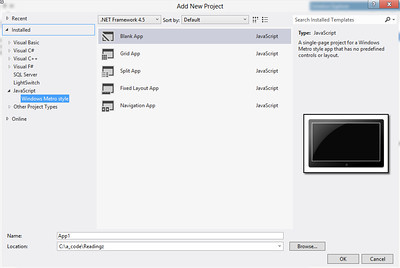
Open Visual Studio 2012 and click on file -> new project -> and then find the JavaScript section and pick the blank metro app.

New Windows 8 Metro Project

Once you have the application created, I’d suggest following good practice and adding QUnit-Metro to your project with Nuget(or get the actual files if you don’t want to use Nuget).

Getting QUnit-Metro via Nuget

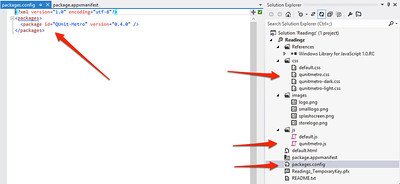
Once you’ve added the QUnit-Metro interface you’re ready to get started writing tests. But before writing a test take a look at the additional files that the QUnit-Metro Nuget Package adds to the project.

Things Added With QUnit-Metro

In the screenshot (click for a full size image), I’ve pointed in a clockwise order:

  • The package is added and listed in the packages file now for Nuget.
  • There are now three CSS files added for QUnit. Two are Metro specific, which gives a more Metro look to the results of the tests.
  • The qunitmetro.js file is the testing framework.

With this collateral added we can setup a test within the default.html page of the project. First add the following code so that your default.html file looks like this:

[sourcecode language=”html”]
<!DOCTYPE html>
<html>
<head>
<meta charset="utf-8" />
<title>Readingz</title>
<!– These files are included when the project is generated, I don’t really know where they are… –>
<link href="//Microsoft.WinJS.1.0.RC/css/ui-dark.css" rel="stylesheet" />
<script src="//Microsoft.WinJS.1.0.RC/js/base.js"></script>
<script src="//Microsoft.WinJS.1.0.RC/js/ui.js"></script>
<!– These are the CSS and JavaScript files that I’ve edited for testing. –>
<script src="/js/qunitmetro.js"></script>
<script src="/js/default.js"></script>
<script src="/js/default_tests.js"></script>
<link href="/css/default.css" rel="stylesheet" />
<link href="/css/qunitmetro-light.css" rel="stylesheet" />
</head>
<body>
<p>Content goes here</p>
<button>Press This!</button>
<!– This is for testing only. It goes away when application is ready to ship. –>
<div id="qunit"></div>
</body>
</html>
[/sourcecode]

The Microsoft.WinJS.1.0.RC libraries are included by default, which I’m assuming when I get fully upgraded to the released version of Windows 8 and Visual Studio 2012 that this might just read Microsoft.WinJS.1.0. The section of scripts and links below that are the added QUnit-Metro files. I included the qunitmetro-light.css file for metro style test results.

In the body of the page the div with the id of qunit…

[sourcecode language=”html”]
<div id="qunit"></div>
[/sourcecode]

is added where the test results will display. That’s how simple it actually is. To add actual tests, I’ve added a default_tests.js file to the js directory. I then added a simple test to the file that I’ve shown below.

[sourcecode language=”javascript”]
test("hello windows world of javascript tests!", function () {
ok(1 == "1", "Passed!");
});
[/sourcecode]

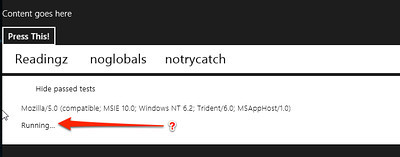
Run the application and you’ll find the following result displayed in your application.

The Running Application

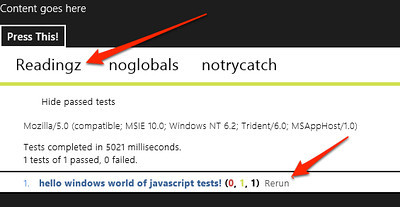
This is one place where an odd thing seems to be occurring (if you have any idea what the problem is, leave a comment, and I’ll do the same when I get the issues resolved). The test just keeps reporting “Running…” until you click on Readingz, noglobals, or somewhere else on the screen in that area to make an action occur. When I click on Readingz the test runs successfully like it should.

Test Ran
Test Ran

What’s up with that? It’s a pretty odd action.

Another issue that I ran into, which was a user error issue on my behalf, was I swapped around the three script files so the qunit-metro file loaded last. I actually stumbled and posted the issue on Stackoverflow here.

Shout it