May the database deluge begin, it’s time for “Bunches of Databases in Bunches of Weeks”. We’ll get into looking at databases similar to how they’re approached in “7 Databases in 7 Weeks“. In this session I got into a hard look at PostgreSQL or as some refer to it just Postgres. This is the first of a few sessions on PostgreSQL in which I get the database installed locally on Ubuntu. Which is transferable to any other operating system really, PostgreSQL is awesome like that. Then after installing and getting pgAdmin 4, the user interface for PostgreSQL working against that, I go the Docker route. Again, pointing pgAdmin 4 at that and creating a database and an initial table.
Below the video here I’ve added the timeline and other details, links, and other pertinent information about this series.
0:00 – The intro image splice and metal intro with tunes..
3:34 – Start of the video database content.
4:34 – Beginning the local installation of Postgres/PostgreSQL on the local machine.
20:30 – Getting pgAdmin 4 installed on local machine.
24:20 – Taking a look at pgAdmin 4, a stroll through setting up a table, getting some basic SQL from and executing with pgAdmin 4.
1:00:05 – Installing Docker and getting PostgreSQL setup as a container!
1:00:36 – Added the link to the stellar post at Digital Ocean’s Blog.
1:00:55 – My declaration that if Digital Ocean just provided documentation I’d happily pay for it, their blog entries, tutorials, and docs are hands down some of the best on the web!
1:01:10 – Installing Postgesql on Ubuntu 18.04.
1:06:44 – Signing in to Docker hub and finding the official Postgresql Docker Image.
1:09:28 – Starting the container with Docker.
1:10:24 – Connecting to the Docker Postgresql Container with pgadmin4.
1:13:00 – Creating a database and working with SQL, tables, and other resources with pgAdmin4 against the Docker container.
1:16:03 – The hacker escape outtro. Happy thrashing code!
“Day 1” of the Database, I’ll work toward building a development installation of the particular database. For example, in this session I setup PostgreSQL by installing it to the local machine and also pulled a Docker image to run PostgreSQL.
“Day 2” of the respective database, I’ll get into working against the database with CQL, SQL, or whatever that one would use to work specifically with the database directly. At this point I’ll also get more deeply into the types, inserting, and storing data in the respective database.
“Day 3” of the respective database, I’ll get into connecting an application with C#, Node.js, and Go. Implementing a simple connection, prospectively a test of the connection, and do a simple insert, update, and delete of some sort against the respective database built on the previous day 2 of the same database.
“Day 4” and onward I’ll determine the path and layout of the topic later, so subscribe on YouTube and Twitch, and tune in. The events are scheduled, with the option to be notified when a particular episode is coming on that you’d like to watch here on Twitch.
Next Events for “Bunches of Databases in Bunches of Days“
It’s official, we’ve got dates and tickets are open for ML4ALL 2019! Our CFP will be open in a number of hours, not days, and I’ll do another update the second that we have that live.
What is ML4ALL?
ML4ALL stands for “Machine Learning for All“. Last year I enjoyed working with Alena Hall, Troy Howard, Glenn Block, Byron Gerlach, and Ben Acker on getting a great conference put together, and I’m looking forward to rounding up a team and doing a great job putting together another great conference for the community again this year!
Last year @lenadroid put together this great video of the event and some short interviews with speakers and attendees. It’s a solid watch, take a few minutes and check it out for a good idea of what the conference will be like.
Want to Attend? Help!
Tickets are on sale, but there’s a lot of other ways to get involved now. First, the super easy way to keep track of updates is to follow the Twitter account: @ml4all. The second way is a little bit more involved, but can be a much higher return on investment for you, by joining the ML4ALL Slack Group! There we discuss conference updates, talk about machine learning, introduce ourselves, and a range of other discussions.
If you work for a company in the machine learning domain, plying the wave of artificial intelligence and related business, you may want to get involved by sponsoring the conference. We’ve got a prospectus we can send you for the varying levels, just send an email to ml4allconf@gmail.com with the subject “Plz Prospectus”. We’ll send you the prospectus and we can start a conversation on which level works best for your company!
The TLDR;
ML4ALL is a conference that will cover from beginner to advanced machine learning presentations, conversations, and community discussions. It’s a top conference choice to put on your schedule for April 28-30th, pick up tickets for, and submit a proposal to the CFP!
Episode Post & Video Links: 1, 2 (this post), 3, 4, 5, 6, 7, and 8. Non-linked are in the works! Videos available now on Youtube however, so check em’ out!
In episode two I went over a lot of the material that I covered in the first episode, but added more context, historical reasons certain things are the way they are in Go and the stack, and went over a number of new elements of information too. One thing I got further into this episode is the package and dependency management with Go Dep and also how to create a package, or dependency library for use in other Go libraries or applications. It’s just a small introduction in this episode, but pivotal to future episodes, as I’ll be jumping further into library creation and related details.
In this post I’ve got the time point breakdown like usual, but also a few additional bits of information and code examples, plus links to the repository I’ve setup for this particular episode. The quick links to those references are below, and also I’ll link at particular call out points within the time points.
2:52 – Fumbling through getting started. It is after all Saturday morning!
3:00 – Recap of what we covered in the first session. Includes a quick review of the previous session code too, such as the random data generation library we setup and used.
6:40 – Covering some specifics of the IDE’s, the stories of the benefits of Go having a specific and somewhat detailed convention to the way syntax, variables, and related features are used.
7:40 – Covering gofmt and what it gives us.
9:45 – Looking at the gofmt plugins and IDE features around the conventions.
14:06 – New example time! In this one, I work through an example showing how to find duplicate lines in passed in text.
Duplicate Line Finder
I went through the various steps of creating the code, but then took a little bit of a detour from the example in the book. Instead of lines by the CLI it takes in content from a text file. The code in main.go ended up like this.
package main

import (
	"bufio"
	"fmt"
	"os"
)

func main() {
	counts := make(map[string]int)
	files := os.Args[1:]
	if len(files) == 0 {
		countLines(os.Stdin, counts)
	} else {
		for _, arg := range files {
			f, err := os.Open(arg)
			if err != nil {
				fmt.Printf("The Error Happened! %s", os.Stderr)
				continue
			}
			countLines(f, counts)
			errFile := f.Close()
			if errFile != nil {
				fmt.Println("Holy moley the file didn't close correctly!")
			}
		}
	}
	for line, n := range counts {
		if n > 1 {
			fmt.Printf("%d\t%s\n", n, line)
		}
	}
}

func countLines(f *os.File, counts map[string]int) {
	input := bufio.NewScanner(f)
	for input.Scan() {
		counts[input.Text()]++
	}
}
Then if you’d like to check out the text file and remaining content in that project, check out the master branch of the episode 2 repo.
36:34 – Here I take a thorough step through committing this project to github, which is the included repo in this post. However I step through the interface of using Jetbrains Goland to do the commit, how it enables gofmt and other features to improve the condition of code and ensure it meets linter demands and related crtieria. I also cover the .gitignore file and other elements to create a usable repository.
44:30 – Setting up the repository for today’s code at https://github.com/Adron/learning-go-…50:00 – Setup of the key again for using Github. How to setup your ssh keys using ssh-keygen.
56:00 – Going beyond just the language, and building out a Go build on Travis CI.
1:10:16 – Creating a new branch for the next code examples and topics. At this point I shift into type declarations. Working through some constants, very basic function declarations, and related capabilities to calculate temperatures between Fahrenheit and Celsius.
At this point I shift into type declarations. Working through some constants, very basic function declarations, and related capabilities to calculate temperatures between Fahrenheit and Celsius.
During this point, we take a look at our first package. This package ended up looking like this.
In the main.go file, I showed how you can use this package by adding a respective import shown in this code.
package main

import (
	"fmt"
	tempconv "github.com/Adron/awesomeProject/tempconv"
)

func main() {
	fmt.Println("Temperatures are hard to figure off the top of one's mind!")

	boilingF := tempconv.CelsiusToFahrenheit(BoilingC)

	fmt.Printf("%v\n", boilingF)
	fmt.Printf("%s\n", boilingF)
	fmt.Println(boilingF)
	fmt.Printf("%g\n", boilingF)
}
1:17:54 – At this point, to increase readability of font sizes I get into the various Goland IDE options.
1:38:12 – Creating the final branch for this session to pull in a public package and use it in project. For this, I pull in a random data generation package to use in some application code.
package main

import (
	"fmt"

	randomdata "github.com/Pallinder/go-randomdata"
)

func main() {
	// Print a random silly name
	fmt.Println(randomdata.SillyName())

	// Print a male title
	fmt.Println(randomdata.Title(randomdata.Male))

	// Print a female title
	fmt.Println(randomdata.Title(randomdata.Female))

	// Print a title with random gender
	fmt.Println(randomdata.Title(randomdata.RandomGender))

	// Print a male first name
	fmt.Println(randomdata.FirstName(randomdata.Male))

	// Print a female first name
	fmt.Println(randomdata.FirstName(randomdata.Female))

	// Print a last name
	fmt.Println(randomdata.LastName())

	// Print a male name
	fmt.Println(randomdata.FullName(randomdata.Male))

	// Print a female name
	fmt.Println(randomdata.FullName(randomdata.Female))

	// Print a name with random gender
	fmt.Println(randomdata.FullName(randomdata.RandomGender))

	// Print an email
	fmt.Println(randomdata.Email())

	// Print a country with full text representation
	fmt.Println(randomdata.Country(randomdata.FullCountry))

	// Print a country using ISO 3166-1 alpha-2
	fmt.Println(randomdata.Country(randomdata.TwoCharCountry))

	// Print a country using ISO 3166-1 alpha-3
	fmt.Println(randomdata.Country(randomdata.ThreeCharCountry))

	// Print BCP 47 language tag
	fmt.Println(randomdata.Locale())

	// Print a currency using ISO 4217
	fmt.Println(randomdata.Currency())

	// Print the name of a random city
	fmt.Println(randomdata.City())

	// Print the name of a random american state
	fmt.Println(randomdata.State(randomdata.Large))

	// Print the name of a random american state using two chars
	fmt.Println(randomdata.State(randomdata.Small))

	// Print an american sounding street name
	fmt.Println(randomdata.Street())

	// Print an american sounding address
	fmt.Println(randomdata.Address())

	// Print a random number >= 10 and < 20
	fmt.Println(randomdata.Number(10, 20))

	// Print a number >= 0 and < 20
	fmt.Println(randomdata.Number(20))

	// Print a random float >= 0 and < 20 with decimal point 3
	fmt.Println(randomdata.Decimal(0, 20, 3))

	// Print a random float >= 10 and < 20
	fmt.Println(randomdata.Decimal(10, 20))

	// Print a random float >= 0 and < 20
	fmt.Println(randomdata.Decimal(20))

	// Print a bool
	fmt.Println(randomdata.Boolean())

	// Print a paragraph
	fmt.Println(randomdata.Paragraph())

	// Print a postal code
	fmt.Println(randomdata.PostalCode("SE"))

	// Print a set of 2 random numbers as a string
	fmt.Println(randomdata.StringNumber(2, "-"))

	// Print a set of 2 random 3-Digits numbers as a string
	fmt.Println(randomdata.StringNumberExt(2, "-", 3))

	// Print a random string sampled from a list of strings
	fmt.Println(randomdata.StringSample("my string 1", "my string 2", "my string 3"))

	// Print a valid random IPv4 address
	fmt.Println(randomdata.IpV4Address())

	// Print a valid random IPv6 address
	fmt.Println(randomdata.IpV6Address())

	// Print a browser's user agent string
	fmt.Println(randomdata.UserAgentString())

	// Print a day
	fmt.Println(randomdata.Day())

	// Print a month
	fmt.Println(randomdata.Month())

	// Print full date like Monday 22 Aug 2016
	fmt.Println(randomdata.FullDate())

	// Print full date <= Monday 22 Aug 2016
	fmt.Println(randomdata.FullDateInRange("2016-08-22"))

	// Print full date >= Monday 01 Aug 2016 and <= Monday 22 Aug 2016
	fmt.Println(randomdata.FullDateInRange("2016-08-01", "2016-08-22"))

	// Print phone number according to e.164
	fmt.Println(randomdata.PhoneNumber())

	// Get a complete and randomised profile of data generally used for users
	// There are many fields in the profile to use check the Profile struct definition in fullprofile.go
	profile := randomdata.GenerateProfile(randomdata.Male | randomdata.Female | randomdata.RandomGender)
	fmt.Printf("The new profile's username is: %s and password (md5): %s\n", profile.Login.Username, profile.Login.Md5)

	// Get a random country-localised street name for Great Britain
	fmt.Println(randomdata.StreetForCountry("GB"))
	// Get a random country-localised street name for USA
	fmt.Println(randomdata.StreetForCountry("US"))

	// Get a random country-localised province for Great Britain
	fmt.Println(randomdata.ProvinceForCountry("GB"))
	// Get a random country-localised province for USA
	fmt.Println(randomdata.ProvinceForCountry("US"))
}
1:44:50 – Further discussion and explanation of what to include in .gitignore files to manage projects, but also what is and isn’t included for dependencies and other details around all of this.
2:13:22 – The wicked awesome hacker outtro.
I mentioned, since I’d run into this problem, a while back in my post “Oh, exFAT Doesn’t Work on Linux” which then includes a fix. Here’s a slightly more updated fix for the same and another fix for mounting just the Windows 10 partition if you have a Windows 10 System Drive (i.e. the drive with the OS on it). First, the exFAT install can simply be done with the following, no need to go get it with git via a clone.
sudo apt-get install exfat-fuse exfat-utils
The other trick is to get a Windows 10 System Drive mounted. To do that, open up the disks application and click the gears on the drive. Then make the following settings by clicking off for “User Session Defaults”. Then you can set “Mount at system startup” and add “remove_hiberfile” to the end of the command parameters as shown. Now the drive can be mounted, just click the mount button and you should be set.
At this point, I’d say do not buy a Dell XPS 15 unless you are only going to use Windows 10 apps and such on the machine. Linux runs like garbage on the machine. The generic drivers that allow one to sort of load Linux onto the machine work mediocre at best, with lot’s of crashes, kernel panics, and related wrecks within seconds and minutes (if you get that far) after starting the machine with Linux. So that the situation there.
Docker, Hyper-V, and VirtualBox Conflict
As I’ve used Windows 10 I keep hitting hard roadblocks on getting things done. After years of MacOS and Linux usage it’s kind of an ongoing, slow motion, insulting train wreck how monopolistic a lot of their applications are still built to run. For example, the latest application that I’ve tried to use that is effectively disabled is Virtual Box. Upon further research I realized I can’t used Virtual Box if I have Hyper-V installed. But that means if I want to use the latest and greatest Docker software then I either have to enable Hyper-V and use Docker or disable Docker and Hyper-V and use Virtual Box. Which means I could go back a version or two of this and that and use Docker-machine with Virtual Box, but, seriously, that’s ridiculous.
The way, from what I understand so far, is that they’ve built the operation of Hyper-V to work on Windows 10 in a way that it effectively prevents Virtual Box, and I suppose VMWare, from actually operating. So one has to go and disable Hyper-V in order to be able to run Virtual Box.
Enabling / Disabling VirtualBox and Hyper-V
Ok, here’s one way to do this with Powershell. Open up Powershell with the “Run As Administrator” option. You’ll have to do that by clicking the start menu (or whatever it’s called these days) and typing “power” which brings up the Powershell application icon. Right click on it and select “Run as Administrator”.
# Remember, all of these commands need executed via Powershell that is started/opened with "Run As Administrator".

# Disabling Hyper-V

Disable-WindowsOptionalFeature -Online -FeatureName Microsoft-Hyper-V-Hypervisor

# Enabling Hyper-V

Enable-WindowsOptionalFeature -Online -FeatureName Microsoft-Hyper-V -All

# You may also want DSIM enabled with all this, here's that detail.

DISM /Online /Enable-Feature /All /FeatureName:Microsoft-Hyper-V
Here’s the dialog where one can disable Hyper-V to run VirtualBox too. One this is run, or disabled, Windows 10 will likely want you to restart your computer. You’ll actually need to do this too, because VirtualBox will still die out without a clean OS launch for the base underlying operating system.
Once the restart is complete however, VirtualBox should start up and run virtual machines just fine. Emphasis as usual for Windows on the keyword of should.
Virtual Machine SITREP Resolved Poorly
At this point I’m moderately ok with this solution. It just means that I need to re-create all of my images in Hyper-V and nuke VirtualBox though. I’m really indifferent on which one I need to use, but would have liked to have RTFM’ed the docs before so I had realized upgrading to Windows 10 and using Hyper-V for Docker would kill off my VirtualBox images that I’ve been using for months. Oh well, onward!
The other thing that I find horrifying about this though, is as I’ve learned why and how Hyper-V disabled VirtualBox from running side by side, it seems like 90’s era monopolistic Microsoft building something in a way that disables competition. Ok, so I know it isn’t really because of that, but it’s close enough that it just seem dirty, nasty, and all around kind of disingenuous on Microsoft’s part. Especially considering they neglected Hyper-V for so many years and of course now are all like, “hey, Hyper-V is the way the future, nobody uses it outside of the Windows camp, but it’s the way of the future so bow down and use it Windows users!!” But whatever, I’m at least back in business to get some things done and get some development images put together in Hyper-V.
Hyper-V plus Docker for Windows 10
At this point, since Linux has such poor support on the Dell XPS 15 I’m just sticking with Windows 10 and going the Hyper-V + Docker + Virtual Machines path for what I’m working on. More on this soon, and I’ll be mentioning various things on Twitch soon too. When I get back around to getting the Linux + XPS 15 situation sorted out and tried out again I’ll be sure to blog that too!



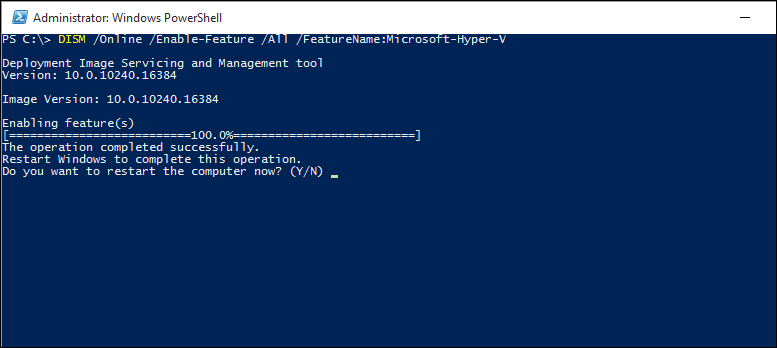
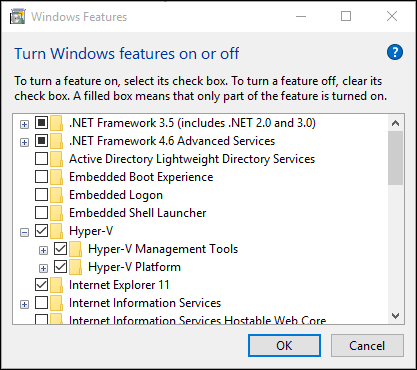 Here’s the dialog where one can disable Hyper-V to run VirtualBox too. One this is run, or disabled, Windows 10 will likely want you to restart your computer. You’ll actually need to do this too, because VirtualBox will still die out without a clean OS launch for the base underlying operating system.