This is the first part of a two part series on building a basic working web app using ASP.NET MVC to create, update, delete, and access views of the data in a Windows Azure Table Storage Service. The second part will be published this next Monday. With that stated, let’s kick off with some technical specifics about Windows Azure Table Storage.
The Windows Azure Table service provides a structured storage in the form of tables. The table storage you would setup within Windows Azure is globally unique. Any number of tables can be created within a given account with the requirement that each table has a unique name.
The table storage account is specified within a unique URI such as:
http://myaccount.table.core.windows.net
Within each table the data is broken into collections called entities. Entities are basically rows of data, similar to a row in a spreadsheet or a row within a database. Each entity has a required primary key and a set of properties. The properties are a name, typed-value pair, similar to a column.
Tables, Entities, and Properties
There are three core concepts to know when dealing with Windows Azure Tables; Table, Entities, and Properties. For each of these core features of the Windows Azure Table Storage it is important to be able to add, possibly update, and delete the respective table, entity, or property.
Windows Azure Table Hierarchy;
- Table – Similar to a spreadsheet or table in a relational database.
- Entity – Similar to a row of data in a spreadsheet, relational database, or flat file.
- Property – Similar to a cell in a spreadsheet or tuple in a relational database.
Each entity has the following system properties; a partition key, row key, and time stamp. These properties are included with every entity and have reserved naming. The partition and row key are responsibilities of the developer to insert into, while the time stamp is managed by the server and is read only.
Three properties that are part of every table;
- Partition Key
- Row Key
- Time Stamp
Each table name must conform to the following rules; a name may have only alphanumeric characters, may not begin with a numeric character, are case-insensitive, and must be between 3 and 63 characters.
Tables are split across many nodes for horizontal scaling. The traffic to these nodes is load balanced. The entities within a table are organized by partition. A partition is a consecutive range of entities possessing the same key value, the key being a unique identifier within a table for the partition. The partition key is the first part of the entity’s primary key and can be up to 1 KB in size. This partition key must be included in every insert, update, and delete operation.
The second part of the primary key is the row key property. It is a unique identifier that should not be read, set on insert or update, and generally left as is.
The Timestamp property is a DateTime data type that is maintained by the server to record the entity for last modifications. This value is used to provide optimistic concurrency to table storage and should not be read, inserted, or updated.
Each property name is case sensitive and cannot exceed 255 characters. The accepted practice around property names is that they are similar to C# identifiers, yet conform to XML specifications. Examples would include; “streetName”, “car”, or “simpleValue”.
To learn more about the XML specifications check out the W3C link here: http://www.w3.org/TR/REC-xml/. This provides additional information about properly formed XML that is relatable to the XML usage with Windows Azure Table Storage.
Coding for Windows Azure Tables
What I am going to show for this code sample is how to setup an ASP.NET MVC Application using the business need of keeping an e-mail list for merges and other related needs.
I wrote the following user stories around this idea.
- The site user can add an e-mail with first and last name of the customer.
- The site user can view a listing of all the e-mail listings.
- The site user can delete a listing from the overall listings.
- The site user can update a listing from the overall listings.
This will provide a basic fully functional create, update, and delete against the Windows Azure Table Storage. Our first step is to get started with creating the necessary projects within Visual Studio 2010 to create the site with the Windows Azure Storage and Deployment.
- Right click on Visual Studio 2010 and select Run As Administrator to execute Visual Studio 2010.
- Click on File, then New, and finally Project. The new project dialog will appear.
- Select the Web Templates and then ASP.NET MVC 2 Empty Web Application.
- Name the project EmailMergeManagement. Click OK.
- Now right click on the Solution and select Add and then New Project. The new project dialog will appear again.
- Select the Cloud Templates and then the Windows Azure Cloud Service.
- Name the project EmailMergeManagementAzure. Click OK.
- When the New Cloud Service Project dialog comes up, just click OK without selecting anything.
- Right click on the Roles Folder within the EmailMergeManagementAzure Project and select Add and then Web Role Project in Solution.
- Select the project in the Associate with Role Project Dialog and click OK.
The Solutions Explorer should have the follow projects, folders, files, and Roles setup.
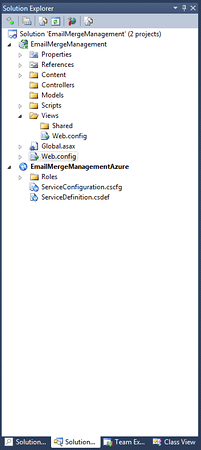
Solution Explorer
- Now create controller classes called StorageController and one called HomeController.
- Now a Storage and Home directory in the Views directory.
- Add a view to each of those directories called Index.aspx.
- In the Index.aspx view in the Home directory add the following HTML.
<%@ Page Language="C#" Inherits="System.Web.Mvc.ViewPage" %>

        <%:Html.Encode(ViewData["Message"])%>
<h1>
        <%:Html.Encode(ViewData["Message"])%></h1>
        This ASP.NET MVC Windows Azure Project provides examples around
        the Windows Azure Storage usage utilizing the Windows Azure SDK.
<ul>
	<li>
            <%:Html.ActionLink("Windows Azure Table Storage", "Index",                                               "Storage")%></li>
</ul>
- In the Storage directory Index.aspx view add the following code.
<%@ Page Language="C#" Inherits="System.Web.Mvc.ViewPage" %>

        <%: Html.Encode(ViewData["Message"])%>
<h1>
        <%: Html.Encode(ViewData["Message"])%></h1>
- In the StorageController add this code.
using System.Web.Mvc;

namespace EmailMergeManagement.Controllers
{
    public class StorageController : Controller
    {
        public ActionResult Index()
        {
            ViewData["Message"] = "Windows Azure Table Storage Sample";
            return View();
        }
    }
}
- In the HomeController add this code.
using System.Web.Mvc;

namespace EmailMergeManagement.Controllers
{
    public class HomeController : Controller
    {
        public ActionResult Index()
        {
            ViewData["Message"] = "Windows Azure Storage Samples";
            return View();
        }
    }
}
Now the next step is to get our Models put together. This section will include putting together the class for the Email Merge Listing Model, the repository class for getting the data in and out of the table, and the context object that is used for connecting to the actual Development Fabric or Windows Azure Table Storage.
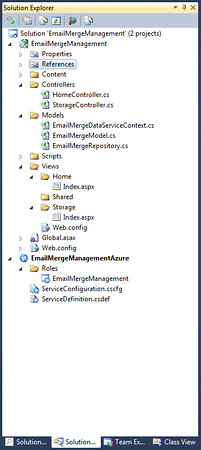
Solution Explorer
- First add the following references; System.Data.Services.Client, Microsoft.WindowsAzure.CloudDrive, Microsoft.WindowsAzure.Diagnostics, Microsoft.WindowsAzure.ServiceRuntime, and Microsoft.WindowsAzure.StorageClient to the project by right clicking on the References virtual folder for the EmailMergeManagement Project.
- Once you add these references create a class in the Models folder called EmailMergeModel and add the following code. I’ve added some basic validation attributes to the Email, First, and Last Properties of the EmailMergeModel Class just so that it has a little more semblance of something you may actually see in real world use.
using System;
using System.ComponentModel.DataAnnotations;
using Microsoft.WindowsAzure.StorageClient;

namespace EmailMergeManagement.Models
{
    public class EmailMergeModel : TableServiceEntity
    {
        public EmailMergeModel(string partitionKey, string rowKey)
            : base(partitionKey, rowKey)
        {
        }

        public EmailMergeModel()
            : this(Guid.NewGuid().ToString(), string.Empty)
        {
        }

        [Required(ErrorMessage = "Email is required.")]
        [RegularExpression("^[a-z0-9_\\+-]+(\\.[a-z0-9_\\+-]+)*@[a-z0-9_\\+-]+(\\.[a-z0-9_\\-]+)*\\.([a-z]{2,4})$",
            ErrorMessage = "Not a valid e-mail address.")]
        public string Email { get; set; }

        [Required(ErrorMessage = "First name is required.")]
        [StringLength(50, ErrorMessage = "Must be less than 50 characters.")]
        public string First { get; set; }

        [Required(ErrorMessage = "Last name is required.")]
        [StringLength(50, ErrorMessage = "Must be less than 50 characters.")]
        public string Last { get; set; }

        public DateTime LastEditStamp { get; set; }
    }
}
- Now add a class titled EmailMergeDataServiceContext for our data context. This class provides the basic TableServiceContext inheritance that allows for creation of the table, entities, and properties through the Windows Azure SDK.
- Add the following code to the EmailMergeDataServiceContext Class.
using System.Linq;
using Microsoft.WindowsAzure;
using Microsoft.WindowsAzure.StorageClient;

namespace TestingCloudsWebApp.Models
{
    public class EmailMergeDataServiceContext : TableServiceContext
    {
        public const string EmailMergeTableName = "EmailMergeTable";

        public EmailMergeDataServiceContext(string baseAddress, StorageCredentials credentials)
            : base(baseAddress, credentials)
        {
        }

        public IQueryable EmailMergeTable
        {
            get { return CreateQuery(EmailMergeTableName); }
        }
    }
}
- Create a class in the Models directory called EmailMergeRepository. This is the class I will use to add the insert, update, and delete functionality.
- Now add a constructor and private readonly EmailMergeDataServiceContext member as shown below.
private readonly EmailMergeDataServiceContext _serviceContext;

public EmailMergeRepository()
{
    var storageAccount = CloudStorageAccount.
        FromConfigurationSetting("DiagnosticsConnectionString");
    _serviceContext =
        new EmailMergeDataServiceContext(
            storageAccount.TableEndpoint.ToString(),
            storageAccount.Credentials);

    storageAccount.CreateCloudTableClient().
        CreateTableIfNotExist(
            EmailMergeDataServiceContext.EmailMergeTableName);
}
- Next add the select and get by methods to retrieve EmailMergeModel Objects.
public IEnumerable<EmailMergeModel> Select()
{
    var results = from c in _serviceContext.EmailMergeTable
                    select c;

    var query = results.AsTableServiceQuery();
    var queryResults = query.Execute();

    return queryResults;
}

public EmailMergeModel GetEmailMergeModel(string rowKey)
{
    EmailMergeModel result = (from c in _serviceContext.EmailMergeTable
                                where c.RowKey == rowKey
                                select c).FirstOrDefault();
    return result;
}
- Next add a method to add our custom date & time stamp for inserts and updates.
private static EmailMergeModel StampIt(EmailMergeModel emailMergeModel)
{
    // This is a sample of adding a cross cutting concern or similar functionality.
    emailMergeModel.LastEditStamp = DateTime.Now;
    return emailMergeModel;
}
- Finally the delete, insert, and update methods can be added.
public void Delete(EmailMergeModel emailMergeModelToDelete)
{
    _serviceContext.Detach(emailMergeModelToDelete);
    _serviceContext.AttachTo(EmailMergeDataServiceContext.EmailMergeTableName,
        emailMergeModelToDelete, "*");
    _serviceContext.DeleteObject(emailMergeModelToDelete);
    _serviceContext.SaveChanges();
}

public void Insert(EmailMergeModel emailMergeModel)
{
    _serviceContext.AddObject(EmailMergeDataServiceContext.EmailMergeTableName, StampIt(emailMergeModel));
    _serviceContext.SaveChanges();
}

public void Update(EmailMergeModel emailMergeModelUpdate)
{
    var emailMergeModelOld = GetEmailMergeModel(emailMergeModelUpdate.RowKey);
    Delete(emailMergeModelOld);
    Insert(StampIt(emailMergeModelUpdate));
}
- At this point the Solution Explorer should have the following files and structure.
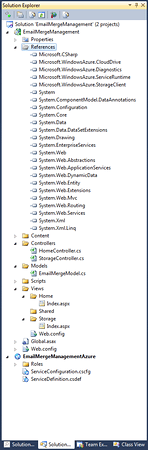
Storage Explorer
That’s it for part 1 of this two part series. The next entry I’ll have posted this coming Monday, so stay tuned for the final steps. 🙂