Put Stuff in Your Windows Azure Junk Trunk – ASP.NET MVC Application

If you haven’t read Part 1 of this series (part 3 click here), you’ll need to in order to follow along with the JunkTrunk Repository.  Open the solution up if you haven’t already and navigate to the Models Folder within the ASP.NET MVC JunkTrunk Project.  In the folder add another class titled FileItemModel.cs and BlobModel.cs. Add the following properties to the FileItemModel.

public class FileItemModel
{
    public Guid ResourceId { get; set; }
    public string ResourceLocation { get; set; }
    public DateTime UploadedOn { get; set; }
}

Add the following property to the BlobModel and inherit from the FileItemModel Class.

public class BlobModel : FileItemModel
{
    public Stream BlobFile { get; set; }
}

Next add a new class file titled FileBlobManager.cs and add the following code to the class.

public class FileBlobManager
{
    public void PutFile(BlobModel blobModel)
    {
        var blobFileName = string.Format("{0}-{1}", DateTime.Now.ToString("yyyyMMdd"), blobModel.ResourceLocation);
        var blobUri = Blob.PutBlob(blobModel.BlobFile, blobFileName);

        Table.Add(
                new BlobMeta
                {
                    Date = DateTime.Now,
                    ResourceUri = blobUri,
                    RowKey = Guid.NewGuid().ToString()
                });
    }

    public BlobModel GetFile(Guid key)
    {
        var blobMetaData = Table.GetMetaData(key);
        var blobFileModel =
            new BlobModel
            {
                UploadedOn = blobMetaData.Date,
                BlobFile = Blob.GetBlob(blobMetaData.ResourceUri),
                ResourceLocation = blobMetaData.ResourceUri
            };
        return blobFileModel;
    }

    public List GetBlobFileList()
    {
        var blobList = Table.GetAll();

        return blobList.Select(
            metaData => new FileItemModel
            {
                ResourceId = Guid.Parse(metaData.RowKey),
                ResourceLocation = metaData.ResourceUri,
                UploadedOn = metaData.Date
            }).ToList();
    }

    public void Delete(string identifier)
    {
        Table.DeleteMetaDataAndBlob(Guid.Parse(identifier));
    }
}

Now that the repository, management, and models are all complete the focus can turn to the controller and the views of the application. At this point the break down of each data element within the data transfer object and the movement of the data back and forth becomes very important to the overall architecture. One of the things to remember is that the application should not pass back and forth data such as URIs or other long easy to hack strings. This is a good place to include Guids or if necessary integer values that identify the data that is getting created, updated, or deleted. This helps to simplify the UI and help decrease the chance of various injection attacks. The next step is to open up the HomeController and add code to complete each of the functional steps for the site.

[HandleError]
public class HomeController : Controller
{
    public ActionResult Index()
    {
        ViewData["Message"] = "Welcome to the Windows Azure Blob Storing ASP.NET MVC Web Application!";
        var fileBlobManager = new FileBlobManager();
        var fileItemModels = fileBlobManager.GetBlobFileList();
        return View(fileItemModels);
    }

    public ActionResult About()
    {
        return View();
    }

    public ActionResult Upload()
    {
       return View();
    }

    public ActionResult UploadFile()
    {
        foreach (string inputTagName in Request.Files)
        {
            var file = Request.Files[inputTagName];

            if (file.ContentLength > 0)
            {
                var blobFileModel =
                    new BlobModel
                        {
                            BlobFile = file.InputStream,
                            UploadedOn = DateTime.Now,
                            ResourceLocation = Path.GetFileName(file.FileName)
                        };

                var fileBlobManager = new FileBlobManager();
                fileBlobManager.PutFile(blobFileModel);
            }
        }

        return RedirectToAction("Index", "Home");
    }

    public ActionResult Delete(string identifier)
    {
        var fileBlobManager = new FileBlobManager();
        fileBlobManager.Delete(identifier);
        return RedirectToAction("Index", "Home");
    }
}

The view hasn’t been created for the Upload just yet, so the method will cause a build error at this point. But before I add a view for this action, I’ll cover what has been created for the controller.

The Index Action I’ve changed moderately to have a list of the Blobs that are stored in the Windows Azure Blob Storage. This will be pulled from the manager class that we created earlier and passed into the view for rendering. I also, just for cosmetic reasons, changed the default display message passed into the ViewData so that the application would have something displayed more relevant to the application.

The About message I just left as is. The Upload action simply returns what will be a view we create.

The UploadFile Action checks for files within the request, builds up the model and then puts the model into storage via the manager.

The last method is the Delete Action that instantiates the manager and then calls a delete against the storage. This action then in turn traces back through, finds the Table & Blob Entities that are related to the specific blob and deletes both from the respective Windows Azure Storage Table and Blob Mediums.

The next step is to get the various views updated or added to enable the upload and deletion of the blob items.

Add a view titled Upload.aspx to the Home Folder of the Views within the JunkTrunk Project.
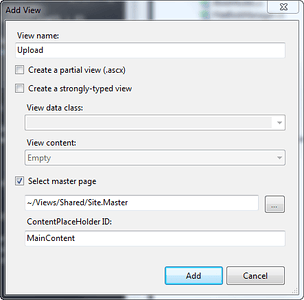
Upload View

Upload View

First change the inherits value for the view from System.Web.Mvc.ViewPage to System.Web.Mvc.ViewPage. After that add the following HTML to the view.

<asp:Content ID="Content1" ContentPlaceHolderID="TitleContent" runat="server">
	Upload an Image
</asp:Content>
<asp:Content ID="Content2" ContentPlaceHolderID="MainContent" runat="server">
	<h2>
		Upload</h2>
	<% using (Html.BeginForm("UploadFile", "Home", FormMethod.Post,
        new { enctype = "multipart/form-data" }))
	   {%>
	<%: Html.ValidationSummary(true) %>
	<fieldset>
		<legend>Fields</legend>

		<div class="editor-label">
			Select file to upload to Windows Azure Blob Storage:
		</div>
		<div class="editor-field">
			<input type="file" id="fileUpload" name="fileUpload" />
		</div>
		<p>
			<input type="submit" value="Upload" />
		</p>
	</fieldset>
	<% } %>
	<div>
		<%: Html.ActionLink("Back to List", "Index") %>
	</div>
</asp:Content>

After adding the HTML, then change the HTML in the Index.aspx View to have an action link for navigating to the upload page and for viewing the list of uploaded Blobs. Change the inherits first form System.Web.Mvc.ViewPage to System.Web.Mvc.ViewPage. The rest of the changes are listed below.

<asp:Content ID="Content1" ContentPlaceHolderID="TitleContent" runat="server">
    Home Page
</asp:Content>
<asp:Content ID="Content2" ContentPlaceHolderID="MainContent" runat="server">
    <h2>
        <%: ViewData["Message"] %></h2>
    <p>
        <%: Html.ActionLink("Upload", "Upload", "Home") %>
        a file to Windows Azure Blob Storage.
    </p>
    Existing Files:<br />
    <table>
        <tr>
            <th>
            </th>
            <th>
                FileName
            </th>
            <th>
                DownloadedOn
            </th>
        </tr>
        <% foreach (var item in Model)
           { %>
        <tr>
            <td>
                <%: Html.ActionLink("Delete", "Delete",
                new { identifier = item.ResourceId })%>
            </td>
            <td>
                <%: item.ResourceLocation %>
            </td>
            <td>
                <%: String.Format("{0:g}", item.UploadedOn) %>
            </td>
        </tr>
        <% } %>
    </table>
</asp:Content>

Make sure the Windows Azure Project is set as the startup project and click on F5 to run the application. The following page should display first.
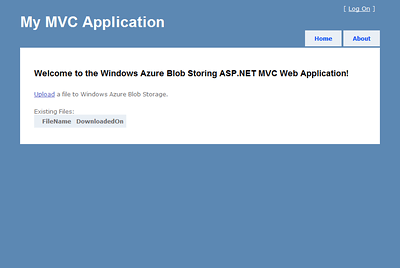
The Home Page o' Junk Trunk

The Home Page o’ Junk Trunk

Click through on it to go to the upload page.
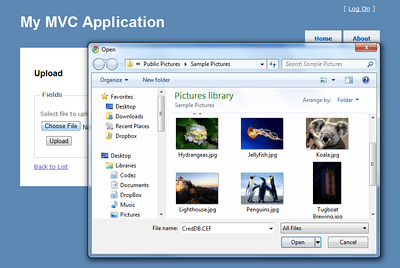
Selecting an Image to Put in The Junk Trunk

Selecting an Image to Put in The Junk Trunk

On the upload page select and image to upload and then click on upload. This will then upload the image and redirect appropriately to the home page.
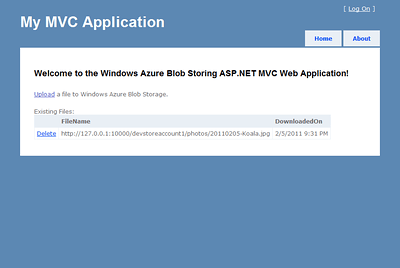
The Image in the Junk Trunk

The Image in the Junk Trunk

On the home page the list should now have the uploaded blob image listed. Click delete to delete the image. When deleted the table and the blob itself will be removed from the Windows Azure Storage. To see that the data & image are being uploaded open up the Server Explorer within Visual Studio 2010.
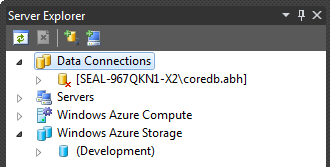
Visual Studio 2010 Server Explorer

Visual Studio 2010 Server Explorer

View the data by opening up the Windows Azure Storage tree. Double click on either of the storage mediums to view table or blob data.
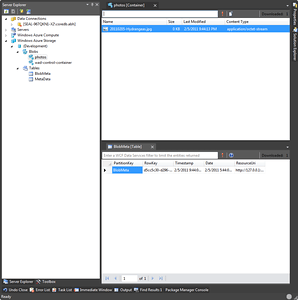
Windows Azure Storage


Windows Azure Storage

#AONW == Agile Open Northwest

I’ve got some cross-blog goodness going on for the Agile Open Northwest Conference that the work crew is attending in Portland.  The reason of this cross-blog goodness is because we’re taking the train down (i.e. transit), which is one of my topics of interests.  It goes a bit further, it’s also a lifestyle, as I’m a car-free American.  One of the rare, but it rocks!   Matter of fact it rocks far more than most may realize.  So since there is a lot of Agile goodness, and transit related goodness, on our trip from Seattle to Portland for this conference I’ll post the transit posts on my Transit Sleuth Blog and the Agile related notes & information here on my Composite Code Blog.  If you want to check out my transit blog entries, check out the latest

Over the next couple of days I’ll be publishing various pictures of the conference and other tidbits.  I’ll try to keep it work safe.

Just to kick off with a few shots, here’s my cohorts rocking the code on the train.  Click the laptop image for the whole gallery – the individual’s images for their Twitter Feed.

Laptops Out for Codez

Laptops Out for Codez

Eric Ridgeway (Click for Twitter Feed)

Eric Ridgeway (Click for Twitter Feed)

Jeff Schumacher (Twitter Feed)

Jeff Schumacher (Twitter Feed)

Put Stuff in Your Windows Azure Junk Trunk – Repository Base

Alright, so the title is rather stupid, but hey, it’s fun!  🙂

This project I setup to provide some basic functionality with Windows Azure Storage.  I wanted to use each of the three mediums;  Table, Blob, and Queue, and this example will cover each of these things.  The application will upload and store images, provide a listing, some worker processing, and deletion of the images & associated metadata.  This entry is part 1 of this series, with the following schedule for subsequent entries:

Title aside, schedule laid out, description of the project completed, I’ll dive right in!

Putting Stuff in Your Junk Trunk

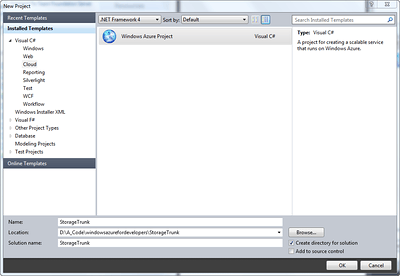
Create a new Windows Azure Project called PutJunkInIt.  (Click any screenshot for the full size, and also note some of the text may be off – I had to recreate a number of these images)

Windows Azure PutJunkInIt

Windows Azure PutJunkInIt

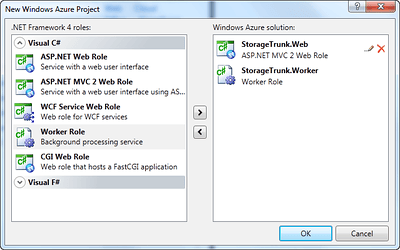
Next select the ASP.NET MVC 2 Web Application and also a Worker Role and name the projects JunkTrunk and JunkTrunk.WorkerRole.

Choosing Windows Azure Projects

Choosing Windows Azure Projects

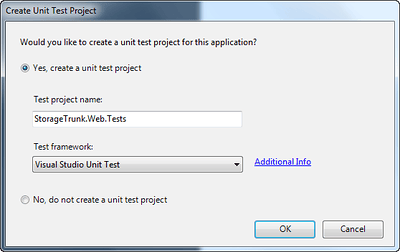
In the next dialog choose to create the unit test project and click OK.

Create Unit Test Project

Create Unit Test Project

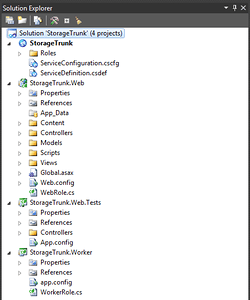
After the project is created the following projects are setup within the PutJunkInIt Solution.  There should be a JunkTrunk, JunkTrunk.Worker, JunkTrunk Windows Azure Deployment Project, and a JunkTrunk.Tests Project.

Solution Explorer

Solution Explorer

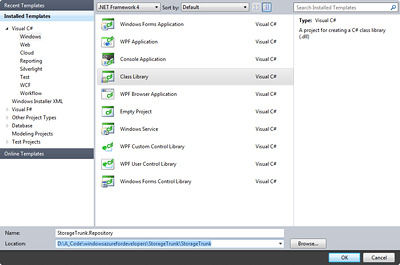
Next add a Windows Class Library Project and title it JunkTrunk.Storage.

Windows Class Library

Windows Class Library

Add a reference to the Microsoft.WindowsAzure.ServiceRuntime and Microsoft.WindowsAzure.StorageClient assemblies to the JunkTrunk.Storage Project.  Rename the Class1.cs file and class to JunkTrunkBase.  Now open up the Class1.cs file in the JunkTrunk.Storage Project.  First add the following fields and constructor to the class.

public const string QueueName = "metadataqueue";
public const string BlobContainerName = "photos";
public const string TableName = "MetaData";
static JunkTrunkBase()
{
    CloudStorageAccount.SetConfigurationSettingPublisher((configName, configSetter) =>
    {
        configSetter(RoleEnvironment.GetConfigurationSettingValue(configName));
        RoleEnvironment.Changed
            += (sender, arg) =>
                    {
                        if (!arg.Changes.OfType()
                                .Any(change => (change.ConfigurationSettingName == configName)))
                            return;
                        if (!configSetter(RoleEnvironment.GetConfigurationSettingValue(configName)))
                        {
                            RoleEnvironment.RequestRecycle();
                        }
                    };
    });
}

After that add the following blob container and reference methods.

protected static CloudBlobContainer Blob
{
    get { return BlobClient.GetContainerReference(BlobContainerName); }
}
private static CloudBlobClient BlobClient
{
    get
    {
        return Account.CreateCloudBlobClient();
    }
}

Now add code for the table & queue client and reference methods.

protected static CloudQueue Queue
{
    get { return QueueClient.GetQueueReference(QueueName); }
}
private static CloudQueueClient QueueClient
{
    get { return Account.CreateCloudQueueClient(); }
}
protected static CloudTableClient Table
{
    get { return Account.CreateCloudTableClient(); }
}
protected static CloudStorageAccount Account
{
    get
    {
        return
            CloudStorageAccount
            .FromConfigurationSetting("Microsoft.WindowsAzure.Plugins.Diagnostics.ConnectionString");
    }
}

This class now provides the basic underpinnings needed to retrieve the appropriate information from the configuration.  This base class can then provide that connection information to connect to the table, queue, or blob mediums.

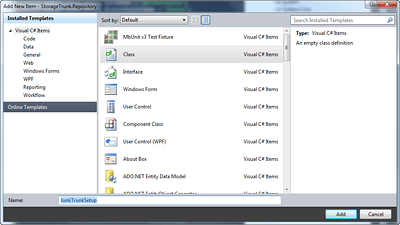
Next step is to create some initialization code to get the containers created if they don’t exist in Windows Azure.  Add a new class file to the PutJunkInIt Project.

JunkTrunkSetup

JunkTrunkSetup

public class JunkTrunkSetup : JunkTrunkBase
{
    public static void CreateContainersQueuesTables()
    {
        Blob.CreateIfNotExist();
        Queue.CreateIfNotExist();
        Table.CreateTableIfNotExist(TableName);
    }
}

Next add the System.Data.Services.Client Assembly to the project.  After adding the assembly add two new classes and name them BlobMeta.cs and Table.cs. Add the following code to the Table.cs Class.

public class Table
{
    public static string PartitionKey;
}

Next add another class file and name it BlobMetaContext.cs and add the following code.

public class BlobMetaContext : TableServiceContext
{
    public BlobMetaContext(string baseAddress, StorageCredentials credentials)
        : base(baseAddress, credentials)
    {
        IgnoreResourceNotFoundException = true;
    }
    public IQueryable Data
    {
        get { return CreateQuery(RepositoryBase.TableName); }
    }
    public void Add(BlobMeta data)
    {
        data.RowKey = data.RowKey.Replace("/", "_");
        BlobMeta original = (from e in Data
                                where e.RowKey == data.RowKey
                                    && e.PartitionKey == Table.PartitionKey
                                select e).FirstOrDefault();
        if (original != null)
        {
            Update(original, data);
        }
        else
        {
            AddObject(RepositoryBase.TableName, data);
        }
        SaveChanges();
    }
    public void Update(BlobMeta original, BlobMeta data)
    {
        original.Date = data.Date;
        original.ResourceUri = data.ResourceUri;
        UpdateObject(original);
        SaveChanges();
    }
}

Now add the following code to the BlobMeta Class.

public class BlobMeta : TableServiceEntity
{
    public BlobMeta()
    {
        PartitionKey = Table.PartitionKey;
    }
    public DateTime Date { get; set; }
    public string ResourceUri { get; set; }
}

At this point, everything should build. Give it a go to be sure nothing got keyed in wrong (or copied in wrong). Once assured the build is still solid, add the Blob.cs Class to the project.

public class Blob : JunkTrunkBase
{
    public static string PutBlob(Stream stream, string fileName)
    {
        var blobRef = Blob.GetBlobReference(fileName);
        blobRef.UploadFromStream(stream);
        return blobRef.Uri.ToString();
    }
    public static Stream GetBlob(string blobAddress)
    {
        var stream = new MemoryStream();
        Blob.GetBlobReference(blobAddress)
            .DownloadToStream(stream);
        return stream;
    }
    public static Dictionary<string, string> GetBlobList()
    {
        var blobs = Blob.ListBlobs();
        var blobDictionary =
            blobs.ToDictionary(
                listBlobItem => listBlobItem.Uri.ToString(),
                listBlobItem => listBlobItem.Uri.ToString());
        return blobDictionary;
    }
    public static void DeleteBlob(string blobAddress)
    {
        Blob.GetBlobReference(blobAddress).DeleteIfExists();
    }
}

After that finalize the Table Class with the following changes and additions.

public class Table : RepositoryBase
{
    public const string PartitionKey = "BlobMeta";
    public static void Add(BlobMeta data)
    {
        Context.Add(data);
    }
    public static BlobMeta GetMetaData(Guid key)
    {
        return (from e in Context.Data
                where e.RowKey == key.ToString() &&
                e.PartitionKey == PartitionKey
                select e).SingleOrDefault();
    }
    public static void DeleteMetaDataAndBlob(Guid key)
    {
        var ctxt = new BlobMetaContext(
            Account.TableEndpoint.AbsoluteUri,
            Account.Credentials);
        var entity = (from e in ctxt.Data
                        where e.RowKey == key.ToString() &&
                        e.PartitionKey == PartitionKey
                        select e).SingleOrDefault();
        ctxt.DeleteObject(entity);
        Repository.Blob.DeleteBlob(entity.ResourceUri);
        ctxt.SaveChanges();
    }
    public static List<BlobMeta> GetAll()
    {
        return (from e in Context.Data
                select e).ToList();
    }
    public static BlobMetaContext Context
    {
        get
        {
            return new BlobMetaContext(
                Account.TableEndpoint.AbsoluteUri,
                Account.Credentials);
        }
    }
}

The final file to add is the Queue.cs Class File. Add that and then add the following code to the class.

public class Queue : JunkTrunkBase
{
    public static void Add(CloudQueueMessage msg)
    {
        Queue.AddMessage(msg);
    }
    public static CloudQueueMessage GetNextMessage()
    {
        return Queue.PeekMessage() != null ? Queue.GetMessage() : null;
    }
    public static List<CloudQueueMessage> GetAllMessages()
    {
        var count = Queue.RetrieveApproximateMessageCount();
        return Queue.GetMessages(count).ToList();
    }
    public static void DeleteMessage(CloudQueueMessage msg)
    {
        Queue.DeleteMessage(msg);
    }
}

The now gives us a fully functional class that utilizes the Windows Azure SDK. In Part 2 I’ll start building on top of that using the ASP.NET MVC 2 Web Project. Part 2 will be published tomorrow, so stay tuned.

Free Windows Azure Images…

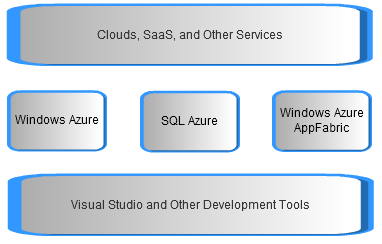
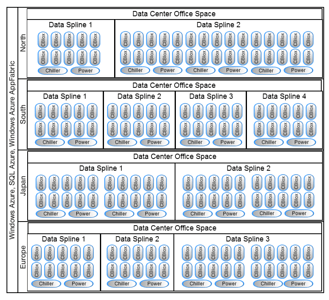
I created these, prospectively for use in presentations or whatever may call for something of this sort.  Since others may be talking about Windows Azure and the innards of the system also, I thought I’d contribute these for free use on the web.  I don’t even really care if you attribute me (even though it would be cool if you did).  I’ll be adding a few more over the next couple of weeks as I prepare for some pending presentations.  (click image to see full size)

Windows Azure

Windows Azure

Spline Architecture

Spline Architecture

Overloaded to Death, “Cloud” Computing is Dead

I’ve gotten to a point where I won’t argue it anymore.  The word Cloud as defined on Wikipedia

“location-independent computing, whereby shared servers provide resources, software, and data tocomputers and other devices on demand, as with the electricity grid. Cloud computing is a natural evolution of the widespread adoption of virtualization, service-oriented architecture and utility computing. Details are abstracted from consumers, who no longer have need for expertise in, or control over, the technology infrastructure “in the cloud” that supports them.“

has been overloaded to such a large degree that it doesn’t actually mean anything anymore.  Cloud computing has become a casualty of media hype.  Utility computing, service oriented architecture, virtualization, and other things still have meaning, but cloud computing really is lost.  We have cloud services in Office 365, which isn’t particularly stored or operated from the cloud.  We have vertically distributed, geographically dependent databases & other services with are called cloud, but also don’t meet the basic definition above.  We have private cloud computing, which also is a perversion of the definition above.  Basically the term cloud has been stuck onto anything technology related.  Your phone, your website, your car, your everything is now all of a sudden supposed to be provided by the cloud.

In laymen’s terms, “The cloud is bullshit.”

I feared this would happen at some point, because the underlying technology of the original ideal around cloud computing is still very intact, very valuable, is drastically disruptive, and marks a massive change in the technology industry.  Virualization, horizontal architectures (hardware & software, PaaS, IaaS, and SaaS are already and will continue to change the enterprise, startup, and worldwide business landscape.

Why am I rambling on about this?  What is my frustration?

When things are redefined that means we, the practitioners, programmers, and users of actual utility, virtualization, and other computing that we had defined as cloud computing will have to find new language to use in defining this revolutionary shift in capabilities.  The specifics that are now needed in each conversation becomes required, the understanding now desperately needs to increase.  Let me provide an example of why.

Imagine a CTO or a CIO that is working with his or her team to identify a way to utilize cloud computing to enhance their services, increase their uptime, and generally utilize this new technology within their enterprise in which they work.  Say they’ve been turned onto the idea of a private cloud.  Not a virtual private cloud that’s hosted in the public cloud (like AWS’s offering), but just a big huge box that sits in their data center.

  • Does it provide location independent computing?  Nope.
  • Does it provide auto-scaling capabilities like AWS, Azure, Rackspace, or others?  Nope.
  • Does it offer the assumes virtualization, service orientation, or other features?  Questionable.
  • Does it offer the resiliency of connectivity like a geographically dispersed utility computing service?  Nope.

But that CTO or CIO will be told over and over that it is a cloud, a private cloud, one of their very own that they can take and hold and hug and love.  But it isn’t cloud computing by the definition on Wikipedia.  It isn’t cloud computing by definition of those hard core developers, web application experts, and others that have been using cloud computing for years now.  It isn’t for those marketers that have been bringing the message of utility, virtualization, and other features.  It’s a misrepresentation by the sales people and media who just want to put stickers with little clouds on everything and shove it out the door to clients who will shell out big money for things that say cloud.

I don’t have much of a problem with that, I’m just perturbed that now I have to explain even more about what cloud computing really is versus what it isn’t.  Now every time I talk to someone new in the field – in addition to the fear & misinformation about security in the cloud (It’s secure already, so drop it – it’s more secure than your data center you can be sure), I now have to explain to people that Office 365 is a SaaS Service, that isn’t particularly in the cloud yet (last I checked it isn’t running on Windows Azure, but it will or should be in the coming future).  I have to explain that Compute & storage that is limited to one geographic area stuck in your data center is called a “computer”, or maybe at best referred to as “High Performance Computer”, but it doesn’t meet the cloud computing definition or the generally accepted understanding of what entail cloud computing.  The number of explanations to keep conversations honest have just drastically increased.

Thanks media, you’ve just made my job harder.  For those still learning in the industry, beware of the misinformation out there, it’s become rampant!

…got that out of my system.  Now on to actual development with utility computing, on virtualized images, within a highly distributed, node based, geographically dispersed computing network system.  <-  How do ya like those apples?  Specific enough?  🙂