Cuttin’ Teeth With NuGet

If you’re in the .NET Dev space you might have heard about the release of nuget.  This is an absolutely great tool for pulling in dependencies within a Visual Studio 2010 Project.  (It can also help a lot in Visual Studio 2008, and maybe even earlier versions)

Instead of writing up another tutorial I decided I’d put together specific links for putting together packages, installing packages, and other activities around using this tool.  In order of importance in getting started, I’ve itemized the list below.

  1. Nuget Gallery

    The first site to check out is the Nuget Codeplex Site.

  2. Check out the Nuget Gallery.
  3. Then check out the getting start page.

Once you’ve checked out all those sites & got rolling with nuget, be sure to check out some of the blogs from the guys that have put time in on the development and ongoing awesomeness of it!

That’s all I’ve got for now, check out the nuget, if you code against the .NET stack you owe it to yourself!

Also some of my cohorts have put together a few pieces of information related to nuget and getting it tied together a bit like Ruby on Rails Gems:

Rework Reminder (Kill your BDUF, Code Smells, Anitpatterns, Etc ASAP!)

Rework is ok.  Refactoring is ok.  BDUF (Big Design Up Front) is bad.  Minimal amount to get to market is good.  Getting to market is good.  Don’t get into analysis paralysis.

Best book that cleanly cuts to the chase I’ve read in a long while:  Rework

…and a few friendly reminder videos.

I really can’t emphasize how much better an individual or a company is at getting things done, getting things to market, and generally improving what they do in life when taking a lot of the advice in this book to heart.  Read it.  Know it, and kill the things that are dragging you and your company down.

Thanks.  This has been a friendly public service announcement by yours truly.  Adron B. Hall here at Composite Code Blog.  😀   Cheers!

Windows Azure SDK Unit Testing Dilemma — F5DD Plz K Thx Bye

I’m a huge advocate for high quality code. I will admit I don’t always get to write, or am always able to write high quality code. But day in and out I make my best effort at figuring out the best way to write solid, high quality, easy to maintain, easy to read code.

Over the last year or so I’ve been working with Windows Azure (Amazon Web Services and other Cloud/Utility Platforms & Infrastructure also). One of the largest gaps that I’ve experienced when working with Windows Azure is the gross disregard for unit testing and especially unit testing in a Test Driven Development style way. The design of the SDK doesn’t make unit testing a high priority, and instead focuses mostly on what one might call F5 & Run Development.

I’ll be the first to stand up and point out why F5 Driven Development (for more on this, check out Jeff Schumacher‘s Blog Entry) is the slowest & distracting ways to build high quality code. I’d also be one to admit that F5 Development encourages poor design and development. A developer has to juggle far too many things to waste time hitting F5 every few seconds to assure that the build is running and code changes, additions, or deletions have been made correctly. If a developer disregards running the application when forced to do F5 Development the tendancy is to produce a lot of code, most likely not refactored or tested, during each run of the application. The list of reasons to not develop this way can get long pretty quick. A developer needs to be able to write a test, implement the code, and run the test without a framework launching the development fabric, or worse being forced to not write a test and running code that launches a whole development fabric framework.

Now don’t get me wrong, the development fabric is freaking AWESOME!! It is one of the things that really sets Windows Azure apart from other platforms and infrastructure models that one can develop to. But the level of work and effort makes effectively, cleanly, and intelligently unit testing code against Windows Azure with the development fabric almost impossible.

But with that context, I’m on a search to find some effective ways, with the current SDK limitations and frustrations, to write unit tests and encourage test driven design (TDD) or behaviour driven design (BDD) against Windows Azure, preferably using the SDK.

So far I’ve found the following methods of doing TDD against Windows Azure.

  • Don’t use the SDK. The easiest way to go TDD or BDD against Windows Azure and not being tightly bound to the SDK & Development Fabric is to ignore the SDK altogether and use regular service calls against the Windows Azure service end points. The problem with this however, is that it basically requires one rewrite all the things that the SDK wraps (albeit with better design principles). This is very time consuming but truly gives one absolute control over what they’re writing and also releases one from the issues/nuances that the Windows Azure SDK (1.3 comes to mind) has had.
  • Abstract, abstract, and abstract with a lock of stubbing, mocking, more stubbing, and some more abstractions underneath all of that to make sure the development fabric doesn’t kick off every time the tests are run.  I don’t want to abstract something just to fake, stub, or mock it.  The level of indirection needed gets a bit absurd because of the design issues with the SDK.  The big problem with this design process to move forward with TDD and BDD is that it requires the SDK to basically be rewritten as a whole virtual stubbed, faked, and mocked layer. Reminds me of many of the reasons the Entity Framework is so difficult to work with for testing (has the EF been cleaned up, opened up, and those nasty sealed classes removed yet??)

Now I’ll admit, sometimes I miss the obvious things and maybe there is a magic “build tests real easy right here” button for Windows Azure, but I haven’t found it.  I’d love to hear what else people are doing to enable good design principles around Windows Azure’s SDK. Any thoughts, ideas, or things I ought to try would be absolutely great – I’d love to read them. Please do comment!

Gritty Technical Info on Windows Azure Worker Roles

In the last blog entry, “Gritty Technical Info on Windows Azure Web Roles“, I covered the creation and startup of a web role within the Windows Azure Development Fabric and observing the web role with the Windows Azure Compute Emulator.  In this blog entry I’ll cover the worker role.

Open the Windows Azure Web Role Sample Solution.  Right click on the Windows Azure and select New Worker Role Project.
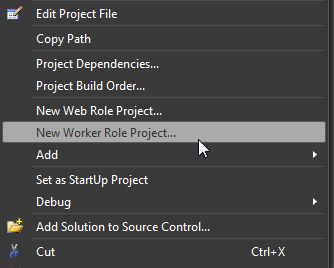
New Worker Role Project...

New Worker Role Project…

Once the worker role project SampleWorkerRole is added the solution explorer will display the project just like the web role, albeit fewer files.
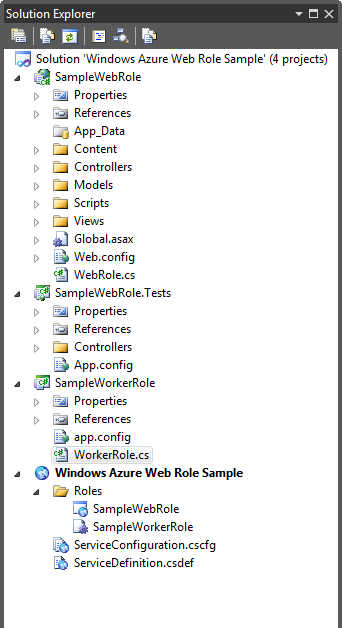
Solution Explorer

Solution Explorer

Next right click on the SampleWorkerRole instance in the Windows Azure Web Role Sample and select properties.  Now set the instance count to 2 and the VM size to extra large.
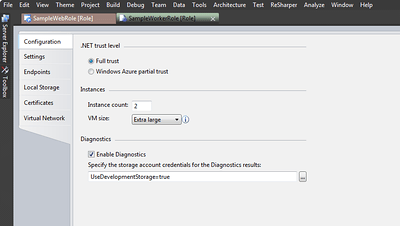
SampleWorkerRole Properties

SampleWorkerRole Properties

Click on F5 to run the application.  Now when the application executes the 6 web role instances will start and the 2 worker role instances will start.
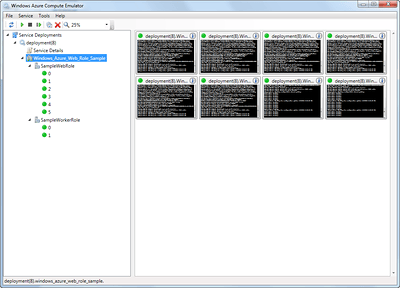
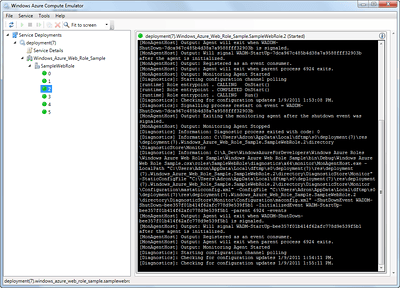
Windows Azure Compute Emulator

Windows Azure Compute Emulator

Examine the first worker role instance.
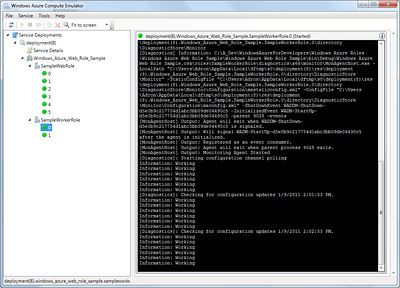
SampleWorkerRole Instance Status

SampleWorkerRole Instance Status

The worker role instance displays a number of new diagnostic messages in a similar way to the web role.  The first half of the trace diagnostics are configuration and instance messages.  The second half of the trace diagnostics are status messages that are printed from the worker role running.

Open up the code in the WorkerRole.cs file in the SampleWorkerRole Project.  As a comparison open the WebRole.cs file in the SampleWebRole Project.

using System.Diagnostics;
using System.Net;
using System.Threading;
using Microsoft.WindowsAzure.ServiceRuntime;

namespace SampleWorkerRole
{
    public class WorkerRole : RoleEntryPoint
    {
        public override void Run()
        {
            Trace.WriteLine("SampleWorkerRole entry point called", "Information");

            while (true)
            {
                Thread.Sleep(10000);
                Trace.WriteLine("Working", "Information");
            }
        }

        public override bool OnStart()
        {
            ServicePointManager.DefaultConnectionLimit = 12;
            return base.OnStart();
        }
    }
}

In the WorkerRole.cs file the code inherites from the RoleEntryPoint for the WorkerRole. In the WorkerRole Class the Run and OnStart Methods are overridden to provide some basic trace information and set the default connection limit.

The Run method has a basic while loop that updates every 10000 milliseconds, which displays on the Windows Azure Compute Emulator as “Information: Working”.

using Microsoft.WindowsAzure.ServiceRuntime;

namespace SampleWebRole
{
    public class WebRole : RoleEntryPoint
    {
        public override bool OnStart()
        {
            return base.OnStart();
        }
    }
}

In the code for the WebRole.cs file there is very little actually going on.  Take a closer look at the OnStart method override.  Technically this code doesn’t even need to be in the generated file and can be deleted, but provides a good starting point to add any other code needed in the start of the web role.

Next I’ll add some code in the worker role to provide a telnet prompt that responds with worker role information.  To work through this exercise completely download a telnet client like Putty (http://www.chiark.greenend.org.uk/~sgtatham/putty/).

If Visual Studio 2010 is no longer open, launch it and open the Windows Azure Web Role Sample Solution.  Right click on the SampleWorkRole Role in the Windows Azure Web Role Sample Project.  Click on the Endpoints tab of the properties window and click on Add Endpoint and call it TelnetServiceEndpoint.
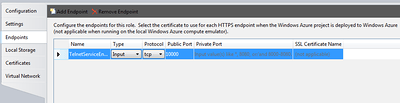
Endpoint

Endpoint

Add a private member and create a run method with the following code.

private readonly AutoResetEvent _connectionWait = new AutoResetEvent(false);

public override void Run()
{
    Trace.WriteLine("Starting Telnet Service...", "Information");

    TcpListener listener;
    try
    {
        listener = new TcpListener(
            RoleEnvironment.CurrentRoleInstance.InstanceEndpoints["TelnetServiceEndpoint"].IPEndpoint) { ExclusiveAddressUse = false };
        listener.Start();

        Trace.WriteLine("Started Telnet Service.", "Information");
    }
    catch (SocketException se)
    {
        Trace.Write("Telnet Service could not start.", "Error");
        return;
    }

    while (true)
    {
        listener.BeginAcceptTcpClient(HandleAsyncConnection, listener);
        _connectionWait.WaitOne();
    }
}

After adding this code, add the following code for the role information to write to a stream.

private static void WriteRoleInformation(Guid clientId, StreamWriter writer)
{
    writer.WriteLine("--- Current Client ID, Date & Time ----");
    writer.WriteLine("Current date: " + DateTime.Now.ToLongDateString() + " " + DateTime.Now.ToLongTimeString());
    writer.WriteLine("Connection ID: " + clientId);
    writer.WriteLine();

    writer.WriteLine("--- Current Role Instance Information ----");
    writer.WriteLine("Role ID: " + RoleEnvironment.CurrentRoleInstance.Id);
    writer.WriteLine("Role Count: " + RoleEnvironment.Roles.Count);
    writer.WriteLine("Deployment ID: " + RoleEnvironment.DeploymentId);
    writer.WriteLine();

    writer.WriteLine("--- Instance Endpoints ----");

    foreach (KeyValuePair<string, RoleInstanceEndpoint> instanceEndpoint in RoleEnvironment.CurrentRoleInstance.InstanceEndpoints)
    {
        writer.WriteLine("Instance Endpoint Key: " + instanceEndpoint.Key);

        RoleInstanceEndpoint roleInstanceEndpoint = instanceEndpoint.Value;

        writer.WriteLine("Instance Endpoint IP: " + roleInstanceEndpoint.IPEndpoint);
        writer.WriteLine("Instance Endpoint Protocol: " + roleInstanceEndpoint.Protocol);
        writer.WriteLine("Instance Endpoint Type: " + roleInstanceEndpoint);
        writer.WriteLine();
    }
}

Now add a handle method for the asynchronous call.

private void HandleAsyncConnection(IAsyncResult result)
{
    var listener = (TcpListener)result.AsyncState;
    var client = listener.EndAcceptTcpClient(result);
    _connectionWait.Set();

    var clientId = Guid.NewGuid();
    Trace.WriteLine("Connection ID: " + clientId, "Information");

    var netStream = client.GetStream();
    var reader = new StreamReader(netStream);
    var writer = new StreamWriter(netStream);
    writer.AutoFlush = true;

    var input = string.Empty;
    while (input != "3")
    {
        writer.WriteLine(" 1) Display Worker Role Information");
        writer.WriteLine(" 2) Recycle");
        writer.WriteLine(" 3) Quit");
        writer.Write("Enter your choice: ");

        input = reader.ReadLine();
        writer.WriteLine();

        switch (input)
        {
            case "1":
                WriteRoleInformation(clientId, writer);
                break;
            case "2":
                RoleEnvironment.RequestRecycle();
                break;
        }

        writer.WriteLine();
    }

    client.Close();
}

Finally override the OnStart() method and setup the RoleEnvironmentChanging Event.

public override bool OnStart()
{
    ServicePointManager.DefaultConnectionLimit = 12;

    DiagnosticMonitor.Start("DiagnosticsConnectionString");

    RoleEnvironment.Changing += RoleEnvironmentChanging;

    return base.OnStart();
}

private static void RoleEnvironmentChanging(object sender, RoleEnvironmentChangingEventArgs e)
{
    if (e.Changes.Any(change => change is RoleEnvironmentConfigurationSettingChange))
    {
        e.Cancel = true;
    }
}

Now run the role by hitting F5. When the application runs open up the Windows Azure Compute Emulator to check for the end point and verify the instances of the role are running.
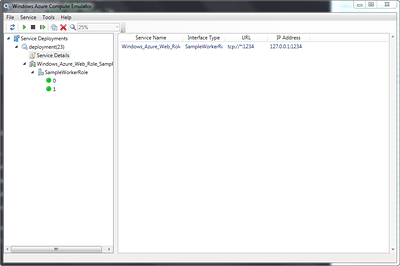
Endpoint displayed in the Windows Azure Compute Emulator

Endpoint displayed in the Windows Azure Compute Emulator

The Service Name should be Windows_Azure_Web_Role, with an Interface Type of SampleWorkerRole running on the tcp://*:1234 URL and the IP is 127.0.0.1P:1234.
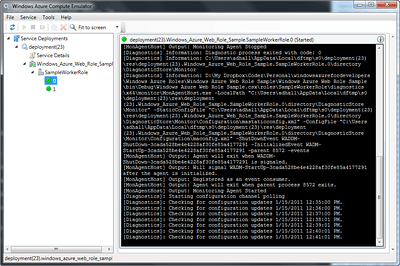
SampleWorkerRole

SampleWorkerRole

Click on one of the instances, which should be green, and assure that each has started up appropriately.
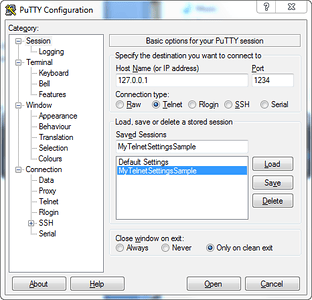
PuTTY

PuTTY

Startup a telnet application, such as Putty and enter the information in as shown in screenshot above.
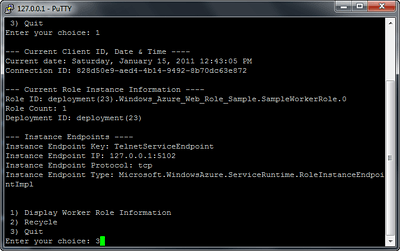
Telnet

Telnet

Start the telnet prompt connecting to the Windows Azure Worker Role. The prompt with the three choices will display. Click to recycle and then display worker role information a few times, just to make sure all the information is available and the worker role telnet application service is working. Select 3 to exit out and the prompt should close while the role continues to run on the development fabric.


Gritty Technical Info on Windows Azure Web Roles

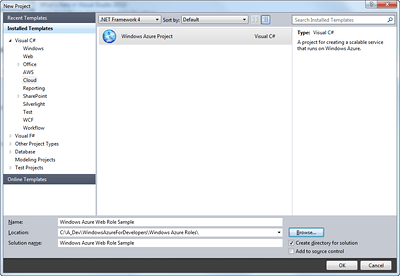
This is a follow up to the previous blog entry I wrote pertaining to Windows Azure Roles.  I wanted to cover the bases on the various technical aspects of creating a Windows Azure Web Role & Worker Role in Visual Studio 2010.  Without interruption let’s just dive right in.  Start Visual Studio 2010 and initiate a new project. File, new, and then project will open the new project dialog.

Windows Azure Project

Windows Azure Project

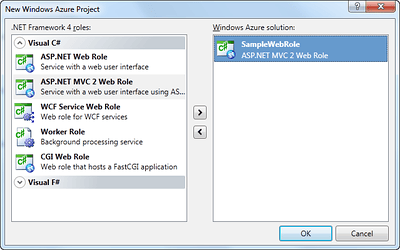
Select a cloud template type and name your project.  Click OK and the New Windows Azure Project Dialog will appear to select the role types you can choose from.

Windows Azure Project Templates

Windows Azure Project Templates

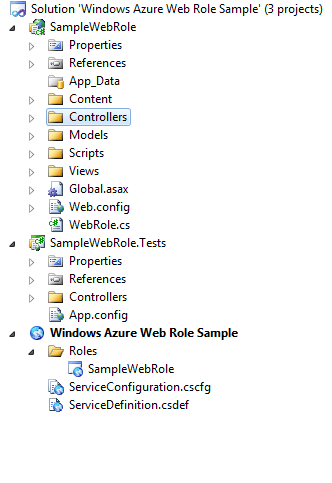
Select an ASP.NET MVC Web Application, name it appropriately, and then click OK.  When prompted for a test project select yes and click OK.  When the solution is finished generating from the chosen templates there will be a SampleWebRole ASP.NET MVC Web Application, the test project titled SampleWebRole.Tests, and a Windows Azure Project titled Windows Azure Web Role Sample.

Solution

Solution

After that run the application to assure that the Development Fabric & other parts of the web application startup appropriately.

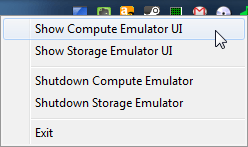
With the web application still running, click on the Development Fabric Icon in the status bar of Windows 7 and select the Show Computer Emulator UI.

Show Compute Emulator UI

Show Compute Emulator UI

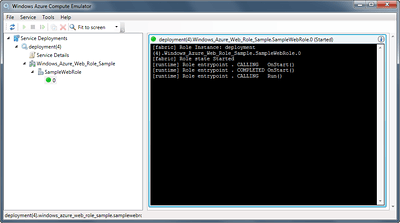
The Windows Azure Compute Emulator will display. Click on the Service Deployments tree until you can see each individual instance (the little green lights should be showing). Figure 4.6 shows this tree opened with one of the instances selected to view the status trace.

Windows Azure Compute Emulator

Windows Azure Compute Emulator

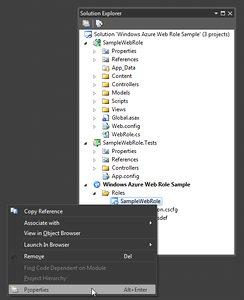
Select Shift + F5 to stop the web application from running.  In the Solution Explorer right click on the SampleWebRole under the Windows Azure Web Role Sample Project and select Properties.

Properties for SampleWebRole

Properties for SampleWebRole

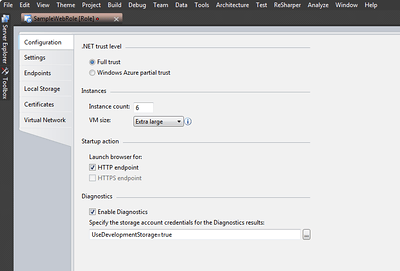
Under the configuration tab of the SampleWebRole Properties set the Instance Count to 6 and the VM Size to Extra Large.

Windows Azure Instance Properties

Windows Azure Instance Properties

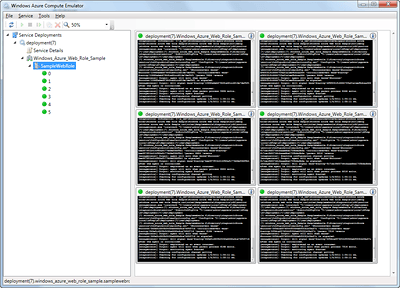
Now select F5 to run the web application again in the Windows Azure Development Fabric.  The Windows Azure Compute Emulator (if it is closed right click back on the status icon to launch it again) will now display each of the 6 instances launching under the SampleWebRole.

Windows Azure Compute Emulator

Windows Azure Compute Emulator

Click on one of the green lights to show that specific instance status in the primary window area.

Windows Azure Compute Instance 2

Windows Azure Compute Instance 2

When you select the specific instance the status of that instance is displayed. The instance that is displayed in figure 4.10 has a number of events being recorded with the diagnostics, MonAgentHost, and the runtime. This particular instance had gone through a rough start. During the lifecycle of a Windows Azure Web, Worker, or CGI Role there are a number of events similar to these that can occur.

Read through the first few lines. These lines show that another agent was running, which could be a number of things that conflicted with this web role starting up cleanly. Eventually the web role was able to startup appropriately as shown in the runtime lines stating that the OnStart() is called and then complete, with the Run() executing next.

Reading further through the diagnostics the web role eventually requests a shutdown and then prepares for that shutdown pending the exit of the parent process 6924.

These types of events are common place when reviewing the actions a web role will go through; generally, don’t get too alarmed by any particular set of messages. As long as the role has green lights on the instances, things are going swimmingly. When the lights change to purple or red then it is important to really start paying attention to the diagnostics.

Windows Azure Worker Roles

In the next blog entry (Part II) I want to show is how to add a worker role and how to analyze the activities within the role. The worker role is somewhat different than a web role. The primary difference between a web role and a worker role is that one is built around providing compute work, while one is built around providing web compute. Think of the worker role as something similar to a Windows Service, which runs ongoing to execute jobs & other processes, often backend type processes. A web role is what is built to host Silverlight and web applications such as ASP.NET or ASP.NET MVC.

Part II published on Monday the 17th.

Shout it