Buying a Leopard!

system76-smallJanuary 24th, 2017 UPDATE: After I wrote this, I spoke with the System 76 team and I’m getting the chance to go out and tour their Denver Headquarters. This happened well after I made my purchase, which all of the following was written after. But just for full transparency, I’ve added this note. Also, I’m aiming to get a full write up of my System76 trip put together with Denver tidbits and more! Until then, here’s the review…

In the trailing days of 2016, after having moved to Redmond, Washington I sat working at my desktop workstation. This workstation, which still exists, is a iMac with an i7, 16GB RAM, 256 GB SSD, and a 1GB Video Card with a 1TB secondary drive. The machine is a 27” all in one style design, and the screen is rather beautiful. But as I did a build and tried to run Transport Tycoon at the same time in the background the machine sputtered a bit. It was definitely maxed out doing this Go code build, putting together a Docker image build, and spinning it up for go live at the same time my game ran in the background. I thought, this machine has served me extremely well, at over 5 years old it had surpassed the standard 5 year lifespan of peak Apple oomf. At the moment, I thought, maybe it’s time to dig into a serious machine with some premium hardware again.

In that moment I thought about the last dedicated, custom built, super powerful workstation machine I had. It was a powerful machine, nice form factor, and easily drove two giant 27” screens. However this machine had lived and finished it’s useful life over 6 years before 2016 had even started. But it was a sweet machine, that offered a lot of productive gaming and code writing efficiencies. It was thus, time to get in gear and get a machine again.

Immediately I thought through a few of the key features I wanted and other prerequisites of purchase.

  1. Enough RAM and processor power to drive my aforementioned gaming, docker, and code building scenario with ease.
  2. SSD drive of at least 1TB with at least a beefy 8GB Video Card.
  3. It needed to run, with full support, not-Windows. Ubuntu would be fine, but if any Linux was installed from factory or at least fully supported on the hardware I put together, that would suffice.
  4. If I were to buy it from a company, it had to be a company that wasn’t some myopic afterthought of 50s era suburbia (i.e. I didn’t really want to deal with Dell or Alienware again after the XPS 13 situation). This definitely narrowed down the options.

I started digging into hardware specifications and looking into form factors, cases, and all the various parts I’d need for a solid machine. In parallel I started checking out several companies.

  • System76 – Located in Denver, I was curious about this company and had been following them for some time. I had seen a few of the laptops over the years but had never seen or used any of their desktops.
  • Los Alamos Computers which is now LAC Portland! – Holy smokes, I had not realized this company moved. They definitely meet the 4th criteria above.
  • Puget Systems is a company located somewhere in the Puget Sound area and used to be called Puget Sound Systems. After digging I found they are located in a suburb of Seattle, in a town called Auburn. I didn’t want to rule them out so I kept them on the list and started researching.
  • Penguin Computing is another one of the companies, and kidn of a mainstay of Linux machines. They were a must have in the run up.
  • Think Penguin is another I dove into.
  • Emperor Linux is another company I found specializing in Linux machines.
  • Zareason was another, that specialized in Linux machines.

First Decision > Build or Buy?

I wrangled hardware specifications and the idea of building my own machine for some time. I came to the conclusion that the time versus money investment for me was on the side of buying a built machine. This first decision was pretty easy, but educating myself on the latest hardware was eye opening and a lot of fun. In the end however, better to let a builder get it done right instead of me creating a catastrophe for myself and nuking a whole weekend!

Decision Buy!

Second Decision > Who should I buy from?

I dug through each of the computer builders previously mentioned. I scouted out where they were located, what the general process was they used to build the machines, what testing, what involvement in the community they have, and finally a cost and parts review.

Each of the builders has a lot of positives in regards to Linux, the only one that I was hesitant about at first in regards to Linux was Puget Computing. Because by default the machines come with Windows 10. However after asking around and reviewing other reviews online, I came to find they do have Linux and a solid skill set around Linux. Puget remained a leader in the selection process.

pugetsystems

I went through Los Alamos Computers, which I realized are now LAC Portland (Win for Portland!), then Penguin, Think Penguin, and Emperor Linux. All had great skills and ethos around Linux. LAC definitely had the preeminently preferable choice in physical location (I mean, I do love Portland!), but each were short in either their customer facing desktop options. Albeit for a company or other reason, I’d likely buy a Thinkpad or other computing platform running Linux from them. But for this scenario each were disqualified for my personal workstation.

The last two I started checking out were Zareason and System76. I had been following what System76 for a while and a few things had caught my eye on their site. It led me to realize that they’re located out of Denver. Being a transit nerd, one of their website video photo coffee shop scenes had the RTD Light Rail passing in the background. But all things aside I started checking out cases and hardware that each builder puts in a box.

  • Berkely BARTZareason had several cases as shown below. With each of these I checked out the hardware options.

  • SounderNext up I checked out a number of Puget Systems.

  • RTD Light RailNext I started looking at System76 machines.


Challenge: Extra nerd credit if you guess why I used each of those pictures for each of those companies!

After working through and reviewing prices, features, hardware, and options things were close. I started reviewing location and what I could derive about each company’s community involvement in Linux, how they’re involved locally, and what the word is about those companies in their respective communities. Out of the three, I ended up not finding any customers to talk to about Zareason. For Puget, I found one friend that had a box purchased from a few years ago, and for System76 I actually found 2 different feedback bits from users within an hour or so of diffing around.

Kenny Spence @tekjava – Kenny and I have known each other for more years than I’m going to count. We got to meetup here in Seattle recently and he showed me his System76 laptop. The build quality was good and the overall review he gave me was a +1. Before this he’d mentioned in Twitter DM convo that this was the case, and I’d taken his word for it back then.

Dev Shop X – A group of individuals I reached out to I had met 3 years ago at the Portland @OSBridge Conference. I spoke to them again and found they were still using the System76 machines with no real complaints. They’d also bought the XPS 13 laptops well before the model I did and had a few complaints. With a short conversation we ended with them offering a +1for System76.

With the reviews from trusted sources, seeing the involvement and related culture of System76 I decided that they would be the builder of choice.

Decision System76 Leopard WS!

Leopard Workstation

With the decision made, I pulled the trigger on the purchase. In spite of the holiday season, I still received the machine in short order. It arrived at my door via UPS in a box, ya know, like a computer does when its shipped somewhere. 😉

system76-leopard-01

I cleared off the desk next, and dug into the box.

system76-leopard-02

system76-leopard-03

The computer was packaged cleanly and neatly with minimal waste compared to some I’ve seen. So far so good. I pulled pieces gently from the box. The first thing I extracted was the static bag which had all of the extra cords and respective attachments that had come with various parts of the computer hardware that were unnecessary. Another plus in my opinion, as many would likely not notice this having not built computers themselves, nor even cared, but I’m glad to have the extra pieces for this or other things I might need them for.

system76-leopard-04

The next thing I pulled out of the box was a thank you letter envelope with cool sticker and related swag.

system76-leopard-05

Stickers!

system76-leopard-07

That was it for peripheral things just floating around in the box. Next, out came the computer itself.

system76-leopard-06

It was wrapped in a static free bag itself. As it should be. I did notice a strange ink like bit of dusted debris in and around the box. I’m not really sure, and still am not sure today what exactly it was. I cleaned it up immediately. It wasn’t excessive, but was leaving slight marks on the white table which required a little scrubbing to remove.

After all things were removed from the box I removed them from envelopes and static free bags and placed them on the desk for a simple shot of all the parts in the box.

system76-leopard-08

Next I went through the steps of desk cleanup again and then connected my 28 port USB Hub, Razor Mouse, and a keyboard to the machine. It was finally time to boot this machine up!

system76-leopard-09

As for the screen which you see, it’s an LG 34” Extra Wide Screen monitor with slight curved view to it. Yes, it’s awesome, and yes it actually makes it relatively easy to not need dual monitors.

BOOTING!

system76-leopard-10

Ubuntu started, monitor fussing.

system76-leopard-11

I toyed around and had for whatever reason plugged in the HDMI, when I should have used the other monitor connection. It immediately provided more resolution options when I changed the connection and the monitor and related elements detected appropriately!

On the side of the machine is a clear window cut through the case to view the internals. The cords were managed well and overall build was very clean. Upon boot up the graphics card immediately lit up too. The nice blue tone provided a nice light within the room.

system76-leopard-12

Ubuntu booted up cleanly, and I might crazy bloody fast.

system76-leopard-13

Here’s a non-flash shot of the machine and monitor side by side.

system76-leopard-14

I then changed the respective positioning and the lighting, as you can see actually changed dramatically just by repositioning the hardware and the rear light I was shooting with.

system76-leopard-15

Lights off shot. The widow is beautiful!

system76-leopard-16

A slightly closer shot of the GTX 1080 humming away inside.

system76-leopard-17

The Ubuntu on Leopard WS Review

So far I’ve done a ton of coding & game playing on the machine. Here’s a break down of some specifics and some respective comments with a full read on the specifications of the machine.

  • Ubuntu 16.10 (64-bit)
  • 4.0 GHz i7-6850K (3.6 up to 4.0 GHz – 15 MB Cache – 6 Cores – 12 threads)
  • High Performance Self-Contained Liquid Cooler
  • 32 GB Quad Channel DDR4 at 2400MHz (2× 16 GB)
  • GB GTX 1080 with 2560 CUDA Cores
  • Chipset Intel® X99
  • Front: 2× USB 3.0 Type-A, 1× USB 2.0 Type-A, 1× eSATA
  • Rear: 3× USB 3.0 Type-A, 1× USB 3.1 Type-A, 1× USB 3.1 Type-C, 4× USB 2.0, Type-A, 1× PS/2
  • Gigabit Ethernet, optional Intel® Wireless-AC (a/b/g/n/ac)
  • GTX 1080: DVI-D, HDMI, 3× Display Port
  • Audio Front: Headphone Jack, Mic Jack
  • Audio Rear: 8 channel (HDMI, S/PDIF), Mic Jack, Line In, Line Out
  • Power Supply 750 W 80+ Certified (80% or greater power efficiency)
  • Dimensions 15.8″ × 8.3″ × 19.5″ (40.13 × 21.08 × 49.53cm)

Gaming

Using Steam I downloaded several games including my latest addiction Transport Tycoon. The others included Warhammer 40k: Dawn of War, Stronghold 3, Stellaris, Sid Meier’s Civ V, Master of Orion, and Cities: Skylines. Each of these games I loaded up and played for at least 20-30 minutes, with every graphics detail maxed out and full audio feature enabled. Where the option existed to run it at full resolution of 3440×1440 I ran the game at that resolution.

Not a blip, stir, or flake out of any sort. The color was solid (which obviously is also largely the monitor) and being able to move around these games in their respective 3d worlds was exception. All the while the speed of elapsed time in games like Transport Tycoon and Cities: Skylines barely slowed at all no matter how massive the city or layout was.

At this point I’ve also added about 16 hours of Transport Tycoon play to this, and I’ve built absurdly extensive layouts (100s of trains plus massively grown cities) and this processor and video card handles it. The aforementioned previous desktop easily choked to 1/10th the speed of this beast while running the game.

More on the gaming elements of this machine in the coming days.

Coding

I used Jetbrains Toolbox to download IntelliJWebstormCLionDataGripProject Rider, and RubyMine. I dug around for some sample projects and slung together some basic “hello world!” apps to build with each of the IDEs. All built at absurd rates, but nothing real specific as I didn’t load any large projects just yet.

One of the things I did do was load Go so that I could continue work on the Data Diluvium Project that I’ve started (Repo on Github). To hack around with Go I also installed Atom and Visual Studio Code. Both editors on this particular machine were screaming fast and with the 34” display, I could easily have both to test out features side by side. Albeit, that makes shortcut combos a nightmare! DON’T DO THIS AT HOME!

Build time for the C, Go, and C# Projects I tried out were all crazy fast, but I’m holding off posting any results as I want to get some more apples to apples comparisons put together before posting. I’m also aiming to post versus some other hardware just so there are some baselines in which to compare the build times against.

More on the coding and related projects in the coming days too.

Important Software

You may think, if you’re not an Ubuntu or Linux user, what about all the other stuff like office software and … big long list goes here. Well, most of the software that we use is either available or a comparable product is available on Linux these days. There’s really not many things that keep me – or would keep anybody tied to – OS-X/MacOS or Windows. Here are a few that I’ve tried out and am using regularly that are 1 to 1 across Windows, OS-X, and Linux.

  • Jetbrains – as mentioned before these work across all the platforms. They’re excellent developer tools.
  • Spotify – even though it states that there hasn’t been support or what not for the app for many months, it still works seemlessly on Linux. That’s what you get when you build an app for a solid platform – one doesn’t have to fix shit every week like on OS-X or Windows.
  • Slack – Slack is available on Linux too. After all the native app (or pseudo native) is built on Electron, which at its core runs on Node.js. So thus, feature parity is pretty much 100%. If you’re going to use slack, it’s not an excuse to be stuck on Windows or OS-X. The choice of platform is yours.

Summary

me-horns-up

NOTE: Nobody paid me a damned penny to write any of this btw, I reviewed all of these things because I love writing about my nerd adventures. No shill shit here. With that stated…

I have more things to review across all of these platforms and much more to write about this mean machine from System76. However, this review has gotten long enough. The TLDR; of this is, if you’re looking for a machine then System76 definitely gets the horns from me! Highly recommended!
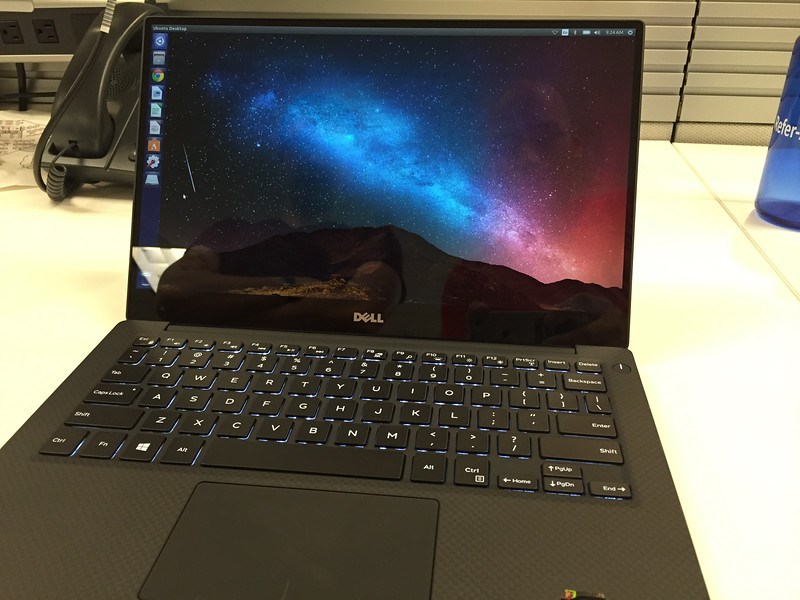
The Latest 5th Generation Dell XPS 13 Developer Edition

Just about 4 weeks ago now I purchased a Dell XPS 13 Developer Edition directly from Dell. The reason I purchased this laptop is because of two needs I have while traveling and writing code.

  1. I wanted something smallcompact, that had reasonable power, and…
  2. It needed to run Linux (likely Ubuntu, but I’d have taken whatever) from the factory and have active support.

Here’s my experience with this machine so far. There are lots of good things, and some really lousy things about this laptop. This is the lowdown on all the plusses and minuses. But before I dive into the plusses and minuses, it is important to understand more of the context in which I’m doing this review.

  • Dell didn’t send me a free laptop. I paid $1869 for the laptop. Nobody has paid me to review this laptop. I purchased it and am reviewing it purely out of my own interest.
  • The XPS 13 Developer Edition that I have has 8GB RAM512 GB SSD, and the stunningly beautiful 13.3-inch UltraSharp™ QHD+ (3200 x 1800) InfinityEdge Touch Display.
  • Exterior Chassis Materials -> CNC machined aluminum w/ Edge-to-edge Corning® Gorilla® Glass NBT™ on QHD+ w/ Carbon fiber composite palm rest with soft touch paint.
  • Keyboard -> Full size, backlit chiclet keyboard; 1.3mm travel
  • Touchpad -> Precision touchpad, seamless glass integrated button

Negatives

The Freakin’ Keyboard and Trackpad

Let’s talk about the negatives first. This way, if you’re looking into purchasing, this will be a faster way to go through the decision tree. The first and the LARGEST negative is the keyboard. Let’s just talk about the keyboard for a moment. When I first tweeted about this laptop, one of the first responses I got in relation to this machine was a complaint – and a legitimate one at that – is the blasted keyboard.

There are plenty of complaints and issues listed herehere, and here via the Dell Support site. Twitter is flowing with such too about the keyboard. To summarise, the keyboard sticks. The trackpad, by association, also has some sticky behavior.

Now I’m going to say something that I’m sure some might fuss and hem and haw about. I don’t find the keyboard all that bad, considering it’s not an Apple chiclet keyboard and Apple trackpad, which basically make everything else on the market seem unresponsive and unable to deal with tactile response in a precise way. In that sense, the Dell keyboard is fine. I just have to be precise and understand how it behaves. So far, that seems to resolve the issue for me, same for the trackpad related issues. But if you’re someone who doesn’t type with distinct precision – just forget this laptop right now. It’s not even worth the effort. However, if you are precise, read on.

The Sleeping Issue

When I first received the laptop several weeks ago it had a sleeping issue. Approximately 1 out of every 3-5 times I’d put the computer to sleep it wouldn’t resume from sleep appropriately. It would either hang or not resume. This problem however, has a pretty clean fix available here.

Not Performant

Ok, so it has 8GB RAM, and SSD, and an i7 Proc. However it does not perform better than my 2 year old Mac Book Air (i7, 8 GB RAM, 256 GB SSD). It’s horribly slow compared to my 15” Retina w/ 16GB RAM and i7 Proc. Matter of fact, it doesn’t measure up well against any of these Apple machines. Linux however has a dramatically smaller footprint and generally performs a lot of tasks as well or better than OS-X.

When I loaded Steam and tried a few games out, the machine wasn’t even as performant as my Dell 17” from 2006. That’s right, I didn’t mistype that, my Dell from 2006. So WTF you might ask – I can only guess that it’s the embedded video card and shared video card memory or something. I’m still trying to figure out what the deal is with some of these performance issues.

However… on to the positives. Because there is also positives about the performance it does have.

Positives

The Packaging

Well the first thing you’ll notice, that I found to be a positive, albeit an insignificant one but it did make for a nice first experience is the packaging. Dell has really upped their game in this regard, instead of being the low-end game, Dell seems to have gotten some style and design put together for the packaging.

01

The box was smooth, and seamless in most ways. Giving a very elegant feel. When I opened up the box the entire laptop was in the cut plastic wrap to protect all the surfaces.

02

03

Removing the cut plastic is easy enough. It is held together with just some simple stickiness (some type of clean glue).

04

Once off the glimmer of the machine starts to really show. The aluminum surface material is really really nice.

05

The beauty of an untainted machine running Ubuntu Linux. Check out that slick carbon fiber mesh too.

06

Here it is opened and unwrapped, not turned on yet and the glimmer of that glossy screen can be seen already.

07

Here’s a side by side comparison of the screens for the glossy hi res screen against the flat standard res screen. Both are absolutely gorgeous screens, regardless of which you get.

08

Booting up you can see the glimmer on my XPS 13.

09

The Screen

The screen, even during simple bootup and first configuration of Ubuntu like this it is evident that the screen is stunning. The retina quality screen on such a small form factor is worth the laptop alone. The working resolution is 1920×1080, but of course the real resolution is 3200×1800. Now, if you want, you could run things at this resolution at your own risk to blindness and eye strain, but it is possible.

The crispness of this screen is easily one of the best on the market today and rivals that of the retina screens on any of the 13” or 15” Apple machines. The other aspect of the screen, which isn’t super relevant when suing Ubuntu is that it is touch enabled. So you can poke things and certain things will happen, albeit Ubuntu isn’t exactly configured for touch display. In the end, it’s basically irrelevant that it is a touch screen too, except in the impressive idea that they got a touch screen of this depth on such a small machine!

10

Here’s a little more of the glimmer, as I download the necessary things to do some F# builds.

Setting up F#

Performance and Boot Time

Boot time is decent. I’m not going to go into the seconds it takes but it’s quick. Also when you get the update for sleep, that’s really quick too. So no issue there at all.

On the performance front, as I mentioned in the negatives there are some issues with performance. However, for many – if not most – everyday developer tasks like building C#, F#, C++, C, Java, and a host of other languages the machine is actually fairly performant.

In doing other tasks around Ruby, PHP (yes, I wrote a little bit of PHP just to check it out, but I did it safely and deleted it afterwards), JavaScript, Node.js, and related web tasks were also very smooth, quick, and performant. I installed Atom, Sublime 3, WebStorm, and Visual Studio Code and tried these out for most of the above web development. Everything loads really fast on the machine and after a few loads they even get more responsive, especially WebStorm since it seems to load Java plus the universe.

Overall, if you do web development or some pretty standard compilable code work then you’ll be all set with this machine. I’ve been very happy with it’s performance in these areas, just don’t expect to play any cool games with the machine.

Weight and Size

I’ll kick this positive feature off with some addition photos of the laptop compared to a Mac Book Pro 15” Retina and a Apple Air 13”.

First the 13” Air.

12

13

No the Mac Book Pro 15” Retina

14

…and then on top of the Mac Air 13”.

15

16

Of course there are smaller Mac Book Pros and Mac Book Air Laptops, but these are the two I had on hand (and still use regularly) to do a quick comparison with. The 13” Dell is considerably smaller in overall footprint and is as light or lighter than both of these laptops. The XPS makes for a great laptop for carrying around all the time, and really not even noticing its presence.

Battery Life

The new XPS 13 battery life, with Ubuntu, is a solid 6-12 hours depending on activity. I mention Ubuntu, because as anybody knows the Linux options on conserving battery life are a bit awkward. Namely, they don’t always do so well. But with managing the screen lighting, back light, and resource intensive applications it would be possible to even exceed the 12 hour lifespan of the batter with Ubuntu. I expect with Windows the lifespan is probably 10-15% better than under Ubuntu. That is, without any tweaks or manual management of Ubuntu.

So if you’re looking for a long batter life, and Apple options aren’t on the table, this is definitely a great option for working long hours without needing to be plugged in.

Summary

beer

Overall, a spectacular laptop in MOST ways. However that keyboard is a serious problem for most people. I can imagine most people will NOT want to deal with the keyboard. I’m ok with it, but I don’t mind typing with hands up and off the resting points on the laptop. If Dell can fix this I’d give it a 100% buy suggestion, but with the keyboard as buggy and flaky as it is, I give the laptop at 60% buy suggestion. If you’re looking for a machine with Ubuntu out of the box, I’d probably aim for a Lenovo until Dell fixes the keyboard situation. Then I’d even suggest this machine over the Lenovo options.

…and among all things, I’d still suggest running Linux on a MBA or MBP over any of these – the machines are just more solid in manufacturing quality, durability, and the tech (i.e. battery, screen, etc) are still tops in many ways. But if you don’t want to feed the Apple Nation’s Piggy Bank, dump them and go with this Dell or maybe a Lenovo option.

Happy hacking and cheers!

Breaking Up Again, OneNote and I Must Go Separate Ways

Ok, psychologically one is supposed to tell the good news last and the bad news first. Well, I’m doing that backwards with this article. First things first, all the awesome about Microsoft’s OneNote App.

Microsoft OneNote

The cool thing is, after more than a few years, OneNote runs on most mobile and desktop systems. When I say most, what that equates to is: Windows, iOS and OS-X. Now, I wouldn’t doubt if it works on some other things that I’ve missed, but those are the places I know it works because that is where I’ve used the application the most.

OneNote does a number of things that are pretty cool. The first is simply look pleasant and make it easy to add notes, images, sound or other objects into any notebook in the app. This makes note taking extremely easy. There are also a lot of features around note history to move back and forward, play things back and more. This interaction with the notes across all of the devices is pretty seem-less, when the features are similar across all of the devices.

I actually really like the interfaces built specifically for the device that OneNote is running on. If I’m running the iOS iPhone App it is oriented to small screen touch and interactions of that sort. The iOS version is focused on creating notes, not on managing or organizing the actual notebooks and related structures.

On the iPad iOS App it’s oriented toward a larger workspace and more navigation between each notebook and and a little to the management of these notebooks and the respective notes. The iPad version is a happy middle ground between the note creating focus of the iPhone App and the full blown OS-X and Windows Desktop versions.

Speaking of that, it’s been about 3+ years since I’ve used OneNote on Windows and about 2 years since I actually used Windows for anything relevant. So when One Note was released on OS-X I was all over that. I’d always been a fan of the product, but it was limited since it only ran on Windows for the longest time. So when I switched off of Windows as my core operating system years ago, it went away. I had a list of top apps I lost when leaving Windows.

  1. LiveWriter for blogging because it hooked up to all the blogs I wrote to at the time; WordPress, DotNetBlogEngine and Blogger. So it was hugely useful.
  2. ReSharper for Visual Studio. Note I did NOT say Visual Studio, but just ReSharper. I’ve got a lot of this power back via WebStorm and IntelliJ, but I still miss the robustness of refactoring options with ReSharper.
  3. OneNote with Office. Note, again the specifics of just missing OneNote and not Office. The Office Suite, especially when I moved to non-MS Operating Systems was already useless to me. It was stuck in the 90s world of files and file systems. I’d already moved on to web options where the files were always where I needed them and versioned appropriately.

When I got down to this list, I assumed I could go ahead and switch. I did, haven’t regretted it for a moment and will still tell anybody that’s good at adopting to tools and finding the best for the job, the grass is indeed greener being not on Windows.

But I sure was happy to get OneNote back, but as I used it I realized…

…and now OneNote dies to me again.

…that I’d moved on form the paradigm that OneNote has to offer. I use more than just merely the iOS or OS-X or Windows Version. I need an option to see and retrieve my information beyond that medium. I needed to be able to use these tools sometimes disconnected and this also created a huge problem, as they’re all tightly coupled to the skydrive style service. In addition to this, if one uses any of the other iOS Office Suite Apps from Microsoft those are also tied to skydrive, but one has to get a monthly account to use those.

Overall the OneNote app was elegant, nice and worked well, but the connectivity issues and the tightly coupled service to skydrive left it removed from the other tools that I use to get work done. I suppose, if one is a full on fanbois and using all the Microsoft tooling running on Windows it likely has some integration to those tools. However I use a wide variety of tools across more than one operating system. In the end it seemed like Microsoft was endeavoring to lock me into their online presence with their offer of free OneNote as a gateway to their Office Product.

Albeit I’ve used it now for 2 weeks, I’ve made tons of notes in it, I’m just going to go back to Evernote. The access is better, the apps are clunkier and not as pretty (I realize that’s subjective), and overall I’d rather use OneNote as an interface to files I put in Dropbox or Google Drive or Evernote or something, but alas, it hasn’t worked out. So if you’re looking for a note taking app, OneNote might still be fore you, but otherwise if you want full across the board support across many platforms, Evernote is still a more capable option.

Sorry OneNote, but even though it was nice to have a second fling, we have to go our separate ways again. I guess it’s time to fire Evernote back up.

Going Live, Data & Pricing @ Orchestrate

Over the last few months while working on the prototype around Deconstructed I’ve been using the Orchestrate service offering exclusively. With their service around key value and graph store easily accessible via API it was a no brainer to get started building ASAP. Today, that service goes full beta! You can get the full lowdown at the Orchestrate site.

You might recall that I mentioned Orchestrate a while back when they lept into the PIE Class a few months ago. So here’s a few quick thoughts on the release and what Orchestrate is.

The basic premise is Orchestrate provides full-text search, time ordered events, graph, key value storage and a lot more. All of these capabilities are offered via an API that create a product that’s extremely easy to get started. Think about what you’d need to do to get full-text search against a key value setup. Really think about it. Yeah? That’s a lot of steps. With Orchestrate you just sign up and start using it. Think about setting up a graph store and managing it on production systems. Yeah? Lot’s of work once it gets used. Again, just sign up, it’s all there, the graph to the key value to the event series and more. All the NoSQL juice you need located in a single service so you’re not fighting and maintaining multiple databases, nodes or whatever you’re working with.

Sing up. Use.

I will copy one thing from the press release….

  • Ad hoc search queries with Lucene
  • Event and time-ordered storage for activity feeds, sensor data
  • Create and query graph relationships
  • Easy to understand pricing
  • Data export at will – no lock-in
  • Standards compliant data security protocols
  • Daily data backups
  • Bulk data loading
  • Daily and hourly usage monitoring
  • A single, simple interface – JSON data in/out
  • Designed to complement existing databases and MBaaS services
  • Client libraries for Java, Node.js, and Go. More on the way!

Using Orchestrate

There are quotes in the press release, but I’ve got a few myself. I’m working to build out a prototype service that I and Aaron Gray will be releasing soon. Our startup is called Deconstructed, but more on that later. Without Orchestrate my dev cycle would be longer each day, as I battle with maintaining the data sources that I need. Without it I would have spent another 2-3 weeks setting up and staging nosql database technology. All things I didn’t really need to do. I needed to focus on the service, the value that we’ll soon bring to our customers.

It really boils down to this, and don’t get me wrong, I’m a total data nerd. But when it comes to building a product or service, the last thing I want to do is fight with managing the data anymore than I have to. That notion inspired me to write “Sorry Database Nerds, Nobody Actually Gives a Shit” which still holds true. I can’t think of a single business that wants to sit around and grok how an index works in a key value or what the spline of text-search queries is going to be.

Pricing

Pricing is sweet, for many that want to try it out things are free. Prices go up a bit more from there, but if you fall into the pricing you’re doing some business and ought to be rolling in a few bucks eh!

The interesting thing to me about pricing is that they’ve structured it around MOp, which stands for MegaOps. More specifically that’s one million API calls or one million operations.

Summary

If you write code, even a little or if you manage data you should do yourself the service and check out what Orchestrate has built. It’s a solid investment of time. I’ll have a lot more on Orchestrate and how we’re using the service for Deconstructed and more on using the service with JavaScript in the coming months. Keep your eyes peeled and I might even have some Dart and C# magic thrown in there to boot! Check em’ out, until later, happy hacking.

That Was Fun, Done With The Lenovo Carbon X1, Back to GSD!

Over the last couple of months I’ve been double laptoping it. I’ve had a Lenovo Carbon X1 with Windows 8 and Ubuntu dual boot configuration with 8GB RAM, 256GB SSD and i7 and I had a Mac Book Air (MBA) 8GB, 512GB SSD and i7 Proc. The MBA was my primary work machine with the Lenovo being a secondary machine that I was using to test and build Windows 8 Applications and for building native Linux services and related code work.

Windows 8 Critique

Simply, Windows 8 is one of the most broken operating systems I’ve used since Windows ME. Forget Vista, I consider it officially dethroned. Let me clarify what is and isn’t horrible about Windows 8 though. It isn’t that it technically is a bad operating system, it’s that the idea and approach that Microsoft has taken is inherently flawed at several key points.

First, having a desktop on a tablet, which is almost impossible except for all but the finest of finger pointing tablet users, is blindingly stupid. Just go into any place where there is a Windows 8 tablet user and watch them whacking away when they get into the desktop.

The Windows 8 desktop on a tablet is patently absurd for the vast majority of potential Windows 8 users.

However, the straight Metro Interface of Windows 8 (which Microsoft now calls the Windows 8 interface because of legal reasons) is magnificent for tablet usage. There are a few major things that need fixed: responsiveness related to connection state, update status and the availability of high quality applications. Once those things are fixed Windows 8 will be as competent as iOS or Android in the usability department. Until then, it’s a nice dream, with a small number of usable apps with a huge potential.

Now the desktop is the tried and true classic desktop of Windows. Thus, when you’re on a desktop machine or a laptop with a dedicated pointing device or touch screen the back and forth is fine. Matter of fact it is great! I find myself using the touch screen regularly to do a number of tasks, and hope to see its use increase more and more on a number of platforms (yo Apple, got game on this yet or not, OS-X can definitely use a touch interface).

Overall though, Windows 8 – unless you solely do Windows 8 Development, is not a reason to buy a Lenovo X1 Carbon.

Ubuntu Critique

Minus the touch screen, which Ubuntu has no clue what to do with except treat it like a pointer, this is how you see the real power and beauty of the Lenovo X1 Carbon. Ubuntu loads 2x faster and shuts down 2x faster than Windows 8. Comparable builds in IntelliJ, C, C++, Erlang and other compilers are regularly 1.2-3x faster than on Windows. The servers that one would build against, such as GlassFish (see this for my latest on setting up GlassFish & Java 7) are also routinely faster, more responsive and less prone to difficulty than in Windows.

One of the problems that is ongoing, is it is hard to move to Ubuntu unless you are doing dev. Using Adobe tools is a non-starter, best to stick to slow Windows or get real fast using OS-X. Again though, if it runs on Windows and Linux, I’d take a safe guess that the Linux versions will be faster, probably more stable, and all around it’ll likely work better over time. There is something to that whole unix way about building things. One other big booster for Ubuntu, is writing JavaScript, which I do regularly these days is a much better experience than on Windows. I use standard tools, that usually are available on Windows, but launching Sublime 2 or WebStorm is just faster, noticeably, on Linux versus Windows 8 (or whatever version really).

So overall, if you’re going to get a Linux machine, the Lenovo X1 Carbon is a prime choice. If not one of the best. If I understand correctly, there may even be some solid Linux software out there that would make the touch screen more usable too. So if you’re adventurous you may be able to solve that one single issue that I had with Linux running on the X1.

Would I Give Up My Mac for the X1?

This is easy, the answer is absurdly simple. However I did give up the Mac Book Air I had in parallel with the Lenovo for several months, as it belonged to Basho (which I’ve departed from).

Hell no!!!

Matter of fact, even though I’ve used the laptop extensively with Ubuntu and Windows 8, I’ve just bought a new Mac Book Pro Retina 15″ to do all of my work with Ubuntu, Windows 8 and OS-X. The solidness of the MBP is untouchable compared to the X1. The screen is better, the keyboard is more consistent and easier to type on, the ghost tracking of the track pad is non-existent on the air, versus the X1 Carbon. In this case, I’d even turned off the trackpad entirely on the X1 Carbon. Simply, the X1 Carbon just doesn’t measure up to the Mac Book Pro.

Other observations I’ve made about the two machines. The Mac Book Pro is far more solid, the construction is just not even comparable. The X1 feels solid but compared to the MBP it feels cheap and flimsy. Considering the hardware works flawlessly with the software on the MBP is also no competition. The Carbon regularly needed driver updates, things would flake out and I’d have to restart. This would be prevalent in windows or linux, it didn’t matter. Fortunately a restart would fix it, but none of these issues exist on the MBP, using either OS-X or running a VM with Windows 8 or Ubuntu.

Also, even though the MBP design is over a year old now, the i7, 16 GB RAM and 512 GB SSD makes the X1 Carbon seem like a morbidly out of date, slow and antiquated device even though it is actually a newer device!

So, would I give up my mac for the X1?