The first thing needed is a Windows Azure Account, which is simply a Live ID. The easiest way to setup one of these is to navigate to http://www.live.com and click on the Sign Up button. If you have an existing account that you use to login it should display on this page also.
Windows Live ID Sign Up
After creating or logging in with an existing account let’s take a look at the various web properties Microsoft has dedicated to Windows Azure.
This site is the quintessential Microsoft Windows Azure Marketing Site, geared toward decision makers in management and CTO or CIOs. There are links to many other web properties that Microsoft has setup from this page. It’s a great starting point to find management and executive selling points such as white papers, case studies, co-marketing, and more.
Microsoft Windows Azure
The MSDN Site is the central developer resource Microsoft provides online. The site recently underwent a massive redesign of almost every element.
MSDN Site
MSDN Developers site is a requirement to bookmark. This has the shortest navigation to all the sites and services you’ll need for Windows Azure Development. There is even a login link to the Site #4 below. In addition there are several key sections of this site; blogs, news, and more information.
MSDN Windows Azure Site
The Windows Azure Portal site is where we’ll be setting up the roles, storage, and other cloud computing mechanisms that we’ll be writing code against. Now that each of these sites is reviewed, let’s move forward.
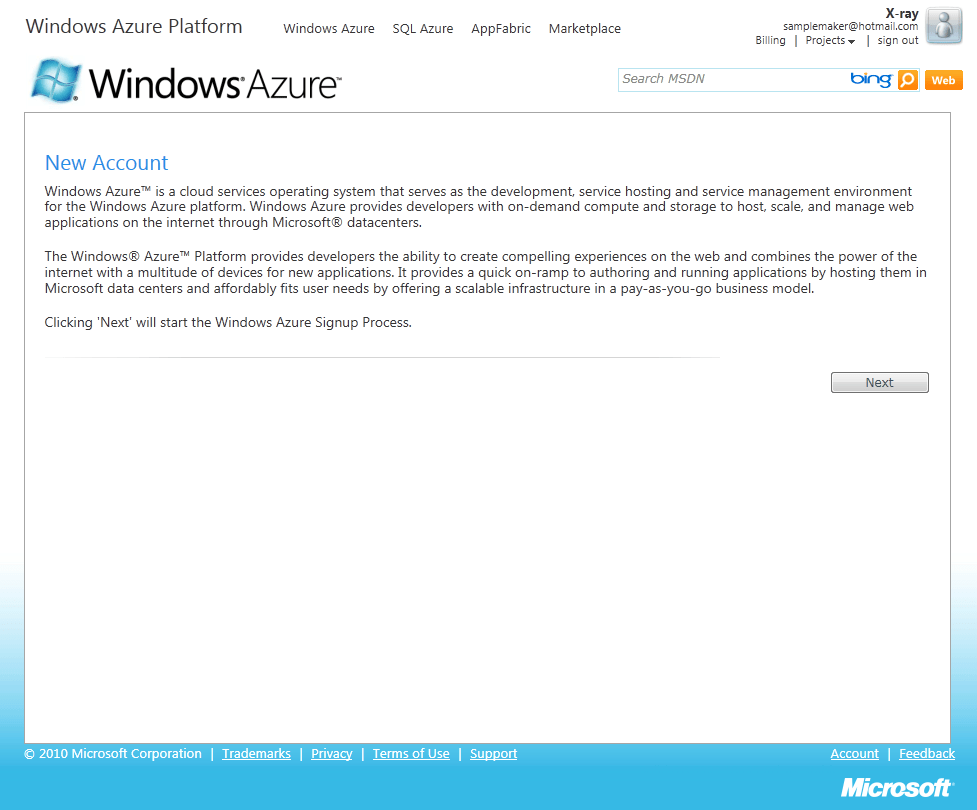
Click on next and you will be brought to a page related to which plans you can choose from. Depending on what specific focus you have for either development, dedicated services hosting, or otherwise you can choose from the multiple plans they have. I won’t go into them here, as Microsoft regularly changes the plans for specials and based on market demand and current costs.
Signing up for a specific plan.
After choosing which plan you will be redirected to the billing site, https://mocp.microsoftonline.com/, to setup a line of credit, confirm the type of Windows Azure Subscription you want to start with, and other information as needed. Once this is setup, you most likely won’t need to look at this site again except to verify billing information, change billing information, or confirm cloud usage.
Microsoft Billing
Now that there is an account available, we’ll need to install the latest development tools for coding solutions for the cloud. This first example will be using Visual Studio 2010 with the Windows Azure SDK. If you don’t have Visual Studio 2010 installed yet, go ahead and install that. Open up Visual Studio 2010 next. We will use Visual Studio 2010 project templates to find out the latest Windows Azure SDK and download it.
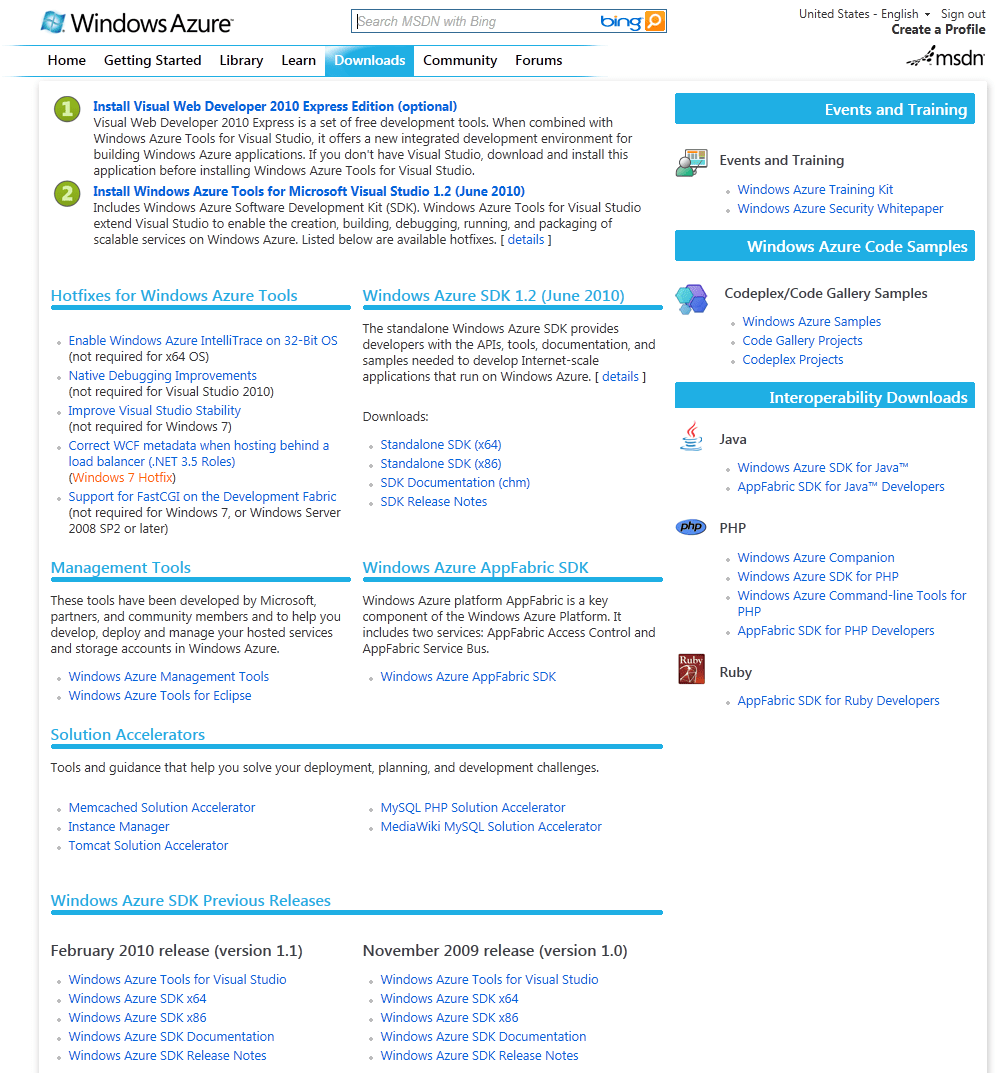
To download the latest Windows Azure SDK navigate to the MSDN Windows Azure Developers Site and click on the Downloads option at the top of the site.
MSDN Windows Azure Download Section
Once you have downloaded and installed the latest Windows Azure SDK we will download and install the Windows Azure AppFabric also. Scroll down midway on the MSDN Windows Azure Download page and the Windows Azure AppFabric SDK should be available for download. On the Windows Azure AppFabric SDK download page there should be a *.chm help file, two different AppFabric SDK Examples files one for VB and one for C#, and two installation packages one for 64-bit and one for 32-bit. Download and install the one for your particular system. I’d suggest downloading the samples also and giving each a good review.
In What You Need and Want With Windows Azure Part II I will cover how to setup the Windows Azure Microsoft Management Console. So stay tuned, that is coming tomorrow.
I’ve been working through a project recently that I ended up creating an interesting abstraction of an assembly/classes between multiple web services projects. I wrote about it initially in Aggregated Web Services Pt I. In this blog entry is going to cover a few things, based on a full end-to-end implementation of a project from the WCF RESTful Web Services, to the ASP.NET MVC Site, and finally the jQuery calling those same services.
Simple Architecture
Before I got started, there is one thing I need to point out. The communication with Javascript/jQuery/AJAX has a lot of tricky bits one needs to be aware of. One of those is the same site origin and of course the famous cross domain solution issues. That is why in this walk through I will place the web services and the site pages in the same project, yes, WCF and MVC living happily in a single project. 🙂 You can of course, if your architecture requires it, break these into separate projects, but for this example I’ll have both in the same project.
First create a new solution. I always like to start with a new solution because it keeps the naming structured right, just from the practice.
(Click on any of the images to see a larger full size copy)
New Solution
Once you create all of that then add an ASP.NET MVC 2 Project.
Adding the ASP.NET MVC 2 Project
You can create an ASP.NET MVC 2 Unit Test Project if you want to, but I’m skipping it for now. (yes, I’m still a big TDD advocate, but just setting up a prototype for this example)
Next I wiped out some files I don’t use, and suggest you zap em’ too.
Get Rid of the Nasty MS AJAX
Setting up the WCF Parts
Now that we’ve cleaned up those nasty bits, we’ll add our basic model we’ll be using.
[sourcecode language=”csharp”]
using System;
namespace EndToEnd.Mvc.Models
{
public class Investor
{
public string Id { get; set; }
public string Text { get; set; }
public decimal Money { get; set; }
public DateTime Stamp { get; set; }
}
}
[/sourcecode]
Now add a interface for the RESTful services to the root of the MVC Project as shown below.
[sourcecode language=”csharp”]
using System.Collections.Generic;
using System.ServiceModel;
using System.ServiceModel.Web;
using EndToEnd.Mvc.Models;
Now add the following abstract base class at the root level also.
[sourcecode language=”csharp”]
using System;
using System.Collections.Generic;
using EndToEnd.Mvc.Models;
namespace EndToEnd.Mvc
{
public abstract class InvestorBase : IEndToEndService
{
#region IEndToEndService Members
public List<Investor> GetIncidents(string pageStart, string pageEnd)
{
return new List<Investor>
{
new Investor
{
Id = Guid.NewGuid().ToString(),
Money = (decimal) (DateTime.Now.Second*2.27),
Stamp = DateTime.Now,
Text = "Lorum ipsum 1"
},
new Investor
{
Id = Guid.NewGuid().ToString(),
Money = (decimal) (DateTime.Now.Second*1.32),
Stamp = DateTime.Now,
Text = "Lorum ipsum 2"
}
};
}
public Investor GetInvestor()
{
return new Investor
{
Id = Guid.NewGuid().ToString(),
Money = (decimal) (DateTime.Now.Second*1.27),
Stamp = DateTime.Now,
Text = "Lorum ipsum"
};
}
#endregion
}
}
[/sourcecode]
Now add a WCF Service file and remove the interface file. Then change the WCF class itself as shown below. The reasons for the abstract class, inheriting from the interface, is that it removes any manipulation being needed with the actual *.svc file. It just seems, at least to me, a little bit cleaner this way.
[sourcecode language=”csharp”]
namespace EndToEnd.Mvc
{
public class EndToEndService : InvestorBase
{}
}
[/sourcecode]
For the last touches for the WCF RESTful Service we need to setup the Web.Config file. I’ve added the section toward the bottom of the config file in the <System.ServiceModel> section. I’ve included the full config file below, so you can easily just copy and paste it if you’re working through step by step with me.
One of the things I always do at this point is to setup the project properties. I do this for a number of reasons, primarily to assure that the port number doesn’t go and change itself on me. The other thing I set is the default startup page. With ASP.NET MVC things get out of sync with Visual Studio, and Visual Studio tries to startup actual *.aspx files. So what I do is just set the startup to an empty root startup. These settings are shown below.
Project Properties
Setting up the MVC Parts
First add a home directory, a HomeController.cs, and then add a Core.Master master page to the project.
MVC Project Parts
Next setup the Core.Master file with the following content sections.
One of the things I’ll point out is that with Visual Studio 2010 you get Intellisense with jQuery. The reason I don’t use the x.x.min.js version of the jQuery is that it doesn’t have the appropriate setup to provide the Intellisense. So be sure for development to use the fully expanded version and you can go to the zipped min version when you go live in production. Another thing I do, which may vary on how you want to develop, is use the hosted jQuery on Google or Microsoft. I did a write up previously for using the hosted jQuery so check it out for reference locations.
In the controller add the following code.
[sourcecode language=”csharp”]
using System.Web.Mvc;
namespace EndToEnd.Mvc.Controllers
{
public class HomeController : Controller
{
public ActionResult Index()
{
return View();
}
}
}
[/sourcecode]
Now that we have the Site.Master and the home controller, create an Index.aspx View in the Home folder of the project.
Adding the Index.aspx View
In the view add the following code for the jQuery calls to the services layer.
This is the beginning of a series of blog posts I’m putting together on building out a website on Amazon’s Web Services. This is a quick start on where to find the .NET SDK, what templates are installed in Visual Studio 2010, and what you get when starting a new Web Application Project with the AWS .NET SDK.
I’ve got some Windows Phone 7 work lined up so thought I’d run through the most recent setup for SDK, Toolkit, and other such items needed for development.
I’m working based on the assumption that Visual Studio 2010 is already installed. I’m also assuming the following items are installed, if not, install these before moving to the next items. I’m not 100% sure they’re needed, but I installed them first to make sure and for previous Silverlight 4 Development.
Next make sure uninstall any existing Windows Phone 7 SDK or other software you might have already installed previously. It is usually best, even if MS suggest no need to uninstall existing software, to do it anyway.
Next check out the major download for Windows Phone 7 development;
Install each of these in order. To verify that you have installed them successfully you can check the Programs and Features. To do a final verification I always like to start a project with each of the templates installed and do a build of each. That way, without doubt the appropriate assemblies and other items have been installed and registered in the GAC.
Windows Phone 7 Project Templates
Open up Visual Studio 2010 and verify that these project templates are available (Click on the image for a full size screenshot). Click on new project from the menus and look at the template on the left hand side. Under the Silverlight for Windows Phone there should be three new templates:
Windows Phone Application
Windows Phone List Application
Windows Phone Class Library
Under the XNA Game Studio 4.0 there should be the following project templates:
Windows Phone Game (4.0)
Windows Phone Game Library (4.0)
Windows Game (4.0)
Windows Game Library (4.0)
Xbox 360 Game (4.0)
Xbox 360 Game Library (4.0)
Content Pipeline Extension Library (4.0)
Empty Content Project (4.0)
Windows Phone 7 XNA
Out of all of these XNA templates, the only truly phone related items are the first two. But the others come along with the installation.
To get a feel for what is installed, select the Widnows Phone List Application. This is a great starter just to get an idea of how the IDE works.
Windows Phone 7 List Application
Once you’ve entered you project name and everything take a look at the solution explorer. Inside the project you will see that there is a break out of the ViewModels, Images, and SampleData into folders. Below that is the standard Silvelight File App.xaml. By default this project template also lays out a MainPage.xaml and a DetailsPage.xaml. To the far left hand side of the screen you can see the actual list application interface, and in the center the xaml code or C# is displayed.
Once you’ve checked that out give it a run, click on F5. You’ll see the following application starting come up.
Windows Phone 7 Application StartingApplication List Main Screen
The first screen on the phone to popup should be the list application itself. If you click on the windows button at the bottom of the phone screen emulator you’ll get back to the startup screen with the IE browser prominently displayed. If you click on the arrow to the right of the screen you will see an application list. There you can click on the application list to return to your list application. Check out the screen shots below, as always, click on em’ to get the full size screenshot.
Windows Phone 7 Main ScreenWindows Phone 7 Application Screen
That’s it for this entry. I’ll be adding some more Windows Phone 7 development how-to, random blurbs, and my 2 cents in the coming weeks.
I picked up the Embers Theme on studiostyles which I found easy on the eyes, but without some of the color bleed that the other theme Somasegar suggested. However, everyone’s eyes are a bit different, so pick and choose as you will.
The classes and methods shown with color coding on the left hand side of the code window is done with VS10x Code Map. The image below shows the code window with the code map showing. This can be really handy when you have a large class file or are just trying to navigate around the file easily. (Click on the image to view full size)
Document Well – If you aren’t sure what this is, go check out the more info. This is a pretty awesome feature, the download is worth this alone!
Searchable Add Reference – Everyone needs this at some point in time or another. It is a huge pain in the ass to find references, this resolves 99% of that pain!
Ctrl+Click Go To Definition – Yes please, thanks! I want my hands on the keyboard, not the mouse. :/
Another tool, that sounds very very similar is the PowerCommands for Visual Studio 2010. This adds must have right click features (yes, I know I just fussed about right clicking and using the mouse, but these features are needed regardless so I suppose a right click menu is acceptable. But would rather have them as short cut keys). Some of the key ones that are huge lifesavers are:
Show All Files – This isn’t the standard show all files that shows hidden files, it does that but does it for the entire solution! 🙂 I dig it.
Undo Close – Ever close a code file by accident, this will get that file opened back up ASAP. In true keyboard short cut fashion it is available as Ctrl+Shift+Z.
Collapse Projects – Nuff’ Said!!!!!
Open Command Prompt – This is nice, again, keyboard only dictates that command prompts will be being opened!
They’ve absolutely improved my day to day coding and am sure they’ll be a great help for anyone that lives in the code regularly. So go check em’ out, I promise you will not regret the time spent.




You must be logged in to post a comment.