I’ve been stumbling through getting familiar with Git over the last couple of weeks. It’s the source repository we use at work (thank goodness I’m rid of the damnable TFS nonsense!) and I have officially moved all of my Subversion & even Mercurial Repositories to Git. I really enjoy using Unfuddle, so have moved back to that after using Repositoryhosting for a while. The reason boils down to Open ID. Repositoryhosting didn’t support Open ID and Unfuddle does. Repositoryhosting supported Mercurial which I’ll admit is awesome. I really enjoyed that but wanted the combination of Git experience + Open Id that I get with Unfuddle. In addition, I actually like their management and project tools better. So back I’ve come to Unfuddle.
Over the next few weeks I’ll probably be posting a few tidbits about Git. For this entry here’s a tidbit on ignoring certain files that don’t need committed or pushed into the repository. Based on that this is what my exclude file looks like.
Resharper
obj
bin
*.suo
*.user
*.vs10x
For more information on setting files to ignore, check out the github man page.
UPDATE (1/5/2011): New post & updated file in this post.
In the first part of this two part series I reviewed what table storage in Windows Azure is. In addition I began a how-to for setting up an ASP.NET MVC 2 Web Application for accessing the Windows Azure Table Storage (sounds like keyword soup all of a sudden!). This sample so far is enough to run against the Windows Azure Dev Fabric. However I still need to setup the creation, update, and deletion views for the site, so without further ado, let’s roll.
In the Storage directory of the ASP.NET MVC Web Application right click and select Add and then View. In the Add View Dialog select the Create a strongly-typed view option. From the View data class drop down select the EmailMergeManagement.Models.EmailMergeModel, select Create form the View content drop down box, and uncheck the Select master page check box. When complete the dialog should look as shown below.
Add New View to Project Dialog
Now right click and add another view using the same settings for Delete and name the view Delete.
Right click and add another view using the same settings for Details and name the view Details.
Right click and add another view for Edit and List, naming these views Edit and List respectively. When done the Storage directory should have the following views; Create.aspx, Delete.aspx, Details.aspx, Edit.aspx, Index.aspx, and List.aspx.
Now the next steps are to setup a RoleEntryPoint class for the web role to handle a number of configuration and initializations of the storage table. The first bit of this code will start the diagnostics connection string and wire up the event for the role environment changing. After this the cloud storage account will have the configuration for the publisher set so the configuration settings can be used. Finally the role environment setting will be setup so that it will recycle so that the latest settings and credentials will be used when executing.
Create a new class in the root of the ASP.NET MVC Web Application and call it EmailMergeWebAppRole.
Add the following code to the EmailMergeWebAppRole class.
[sourcecode language=”csharp”]
using System.Linq;
using Microsoft.WindowsAzure;
using Microsoft.WindowsAzure.Diagnostics;
using Microsoft.WindowsAzure.ServiceRuntime;
namespace EmailMergeManagement
{
public class EmailMergeWebAppRole
{
public class WebRole : RoleEntryPoint
{
public override bool OnStart()
{
DiagnosticMonitor.Start("DiagnosticsConnectionString");
RoleEnvironment.Changing += RoleEnvironmentChanging;
CloudStorageAccount.
SetConfigurationSettingPublisher((configName, configSetter) =>
{
configSetter(RoleEnvironment.
GetConfigurationSettingValue(configName));
Now open up the StorageController class in the Controllers directory.
Add an action method for the List view with the following code.
[sourcecode language=”csharp”]
public ActionResult List()
{
var emailMergeListing = new EmailMergeRepository().Select();
return View(emailMergeListing);
}
[/sourcecode]
Add the following two actions to the StorageController Class.
[sourcecode language=”csharp”]
public ActionResult Create()
{
return View();
}
[AcceptVerbs(HttpVerbs.Post)]
public ActionResult Create(EmailMergeModel emailMergeModel)
{
if (!ModelState.IsValid)
return View();
There is now enough collateral in the web application to run the application and create new EmailMergeModel items and view them with the list view. Click on F5 to run the application. The first page that should come up is show below.
Windows Azure Storage Samples Site Home Page
Click on the Windows Azure Table Storage link to navigate to the main view of the storage path. Here there is now the Create and List link. Click on the Create link and add a record to the table storage. The Create view will look like below when you run it.
Windows Azure Storage Samples Site Create Email Merge Listing
I’ve added a couple just for viewing purposes, with the List view now looking like this.
Windows Azure Storage Samples Site Listings
Well that’s a fully functional CRUD (CReate, Update, and Delete) Web Application running against Windows Azure. With a details screen to boot.
This is the first part of a two part series on building a basic working web app using ASP.NET MVC to create, update, delete, and access views of the data in a Windows Azure Table Storage Service. The second part will be published this next Monday. With that stated, let’s kick off with some technical specifics about Windows Azure Table Storage.
The Windows Azure Table service provides a structured storage in the form of tables. The table storage you would setup within Windows Azure is globally unique. Any number of tables can be created within a given account with the requirement that each table has a unique name.
The table storage account is specified within a unique URI such as:
Within each table the data is broken into collections called entities. Entities are basically rows of data, similar to a row in a spreadsheet or a row within a database. Each entity has a required primary key and a set of properties. The properties are a name, typed-value pair, similar to a column.
Tables, Entities, and Properties
There are three core concepts to know when dealing with Windows Azure Tables; Table, Entities, and Properties. For each of these core features of the Windows Azure Table Storage it is important to be able to add, possibly update, and delete the respective table, entity, or property.
Windows Azure Table Hierarchy;
Table – Similar to a spreadsheet or table in a relational database.
Entity – Similar to a row of data in a spreadsheet, relational database, or flat file.
Property – Similar to a cell in a spreadsheet or tuple in a relational database.
Each entity has the following system properties; a partition key, row key, and time stamp. These properties are included with every entity and have reserved naming. The partition and row key are responsibilities of the developer to insert into, while the time stamp is managed by the server and is read only.
Three properties that are part of every table;
Partition Key
Row Key
Time Stamp
Each table name must conform to the following rules; a name may have only alphanumeric characters, may not begin with a numeric character, are case-insensitive, and must be between 3 and 63 characters.
Tables are split across many nodes for horizontal scaling. The traffic to these nodes is load balanced. The entities within a table are organized by partition. A partition is a consecutive range of entities possessing the same key value, the key being a unique identifier within a table for the partition. The partition key is the first part of the entity’s primary key and can be up to 1 KB in size. This partition key must be included in every insert, update, and delete operation.
The second part of the primary key is the row key property. It is a unique identifier that should not be read, set on insert or update, and generally left as is.
The Timestamp property is a DateTime data type that is maintained by the server to record the entity for last modifications. This value is used to provide optimistic concurrency to table storage and should not be read, inserted, or updated.
Each property name is case sensitive and cannot exceed 255 characters. The accepted practice around property names is that they are similar to C# identifiers, yet conform to XML specifications. Examples would include; “streetName”, “car”, or “simpleValue”.
To learn more about the XML specifications check out the W3C link here: http://www.w3.org/TR/REC-xml/. This provides additional information about properly formed XML that is relatable to the XML usage with Windows Azure Table Storage.
Coding for Windows Azure Tables
What I am going to show for this code sample is how to setup an ASP.NET MVC Application using the business need of keeping an e-mail list for merges and other related needs.
I wrote the following user stories around this idea.
The site user can add an e-mail with first and last name of the customer.
The site user can view a listing of all the e-mail listings.
The site user can delete a listing from the overall listings.
The site user can update a listing from the overall listings.
This will provide a basic fully functional create, update, and delete against the Windows Azure Table Storage. Our first step is to get started with creating the necessary projects within Visual Studio 2010 to create the site with the Windows Azure Storage and Deployment.
Right click on Visual Studio 2010 and select Run As Administrator to execute Visual Studio 2010.
Click on File, then New, and finally Project. The new project dialog will appear.
Select the Web Templates and then ASP.NET MVC 2 Empty Web Application.
Name the project EmailMergeManagement. Click OK.
Now right click on the Solution and select Add and then New Project. The new project dialog will appear again.
Select the Cloud Templates and then the Windows Azure Cloud Service.
Name the project EmailMergeManagementAzure. Click OK.
When the New Cloud Service Project dialog comes up, just click OK without selecting anything.
Right click on the Roles Folder within the EmailMergeManagementAzure Project and select Add and then Web Role Project in Solution.
Select the project in the Associate with Role Project Dialog and click OK.
The Solutions Explorer should have the follow projects, folders, files, and Roles setup.
Solution Explorer
Now create controller classes called StorageController and one called HomeController.
Now a Storage and Home directory in the Views directory.
Add a view to each of those directories called Index.aspx.
In the Index.aspx view in the Home directory add the following HTML.
<%:Html.Encode(ViewData["Message"])%>
<h1>
<%:Html.Encode(ViewData["Message"])%></h1>
This ASP.NET MVC Windows Azure Project provides examples around
the Windows Azure Storage usage utilizing the Windows Azure SDK.
<ul>
<li>
<%:Html.ActionLink("Windows Azure Table Storage", "Index", "Storage")%></li>
</ul>
[/sourcecode]
In the Storage directory Index.aspx view add the following code.
[sourcecode language=”csharp”]
using System.Web.Mvc;
namespace EmailMergeManagement.Controllers
{
public class StorageController : Controller
{
public ActionResult Index()
{
ViewData["Message"] = "Windows Azure Table Storage Sample";
return View();
}
}
}
[/sourcecode]
In the HomeController add this code.
[sourcecode language=”csharp”]
using System.Web.Mvc;
namespace EmailMergeManagement.Controllers
{
public class HomeController : Controller
{
public ActionResult Index()
{
ViewData["Message"] = "Windows Azure Storage Samples";
return View();
}
}
}
[/sourcecode]
Now the next step is to get our Models put together. This section will include putting together the class for the Email Merge Listing Model, the repository class for getting the data in and out of the table, and the context object that is used for connecting to the actual Development Fabric or Windows Azure Table Storage.
Solution Explorer
First add the following references; System.Data.Services.Client, Microsoft.WindowsAzure.CloudDrive, Microsoft.WindowsAzure.Diagnostics, Microsoft.WindowsAzure.ServiceRuntime, and Microsoft.WindowsAzure.StorageClient to the project by right clicking on the References virtual folder for the EmailMergeManagement Project.
Once you add these references create a class in the Models folder called EmailMergeModel and add the following code. I’ve added some basic validation attributes to the Email, First, and Last Properties of the EmailMergeModel Class just so that it has a little more semblance of something you may actually see in real world use.
[sourcecode language=”csharp”]
using System;
using System.ComponentModel.DataAnnotations;
using Microsoft.WindowsAzure.StorageClient;
namespace EmailMergeManagement.Models
{
public class EmailMergeModel : TableServiceEntity
{
public EmailMergeModel(string partitionKey, string rowKey)
: base(partitionKey, rowKey)
{
}
public EmailMergeModel()
: this(Guid.NewGuid().ToString(), string.Empty)
{
}
[Required(ErrorMessage = "Email is required.")]
[RegularExpression("^[a-z0-9_\\+-]+(\\.[a-z0-9_\\+-]+)*@[a-z0-9_\\+-]+(\\.[a-z0-9_\\-]+)*\\.([a-z]{2,4})$",
ErrorMessage = "Not a valid e-mail address.")]
public string Email { get; set; }
[Required(ErrorMessage = "First name is required.")]
[StringLength(50, ErrorMessage = "Must be less than 50 characters.")]
public string First { get; set; }
[Required(ErrorMessage = "Last name is required.")]
[StringLength(50, ErrorMessage = "Must be less than 50 characters.")]
public string Last { get; set; }
public DateTime LastEditStamp { get; set; }
}
}
[/sourcecode]
Now add a class titled EmailMergeDataServiceContext for our data context. This class provides the basic TableServiceContext inheritance that allows for creation of the table, entities, and properties through the Windows Azure SDK.
Add the following code to the EmailMergeDataServiceContext Class.
[sourcecode language=”csharp”]
using System.Linq;
using Microsoft.WindowsAzure;
using Microsoft.WindowsAzure.StorageClient;
namespace TestingCloudsWebApp.Models
{
public class EmailMergeDataServiceContext : TableServiceContext
{
public const string EmailMergeTableName = "EmailMergeTable";
public EmailMergeDataServiceContext(string baseAddress, StorageCredentials credentials)
: base(baseAddress, credentials)
{
}
public IQueryable EmailMergeTable
{
get { return CreateQuery(EmailMergeTableName); }
}
}
}
[/sourcecode]
Create a class in the Models directory called EmailMergeRepository. This is the class I will use to add the insert, update, and delete functionality.
Now add a constructor and private readonly EmailMergeDataServiceContext member as shown below.
public EmailMergeRepository()
{
var storageAccount = CloudStorageAccount.
FromConfigurationSetting("DiagnosticsConnectionString");
_serviceContext =
new EmailMergeDataServiceContext(
storageAccount.TableEndpoint.ToString(),
storageAccount.Credentials);
Next add the select and get by methods to retrieve EmailMergeModel Objects.
[sourcecode language=”csharp”]
public IEnumerable<EmailMergeModel> Select()
{
var results = from c in _serviceContext.EmailMergeTable
select c;
var query = results.AsTableServiceQuery();
var queryResults = query.Execute();
return queryResults;
}
public EmailMergeModel GetEmailMergeModel(string rowKey)
{
EmailMergeModel result = (from c in _serviceContext.EmailMergeTable
where c.RowKey == rowKey
select c).FirstOrDefault();
return result;
}
[/sourcecode]
Next add a method to add our custom date & time stamp for inserts and updates.
[sourcecode language=”csharp”]
private static EmailMergeModel StampIt(EmailMergeModel emailMergeModel)
{
// This is a sample of adding a cross cutting concern or similar functionality.
emailMergeModel.LastEditStamp = DateTime.Now;
return emailMergeModel;
}
[/sourcecode]
Finally the delete, insert, and update methods can be added.
I’ve had the pleasure of working with WCF on three specific projects that have brought me to this blog entry. I haven’t used WCF on only three projects, there are just three that have brought me to write this entry. I’ve used WCF a lot, since back when it was a beta. WCF is great when creating SOAP services and you aren’t too worried about the extra overhead. WCF is great for what it does, for the ideas behind what it does.
But writing RESTful web services doesn’t seem to be its strong point. On two huge projects WCF has basically been dropped, or so scaled back one really can’t honestly say that WCF is used, and either an alternate framework has been used or a LOT of custom code ends up being written.
The first time I used WCF to implement RESTful service was at Webtrends. Albeit, there is a single service that returns all types of awesome reporting goodness, however to implement basic auth, logging, polling, and a whole host of other Enterprise Scale needs we had to custom roll most of it. Keep in mind, when doing this the WCF REST capabilities were brand shiny and new, so there were a few issues to work out. Now, maybe WCF could be used and a lot of it would be built in. However as it was, we easily spent 60% of the time writing custom bits because WCF just didn’t have the right options with the right bindings.
But I digress, I recently implemented an architecture using RESTful services using WCF. But now I’ve come to find myself dropping WCF because of the back and forth and going with ASP.NET MVC controller actions to return JSON instead. With that, here’s to the lean mean controller actions rockin’ the JSON. Here’s what I’ve done to port everything from WCF to MVC.
To see what I had done, except on a smaller scale, check out my previous blog entry on ASP.NET MVC with a WCF project smack in the middle of it. This will give you an idea of what I was using the WCF services for, merely to provide JSON results via RESTful services to an ASP.NET MVC front end requesting data with jQuery.
This is how I’ve setup the controller to return JSON results via an action.
First start a new ASP.NET MVC Project and add a new controller. Cleanup the controller so that you have the following in the controller.
[sourcecode language=”csharp”]
using System.Web.Mvc;
namespace RestWebServicesWithMvc.Controllers
{
public class ServicesController : Controller
{
}
}
[/sourcecode]
Now create a testing project to create your test first. Remember to add the reference to the ASP.NET MVC project. From here we can create the first test.
[sourcecode language=”csharp”]
using Microsoft.VisualStudio.TestTools.UnitTesting;
using RestWebServicesWithMvc.Controllers;
namespace RestWebServicesWithMvc.Tests
{
[TestClass]
public class UnitTest1
{
[TestMethod]
public void TestMethod1()
{
var controller = new ServicesController();
var result = controller.GetBiz();
Assert.IsNotNull(result);
}
}
}
[/sourcecode]
Now fill out the basic skeleton of the action in the controller.
[sourcecode language=”csharp”]
using System;
using System.Web.Mvc;
namespace RestWebServicesWithMvc.Controllers
{
public class ServicesController : Controller
{
public ActionResult GetBiz()
{
throw new NotImplementedException();
}
}
}
[/sourcecode]
Now we should have a good red running on our test. Let’s create a business model class to return as our result next.
[sourcecode language=”csharp”]
namespace RestWebServicesWithMvc.Models
{
public class BizEntity
{
public string BizName { get; set; }
public string StartupDate { get; set; }
public int SalesThisMonth { get; set; }
}
}
[/sourcecode]
Now let’s return that object with some fake data. First add [AcceptVerbs(HttpVerbs.Post)] to the action in the controller. Then return a serializable object to the actual method as shown.
This is a quick starter. There are a few dozen other options around this capability including other verb usage. For many, this is all you need for your services, especially if their primary purpose is to communicate with a specific website and one doesn’t want the overhead of WCF.
One of the most useful tools to use in Windows Azure Development is the Windows Azure MMC. The Microsoft Management Console, or MMC, is the management console that many of the Windows Server Management interfaces can plug into. The Windows Azure Team has put together the Windows Azure specific MMC Console Plugin that is available for download on Microsoft MSDN Code Site at http://code.msdn.microsoft.com/windowsazuremmc.
Windows Azure MMC Code Site
When you navigate to the page, click on the tab for downloads and you will find three different files;
WindowsAzureMMC.exe
PerfMon-Friendly Log Viewer Plugin
PerfMon-Friendly Log Viewer Plugin (Source Only)
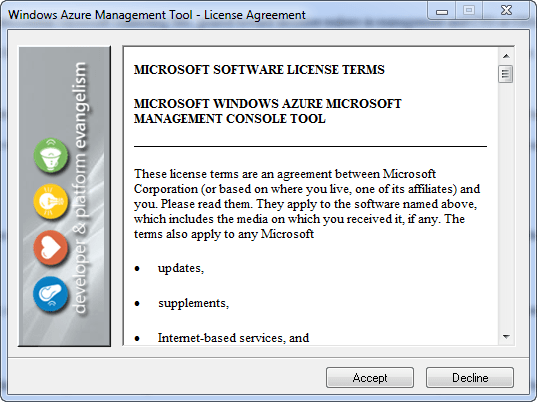
The main file you’ll need to download is the WindowsAzureMMC.exe file. Once this file is downloaded, run the executable. An installation wizard will appear, just click next and step through each of the steps accepting any defaults.
Windows Azure Management Tool Installation
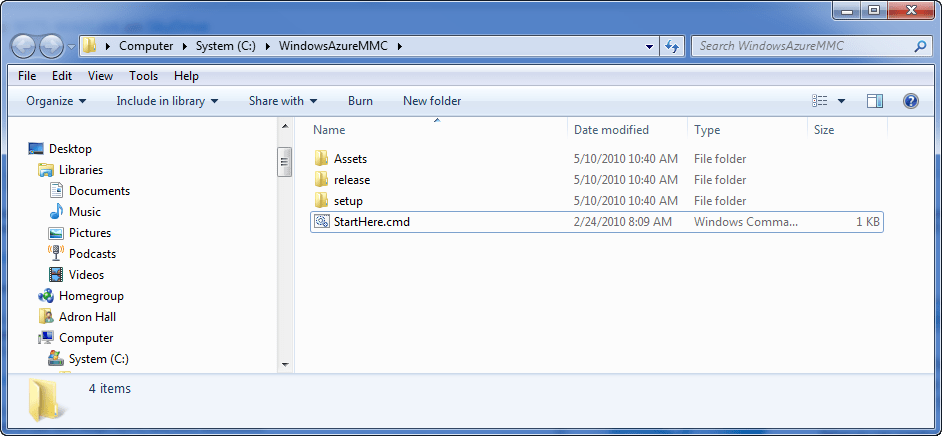
Once the executable runs it should pop up a Windows Explorer Window, if not navigate to where the files where just installed (unzipped) to. By default the installer places them in C:\WindowsAzureMMC\. Find the file StartHere.cmd located in the installation directory and fun the file.
StartHere.cmd
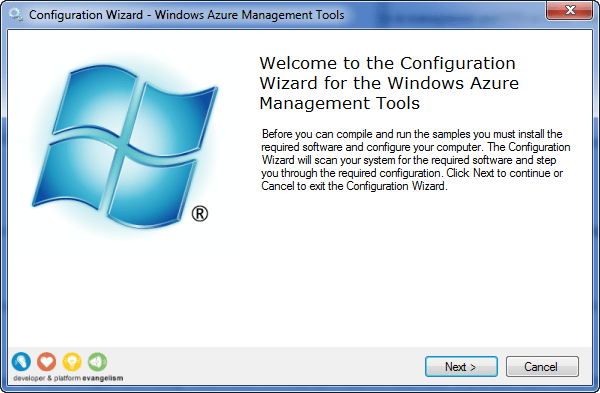
When the file is executed a DOS prompt will flicker, and another configuration wizard titled Windows Azure Management Tools will appear.
Configuration Wizard for the Windows Azure Management Tools
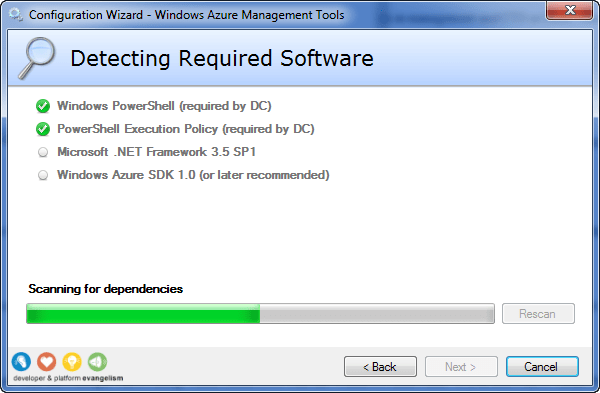
Click next and the installation will start, checking each of the dependencies required to execute the MMC.
Detecting Required Software
Continue to click any next prompts, and then you will have the Windows Azure MMC Console open once the StartHere.cmd finishes executing. Click close on the configuration wizard.
Installation Completed
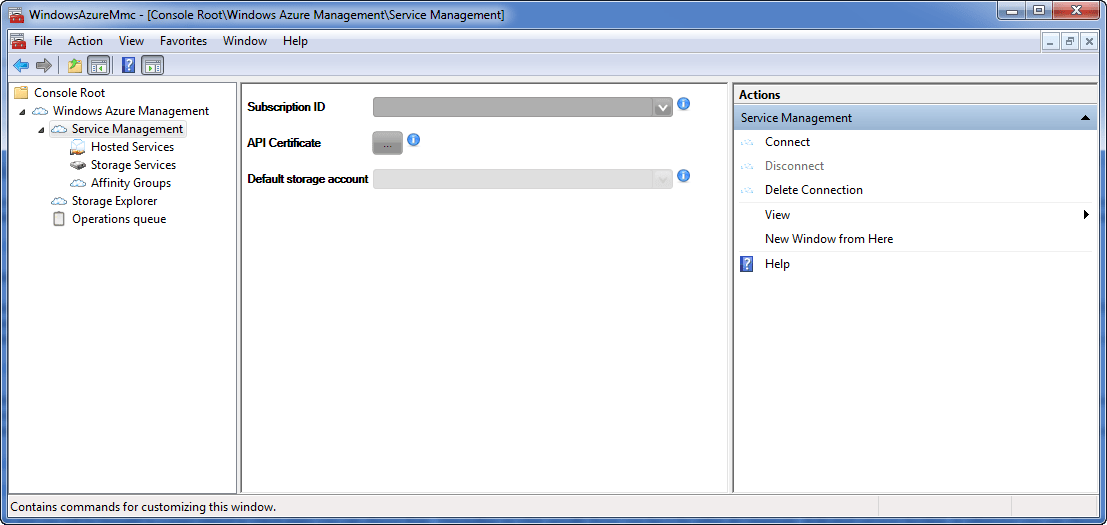
The MMC will now be displayed on screen as shown below.
Windows Azure Management Tool (MMC)
Open the Windows Azure Management section by clicking on the small tree view arrow on the left hand side. The tree view will open up to a Service Management Node with a Hosted Services, Storage Services, and Affinity Groups listed underneath the node. Select the actual Service Management Node so that the middle window shows the connection form shown here.
Windows Azure MMC Services Management Node Connection
Now navigate back to Windows Azure Platform Web Interface (http://windows.azure.com). Click on the project displayed on the main screen to select it.
Windows Azure Portland Interface
When the follow page displays, click on the Account tab at the center top of the page.
Windows Azure Project
When the Account Page finishes rendering look at the very bottom to locate the subscription ID.
Windows Azure Project Account Properties
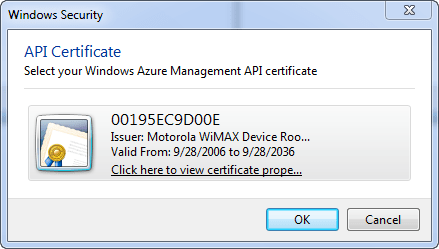
Enter the subscription ID into the form. Now click on the ellipsis button on the form so the certificates that are available are displayed.
API Certificate
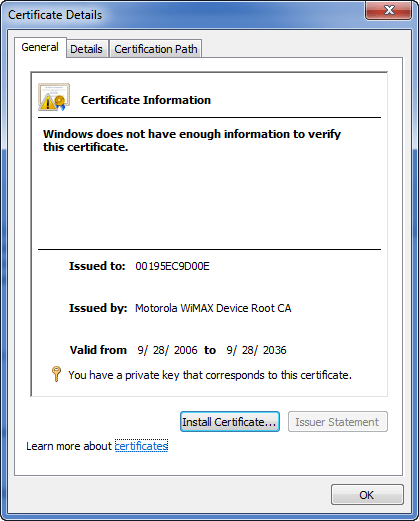
Click on the underlined link on the certificate you want to use (sometimes there are a few options, depending on what is installed on the machine already). A properties dialog should appear when you click on the underlined link button.
Certificate Details
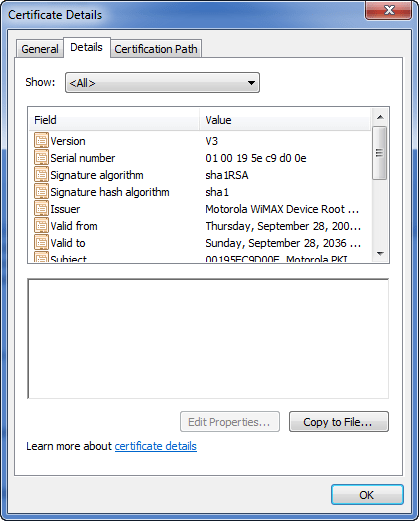
Click on the Details Tab on the top of the properties dialog window.
Certificate Details, Details Tab
Now click on the Copy to File Button. An export process will start for the certificate. Click on next. On the next screen make sure No, do not export the private key is selected. The next screen selects the DER encoded binary X.509 (.CER) option. Verify this setting and then click next.
Certificate Export Wizard
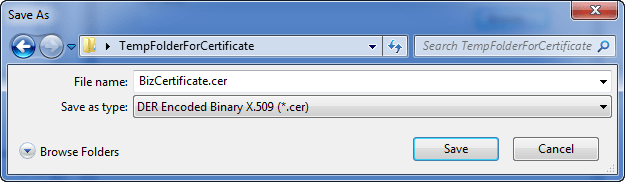
Click on next and then enter the path and filename where you want to save the certificate.
Save As File Name for Certificate
Now that you have the certificate, return to the Windows Azure Platform Web Interface (http://windows.azure.com). Navigate to the Account Tab section of the site again. On that page click on the Manage My API Certificates. This is the same page as shown above in the image captioned “Windows Azure Project Account Properties“. Once the page displays click on the Choose File button on the page. Find the location the certificate was saved and select the certificate. Now click the upload button to upload the file to the Windows Azure Account.
API Certificates Upload
When the file is done uploading the page will update and show something similar to what is shown in the next screenshot.
API Certificates, Finished Uploading
Now you can click on the OK button, if you haven’t already, to confirm the API Certificate in the Windows Azure MMC. Click on the Connect button in the far right window area of the MMC. It should take a second but the connection should occur. You can tell by the Default storage account form drop down becomes enabled. At this time though, since we haven’t placed anything in storage or started any storage services there will be nothing displayed in the drop down.
At this point the MMC is functional; there just isn’t much to look at in the Windows Azure Account yet. So let’s change that and setup some sample services. First head back over to the Windows Azure Platform Web Interface (http://windows.azure.com). Once you’re in click on the project as we did before so that it is the focus point. Click on the +New Service link in the top right of the main page window section.
Starting a Windows Azure Service
The next screen will display the options to create a Windows Azure Storage Account or a Hosted Services Role. Click on the Windows Azure Storage Account option.
Windows Azure Create a Service
On the screen that renders fill out the service label and description. Both of these fields are mostly free text, allowing spaces and special characters. Click next when you have filled out the label and description.
Services Properties
The next form that comes up has the public storage account name. This field must be compliant with URI naming conventions. The idea also is that these storage services use a RESTful API, it is best to follow the REST Architecture ideals and name the location something easy to read and to remember. You can click the check availability button to verify if the name is used or not. If it is available move down and select Anywhere US for the region.
First Storage Sample
Once you are finished click the create button at the bottom of the form. The next window will render the results of creating the Windows Azure Storage Account. This page has all the information you’ll need to fill out the Windows Azure MMC connection information.
Windows Azure Storage Account Properties
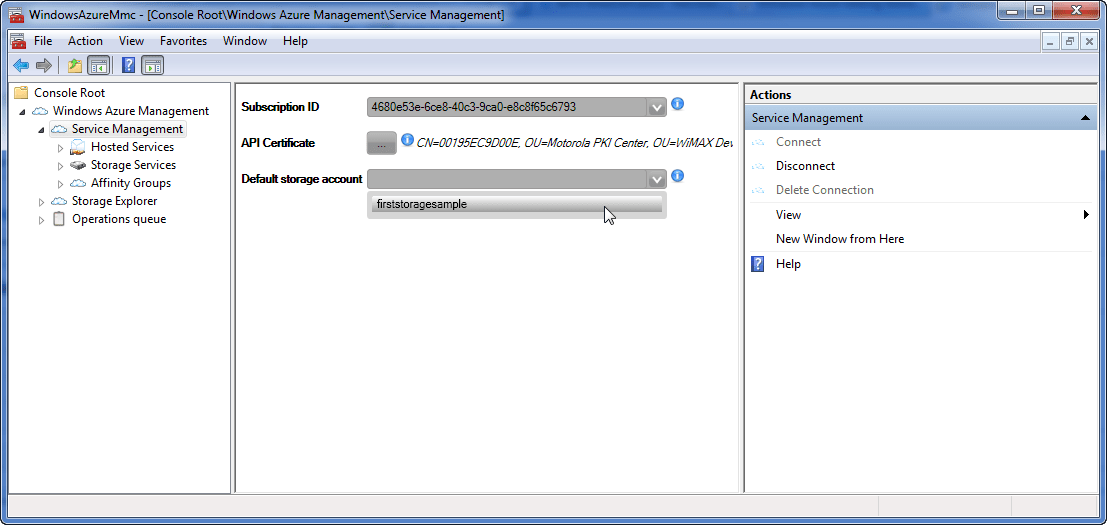
If you still have the Windows Azure MMC open, bring focus to it again. If not open it back up and open the Windows Azure Management tree view back to the Service Management Node and verify or enter the information for the subscription ID and API Certificate. Now click on the Connect link button on the right hand window pane. The MMC will then connect and will populate the Default storage account drop down. Click on the drop down and you will see your Windows Azure Storage Account that we just created.
Service Management Node Connected with Default Storage Account
Now that we have a Windows Azure Storage Account, let’s get a Windows Azure Services Role running also. Navigate back to the Windows Azure Platform Web Interface (http://windows.azure.com). Once the page has rendered click on your specific project, wait for that page to render and then on the +New Service link. This time select the Windows Azure Services Role to create. On the next page fill out the service label and description the same as with the Windows Azure Storage Account creation.
Create a Service (Role)
Click next when complete. On the next page that renders you’ll again pick a public URI subdomain path, which I’ve used firstservicesample as mine, and select Anywhere US from the drop down for the region. Click on the create button when complete. The following page will display with a single cube image in the center of the screen, label Production. For now, the instance role is available, but nothing is deployed and nothing is being charged at this time. However this is perfect for checking out the Windows Azure MMC display of the services.
Service Role
Return to the Windows Azure MMC and click on the Hosted Services node. Click on Connect in the right hand window pane under actions. The firstservicesample node, or whatever you may have named the service, will display with the staging, production, and certificates nodes appearing below. From here you can deploy, upgrade, run, delete, suspend, swap, or even save the configuration of your roles. This is extremely helpful so that one doesn’t always need to return to the site and can maintain multiple hosted services, storage services, affinity groups, and more from the MMC.
Windows Azure Staging
Next let’s click on the Storage Explorer Node just below the Service Management Node. Click on New Connection and enter the Account Name as shown below.
New Account Form
Now that the account name and URIs are filled out. Return to the storage services properties page in the Windows Azure Platform Web Interface (http://windows.azure.com).
Windows Azure Storage Account Properties
On this page you’ll find the key you need to finish off the form in the Windows Azure MMC. Once you’ve completed the form click on OK. The MMC should now populate out the cloud storage account area with a node for BLOB Containers.
Storage Account Services
Click on the BLOG Containers so and click on Add Container in the right hand side window pane under actions. Enter a name, in this case I entered musicmanager, and click OK. Now you should have a BLOB Storage Container in your Windows Azure Storage Account.
Windows Azure BLOB Container
Click on the musicmanager BLOB Container, or whatever you named yours, and then click on Upload BLOB under the actions window on the right hand side. Select a file, I’ve chosen a music MP3 I have on my local machine.
Uploading a BLOG File (A Music MP3)
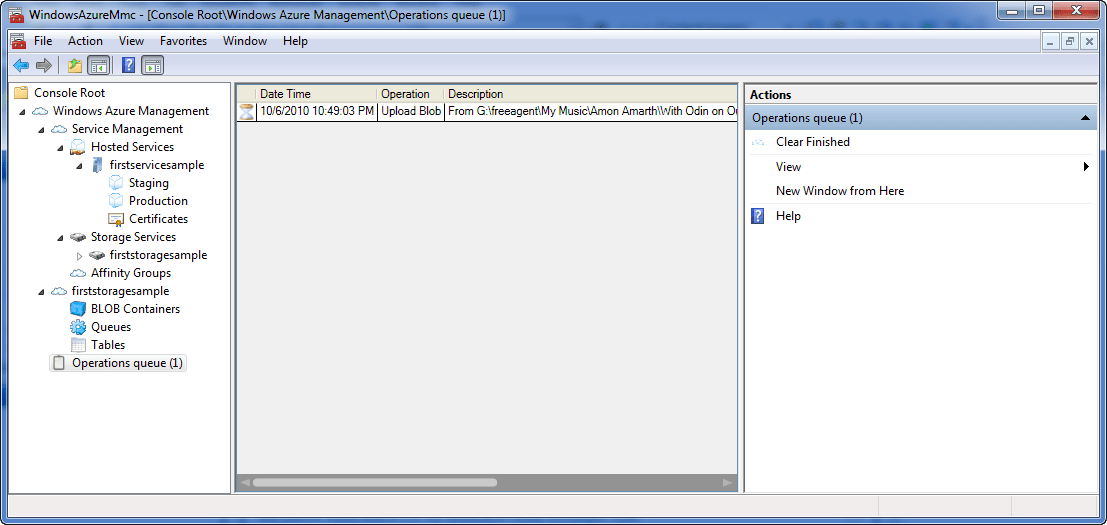
Click OK and you’ll see the Operations queue node on the lower left hand side of the Console Root tree view populate with the upload activity task.
The Upload in the Operations Queue
After the upload is complete the BLOB Container will then show the BLOBs just below it when selected in the Windows Azure MMC.











You must be logged in to post a comment.