Virtual Box Issue “Kernel driver not installed (rc=-1908)”

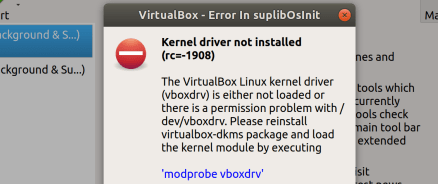
Alright, nothing like multi-OS environments so you can prepare for the maximum number of issues that might come up. My recent issue is re-opening some virtual machines, originally created on Windows 10, and now with intent to use them on Linux. When trying to open these existing virtual machines I’ve gotten the following error:

Kernel driver not installed (rc=-1908)

The VirtualBox Linux kernel driver (vboxdrv) is either not loaded or there is a permission problem with /dev/vboxdrv. Please reinstall the kernel module by executing

‘modprobe vboxdrv’

as root.

where: sublibOsInit what: 3 VERR_VM_DRIVER_NOT_INSTALLED (-1908) – The support driver is not installed. On linux, open returned ENOENT.

vbox-error1908
Error Screenshot on Ubuntu Linux

Upon researching I found this could occur on multiple operating systems really, and have included the fixes for the various platforms. First however, let’s talk about the Linux fix.

Linux

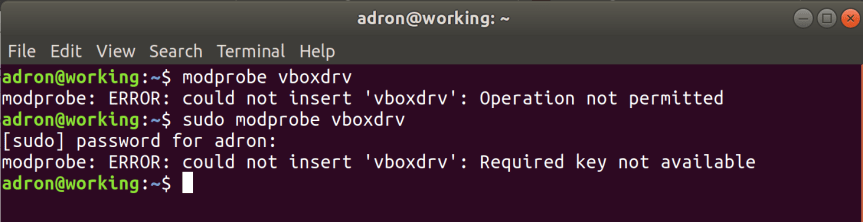
For this particular situation I tried the command given in the dialog modprobe vboxdrv to see if that would fix it. But no go. I got some additional errors that seemed nonsensical.
arg

At this point I dug into the search engine. The first post I found seemed to make sense. I tried the commands.

[sourcecode language=”bash”]
sudo apt-get install build-essential module-assistant
sudo m-a prepare
[/sourcecode]

step1.png

That went well, so on to the next step of building the virtualbox kernel driver.

[sourcecode language=”bash”]
sudo /etc/init.d/vboxdrv setup
[/sourcecode]

That gave me “sudo: /etc/init.d/vboxdrv: command not found“. So I did a find for the file.

[sourcecode language=”bash”]
sudo find / -name “vboxdrv”
[/sourcecode]

The results pointed out that my install of Virtual Box, done via the Ubuntu App Store, was version 5.2.8. This is clearly not going to work out well because the latest version is 6.0.4 right now. Next I uninstalled this old version via the Ubuntu App Store Application.

step2.png

Next I navigated back out the Virtual Box Download page. There I downloaded the latest version and installed it via the downloadable Ubuntu *.deb file.

This installs Virtual Box through the Ubuntu App Store application but sets up the more up to date repository to get the installation from.

step3.png

Ok, so all this at this point I ran VirtualBox after the installation, it installed according to the standard directories this time but still didn’t work. What the hell, I’ve no idea. I did another search and found Øyvind Stegard’s blog entry on fixing the “VirtualBox + Secure Boot = Fail“. He states at the start of the blog entry,

“The problem is the requirement that all kernel modules must be signed by a key trusted by the UEFI system, otherwise loading will fail. Ubuntu does not sign the third party vbox* kernel modules, but rather gives the user the option to disable Secure Boot upon installation of the virtualbox package.”

Stegard then adds two very important links with pertinent information about this issue, I’ve reposted here too:

After going through Øyvind‘s steps, I finally got the previously specified command from above.

[sourcecode language=”bash”]
sudo /etc/init.d/vboxdrv setup
[/sourcecode]

Now VirtualBox started up just fine. Finally. Ugh! But hey, in the process I now understand a little bit more about secure boot, current BIOS’s, and related hardware concerns. Not that I had set out or wanted to deal with this right now, but boom, it’s done!

Alright, but if you fall into this with MacOS, it’s a slightly different story. Here’s some fixes around that.

MacOS

Ok, I started writing up and searching as I wrote, and instead of continuing to write it looks like this blog entry popped up with the exact error I’d gotten in the past (the reason I wanted to included MacOS for future ref). If you’ve gotten this error, check out Xilin Sun‘s post Solving VirtualBox “Solving VirtualBox “kernel driver not installed (rc=-1908)” Error on macOS“.

Bunches of Databases in Bunches of Weeks – PostgreSQL Day 1

May the database deluge begin, it’s time for “Bunches of Databases in Bunches of Weeks”. We’ll get into looking at databases similar to how they’re approached in “7 Databases in 7 Weeks“. In this session I got into a hard look at PostgreSQL or as some refer to it just Postgres. This is the first of a few sessions on PostgreSQL in which I get the database installed locally on Ubuntu. Which is transferable to any other operating system really, PostgreSQL is awesome like that. Then after installing and getting pgAdmin 4, the user interface for PostgreSQL working against that, I go the Docker route. Again, pointing pgAdmin 4 at that and creating a database and an initial table.

Below the video here I’ve added the timeline and other details, links, and other pertinent information about this series.

0:00 – The intro image splice and metal intro with tunes..
3:34 – Start of the video database content.
4:34 – Beginning the local installation of Postgres/PostgreSQL on the local machine.
20:30 – Getting pgAdmin 4 installed on local machine.
24:20 – Taking a look at pgAdmin 4, a stroll through setting up a table, getting some basic SQL from and executing with pgAdmin 4.
1:00:05 – Installing Docker and getting PostgreSQL setup as a container!
1:00:36 – Added the link to the stellar post at Digital Ocean’s Blog.
1:00:55 – My declaration that if Digital Ocean just provided documentation I’d happily pay for it, their blog entries, tutorials, and docs are hands down some of the best on the web!
1:01:10 – Installing Postgesql on Ubuntu 18.04.
1:06:44 – Signing in to Docker hub and finding the official Postgresql Docker Image.
1:09:28 – Starting the container with Docker.
1:10:24 – Connecting to the Docker Postgresql Container with pgadmin4.
1:13:00 – Creating a database and working with SQL, tables, and other resources with pgAdmin4 against the Docker container.
1:16:03 – The hacker escape outtro. Happy thrashing code!

For each of these sessions for the “Bunches of Databases in Bunches of Weeks” series I’ll follow this following sequence. I’ll go through each database in this list of my top 7 databases for day 1 (see below), then will go through each database and work through the day 2, and so on. Accumulating additional days similarly to the “7 Databases in 7 Weeks

Day 1” of the Database, I’ll work toward building a development installation of the particular database. For example, in this session I setup PostgreSQL by installing it to the local machine and also pulled a Docker image to run PostgreSQL.

Day 2” of the respective database, I’ll get into working against the database with CQL, SQL, or whatever that one would use to work specifically with the database directly. At this point I’ll also get more deeply into the types, inserting, and storing data in the respective database.

Day 3” of the respective database, I’ll get into connecting an application with C#, Node.js, and Go. Implementing a simple connection, prospectively a test of the connection, and do a simple insert, update, and delete of some sort against the respective database built on the previous day 2 of the same database.

Day 4” and onward I’ll determine the path and layout of the topic later, so subscribe on YouTube and Twitch, and tune in. The events are scheduled, with the option to be notified when a particular episode is coming on that you’d like to watch here on Twitch.

Next Events for “Bunches of Databases in Bunches of Days

It’s Official, ML4ALL 2019, Machine Learning Conference 4 All v2!

It’s official, we’ve got dates and tickets are open for ML4ALL 2019! Our CFP will be open in a number of hours, not days, and I’ll do another update the second that we have that live.

What is ML4ALL?

ML4ALL stands for “Machine Learning for All“. Last year I enjoyed working with Alena Hall, Troy Howard, Glenn Block, Byron Gerlach, and Ben Acker on getting a great conference put together, and I’m looking forward to rounding up a team and doing a great job putting together another great conference for the community again this year!

Last year @lenadroid put together this great video of the event and some short interviews with speakers and attendees. It’s a solid watch, take a few minutes and check it out for a good idea of what the conference will be like.

Want to Attend? Help!

Tickets are on sale, but there’s a lot of other ways to get involved now. First, the super easy way to keep track of updates is to follow the Twitter account: @ml4all. The second way is a little bit more involved, but can be a much higher return on investment for you, by joining the ML4ALL Slack Group! There we discuss conference updates, talk about machine learning, introduce ourselves, and a range of other discussions.

If you work for a company in the machine learning domain, plying the wave of artificial intelligence and related business, you may want to get involved by sponsoring the conference. We’ve got a prospectus we can send you for the varying levels, just send an email to ml4allconf@gmail.com with the subject “Plz Prospectus”. We’ll send you the prospectus and we can start a conversation on which level works best for your company!

The TLDR;

ML4ALL is a conference that will cover from beginner to advanced machine learning presentations, conversations, and community discussions. It’s a top conference choice to put on your schedule for April 28-30th, pick up tickets for, and submit a proposal to the CFP!


Learning Go Episode 2 – Further into packages, dependencies, application creation, and IDE’s

Episode Post & Video Links:  1, 2 (this post), 3, 4, 5, 6, 7, and 8. Non-linked are in the works! Videos available now on Youtube however, so check em’ out!

In episode two I went over a lot of the material that I covered in the first episode, but added more context, historical reasons certain things are the way they are in Go and the stack, and went over a number of new elements of information too. One thing I got further into this episode is the package and dependency management with Go Dep and also how to create a package, or dependency library for use in other Go libraries or applications. It’s just a small introduction in this episode, but pivotal to future episodes, as I’ll be jumping further into library creation and related details.

In this post I’ve got the time point breakdown like usual,  but also a few additional bits of information and code examples, plus links to the repository I’ve setup for this particular episode. The quick links to those references are below, and also I’ll link at particular call out points within the time points.

Quick Links:

Key Topics Covered

Data Types, Packages, and Dependency Management

2:52 – Fumbling through getting started. It is after all Saturday morning!
3:00 – Recap of what we covered in the first session. Includes a quick review of the previous session code too, such as the random data generation library we setup and used.
6:40 – Covering some specifics of the IDE’s, the stories of the benefits of Go having a specific and somewhat detailed convention to the way syntax, variables, and related features are used.
7:40 – Covering gofmt and what it gives us.
9:45 – Looking at the gofmt plugins and IDE features around the conventions.
14:06 – New example time! In this one, I work through an example showing how to find duplicate lines in passed in text.

Duplicate Line Finder

I went through the various steps of creating the code, but then took a little bit of a detour from the example in the book. Instead of lines by the CLI it takes in content from a text file. The code in main.go ended up like this.


package main
import (
"bufio"
"fmt"
"os"
)
func main() {
counts := make(map[string]int)
files := os.Args[1:]
if len(files) == 0 {
countLines(os.Stdin, counts)
} else {
for _, arg := range files {
f, err := os.Open(arg)
if err != nil {
fmt.Printf("The Error Happened! %s", os.Stderr)
continue
}
countLines(f, counts)
errFile := f.Close()
if errFile != nil {
fmt.Println("Holy moley the file didn't close correctly!")
}
}
}
for line, n := range counts {
if n > 1 {
fmt.Printf("%d\t%s\n", n, line)
}
}
}
func countLines(f *os.File, counts map[string]int) {
input := bufio.NewScanner(f)
for input.Scan() {
counts[input.Text()]++
}
}

view raw

main.go

hosted with ❤ by GitHub

Then if you’d like to check out the text file and remaining content in that project, check out the master branch of the episode 2 repo.

36:34 – Here I take a thorough step through committing this project to github, which is the included repo in this post. However I step through the interface of using Jetbrains Goland to do the commit, how it enables gofmt and other features to improve the condition of code and ensure it meets linter demands and related crtieria. I also cover the .gitignore file and other elements to create a usable repository.
44:30 – Setting up the repository for today’s code at https://github.com/Adron/learning-go-…
50:00 – Setup of the key again for using Github. How to setup your ssh keys using ssh-keygen.
56:00 – Going beyond just the language, and building out a Go build on Travis CI.
1:10:16 – Creating a new branch for the next code examples and topics. At this point I shift into type declarations. Working through some constants, very basic function declarations, and related capabilities to calculate temperatures between Fahrenheit and Celsius.

The tempApp Branch is available in the repository here.

At this point I shift into type declarations. Working through some constants, very basic function declarations, and related capabilities to calculate temperatures between Fahrenheit and Celsius.

During this point, we take a look at our first package. This package ended up looking like this.


package tempconv
type Celsius float64
type Fahrenheit float64
const (
AbsoluteZeroC Celsius = -273.15
FreezingC Celsius = 0
BoilingC Celsius = 100
)
func CelsiusToFahrenheit(c Celsius) Fahrenheit {
return Fahrenheit(c*9/5 + 32)
}
func FahrenheitToCelsius(f Fahrenheit) Celsius {
return Celsius((f – 32) * 5 / 9)
}

In the main.go file, I showed how you can use this package by adding a respective import shown in this code.


package main
import (
"fmt"
tempconv "github.com/Adron/awesomeProject/tempconv"
)
func main() {
fmt.Println("Temperatures are hard to figure off the top of one's mind!")
boilingF := tempconv.CelsiusToFahrenheit(BoilingC)
fmt.Printf("%v\n", boilingF)
fmt.Printf("%s\n", boilingF)
fmt.Println(boilingF)
fmt.Printf("%g\n", boilingF)
}

view raw

main.go

hosted with ❤ by GitHub

1:17:54 – At this point, to increase readability of font sizes I get into the various Goland IDE options.
1:38:12 – Creating the final branch for this session to pull in a public package and use it in project. For this, I pull in a random data generation package to use in some application code.


package main
import (
"fmt"
randomdata "github.com/Pallinder/go-randomdata"
)
func main() {
// Print a random silly name
fmt.Println(randomdata.SillyName())
// Print a male title
fmt.Println(randomdata.Title(randomdata.Male))
// Print a female title
fmt.Println(randomdata.Title(randomdata.Female))
// Print a title with random gender
fmt.Println(randomdata.Title(randomdata.RandomGender))
// Print a male first name
fmt.Println(randomdata.FirstName(randomdata.Male))
// Print a female first name
fmt.Println(randomdata.FirstName(randomdata.Female))
// Print a last name
fmt.Println(randomdata.LastName())
// Print a male name
fmt.Println(randomdata.FullName(randomdata.Male))
// Print a female name
fmt.Println(randomdata.FullName(randomdata.Female))
// Print a name with random gender
fmt.Println(randomdata.FullName(randomdata.RandomGender))
// Print an email
fmt.Println(randomdata.Email())
// Print a country with full text representation
fmt.Println(randomdata.Country(randomdata.FullCountry))
// Print a country using ISO 3166-1 alpha-2
fmt.Println(randomdata.Country(randomdata.TwoCharCountry))
// Print a country using ISO 3166-1 alpha-3
fmt.Println(randomdata.Country(randomdata.ThreeCharCountry))
// Print BCP 47 language tag
fmt.Println(randomdata.Locale())
// Print a currency using ISO 4217
fmt.Println(randomdata.Currency())
// Print the name of a random city
fmt.Println(randomdata.City())
// Print the name of a random american state
fmt.Println(randomdata.State(randomdata.Large))
// Print the name of a random american state using two chars
fmt.Println(randomdata.State(randomdata.Small))
// Print an american sounding street name
fmt.Println(randomdata.Street())
// Print an american sounding address
fmt.Println(randomdata.Address())
// Print a random number >= 10 and < 20
fmt.Println(randomdata.Number(10, 20))
// Print a number >= 0 and < 20
fmt.Println(randomdata.Number(20))
// Print a random float >= 0 and < 20 with decimal point 3
fmt.Println(randomdata.Decimal(0, 20, 3))
// Print a random float >= 10 and < 20
fmt.Println(randomdata.Decimal(10, 20))
// Print a random float >= 0 and < 20
fmt.Println(randomdata.Decimal(20))
// Print a bool
fmt.Println(randomdata.Boolean())
// Print a paragraph
fmt.Println(randomdata.Paragraph())
// Print a postal code
fmt.Println(randomdata.PostalCode("SE"))
// Print a set of 2 random numbers as a string
fmt.Println(randomdata.StringNumber(2, "-"))
// Print a set of 2 random 3-Digits numbers as a string
fmt.Println(randomdata.StringNumberExt(2, "-", 3))
// Print a random string sampled from a list of strings
fmt.Println(randomdata.StringSample("my string 1", "my string 2", "my string 3"))
// Print a valid random IPv4 address
fmt.Println(randomdata.IpV4Address())
// Print a valid random IPv6 address
fmt.Println(randomdata.IpV6Address())
// Print a browser's user agent string
fmt.Println(randomdata.UserAgentString())
// Print a day
fmt.Println(randomdata.Day())
// Print a month
fmt.Println(randomdata.Month())
// Print full date like Monday 22 Aug 2016
fmt.Println(randomdata.FullDate())
// Print full date <= Monday 22 Aug 2016
fmt.Println(randomdata.FullDateInRange("2016-08-22"))
// Print full date >= Monday 01 Aug 2016 and <= Monday 22 Aug 2016
fmt.Println(randomdata.FullDateInRange("2016-08-01", "2016-08-22"))
// Print phone number according to e.164
fmt.Println(randomdata.PhoneNumber())
// Get a complete and randomised profile of data generally used for users
// There are many fields in the profile to use check the Profile struct definition in fullprofile.go
profile := randomdata.GenerateProfile(randomdata.Male | randomdata.Female | randomdata.RandomGender)
fmt.Printf("The new profile's username is: %s and password (md5): %s\n", profile.Login.Username, profile.Login.Md5)
// Get a random country-localised street name for Great Britain
fmt.Println(randomdata.StreetForCountry("GB"))
// Get a random country-localised street name for USA
fmt.Println(randomdata.StreetForCountry("US"))
// Get a random country-localised province for Great Britain
fmt.Println(randomdata.ProvinceForCountry("GB"))
// Get a random country-localised province for USA
fmt.Println(randomdata.ProvinceForCountry("US"))
}

view raw

main.go

hosted with ❤ by GitHub

1:44:50 – Further discussion and explanation of what to include in .gitignore files to manage projects, but also what is and isn’t included for dependencies and other details around all of this.
2:13:22 – The wicked awesome hacker outtro.

Fixing Windows 10 Drives for Linux Mounting

I mentioned, since I’d run into this problem, a while back in my post “Oh, exFAT Doesn’t Work on Linux” which then includes a fix. Here’s a slightly more updated fix for the same and another fix for mounting just the Windows 10 partition if you have a Windows 10 System Drive (i.e. the drive with the OS on it). First, the exFAT install can simply be done with the following, no need to go get it with git via a clone.

[sourcecode language=”bash”]
sudo apt-get install exfat-fuse exfat-utils
[/sourcecode]

The other trick is to get a Windows 10 System Drive mounted. To do that, open up the disks application and click the gears on the drive. Then make the following settings by clicking off for “User Session Defaults”. Then you can set “Mount at system startup” and add “remove_hiberfile” to the end of the command parameters as shown. Now the drive can be mounted, just click the mount button and you should be set.

drive-setup-for-mount-windows-10-drive.png