The Fastest Way to Build a Quick Starter App with Express.js

Over the years I’ve used Express.js many times as a quick getting started example app. Since I often reference it I wanted to provide a short post that shows exactly what I do 99.9% of the time to start one of these quick Express.js reference apps. I’ve detailed in this post how to get started with Express.js the fastest way I know. There is one prerequisite, I’m assuming in this post you’ve already got Node.js installed. With that in mind, check out my installation suggestions for Node.js if you need to get that installed still. The other thing, is you’ll need to have git installed. On MacOS and Linux git is most likely installed already, if you’re on Windows I’ll leave that googling exercise up to you.

Create a directory and navigate into the directory.

mkdir quick-start-express cd quick-start-express

Now in that directory execute the following command. Note, this command is available as of node.js 8.2.0.

npx express-generator npm install

Inside that directory that you’ve navigated to, you’ll now have an Express.js skeleton app setup to run with the dependencies now downloaded with npm install. On MacOS or Linux run the following command to start the web app.

DEBUG=quick-start-express:* npm start

If you’re on Windows run the following command.

set DEBUG=quick-start-express:* & npm start

That’s it, one of the quickest ways to get a Node.js site up and running to start developing against!

If you’d like to dig in a bit deeper, here’s a great follow up post on creating APIs with Express. Give it a read, it’ll give you some great next steps to try out!

Cheers, and happy thrashing code!

How to Reconnoiter a New Role!

“i.e. Starting a challenging new role!”

I’m stepping into a role right now, which I announced recently “Career Update: Back to Engineering!“. In that role I have a number of key topics and knowledge specific to the role that I need to attain. Most of this is centered around the current state of teams, members of those teams, work in progress, product, and service status. The following are some of the important steps I’ve taken to reconnoiter the current state of things. These steps I’ve taken to get up to speed as quickly as possible!

  1. 1:1 Conversations and small selective meetings of at most 4 people. I’m very against superfluous and large meetings, they generally amount to a vast waste of people’s time and in turn money. Whenever I step into a role where I need to gain situational awareness I keep meetings short, to the point, with topics and reading material arranged before the meetings. I don’t want anybody to be surprised, and I want each of us to be able to dive into meetings prepared to rip through the topic quickly with precision and accuracy. At the end of each meeting, all involved should have new information, updates on various projects and related efforts, and actionable steps on anything that needs to be done next.
  2. Notes. I take a lot of notes, mostly just small little comments and words. Sometimes I write things down in notebooks I have. The vast majority however all are markdown in a git repository. Sometimes it’s just a git repo that just stays on my local machine, but either way it’s a repo with notes in markdown that I commit to regularly. These notes I write in a way that it can be mutated into a checklist of action items and quick to do pieces of research. I include links and related material. There is one part of this note taking I do that is somewhat counter-intuitive. Once I write notes I almost never look at them again. One of the reasons I write, either in markdown or by hand, is that it simply sets the key meeting topics, conversations, and research notes to memory. I then take action from my what is rolling around in my mind.
  3. Keep things short, concise, and to the point. Ever work with anybody that has ADHD, Dyslexia, or other related considerations? As someone with these features I’ve learned a few very important things about meetings, conversations, and planning. Have shorter rather than longer meetings.
    1. – most people, especially if they’re not afflicted by ADHD or Dyslexia, can also sit through short meetings as well or better than long meetings. People with ADHD or Dyslexia however are gonna lose every single damned word in a meeting after about minute 10 and that’s pending on a meeting being well organized!
    2. – It doesn’t take long to convey a LOT of information if the meeting is being run effectively. I keep them short for that reason, in light of the fact that minds wander and several pieces of information is all that should be transferred to keep retention high! Again, I always aim for short, concise, and to the point. This works most effectively for the most people. If somebody wants long, dry, boring, and ostracizing meetings to show off the latest powerpoint skills or something my meetings aren’t for them, just have a whiskey and watch a yule tide log burn for that. Much better experience, I promise!
  4. Keep meetings on schedule and limit that schedule. I strive to keep meetings to a limited time for one to one, groups, and otherwise so that a reasonable amount of time can be dedicated – in blocks of time – to research, coding, learning, and determining the next steps that are best to take.
  5. The few notes that do have data that needs to be retained or more specifically shared end up in lists or a database, spreadsheet, or in a document. This way the key information I can pass between, share, and otherwise provide to others. This follow up mechanism helps others, as well as myself, get the key action items put on the appropriate list of to do items, get action started, or otherwise assist in insuring things don’t get dropped post-meeting.

Using Python’s Flask to Build a Basic API, Creating the didactic-engine-flask

I’ve worked with Python almost entirely from the maintenance programmer perspective. That is, I take other code written already, make edits, add features, and then redeploy it. I’ve created exactly zero greenfield applications in Python. That changes today however, with the creation of the didactic-engine-flask app!

Prerequisites

The only prereq to understanding this article is knowing git if you want to get the code, but it isn’t necessary. I’m starting this from ground zero. If you’re just getting started with Python, be sure to read “Getting Started With Python Right!” and “Unbreaking Python Through Virtual Environments” about setting up your environment. These two entries cover enough to ensure you won’t end up with broken, conflicted, and convoluted Python environments.

Mission: Build a Flask based API.

This post is about a singular thing, building an API with Flask. It won’t be about data modeling, databases, or wrapping middleware into the mix. It’s pure and simple Flask, with just the bare necessities needed to get an API working and responding appropriately requests.

Flask is almost perfect for an example this this because it is a very focused framework. Flask is considered a microframework, which fits the mission of this post, as the micro in microframework is focused on keeping the core simple but extensible. Flask doesn’t have tons of convention nor has it pre-made decisions inherent in the framework such as which database or other matters of that sort. The decisions, because of the nature of the framework, are easy to made by us users of the framework because of this core focus.

There are however a few conventions or defaults used in initial configuration of the framework. Templates and static files are stored in subdirectories within the app source tree. The names (by convention) are templates and state. This can be changed, but these upfront conventions really don’t need to be and we can skip over that and get to more important things.

Flask Installation

I’ve already setup and have an environment for Python, based on a virtualenv setup like I stepped through in this post. The versions in my environment include v3.7.3 Python.

$ python --version
Python 3.7.3
$ which python
/Users/adron/Codez/python-env-examples/bin/python

With that activate I stepped right into Flask installation.

pip install Flask

First Code

Next step is to write something that executes with Flask. The easiest thing is just creating a standard hello world with a root URL API end point with Flask. To do this I created a file I named server.py and added the following code.

from flask import Flask
app = Flask(__name__)

@app.route('/')
def heyo_mofo():
    return 'Heyo, Sup!'

Now export and run this.

export FLASK_APP=server.py
flask run

This will get the basic application running. If the debugger, automatic reloader, and debug mode is need that can be turned on by setting an environment variable as shown.

export FLASK_ENV=development
export FLASK_APP=server.py
flask run

Routing With Routes

Now that I’ve got a basic hello world working, let’s add some more routes that go beyond merely a “heyo sup?”. For the next example I’ll add

from flask import Flask
app = Flask(__name__)

@app.route('/')
def index():
    return 'Index Page'

@app.route('/datum')
def hello():
    return 'The data to provide!'

@app.route('/unit/<uuid:unit_id>')
def show_unit(unit_id):
    return 'Unit ID %d, albeit this would usually be used to get the post details and body from a database to present.' % unit_id

@app.route('/path/<path:subpath>')
def show_subpath(subpath):
    return 'Showing the subpath after the /path/ - Subpath %s' % escape(subpath)

@app.route('/efforts/')
def projects():
    return 'Lorem ipsum dolor sit amet, consectetur adipiscing elit. Nam scelerisque tellus sed magna pulvinar egestas. Donec vitae diam in eros porta mollis. Vestibulum sagittis lorem id dolor luctus, quis tincidunt nulla dictum. Etiam ac vulputate massa. Nullam aliquet arcu imperdiet, mattis mi sed, rutrum lectus. Phasellus viverra leo et mi dapibus tincidunt. Nulla facilisi. Cras eget metus turpis. Etiam a elit arcu. Pellentesque ac eros ligula.'

@app.route('/about')
def about():
    return 'Morbi rhoncus congue justo id malesuada. Mauris semper mattis dui. Etiam sodales dui vitae tincidunt iaculis. Nam id velit accumsan, aliquam lorem ac, ultrices nisl. Aenean non lectus tellus. Mauris rutrum metus ut condimentum efficitur. Nulla a dolor felis. Aenean congue turpis vitae felis commodo, vitae blandit dolor varius. Duis faucibus neque dolor, eu sollicitudin lacus lacinia vel. Etiam hendrerit, nibh vitae porta vestibulum, odio metus sollicitudin justo, in lobortis metus nisi fermentum justo. Cras pellentesque vel nunc posuere fermentum.'

Adding detail for each line of code in the routes example above and to start adding some more complete understanding about what is being done by the code. The first from flask import Flask line imports the Flask dependency. Next the app = Flask(__name__) is assigned by instantiating an instance of the class by passing the __name__. Using __name__ is important because depending on the code being started as an app or imported as a modeul the name is different. This informs Flask where to look for templates, static files, and other collateral.

from flask import Flask
app = Flask(__name__)

The first route listed, shown below cut from the larger code file, calls the route() decorator to provide an end point for 127.0.0.1:5000. This acts as a trigger point for calling the function below, which in this case is defined as def index():. Then the return statement provides the response that the function would provide, in this case return 'Index Page'.

@app.route('/')
def index():
    return 'Index Page'

The next route is just another route with a sub path for the URL. Instead of just /, /datum would be the end point to make the request against and the response would be ‘The data to provide!’.

@app.route('/datum')
def hello():
    return 'The data to provide!'

Next is use of a converter that is available. Using the uuid converter an end point can be made available as shown, which accepts a uuid like this /unit/5f20697d-1d5f-4773-8047-eaf8a28a94b7 which would then be used to look up a record in a database or some action taken with that uuid. In this example I simply respond with a message that then displays the uuid that was just passed via the URL.

@app.route('/unit/<uuid:unit_id>')
def show_unit(unit_id):
    return 'Unit ID %d, albeit this would usually be used to get the post details and body from a database to present.' % unit_id

One important thing to note is the behavior if a properly formatted uuid is not passed in. The response will be a “Not Found”, not particular a malformed parameter error.

The next URL route is setup with another converter. This time related to escaping a path.

@app.route('/path/<path:subpath>')
def show_subpath(subpath):
    return 'Showing the subpath after the /path/ - Subpath %s' % escape(subpath)

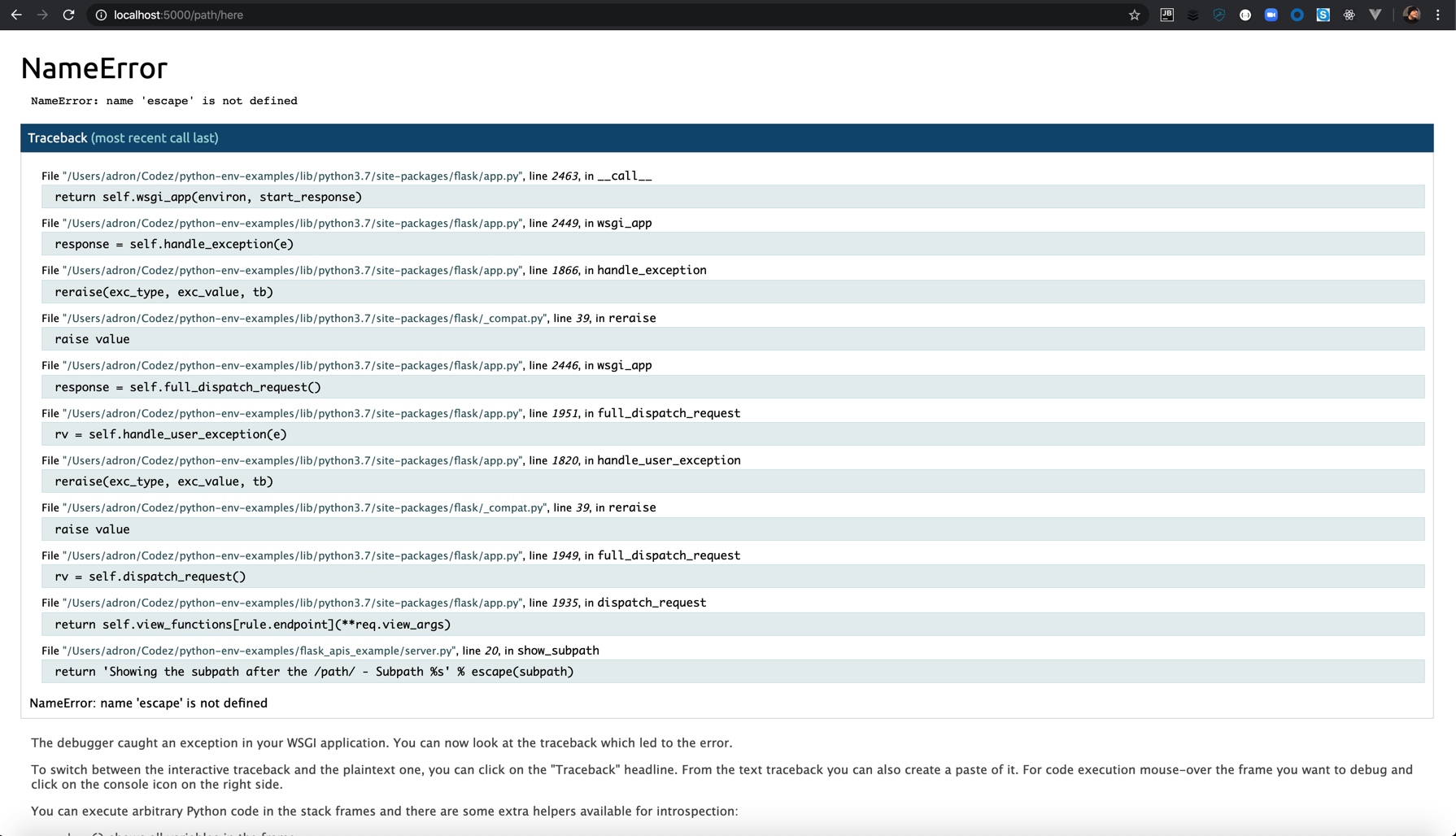
When I set this up the first time I actually received an error.

NameError: name ‘escape’ is not defined
76E13AD7-7079-4BE5-AA88-0C0284765A18

I did a little research, and looked at some libraries, and found I could add the following to the imports. Once this was added things worked fine.

from glob import escape

Converters

A quick interruption, here are the converter types available:

Converter Description
string (default) accepts any text without a slash
int accepts positive integers
float accepts postive floating point values
path like string but also accepts slashes
uuid accepts UUID strings

As you might note, which I did, that maybe escape isn’t a converter included in the Flask converters. I’m not sure which is included where, that is research for another day, but suffice to say it isn’t included in the default Flask converters and I needed to pull it from another dependency.

Back to the routes. The next two show the difference in behavior for unique URLs and redirection behavior. The first of the last two routes, the efforts route, has a trailing slash. If access to the URL is requested without the trailing slash Flask then redirects to the canonical URL with the trailing slash.

@app.route('/efforts/')
def projects():
    return 'Lorem ipsum dolor sit amet, consectetur adipiscing elit. Nam scelerisque tellus sed magna pulvinar egestas. Donec vitae diam in eros porta mollis. Vestibulum sagittis lorem id dolor luctus, quis tincidunt nulla dictum. Etiam ac vulputate massa. Nullam aliquet arcu imperdiet, mattis mi sed, rutrum lectus. Phasellus viverra leo et mi dapibus tincidunt. Nulla facilisi. Cras eget metus turpis. Etiam a elit arcu. Pellentesque ac eros ligula.'

The next route, the about route, is without a slash at the end of the URL. If a request is made to this URL with a slash, a 404 Not Found error is returned. This forces uniqueness for these resources which in turn helps search engines avoid indexing the same page twice.

@app.route('/about')
def about():
    return 'Morbi rhoncus congue justo id malesuada. Mauris semper mattis dui. Etiam sodales dui vitae tincidunt iaculis. Nam id velit accumsan, aliquam lorem ac, ultrices nisl. Aenean non lectus tellus. Mauris rutrum metus ut condimentum efficitur. Nulla a dolor felis. Aenean congue turpis vitae felis commodo, vitae blandit dolor varius. Duis faucibus neque dolor, eu sollicitudin lacus lacinia vel. Etiam hendrerit, nibh vitae porta vestibulum, odio metus sollicitudin justo, in lobortis metus nisi fermentum justo. Cras pellentesque vel nunc posuere fermentum.'

Mission Accomplished! That was a quick 5 minutes eh! Python is slick like that when combined with frameworks like Flask. Happy thrashing code!

Code Repository: https://github.com/Adron/didactic-engine-flask
Unbreaking Python Through Virtual Environments

I wrote some days ago a post “Getting Started With Python Right!“. In this post I wrote about what I’d found to be the best way to setup MacOS for Python development. In it I also added links and a few details to get a Windows or Linux machine setup right for Python development.

However, there’s more, as @tlockney (Thomas Lockney) pointed out in a comment! He detailed,

  1. Since you’re using pyenv, the version of pip you use should always be the one associated with the current version of Python, which won’t be the case when you later switch versions.
  2. People who aren’t clear on what’s going on will likely copy the code you included verbatim, so instead of aliasing the version of pip referenced in the pyenv path, it’s going to always point at the brew installed version.
  3. You really should use virtualenv for pretty much everything and try to avoid ever installing libraries into your global Python environment. If you need tools accessible outside a virtualenv, check out pipx.

The tool I was using in that previous post pyenv does several things:

  • The ability to change the global Python version on a per-user basis.
  • Provide support for per-project Python versions.
  • Allow override of the Python version with an environment variable.
  • Search command for multiple Python versions at a time.

It appears, that pyenv should take care of what I need to have done. But as Thomas points out the version of pip gets out of sync with pyenv depending on use when versions are switched. He then pointed out that the pip being referenced will be out of sync with the installed brew version. Finally, that virtualenv could be used for everything and avoid installing libraries into the global Python environment.

So what does virtualenv do exactly? This tool sets up a project by creating an isolated project specific environment. This way versions, modules, and related elements of the Python stack don’t conflict with other projects that may require different versions or modules.

Now, with the normal oddities of Python environments this tool, like Homebrew, installs pip also. But one can also use pip to install virtualenv. As with most modules, additions, and related things in Python there’s always something to conflated in setup and use in the environment. For example, and for completeness, let’s review some specific warnings for use of virtualenv. These warnings are even listed in the docs called out at the top of the installation steps. I’ve paraphrased them, for completeness, in short.

  1. Use virtualenv-1.9 or greater.
  2. Advise against pip 1.3.

If the steps were followed from the previous article, then the environment is in good shape. To get virtualenv installed issue the following install request with pip.

Step 1 Install virtualenv

pip install virtualenv

From there, virtualenv is ready to use to setup environments. The basic command is

Step 2 Setup a New Environement

virtualenv <dir>

where <dir> is the directory to setup an environment in. Issue the command against a directory and the results will display the following results.

$ virtualenv python-env-examples
Using base prefix '/Users/adron/.pyenv/versions/3.7.3'
New python executable in /Users/adron/Codez/python-env-examples/bin/python3.7
Also creating executable in /Users/adron/Codez/python-env-examples/bin/python
Installing setuptools, pip, wheel...
done.

Once this is done, that provides the following capabilities for the environment.

  • /python-env-examples/lib and /python-env-examples/include now exist and contain libs for the environment, with /python-env-examples/lib/pythonX.X/site-packages being the location that will now receive any packages that are installed to the environment.
  • a bin directory is created for executables to live including a new python executable. We can even use this directory’s path to run a script by issuing /python-env-examples/bin/python or use the specific environment for a pip install. Check the specific versions in that directory with python --version and pip -V to determine what version is setup in that particular environment. This also can be used to determine the difference between the system Python that is setup versus the specific environment.

That’s a lot and a bit cumbersome to understand at first glance. This now provides a clean virtual environment based on a singular directory as root in which to work in. It’s a great idea to navigate around and explore all the pieces that are setup in the directory. One could almost think of this virtual environment like it’s a Docker container. An isolated, stand alone environment in which to run Python tooling.

Step 3 Activate The Environment

The final step I’ll discuss is activating the environment. To do this I navigate to /python-env-examples/bin and source the activate script. It is important to choose the right activate script for your operating system. A list against the bin directory and we can see the other options available.

> ls
activate         activate.ps1     easy_install     pip3             python-config    wheel
activate.csh     activate.xsh     easy_install-3.7 pip3.7           python3
activate.fish    activate_this.py pip              python           python3.7

The activate.ps1 is for powershell, there are other options for various shell options for different operating systems here. Along with the pip and python versions. For my use, I’m going to source ./activate.

source ./activate

Now if python --version and which python is executed the version and path is of the version of Python used in the virtualenv setup environment. This can be extremely useful on Windows or if you want to run an environment completely autonomous of any pre-installed or non-existing environments.

Let’s say you’ve done this but still want the system Python, just simply deactive the setup. To do this run the deactivate script. There shouldn’t be any reason to source this file, just run it as shown.

deactivate

Now we’re ready to run some Python and have adequate management options for the environments to run that code in. Enjoy!

Getting Started With Python Right!

UPDATE POST Added details about virtualenv to complement this post, per Thomas’ comment in the comments section below! Read this post for MacOS specific system Python setup, then read that for more options on how to set things up right!

Recently I sat down to get started on some Python work, specifically on MacOS. I’ve written code in Python before and tried out 2.x and 3.x before. I’m going with 3.x for this and upcoming articles but one thing became apparent. The Python tech stack is still ferociously fragmented in a number of ways, and this post is to provide some clarity if this is your first endeavor into the stack.

First off, 2.7 and 3.8 are the versions that exist in some state as the latest versions. 2.7 is obviously not the latest but is still installed, coded in, and used in a vast number of projects where Python is used. On MacOS for example, it’s the default still, and it should be left alone and the latest installed with appropriate Python environment, PIP for dependency, and related ecosystem necessities. As I walk through these steps, that’s important to know.

Whatever the system environment starting, check out what is on the machine. If on Windows, it’s safe to bet there is nothing on the machine. On Linux or MacOS there will be some version of Python already installed. Running python --version to determine which version of the language is installed.

If you have a version you can then check out which python to figure out where it is installed. This can come in handy if things get a bit confusing, or verifying where the install is currently setup or pointing to within the file structure.

First Step: Get a tool to install Python

On MacOS get brew before doing anything else. For details on Windows check out the docs here. There’s also a great Digital Ocean post by Lisa Tagliaferri “How to Install python 3 and Set Up a Local Programming Environment on Windows 10” if you’re installig Python 3 on Windows 10. For Linux specifically check out these docs.

Once brew is installed issue the command to install the “Simple Python Version Management” pyenv. If this app gives flashbacks to Ruby, it is indeed forked from rbenv so there’s that.

brew install pyenv

Second Step: Install the Latest Python

With pyenv install a sepcific version of Python with the following command.

pyenv install 3.8.0

If there is a new version, install that version instead. On MacOS there is also, of course, already version 2.7 but with pyenv it’ll get the appropriate pieces remapped so that this latest can become the defacto used Python version to work with. To get pyenv to setup this latest installed version us the CLI to set it as the global Python.

pyenv global 3.8.0

One final step to ensure pyenv can be used when and where necessary, now and ongoing in development needs, set the following in your .zshrc.

echo -e 'if command -v pyenv 1>/dev/null 2>&1; then\n  eval "$(pyenv init -)"\nfi' >> ~/.zshrc

If you’re using bash still, make the change accordingly to your ~/.bash_profile.

echo -e 'if command -v pyenv 1>/dev/null 2>&1; then\n  eval "$(pyenv init -)"\nfi' >> ~/.bash_profile

Third Step: Get PIP Installed.

To check the version of pip run pip -V. This command not only shows you which version of pip is installed, but also what version of Python pip is installed to oeprate on (with/on/at/to??). The command and result would look something like this.

pip -V
pip 19.0.3 from /Users/adron/.pyenv/versions/3.7.3/lib/python3.7/site-packages/pip (python 3.7)

Technically, when brew (Homebrew) installed the latest Python has also installed pip and it should be mapped accordingly as shown above in the pip -V command. However this can be set correctly if it isn’t mapped already. Get the path where pip3 is installed by issuing a which command.

which pip3

The path returned, likely /usr/local/bin/pip3, add it to a command to echo it into the startup script of your choice. For example, to add it to the zshrc file.

echo "alias pip=/usr/local/bin/pip3" >> ~/.zshrc

If using bash add it as such.

echo "alias pip=/usr/local/bin/pip3" >> ~/.bash_profile

Fourth Step: Run Some Python Code!

Alright, now that this is done, let’s run some actual Python code and make sure things are installed and setup correctly. For this I created a directory I simply called python-examples.py. Then added the first line of code, a simple print statement.

print("Hello World! BOOM!")

print("These examples point out how these variables can be declared and printed.")

Executing that, just by executing the file python python_examples.py and the following results display.

Hello World! BOOM!
These examples point out how these variables can be declared and printed.

Alright, with that confirmed, we’re all set for further Python development! Enjoy!

References:

My Blog! I have a personal blog at https://compositecode.blog/ that you can also subscribe to where I post additional collected material, thoughts, music, meetups, conferences, videos (like Twitch), open source projects, database work, data science, and much more.