Development Workspace with Terraform on Azure: Part 2 – Packer Images

Series Links: 1, 2 (this entry)

Today I’m going to walk through the install and setup of Packer, and get our first builds running for Azure. I started this work in the previous article in this series, “Development Workspace with Terraform on Azure: Part 1 – Install and Setup Terraform and Azure CLI“. This is needed to continue and simplify what I’ll be elaborating on in subsequent articles.

1: Packer

Packer is another great Hashicorp tool that is available to build virtual machine and related images for a wide range of platforms. Specifically this article is going to cover Azure but the list is long with AWS, GCP, Alicloud, Cloudstack, Digital Ocean, Docker, Hyper-V, Virtual Box, VMWare, and others!

Download & Setup

To download Packer navigate over to the Hashicorp download page. Currently it is at version 1.4.2. I installed this executable the same way I installed Terraform, by untar or unzipping the executable into a path I have setup for all my executable CLI’s. As shown, I simply open up the compressed file and pulled the executable over into my Apps directory, making it immediately executable just like Terraform from anywhere and any path on my system. If you want it somewhere specific and need to setup a path, refer to the previous blog entry for details and links to where and how to set that up.

packer-apps.png

If the packer command is executed, which I’ve done in the following image, it shows the basic commands as a good CLI would do (cuz Hashicorp makes really good CLI tools!)

packer-default-response

The command we’ll be working with mostly to get images setup is the build command. The inspect, validate, and version commands however will become mainstays of use when one really gets into Packer, they’re worth checking out further.

check-box-64Verification Checklist

  • Packer is now setup and can be executed from any path on the system.

2: Packer Azure Setup

The next thing that needs to be done is to setup Packer to work with Azure. To get these first few images building the Device Login will be used for authorization. Eventually, upon further automation I’ll change this to a Service Principal and likely recreate images accordingly, but for now Device Login is going to be fine for these examples. Most of the directions are available via HashiCorp Docs located here. As always, I’m going to elaborate a bit beyond the docs.

The Device Login will need three pieces of information: A SubscriptionID, Resource Group, and Storage Account. The Resource Group will be used in Azure to maintain this group of resources created specific to the Resource Group that live around a particular life-cycle of work. The Storage Account is just a place to store the images that will be created. The SubscriptionID is the ID of your account with Azure.

NOTE: To enable this mode, simply don’t set client_id and client_secret in the Packer build provider.

To get your SubscriptionID just type az login at the terminal. The response will include this value designated simply as “id”. Another value that you’ll routinely need is displayed here too the “tenant_id”. Once logged in you can also get a list of accounts and respective SubscriptionID values for each of the accounts you might have as I’ve done here.

cleanup.png

Here you can see I’ve authenticated against and been authorized in two Azure Accounts. Location also needs to be determined, and can be done so with az account list-locations.

locations.png

This list will continue and continue and continue. From it, a singular location will be chosen for the storage.

In a bash script, I go ahead and assign these values that I’ll need to build this particular image.

[code]
GROUPNAME=”adrons-images”
LOCATION=”westus2″
STORAGENAME=”adronsimagestorage”
[/code]

Now the next step is to create the Resource Group and Storage. With a few echo commands to print out what is going on to the console, I add these commands as shown.

[code]
echo ‘Creating the managed resource group for images.’

az group create –name $GROUPNAME –location $LOCATION

echo ‘Creating the storage account for image storage.’

az storage account create \
–name $STORAGENAME –resource-group $GROUPNAME \
–location $LOCATION \
–sku Standard_LRS \
–kind Storage
[/code]

The final command here is another echo just to identify what is going to be built and then the Packer build command itself.

[code]
echo ‘Building Apache cluster node image.’

packer build node.json
[/code]

The script is now ready to be run. I’ve placed the script inside my packer phase of my build project (see previous post for overall build project and the repository here for details). The last thing needed is a Packer template to build.

check-box-64Verification Checklist

  • Packer is now setup and can be executed from any path on the system.
  • The build has been setup for use with Device Login for this first build.
  • A script is now available to execute Packer for a build without needing to pass parameters every single time and simplifies assurances that the respective storage and resource groups are available for creation of the image.

3: Azure Images

The next step is getting an image or some images built that are needed for further work. For my use case I want several key images built around various servers and their respective services that I want to use to deploy via Terraform. Here’s an immediate shortlist of images we’ll create:

  1. Apache Cassandra Node – An image that is built with the latest Apache Cassandra installed and ready for deployment into a cluster. In this particular case that would be Apache Cassandra v4, albeit I’m going to go with 3.11.4 first and then work on getting v4 installed in a subsequent post. The installation instructions we’ll mostly be following can be found here.
  2. Gitlab Server – This is a product I like to use, especially for pre-rolled build services and all of those needs. For this it takes care of all source control, build services, and any related work that needs to be from inside the workspace itself that I’m building. i.e. it’s a necessary component for an internal corporate style continuous build or even continuous integration setup. It just happens this is all getting setup for use internally but via a public cloud provider on Azure! It can be done in parallel to other environments that one would prospectively control and manage autonomous of any cloud provider. The installation instructions we’ll largely be following are also available via Gitlab here.
  3. DataStax Enterprise 6.7 – DataStax Enterprise is built on Apache Cassandra and extends the capabilities of that database with multi-model options for graph, analytics, search, and many other capabilities and security. For download and installation most of the instructions I’ll be using are located here.

check-box-64Verification Checklist

  • Packer is now setup and can be executed from any path on the system.
  • The build has been setup for use with Device Login for this first build.
  • A script is now available to execute Packer for a build without needing to pass parameters every single time and simplifies assurances that the respective storage and resource groups are available for creation of the image.
  • Now there is a list of images we need to create, in which we can work from to create the images in Azure.

4: Building an Azure Image with Packer

The first image I want to create is going to be used for an Apache Cassandra 3.11.4 Cluster. First a basic image test is a good idea. For that I’ve used the example below to build a basic Ubuntu 16.04 image.

In the code below there are also two environment variables setup, which I’ve included in my bash profile so they’re available on my machine whenever I run this Packer build or any of the Terraform builds. You can see they’re setup in the variables section with a "{{env ​`​TF_VAR_tenant_id`}}". Not that the TF_VAR_tenant_id is prefaced with TF_VAR per Terraform convention, which in Terraform makes the variable just “tenant_id” when used. Also note that things that might look like single quotes are indeed back ticks, not single quotes around TF_VAR_tenant_id. Sometimes the blog formats those oddly so I wanted to call that out! (For example of environment variables, I set up all of them for the Service Principal setup below, just scroll further down)


{
"variables": {
"tenant_id": "{{env `TF_VAR_tenant_id`}}",
"subscription_id": "{{env `TF_VAR_subscription_id`}}",
"storage_account": "adronsimagestorage",
"resource_group_name": "adrons-images"
},
"builders": [{
"type": "azure-arm",
"tenant_id": "{{user `tenant_id`}}",
"subscription_id": "{{user `subscription_id`}}",
"managed_image_resource_group_name": "{{user `resource_group_name`}}",
"managed_image_name": "base_ubuntu_image",
"os_type": "Linux",
"image_publisher": "Canonical",
"image_offer": "UbuntuServer",
"image_sku": "16.04-LTS",
"azure_tags": {
"dept": "Engineering",
"task": "Image deployment"
},
"location": "westus2",
"vm_size": "Standard_DS2_v2"
}],
"provisioners": [{
"execute_command": "chmod +x {{ .Path }}; {{ .Vars }} sudo -E sh '{{ .Path }}'",
"inline": [
"echo 'does this even work?'"
],
"inline_shebang": "/bin/sh -x",
"type": "shell"
}]
}

During this build, when Packer begins there will be several prompts during the build to authorize the resources being built. Because earlier in the post Device Login was used instead of a Service Principal this step is necessary. It looks something like this.

device-login

You’ll need to then select, copy, and paste that code into the page at https://microsoft.com/devicelogin.

logging-in-code-ddevice-login

This will happen a few times and eventually the build will complete and the image will be available. What we really want to do however is get a Service Principal setup and use that so the process can be entirely automated.

check-box-64Verification Checklist

  • Packer is now setup and can be executed from any path on the system.
  • The build has been setup for use with Device Login for this first build.
  • A script is now available to execute Packer for a build without needing to pass parameters every single time and simplifies assurances that the respective storage and resource groups are available for creation of the image.
  • We have one base image building, to prove out that our build template we’ll start with is indeed working. It is always a good idea to get a base build image template working to provide something in which to work from.

5: Azure Service Principal for Automation

Ok, a Service Principal is needed now. This is singular command, but it has to be very specifically the command from what I can tell. Before running that though, know where you are going to store or how you will pass the client id and client secret that will be provided by the principal when it is created.

The command for this is az ad sp create-for-rbac -n "Packer" --role contributor --scopes /subscriptions/00000000-0000-0000-0000-000000000 where all those zeros are the Subscription ID. When this executes and completes all the peripheral values that are needed for authorization via Service Principal.

the-rbac

One of the easiest ways to keep all of the bits out of your repositories is to setup environment variables. If there’s a secrets vault or something like that then it would be a good idea to use that, but for this example I’m going to setup use of environment variables in the template.

Another thing to notice, which is important when building these systems, is that the “Retrying role assignment creation: 1/36″ message. Which points to the fact there are 36 retries built into this because of timing and other irregularities in working with cloud systems. For various reasons, this means when coding against such systems we routinely will have to put in timeouts, waits, and other errata to ensure we get messages we want or mark things disabled as needed.

After running that, just for clarity, here’s what my .bashrc/bash_profile file looks like with the added variables.

[code]
export TF_VAR_clientid=”00000000-0000-0000-0000-000000000″
export TF_VAR_clientsecret=”00000000-0000-0000-0000-000000000″
export TF_VAR_tenant_id=”00000000-0000-0000-0000-000000000″
export TF_VAR_subscription_id=”00000000-0000-0000-0000-000000000”
[/code]

With that set, a quick source ~/.bashrc or source ~/.bash_profile and the variables are all set for use.

check-box-64Verification Checklist

  • Packer is now setup and can be executed from any path on the system.
  • The build has been setup for use with Device Login for this first build.
  • A script is now available to execute Packer for a build without needing to pass parameters every single time and simplifies assurances that the respective storage and resource groups are available for creation of the image.
  • We have one base image building, to prove out that our build template we’ll start with is indeed working. It is always a good idea to get a base build image template working to provide something in which to work from.
  • The Service Principal is now setup so the image can be built with full automation.
  • Environment variables are setup so that they won’t be checked in to the code and configuration repository.

6: Apache Cassandra 3.11.4 Image

Ok, all the pieces are in place. With confirmation that the image builds, that Packer is installed correctly, with Azure Service Principal, Managed Resource Group, and related collateral setup now, building an actual image with installation steps for Apache Cassandra 3.11.4 can now begin!

First add the client_id and client_secret environment variables to the variables section of the template.

[code]
“client_id”: “{{env `TF_VAR_clientid`}}”,
“client_secret”: “{{env `TF_VAR_clientsecret`}}”,
“tenant_id”: “{{env `TF_VAR_tenant_id`}}”,
“subscription_id”: “{{env `TF_VAR_subscription_id`}}”,
[/code]

Next add those same variables to the builder for the image in the template.

[code]
“client_id”: “{{user `client_id`}}”,
“client_secret”: “{{user `client_secret`}}”,
“tenant_id”: “{{user `tenant_id`}}”,
“subscription_id”: “{{user `subscription_id`}}”,
[/code]

That whole top section of template configuration looks like this now.

[code language=javascript]
{
“variables”: {
“client_id”: “{{env `TF_VAR_clientid`}}”,
“client_secret”: “{{env `TF_VAR_clientsecret`}}”,
“tenant_id”: “{{env `TF_VAR_tenant_id`}}”,
“subscription_id”: “{{env `TF_VAR_subscription_id`}}”,
“imagename”: “something”,
“storage_account”: “adronsimagestorage”,
“resource_group_name”: “adrons-images”
},

“builders”: [{
“type”: “azure-arm”,

“client_id”: “{{user `client_id`}}”,
“client_secret”: “{{user `client_secret`}}”,
“tenant_id”: “{{user `tenant_id`}}”,
“subscription_id”: “{{user `subscription_id`}}”,

“managed_image_resource_group_name”: “{{user `resource_group_name`}}”,
[/code]

Now the image can be executed, but let’s streamline the process a little bit more. Since I won’t want but only one image at any particular time from this template and I want to use the template in a way where I can create images and pass in a few more pertinent pieces of information I’ll tweak that in the Packer build script.

Below I’ve added the variable name for the image, and dubbed in Cassandra so that I can specifically reference this image in the bash script with IMAGECASSANDRA="basecassandra". Next I added a command to delete an existing image that would be called this with the az image delete -g $GROUPNAME -n $IMAGECASSANDRA line of script. Finally toward the end of the file I’ve added the variable to be passed into the template with packer build -var 'imagename='$IMAGECASSANDRA node-cassandra.json. Note the odd way to concatenate imagename and the variable of the passed in variable from the bash script. This isn’t super clear which way to do this, but after some troubleshooting this at least works on Linux! I’m assuming it works on MacOS, if anybody else tries it and it doesn’t please let me know.

[code language=bash]
GROUPNAME=”adrons-images”
LOCATION=”westus2″
STORAGENAME=”adronsimagestorage”
IMAGECASSANDRA=”basecassandra”

echo ‘Deleting existing image.’

az image delete -g $GROUPNAME -n $IMAGECASSANDRA

echo ‘Creating the managed resource group for images.’

az group create –name $GROUPNAME –location $LOCATION

echo ‘Creating the storage account for image storage.’

az storage account create \
–name $STORAGENAME –resource-group $GROUPNAME \
–location $LOCATION \
–sku Standard_LRS \
–kind Storage

echo ‘Building Apache cluster node image.’

packer build -var “‘imagename=$IMAGECASSANDRA'” node-cassandra.json
[/code]

With that done the build can be run things without needing to manually delete the image each time since it is part of the script now. The next part to add to the template is more of the needed installation steps for Apache Cassandra. These steps can be found on the Apache Cassandra site here.

Under the provisioners section of the Packer template I’ve added the installation steps and removed the sudo part of the commands. Since this runs as root there’s really no need for sudo. The inline part of the provisioner when I finished looks like this.

[code]
“inline”: [
“echo ‘Starting Cassandra Repo Add & Installation.'”,
“echo ‘deb http://www.apache.org/dist/cassandra/debian 311x main’ | tee -a /etc/apt/sources.list.d/cassandra.sources.list”,
“curl https://www.apache.org/dist/cassandra/KEYS | apt-key add -“,
“apt-get update”,
“apt-key adv –keyserver pool.sks-keyservers.net –recv-key A278B781FE4B2BDA”,
“apt-get install cassandra”
],
[/code]

With that completed we now have the full workable template to build a node for use in starting or using as a node within an Apache Cassandra cluster. All the key pieces are there. The finished template is below, with the build script just below that.


{
"variables": {
"client_id": "{{env `TF_VAR_clientid`}}",
"client_secret": "{{env `TF_VAR_clientsecret`}}",
"tenant_id": "{{env `TF_VAR_tenant_id`}}",
"subscription_id": "{{env `TF_VAR_subscription_id`}}",
"imagename": "",
"storage_account": "adronsimagestorage",
"resource_group_name": "adrons-images"
},
"builders": [{
"type": "azure-arm",
"client_id": "{{user `client_id`}}",
"client_secret": "{{user `client_secret`}}",
"tenant_id": "{{user `tenant_id`}}",
"subscription_id": "{{user `subscription_id`}}",
"managed_image_resource_group_name": "{{user `resource_group_name`}}",
"managed_image_name": "{{user `imagename`}}",
"os_type": "Linux",
"image_publisher": "Canonical",
"image_offer": "UbuntuServer",
"image_sku": "18.04-LTS",
"azure_tags": {
"dept": "Engineering",
"task": "Image deployment"
},
"location": "westus2",
"vm_size": "Standard_DS2_v2"
}],
"provisioners": [{
"execute_command": "chmod +x {{ .Path }}; {{ .Vars }} sudo -E sh '{{ .Path }}'",
"inline": [
"echo 'Starting Cassandra Repo Add & Installation.'",
"echo 'deb http://www.apache.org/dist/cassandra/debian 311x main' | tee -a /etc/apt/sources.list.d/cassandra.sources.list",
"curl https://www.apache.org/dist/cassandra/KEYS | apt-key add -",
"apt-get update",
"apt-key adv –keyserver pool.sks-keyservers.net –recv-key A278B781FE4B2BDA",
"apt-get -y install cassandra"
],
"inline_shebang": "/bin/sh -x",
"type": "shell"
}]
}


GROUPNAME="adrons-images"
LOCATION="westus2"
STORAGENAME="adronsimagestorage"
IMAGECASSANDRA="basecassandra"
echo 'Deleting existing image.'
az image delete -g $GROUPNAME -n $IMAGECASSANDRA
echo 'Creating the managed resource group for images.'
az group create –name $GROUPNAME –location $LOCATION
echo 'Creating the storage account for image storage.'
az storage account create \
–name $STORAGENAME –resource-group $GROUPNAME \
–location $LOCATION \
–sku Standard_LRS \
–kind Storage
echo 'Building Apache cluster node image.'
packer build -var 'imagename='$IMAGECASSANDRA node-cassandra.json

view raw

build.sh

hosted with ❤ by GitHub

check-box-64Verification Checklist

  • Packer is now setup and can be executed from any path on the system.
  • The build has been setup for use with Device Login for this first build.
  • A script is now available to execute Packer for a build without needing to pass parameters every single time and simplifies assurances that the respective storage and resource groups are available for creation of the image.
  • We have one base image building, to prove out that our build template we’ll start with is indeed working. It is always a good idea to get a base build image template working to provide something in which to work from.
  • The Service Principal is now setup so the image can be built with full automation.
  • Environment variables are setup so that they won’t be checked in to the code and configuration repository.
  • Packer add package repository and installs Cassandra 3.11.4 on Ubuntu 18.04 LTS in Azure.

I’ll get to the next images real soon, but for now, go enjoy the weekend and the next post will be up in this series in about a week and a half!

Error “Build ‘azure-arm’ errored: adal: Failed to execute the refresh request. Error =…”

So I’ve been fighting through getting some Packer images built in Azure again. I haven’t done this in almost a year but as always I’ve just walked in and BOOM I’ve got an error already. This first error I’ve gotten is after I create an Resource Group and then a Service Principal. I’ve gotten all the variables set and then I validated my json for the node I’m trying to build and then tried to build, which is when the error occurs.


The exact text of the error is “Build ‘azure-arm’ errored: adal: Failed to execute the refresh request. Error = ‘Get http://169.254.169.254/metadata/identity/oauth2/token?api-version=2018-02-01&resource=https%3A%2F%2Fmanagement.azure.com%2F: dial tcp 169.254.169.254:80: connect: no route to host’

Now this leaves me with a number of questions. What is this 169.254.169.254 and why is that the IP for the attempt to communicate. That seems familiar when using Hashicorp tooling. Also, why is there no route to the host? This example (as I’ve pasted below) is the same thing as the example in the Microsoft docs here.

The JSON Template for Packer


{
"variables": {
"client_id": "{{env `TF_VAR_clientid`}}",
"client_secret": "{{env `TF_VAR_clientsecret`}}",
"tenant_id": "{{env `TF_VAR_tenant_id`}}",
"subscription_id": "{{env `TF_VAR_subscription_id`}}"
},
"builders": [{
"type": "azure-arm",
"client_id": "{{user `client_id`}}",
"client_secret": "{{user `client_secret`}}",
"tenant_id": "{{user `tenant_id`}}",
"subscription_id": "{{user `subscription_id`}}",
"managed_image_resource_group_name": "myResourceGroup",
"managed_image_name": "myPackerImage",
"os_type": "Linux",
"image_publisher": "Canonical",
"image_offer": "UbuntuServer",
"image_sku": "16.04-LTS",
"azure_tags": {
"dept": "Engineering",
"task": "Image deployment"
},
"location": "East US",
"vm_size": "Standard_DS2_v2"
}],
"provisioners": [{
"execute_command": "chmod +x {{ .Path }}; {{ .Vars }} sudo -E sh '{{ .Path }}'",
"inline": [
"apt-get update",
"apt-get upgrade -y",
"apt-get -y install nginx",
"/usr/sbin/waagent -force -deprovision+user && export HISTSIZE=0 && sync"
],
"inline_shebang": "/bin/sh -x",
"type": "shell"
}]
}

view raw

node.json

hosted with ❤ by GitHub

Any ideas? Thoughts?

When I get this sorted, will update with answers!

UPDATED @ 17:47 Aug 7th with 95% of the SOLUTION

Big shout out of thanks to Jamie Phillips @phillipsj73 for the direct assist and Patrick Svensson @firstdrafthell for the ping connection via the Twitter. Big props for the patience to dig through my template for Packer and figuring out what happened. On that note, a few things actually were wrong, here’s the run down.

1: Environment Variables, Oops

Jamie noticed after we took a good look. I hadn’t used the actual variable names of the environment variables nor assigned them correctly. Notice at the top, the first block is for variables. Each of the variables above is correct, for declaring the environment variables themselves. These of course are then set via my bash startup scripts.

[code]{
“variables”: {
“client_id”: “{{env `TF_VAR_clientid`}}”,
“client_secret”: “{{env `TF_VAR_clientsecret`}}”,
“tenant_id”: “{{env `TF_VAR_tenant_id`}}”,
“subscription_id”: “{{env `TF_VAR_subscription_id`}}”
},
[/code]

Which in turn, what this does is take the environment variables and passes them to what will be user variables for the builder block to make use of. Which at this point you may see what I did wrong. These variables are named client_id, client_secret, tenant_id, and subscription_id which means in the builders blog it needs to be assigned as such.

[code]
“client_id”: “{{user `client_id`}}”,
“client_secret”: “{{user `client_secret`}}”,
“tenant_id”: “{{user `tenant_id`}}”,
“subscription_id”: “{{user `subscription_id`}}”,
[/code]

Notice in the original code above from the Github gist I re-assigned them back to the actual environment variables which won’t work. With that fixed the build almost worked. I’d made one other mistake.

2: Resource Groups != Managed Resource Groups

Ok, so Microsoft has an old way and a new way I’ve been realizing of how they want to build images. Has anyone realized they’ve had to reinvent their entire cloud offering from the back end up more than once? I’m… well, let’s just go with speechless. More on that later.

So creating a resource group by selecting resource groups in the interface and then creating a resource group had not appeared to work. Something was amiss still so I went a used the CLI command. Yes, it may be the case that the Azure CLI is not in sync with the Azure Console UI. But alas, this got it to work. I had to make sure that the Resource Group created is indeed a Managed Resource Group per this. It also left me pondering that maybe, even though they’re very minimalist and to the point, these instructions here might need some updating with actual detailed specifics.

I got the correct Managed Resource Group and changed it to what I had just created, which is the managed_image_resource_group_name property and commenced a build again. It ran for many minutes, I didn’t count, and at the end BOOM! Another big error.

explosion

This error actually stated that it was likely Packer itself. I hadn’t had one of these before! With that I’m wrapping up for today (the 6th of August) but will be back at it tomorrow to get this resolved.

UPDATED @ 18:34 Aug 8th – Day 2 of A Solution?

Notice this title for this update is a question, because it’s a solution but it isn’t. I’ve fought through a number of things trying to get this to work but so far it seems like this. The Packer template is finishing to build on the creation side of things but when it is cleaning up it comes crashing down. It then requests I file a bug, which I did. The bug is listed here on the Packer repo on Github in the issues.

https://github.com/hashicorp/packer/issues/7961

Here is the big catch to this bug though. I went in and could build a VM from the image that is created even though Packer is throwing an error. I went ahead and created the crash.log gist and requisite details so this bug could be further researched, but it honestly seems like Azure just isn’t reporting a cleanup of the resources correctly back to Packer. But at this point I’m not entirely sure. The current state of the Packer template file I’m trying to build is available via a gist too.

So at this point I’m kind of in a holding pattern waiting to figure out how to clean up this automation step. I need two functional elements, one is this to create images that are clean and primarily have the core functionality and capabilities for the server software – i.e. the Apache Cassandra or DSE Cluster nodes. The second is to get a Kubernetes Cluster built and have that run nodes and something like a Cassandra operator. With the VM route kind of on hold until this irons itself out with Azure, I’m going to spool up a Kubernetes cluster in Azure and start working on that tomorrow.

UPDATED @ 16:02 Aug 14th – Solution is in place!

I filed the issue #7961 listed previously in the last update, which was different but effectively a duplicate of #7816 that is fixed with the patch in #7837. I rolled back to Packer version 1.4.1 and also got it to work, which points to the issues being something rooted in version 1.4.2. With that, everything is working again and I’ve got a good Packer build. The respective completed blog entry where I detail what I’m putting together will be coming out very soon now that things are cooking appropriately!

Also note that the last bug, file in #7961 wasn’t the bug that originally started this post, but was where I ended up with. The build of the image however, being the important thing, is working just fine now! Whew!

Development Workspace with Terraform on Azure: Part 1 – Install and Setup Terraform and Azure CLI

Prerequisites before all of this.

Have a basic understanding of how to use Terraform and what it does. This is covered pretty well in the Hashicorp Docs here (single page read <5 minutes) and if you have a LinkedIn Learning account check out my Terraform course “Learning Terraform“.

Beyond that some basic CLI/terminal knowledge, understand where environment variables (as I detail here, here, and here for some starters) are, and miscellaneous knowledge. You’ll also need knowledge and user experience with Git. Most of these things I’ll detail explicitly but otherwise I’ll either link to or provide context for additional information throughout the article.

1: Terraform

Download

You’ll need to first install Terraform and make it available for use on your machine. To do this navigate over to the Hashicorp TerraformTerraform site and to the download section. As of this time 0.12.6 is available, and for the foreseeable future this version or versions coming will be just fine.

Install

You’ll need to unzip this somewhere in a directory that you’ve got the path mapped for execution. In my case I’ve setup a directly I call “Apps” and put all of my CLI apps in that directory. Then add it to my path environment variable and then terraform becomes available to me from any terminal wherever I need it. My path variable export on Linux and Mac look like this.

[code]export PATH=$PATH:/home/adron/Apps[/code]

Now you can verify that the Terraform CLI is available by typing terraform in any terminal and you should get a read out of the available Terraform commands.

For those of you who might be trying to install this on the WSL (Windows Subsystem for Linux), on Windows itself, or some variance there is specific instructions for that too. Check out Hashicorp’s installation instructions for more details on several methods and a tutorial video, plus the Microsoft Docs on installing Terraform on the WSL.

check-box-64Verification Checklist

  • Terraform is installed and executable from the terminal in whichever folder on the system.

2: Azure CLI

For this tutorial, there are several ways for Terraform to authenticate to Azure, I’ll be using the Azure CLI authentication method as detailed in this tutorial from Hashicorp. There are also some important notes about the Azure CLI. The Azure CLI method in conjunction with the AzureRM Terraform Provider is used to build out resources using infrastructure as code paradigms, because of this it is important also to insure we have the right versions of everything to work together.

The Caveats

For the AzureRM, which will be downloaded automatically when we setup the repository and initialize it with the terraform init command, we’ll want to make sure we have version 1.20 or greater. Previous versions of the AzureRM Provider used a method of authorizing that reset credentials after an hour. A clear issue.

Terraform also only support authenticating using the az CLI and it must be avilable in the path of the system, same as the way terraform is available via the path. In other words, if both terraform and az can be executed from anywhere in the terminal we’re all set. Using the older methods of Powershell Cmdlets or azure CLI methods aren’t supported anymore.

Authenticating via the Azure CLI is only supported when using a “User Account” and not via Service Principal (ex: az login --service-principal). This works perfectly since these environments I’m building are specifically for my development needs. If you’d like to use this example as a more production focused example, then using something like Service Principals or another systems level verification, authentication, and authorization model should be used. For other examples check out authentication via a Service Principal and Client Secret, Service Principal and Client Certificate, or Managed Service Identity.

Installing

To get the Azure CLI installed I followed the manual installation on Debian/Ubuntu Linux process. For Windows installation check out these instructions.


# Update the latest packages and make sure certs, curl, https transport, and related packages are updated.
sudo apt-get update
sudo apt-get install ca-certificates curl apt-transport-https lsb-release gnupg
# Download and install the Microsoft signing key.
curl -sL https://packages.microsoft.com/keys/microsoft.asc | \
gpg –dearmor | \
sudo tee /etc/apt/trusted.gpg.d/microsoft.asc.gpg > /dev/null
# Add the software repository of the Azure CLI.
AZ_REPO=$(lsb_release -cs)
echo "deb [arch=amd64] https://packages.microsoft.com/repos/azure-cli/ $AZ_REPO main" | \
sudo tee /etc/apt/sources.list.d/azure-cli.list
# Update the repository information and install the azure-cli package.
sudo apt-get update
sudo apt-get install azure-cli

view raw

install.sh

hosted with ❤ by GitHub

Login & Setup

az login

It’ll bring up a browser that’ll give you a standard Microsoft auth login for your Azure Account.

login.png

When that completes successfully a response is returned in the terminal as shown.

loggedin.jpg

Pieces of this information will be needed later on so I always copy this to a text file for easy access. I usually put this file in a folder I call “DELETE THIS CUZ SECURITY” so that I remember to delete it shortly thereafter so it doesn’t fall into the hands of evil!

For all the other operating systems and places that the Azure CLI can be installed, check out the docs here.

Once logged in a list of accounts can be retrieved too. Run az account list to get the list of accounts available. If you only have one account (re: subscriptions) then you’ll just see exactly what was displayed when you logged in. However if you have other peripheral information, those accounts will be shown here.

If there is more than one subscription, one needs selected and set. To do that execute the following command by passing the subscription id. That’s the second value in that list of values above. Yes, it is kind of odd that they use account and subscription interchangeably in this situation, and that subscription id isn’t exactly obvious if this data is identified as an account and not a subscription, but we’ll give Microsoft a pass for now. Suffice it to say, account id and subscription id in this data is the stand alone id field in the aforementioned data.

az account set --subscription="id" where id is subscription id, or as shown in az account list the id there, whatever one wants to call it.

Configuring Terraform Azure CLI Auth

To do this we will go ahead and setup the initial repository and files. What I’ve done specifically for this is to navigate to Github to the new repository path https://github.com/new. Then I selected the following options:

  1. Repository Name: terraform-todo-list
  2. Description: This is the infrastructure project that I’ll be using to “turn on” and “turn off” my development environment every day.
  3. Public Repo
  4. I checked Initialize this repository with a README and then added the .gitignore file with the Terraform template, and the Apache License 2.0.

newproject.png

This repository is now available at https://github.com/Adron/terraformer-todo-list. All of the steps and details outlined in this blog entry will be available in this repository plus any of my ongoing work on bastion servers, clusters, kubernetes, or other related items specific to my development needs.

With the repository cloned locally via git clone git@github.com:Adron/terraformer-todo-list.git there needs to be a main.tf file created. Once created I’ve added the azurerm provider block provider "azurerm" { version = "=1.27.0" } into the file. This enables Terraform to be executed from this repository directory with terraform init. Running this will pull down the azurerm provider dependency. If everything succeeds you’ll get a response from the command.

terraform-init-success

However if it fails, routinely I’ve ended up out of sync with Terraform version vs. provider version. As mentioned above we definitely need 1.20.0 or greater for the examples in this post. However, I’m also running Terraform at version 0.12.6 which requires at least 1.27.0 of the azurerm or better. If you see an error like this, it’s usually informative and you’ll just need to change the version number so the version of Terraform you’re using will pull down the right version.

terraform-init-fail

Next I run terraform plan and everything should respond with no change to infrastructure requested response.

terraform-plan-aok.png

At this point I want to verify authentication against my Azure account with my Terraform CLI, to do this there are two additional fields that need to be added to the provider: subscription_id and tenant_id. The configuration will look similar to this, except with the subscription id and tenant id from the az account list data that was retrieved earlier when setting up and finding the the Azure account details from the Azure CLI.

terraform-main-auth

Run terraform plan again to see the authentication results, which will look just like the terraform plan results above. With this done there’s just one more thing to do so that we have a good work space in which to work with Terraform against Azure. I always, at this point of any project with Terraform and Azure, setup a Resource Group.

check-box-64Verification Checklist

  • Terraform is installed and executable from the terminal in whichever folder on the system.
  • Azure CLI is installed and executable from the terminal in whichever folder on the system.
  • The Azure CLI has been used to login to the Azure account and the subscription/account set for use as the default subscription/account for the Azure CLI commands.
  • A repository has been setup on Github (here) that has a main.tf file that I used to create a single Azure Resource Group in which to do future work within.

3: Azure Resource Group

Just for clarity, a few details about the resource group. A Resource Group in Azure is a grouping that should share the same lifecycle, which is exactly what I’m aiming to do with all of these resources on a day to day basis for development. Every day I intend to start these resources in this Resource Group and then shut them all down at the end of the day.

There are other specifics about what exactly a Resource Group is, but I’ll leave the documentation to be read to elaborate further, for my mission today I just want to have a Resource Group available for further Terraform work. In Terraform the way I go about creating a Resource Group is by adding the following to my main.tf file.


provider "azurerm" {
version = "=1.27.0"
subscription_id = "00000000-0000-0000-0000-000000000000"
tenant_id = "11111111-1111-1111-1111-111111111111"
}
resource "azurerm_resource_group" "adrons_resource_group_workspace" {
name = "adrons_workspace"
location = "West US 2"
tags = {
environment = "Development"
}
}

view raw

main.tf

hosted with ❤ by GitHub

Run terraform plan to see the changes. Then run terraform apply to make the changes, which will need a confirmation of yes.

terraform-apply-done

Once I’m done with that I go ahead and issue a terraform destroy command, giving it a yes confirmation when asked, to destroy and wrap up this work for now.

terraform-destroy-cleanup

check-box-64Verification Checklist

  • Terraform is installed and executable from the terminal in whichever folder on the system.
  • Azure CLI is installed and executable from the terminal in whichever folder on the system.
  • The Azure CLI has been used to login to the Azure account and the subscription/account set for use as the default subscription/account for the Azure CLI commands.
  • A repository has been setup on Github (here) that has a main.tf file that I used to create a single Azure Resource Group in which to do future work within.
  • I ran terraform destroy to clean up for this set of work.

4: Using Environment Variables

There is one more thing before I want to commit this code to the repository. I need to get the subscription id and tenant id out of the main.tf file. One wouldn’t want to post their cloud access and identification information to a public repository, or ideally to any repository. The easy fix for this is to implement some interpolated variables to pull from environment variables. I can then set the environment variables via my startup script (such as .bash_profile or .bashrc or even the IDE I’m running the Terraform from like Intellij or Webstorm for example). In that script setting the variables would look something like this.


export TF_VAR_subscription_id="00000000-0000-0000-0000-000000000000"
export TF_VAR_tenant_id="11111111-1111-1111-1111-111111111111"

Note that each variable is prepended with TF_VAR. This is the convention so that Terraform will look through and pick up all of the variables that it needs to work with. Once these variables are added to the startup script, run a source ~/.bashrc (linux) or source ~/.bash_profile (on Mac) to set those variables.  For Windows check out this to set the environment variables. With that set there are a few more steps.

In the repository create a file named variables.tf and add the two variables variable "subscription_id" {} and variable "tenant_id" {}. Then in the main.tf file change the subscription_id and tenant_id fields to be assigned variables like subscription_id = var.subscription_id and tenant_id = var.tenant_id. Now run terraform plan and these results should display.

terraform-plan-after-variables

Now the terraform apply can be applied or terraform destroy to create or destroy the Resource Group. The last step now is to just commit this infrastructure code with the variables now removed from the main.tf file.

git add -A

git commit -m 'First executable resource.'

git rebase to pull in all the remote default files and such and merge those with the local additions.

git push -u origin master then to push the changes and set the master local branch to track with the remote branch master.

check-box-64Verification Checklist

  • Terraform is installed and executable from the terminal in whichever folder on the system.
  • Azure CLI is installed and executable from the terminal in whichever folder on the system.
  • The Azure CLI has been used to login to the Azure account and the subscription/account set for use as the default subscription/account for the Azure CLI commands.
  • A repository has been setup on Github (here) that has a main.tf file that I used to create a single Azure Resource Group in which to do future work within.
  • I ran terraform destroy to clean up for this set of work.
  • Private sensitive data has been moved from the main.tf file into environment variables so that it isn’t copied to the repository.
  • A variables.tf file has been added for the aforementioned variables that map to environment variables.
  • The code base has been committed to Github at https://github.com/Adron/terraformer-todo-list.
  • Both terraform plan and terraform apply deploy as expected and terraform destroy removes infrastructure cleanly as expected.

Next steps coming soon!

New Live Coding Streams and Episodes!

I’ve been working away in Valhalla on the next episodes of Thrashing Code TV and subsequent content for upcoming Thrashing Code Sessions on Twitch (follow) and Youtube (subscribe). The following I’ve broken into the main streams and shows that I’ll be putting together over the next days, weeks, and months and links to sessions and shows already recorded. If you’ve got any ideas, questions, thoughts, just send them my way.

Colligere (Next Session)

Coding has been going a little slow, in light of other priorities and all, but it’ll still be one of the featured projects I’ll be working on. Past episodes are available here, however join in on Friday and I’ll catch everybody up, so you can skip past episodes if you aren’t after specific details and just want to join in on future work and sessions.

In this next session, this Friday the 9th at 3:33pm PST, I’m going to be working on reading in JSON, determining what type of structure the JSON should be unmarshalled into, and how best to make that determination through logic and flow.

Since Go needs something to unmarshall JSON into, a specific structure, I’ll be working on determining a good way to pre-read information in the schema configuration files (detailed in the issue listed below) so that a logic flow can be implemented that will then begin the standard Go JSON unmarshalling of the object. So this will likely end up including some hackery around reading in JSON without the assistance of the Go JSON library. Join in and check out what solution(s) I come up with.

The specific issue I’ll be working on is located on Github here. These sessions I’m going to continue working on, but will be a little vague and will start working on the Colligere CLI primarily on Saturday’s at 10am. So you can put that on your schedule and join me then for hacks. If you’d like to contribute, as always, reach out via here, @Adron, or via the Github Colligere Repository and let’s discuss what you’d like to add.

Getting Started with Go

This set of sessions, which I’ve detailed in “Getting Started with Go“, I’ll be starting on January 12th at 4pm PST. You can get the full outline and further details of what I’ll be covering on my “Getting Started with Gopage and of course the first of these sessions I’ve posted details on the Twitch event page here.

  • Packages & the Go Tool – import paths, package declarations, blank imports, naming, and more.
  • Structure – names, declarations, variables, assignments, scope, etc., etc.
  • Basic Types – integers, floats, complex numbers, booleans, strings, and constants.

Infrastructure as Code with Terraform and Apache Cassandra

I’ll be continuing the Terraform, bash, and related configuration and coding of using infrastructure as code practices to build out, maintain, and operate Apache Cassandra distributed database clusters. At some point I’ll likely add Kubernetes, some additional on the metal cluster systems and start looking at Kubernetes Operators and how one can manage distributed systems on Kubernetes using this on the metal environment. But for now, these sessions will continue real soon as we’ve got some systems to build!

Existing episodes of this series you can check out here.

Getting Started with Multi-model Databases

This set of sessions I’ve detailed in “Getting Started with a Multi-model Database“, and this one I’ll be starting in the new years also. Here’s the short run down of the next several streams. So stay tuned, subscribe or follow my Twitch and Youtube and of course subscribe to the Composite Code blog (should be to the left, or if on mobile click the little vertical ellipses button)

  1. An introduction to a range of databases: Apache Cassandra, Postgresql and SQL Server, Neo4j, and … in memory database. Kind of like 7 Databases in 7 Weeks but a bunch of databases in just a short session!
  2. An Introduction – Apache Cassandra and what it is, how to get a minimal cluster started, options for deploying something quickly to try it out.
  3. Adding to Apache Cassandra with DataStax Enterprise, gaining analytics, graph, and search. In this session I’ll dive into what each of these capabilities within DataStax Enterprise give us and how the architecture all fits together.
  4. Deployment of Apache Cassandra and getting a cluster built. Options around ways to effectively deploy and maintain Apache Cassandra in production.
  5. Moving to DataStax Enterprise (DSE) from Apache Cassandra. Getting a DSE Cluster up and running with OpsCenter, Lifecycle Manager (LCM), and getting some queries tried out with Studio.

Terraform “Invalid JWT Signature.”

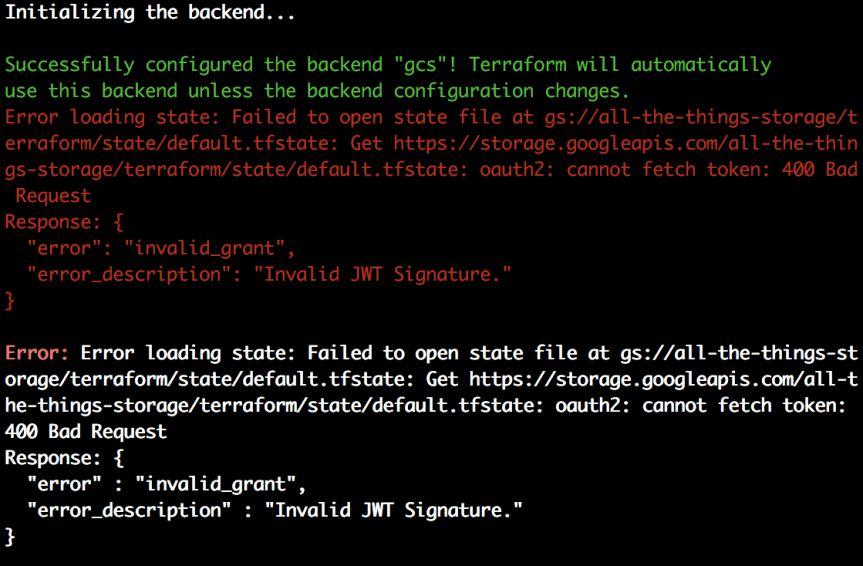
I ran into this issue recently. The “Invalid JWT Signature.” error while running some Terraform. It appeared to occur whenever I was setting up a bucket in Google Cloud Platform to use for a back-end to store Terraform’s state. In console, here’s the exact error.

terraform-jwt-invalid.png

My first quick searches uncovered some Github issues that looked curiously familiar. Invalid JWT Token when using Service Account JSON #3100 which was closed without any particular resolution. Upon further searching it didn’t help to much but I’d be curious as to what the resolution was. The second is Creating GCP project in terraform #13109 which sounded much more on point compared to my issue. This appeared closer to my issue but it looked like I should probably just start from scratch, since this did work on one machine already but just didn’t work on this machine I shifted to. (Grumble grumble, what’d I miss).

The Solution(s)?

In the end this is a message, if you work on multiple machines with multiple cloud accounts you might get the keys mixed up. In this particular case I reset my NIC (i.e. you can just reboot too, especially if on Windows it’s just easier to do that). Then everything just started working. In some cases however, the JSON with the gcloud/gcp keys needs to be regenerated as the old key was rolled or otherwise invalidated.