
- The combined Seattle Scalability + Cassandra meetup, which I dubbed Operations & Developers of Distributed Systems, was a success. There was some awesome Twitter interactions too including Ashley Ratieri’s notes. I also posted a few pictures of the group. Fellow DataStaxian @nkmoha came into town to record the meetup, and I’ll be sure to get that posted out to the meetups and here once the videos are posted.
- The next two meetups are scheduled for September and October already.
- Started regularly streaming on Twitch. Follow, subscribe, comment, throw code ideas my way and any ideas you’d like me to code against. I’m open to all sorts of things to add value to the streams.
- Finished up a bunch of video streams on a range of content:
- Thrashing Code Session A004 – Jetbrains Rider Environment Variable Details + Refactoring + Features
- Thrashing Code Special – Building a *ON THE METAL* Cassandra Cluster + Bastion Server with Ansible (unedited 4 hr version)
- Thrashing Code Special – Building a *ON THE METAL* Cassandra Cluster + Bastion Server with Ansible (edited 2.5 hr version)
- Thrashing Code Session C# A003 dotnetcore conflicts + Environment Variables + Docker
- Thrashing Code Session C# A002 Getting `docker-compose` Services Running Part 2
- Thrashing Code Session C# A002 Getting `docker-compose` Services Running Part 1
- Thrashing Code Session C# A001 Building against DataStax Enterprise Cassandra with C#.
- Thrashing Code Session Go B002 Testing out Golang Random Data Generation Libraries
- Thrashing Code Session Go B001 Trying to Relight the Fire For Colligere (Go Coding)
- Got a couple of Distributed Data Shows published
- Put together a Github Pages site for adding detailed information about what I’ve learned about live streaming coding and related content via Twitch and YouTube. The repo is here and the site is here.
- Continuing development on Colligere.
- Cleaned up and got the Data Diluvium build going again.
- Continuing development on InteroperabilityBlackBox.
- Changed and updating the multi-cloud repository with new Terraform and mission. More information to come in the near future on this one.
Thrashing Code Special Session: Netboot, Debian, Fighting BIOS UEFI, ISC DHCP, Ansible, Cassandra Cluster, and More

Recently my friend swung by to record a Twitch stream on setting up the network, hardware, OS loads, PXE boot, and related items for the cluster in the office. Here’s a rundown of notes, details, and related links and such from the video, and as icing on the cake, here’s the video after some edits. I’ve managed to cut the Twitch stream down to a clean 150 minutes and 40 seconds from over 240 minutes! A little bit more digestible in this shorter format.
Some of the additional changes, that you’ll distinctly notice if you watched the original stream, is that I cleaned up the audio in some places, attempted to raise the audio in others, and for the mono audio I bumped it out to stereo so it isn’t so strange to listen to. I’ve also added callout text for all the configuration files edited, and some other commands here and there were Jeremy uses his fast typing to open a file so fast you might not see which it was. Overall, it should be easier to listen to, more bite size in segments, and more useful to reference.
In addition, below I’ve broken out key parts of the process at their respective time points.
- 0:00:56 Determining what’s going to be setup and installed; Starting with a net install, setting up bastion server first, then figuring out the cassandra install once we have that.
- 0:02:10 Added lftp.[sourcecode language=”sourcecode=”bash”]sudo apt-get install lftp[/sourcecode]
- 0:02:50 Whoops, wrong initial iso image. Cut out the cycling through BIOS and mess as that needs to be setup per whatever machines are involved. But now, back to the correct Debian image.
- 0:04:20 Getting image from Debian Distro FTP Servers. ftp.us.debian.org at path ftp://ftp.us.debian.org/debian-cdimage/current/amd64/iso-cd.
- 0:04:46 Plan is: Initial server will be a DHCP server setup so we can setup TFTP options to clients. – TFTP Trivial File Transfer Protocol – TFTP will then be used to grab the kernal and ramdisk for Debian which will contain the installer. This will include a preseed file for Debian.
- 0:07:36 Initial setup of Debian.
- 0:08:05 Setup of the NIC with two ports begins. One port for internet, one port for inward facing network for the cluster.
- 0:11:04 Setup of the drives, since there’s a number of disks in the bastion server. Includes setup of home, swap, etc and Jeremy’s thoughts on that. Then some booting conflicts with the ssd vs. flash vs. other drives.
- 0:12:40 Jeremy and I discuss swap, failure approaches and practices.
- 0:14:10 Discussing various ways to automate the installation. Preseed, kickstart, various automated installs, etc.
- 0:30:38 A request for a bigger font, so Jeremy tweaks that while the webcam camera goes all auto-focus nightmare.
- 0:31:26 Jeremy installs his dot files. For more on dot files check out here, here, here, and all the dot files on Github here are useful.
- 0:32:30 Installing & configuration of ISC (Internet Systems Consortium) DHCP (Dynamic Host Configuration Protocol) download. The Debian docs page. To install issue command[sourcecode language=”bash”]sudo apt-get install isc-dhcp-server[/sourcecode]
. Configuration file is /etc/default/isc-dhcp-server.
- 0:32:50 Configure the isc-dhcp-server file.
- 0:33:35 Configure the dhcpd.conf file.
- 0:34:10 Initial subnet setup with 192 range,
- 0:36:44 Oh shit, wrong range. Switching to guns, going with 10 dot range.
- 0:38:10 Troubleshooting some as server didn’t start immediately.
- 0:39:17 Beginning of NAT Traffic setup & related.
- 0:39:38 Setup of iptables begins.
- 0:40:03 Jeremy declares he’ll just setup the iptables from memory. Then, he does indeed setup iptables from memory.
- 0:41:49 Setup port 22 and anything on the inside network.
- 0:42:50 Setup iptables to run on boot.
- 0:43:18 Set in /etc/network/interfaces
- 0:43:49 Set firewall to run first.
- 0:44:17 Reboot confirmation of load sequence.
- 0:44:55 Switching masquerade to be on interface vs. IP.
- 0:46:50 iptables hangs and troubleshooting commences.
- 0:48:42 Setup sshd_config; turn off ‘use dns’.
- 0:49:33 Jeremy switches to Chromebook to complete the remaining configuration steps.
- 0:50:48 ssh key setup.
- 0:51:20 ssh key setup on Chromebook and respective key setup.
- 0:53:40 Install tftpd.[sourcecode language=”bash”]sudo apt-get install tftpd[/sourcecode]
- 0:55:00 Adding iptables rules for additional changes made since initial iptables setup.
- 0:55:40 Setup/download inetd, tftpd, and other tools on bastion to setup remaining network and servers. Jeremy also provides an explanation of the daemons and how and what is getting setup now and respective DDOS concerns.
- 0:57:40 Starts download of netboot installer and everything else required to netboot a machine.
- 0:58:48 First pxelinux steps. Setup of configuration file.
- 1:00:52 First pxeboot attempt of a node server. KVM Switch confusion, and a flicker of life on the first node!
- 1:01:50 The pxe boot got the installer started, but no further steps were taken. Jeremy delves into the log files to determine why the pxe boot didn’t launch further into the installer.
- 1:04:20 Looks up pxelinux to setup some of the defaults and determine solutions. Good reference point for further research is available via syslinux.org.
- 1:05:40 After a couple minutes of pxelinux information, back to the configuration.
- 1:07:23 Jeremy gets into preseed configuration but before diving in too deep covers some ground on what to do in a production environment versus what is getting setup in the current environment for this video.
- 1:08:47 Takes a preseed example to work from. Works through the file to setup the specifics of the installation for each of the nodes.
- 1:16:09[sourcecode language=”bash”]sudo dpkg-reconfigure tzdata[/sourcecode]
since earlier we set the time zone to PST since it was one of the only options but really wanted UTC. After reconfiguration execute a timesync.
[sourcecode language=”bash”]sudo systemctl restart systemd-timesyncd[/sourcecode]
and then get a status
[sourcecode language=”bash”]sudo systemctl restart systemd-timesyncd[/sourcecode]
- 1:21:46 Finished reviewing the installation for the nodes. Started at 1:08:47, so it took a while to cover all those bases!
- 1:22:28 Moves new preseed file into the correct path in the installer inetrd.
- 1:27:44 After some troubleshooting, the pxeboot loading gets to the business of successfully loading a node, success! We follow up a short celebration of getting the first pxeboot with a little summary, restating the purpose of pxeboot, and some form and function of how pxeboot will work, i.e. pxeboot works when all other boot methods on a node fail. So when a drive is totally formatted and no master boot record to load from, boot, kicks off via pxeboot and we get a new image. Thus, it’s as simple as plugging in a new server and turning it on and I’ll have a brand new node in the cluster.
- 1:29:30 Cycling through each of the servers, which we’ve powered on to start loading from pxeboot, just to watch them start loading and to try an initial load.
- 1:29:51 Jeremy discusses the reasoning behind setting up some things specifically to the way they’ve been setup specific to having a database loaded on the servers versus just standard servers or another configuration of use.
- 1:32:13 With Jeremy declaring, “it’s just YAML right?!” we opt to use Ansible for the next steps of configuration for the nodes and their respective Cassandra database installations and setup.
- 1:32:22 Jeremy and I have a small debate about Python being trash for CLI’s or not. I’m wrong but it’s still garbage for a CLI, why does it keep getting used for CLI’s, use Go already. Grumble grumble, whatever.
- 1:35:46 Jeremy and I now have a discussion on the configuration related to IP’s, what the range would give us, how to assign them specifically, service discoverability of the nodes, and how all of this complexity can be mitigated by something simple for us to setup right now, instead of later.
- 1:38:25 After discussing, we opt to go with a hard coded DHCP configuration for now so we can just use the static (in function, but now literally of course since they’re designated in the DHCP) IP’s.
- 1:41:56 Setting up the actual Ansible Playbook for Cassandra starts here.
- 1:43:27 Executing Ansible and troubleshooting connectivity issues between nodes.
- 1:43:48 Need sshpass, installed with[sourcecode language=”bash”]sudo apt-get install sshpass[/sourcecode]
- 1:44:18 We realize there’s a problem with the machines actually re-installing via pxe boot and change boot sequence to give that a temp fix.
- 1:45:25 Back into the Ansible Playbook. Further troubleshooting of the Ansible playbook.
- 1:45:59 Checking out the ansible hosts file.
- 1:46:19 Checking out the cassandra.yml for Ansible further. Which leads to…
- 1:46:53 …the realization we’re also installing Spark in addition to Cassandra. Hmmm, Ok, let’s do that too.
- 1:47:xx For the next several minutes Jeremy steps through and makes additions and fixes to the Ansible file(s).
- 1:59:52 Took a break at this point.
- 2:01:11 Had names for IP’s swapped. Fixed.
- 2:03:09 3 of the 5 nodes are now reachable after some troubleshooting.
- 2:03:27 After some more quick checks and troubleshooting executing the playbook again.
- 2:05:15 Oh dear it appears to be install Cassandra finally! Even with 3 nodes and 2 failing, that’s enough for quorum so moving forward!
- 2:08:44 Further edits and tweaks to the playbook.
- 2:09:20 Executing playbook again.
- 2:09:36 Removing further cruft from the playbook we copied.
- 2:09:53 Troubleshooting the Cassandra loads.
- 2:15:04 At this point there’s three executing Cassandra installs pulled from FTP for installation and on nodes.
- 2:30:40 End
As a shout out and props to Jeremy, when you need or want a new hard drive, check our https://diskprices.com/. It’s pretty solid for finding excellent disk prices and Jeremy gets a few pennies per order. Cheers, thanks for watching, and thanks Jeremy for swinging by and educating us all!
September & October Op & Dev Dis Sys Meetups Posted

I’m excited to announce several new speakers coming to Seattle. Meet Karthik Ramasamy, Joseph Jacks, and Luc Perkins. They’re going to cover a range of technologies, but to list just a few; Heron, messaging, queueing, streaming, Apache Cassandra, Apache Pulsar, Prometheus, Kubernetes, and others.
Everybody meet Karthik Ramasamy!

Karthik Ramasamy is the co-founder of Streamlio that focuses on building next generation real time infrastructure. Before Streamlio, he was the engineering manager and technical lead for real-time infrastructure at Twitter where he co-created Twitter Heron. He has two decades of experience working with companies such as Teradata, Greenplum, and Juniper in their rapid growth stages building parallel databases, big data infrastructure, and networking. He co-founded Locomatix, a company that specializes in real-time streaming processing on Hadoop and Cassandra using SQL, that was acquired by Twitter. Karthik has a Ph.D. in computer science from the University of Wisconsin, Madison with a focus on big data and databases. During his college tenure several of his research projects were later spun off as a company acquired by Teradata. Karthik is the author of several publications, patents, and Network Routing: Algorithms, Protocols and Architectures.
Presentation: Unifying Messaging, Queuing, Streaming & Light Weight Compute with Apache Pulsar
Data processing use cases, from transformation to analytics, perform tasks that require various combinations of queuing, streaming and lightweight processing steps. Until now, supporting all of those needs has required different systems for each task–stream processing engines, messaging queuing middleware, and streaming messaging systems. That has led to increased complexity for development and operations.
In this session, we’ll discuss the need to unify these capabilities in a single system and how Apache Pulsar was designed to address that. Apache Pulsar is a next generation distributed pub-sub system that was developed and deployed at Yahoo. Karthik, will explain how the architecture and design of Pulsar provides the flexibility to support developers and applications needing any combination of queuing, messaging, streaming and lightweight compute.
Everybody meet Joseph Jacks & Luc Perkins!

More about Joseph
https://twitter.com/asynchio
https://www.linkedin.com/in/josephjacks/
Joseph was the founder and organizer of KubeCon (the Kubernetes community conference, donated to and now run by the Linux Foundation’s CNCF). He also co-founded Kismatic (the first commercial open source Kubernetes tools and services company), acquired by Apprenda in 2016. Joseph previously worked at Enstratius Networks (acquired by Dell Software), TIBCO, and Talend (2016 IPO). He was also a founding strategy and product consultant at Mesosphere. Recently, Joseph served as a corporate EIR at Quantum Corporation in support of the Rook project. He currently serves as the co-founder and CEO of a new stealth technology startup.
More about Luc
https://twitter.com/lucperkins
https://www.linkedin.com/in/luc-perkins-a087b322/
Luc has joined the tech industry a few years back after a foray in choral tunes and thrashing guitar virtuosity. Educated at Reed in Portland Oregon and then on to Duke where he wrapped up. Then back to Portlandia and then joined AppFog for a bit working in he platform as a service world before delving into the complexities of distributed databases at Basho. Having working with Luc there along with Eric Redmond I wasn’t surprised to see Luc just release the 2nd edition of the Seven Databases in Seven Weeks book. Recently he also joined CNCF as a Developer Advocate after drifting through some time at Twitter and Streamli working on streaming & related distributed systems.
Presentation: Prometheus, Grafana, Kubernetes, and a Cassandra Cluster
Over the past few years, Prometheus has emerged as a best-of-breed OSS monitoring and observability solution. In this talk, I’ll walk you through setting up a full-fledged Prometheus setup for a Cassandra cluster running on Kubernetes, including Grafana dashboards, Alertmanager notifications via Slack, and more.
Presentations: Title TBD – Stay Tuned!
I’ll post more details on Joseph’s talk in the next couple of days. But you can get an idea that it’ll be some seriously interesting material!
RSVP to the Meetups Here
Op & Dev Dis Sys: Determine the Future Meetups

 Tonight was the Operators & Developers of Distributed Systems meetup, a meetup series brought about through a convergence of the Seattle Scalability and Cassandra Seattle Organizers.
What I’d like to know, in my efforts to assist in organization of this meetup with the team, is what would you want in future meetups. Currently I’m thinking about a mix of the following types of meetup structures.
First there’s the flow of the events. Would one want workshops, group coding session mixed with a presentation, presentation only, coding only, or some other type of flow to the meetup.
Second, there’s the scheduling of the events. Having a meetup, one per month, is fine. But do participants want more, less frequency, or some other type of frequency of meetups? We could shift the meetups to quarterly, or even go all wild and start a bi-weekly scheduling where once a month we have a workshop or group coding sessions, and the other part of the month we have a presentation.
Third, I’m curious what others would expect, or like to see, and what value they’d want out of a half day or full day mini-conference.
I’d love to get your input on this matter and have put together a Google forms doc here to make it easier to send some information this way regarding these ideas. Thanks for your feedback, ideas, and interest in making future meetups useful and interesting.
Got a New Keyboard That Has a Horrifying Sleep Key! @#$%^&@!

I picked up a Logitech keyboard recently, the MK850 with mouse combo. It was on sale for 80% off, which ran me a mighty $20 bucks. I needed a new keyboard as my Apple keyboard I’ve been using just really doesn’t cut it for a Linux machine. I wanted the function keys and placement of the extra alt, ctrl, and related keys to be in a more traditional placement. This keyboard is a win. However…

Observations
My first observation as I plugged it in to try out, was my attempt to turn up the music, turned into a going to sleep phase for the computer. A few seconds and it was entirely off. This is a full on computer, not a laptop, so I don’t need it to be going to sleep ever. It either needs to be on, completely, or off completely. Let me show you, this key, right here is a damned curse!
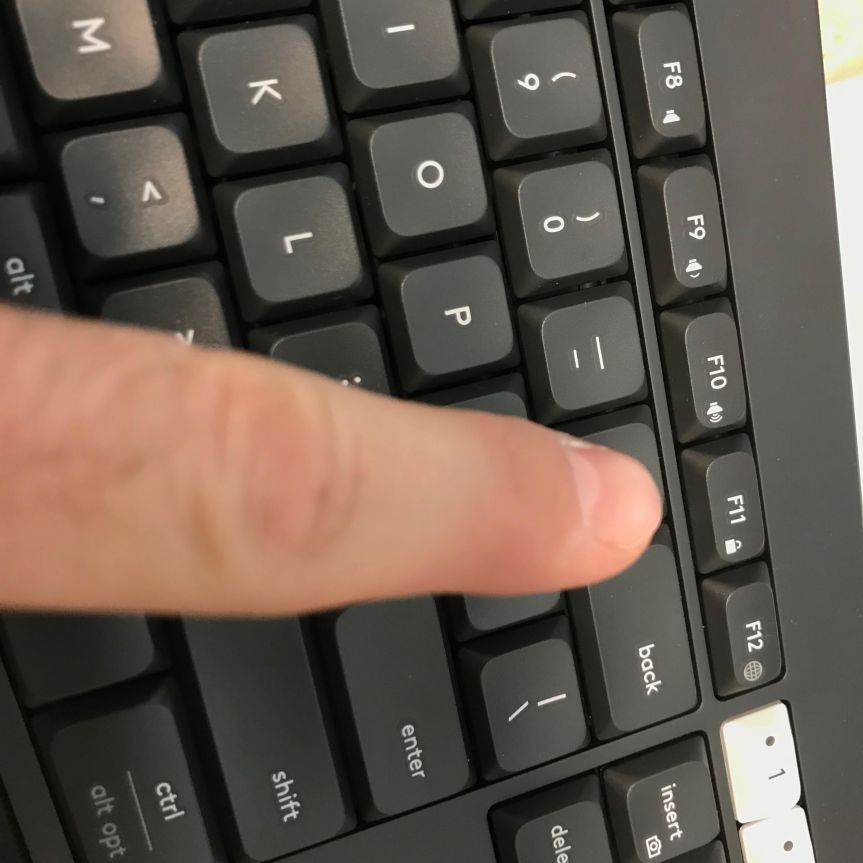
The F11 key, right beside the sound up and down function keys, is the sleep and lock key. Completely unacceptable location. I went into emergency mode on this matter.
EMERGENCY
A little research and I went full off mode on sleep, hibernate, and suspend! The commands are as follows.
gsettings set org.gnome.settings-daemon.plugins.power button-hibernate "nothing"
gsettings set org.gnome.settings-daemon.plugins.power button-sleep "nothing"
gsettings set org.gnome.settings-daemon.plugins.power button-suspend "nothing"
Now, if you want those back on however, the commands are specific to the function, as shown below.
gsettings set org.gnome.settings-daemon.plugins.power button-hibernate "hibernate"
gsettings set org.gnome.settings-daemon.plugins.power button-sleep "hibernate"
gsettings set org.gnome.settings-daemon.plugins.power button-suspend "suspend"
Ok, whew. Errr well, maybe not.
I rebooted and that didn’t actually take effect. I did a little more research and found dconf-tools. So I installed that.
sudo apt-get install dconf-tools
Opened up dconf and navigated toorg gnome settings-daemon plugins and then power.

This editor then showed me what I had technically just set. So that was confirmed, but got me no where. Onward to troubleshooting.
Next research led me to this option. But then I couldn’t actually get the command to pair to it as it seems the fn or function key plus the F11 key doesn’t actually show up when setting the shortcut keys. Thoughts? If you’ve got any ideas I’m out of ideas for now, do comment or tweet @Adron.
On with the observations.
Alright, with that fixed I could refocus on the plusses of the keyboard. It’s paired very nicely with the silent mouse, similar to the mouse I reviewed a while back, the M331 Silent Mouse. The keyboard is also extremely silent, with barely any utterance of noise coming from the keyboard. If you like the loud mechanical style, this is not your keyboard. If you want to focus on music or something else while typing then, this is your keyboard.
With that, my quick review and emergency is done. This might be helpful so typed it up but now it’s time to get back to work on some Go prototyping and some solid tunes from Eastern High. For reference, here’s one of their good ones.
You must be logged in to post a comment.