TRIP REPORT: QCon SF 2019, Amtrak Coast Starlight, #Bikelife in San Francisco, and Thoughts

This past week has been QCon. I departed last Sunday on the Coast Starlight. My preference is to take the train when it’s possible. Sometimes the schedule allows it, sometimes it doesn’t. This trip, the schedule was perfect for a little coding time on the train, reading, and introspection. Taking the train always gives me a bunch of time to do these things uninterupted while being comfortable and enjoying the countryside rolling by.

The train got out of the station and I cut some video for a VLOG episode or two. To note, I’ve got more than a few, some linked in this post, VLOG’s of the week and the various adventure. I hope they’re interesting and in some cases informational! Feel free to ask questions, I’m more than happy to elaborate on any of the videos, content, and the related topics.

Departing Seattle for San Francisco to attend QCon

The train departs at 9:45am from King Street Station. If I had to drive or take transit I’d have to get up at about 6am to get there and fiddle with luggage and all that, but since I was cycling bikelife style to the station, I got up around 7:15. However, I didn’t follow that schedule a made a coffee stop on the way.

When I arrived at the station I saw one of those post boards that showed the old Union Station near the King Street Station and I point out a few details about the two. I included some tips for bike life traveling via the train too. Rolled on out to the platform and boarded. Watch the video for a shrot summary of my departure and boarding the train.

The countryside is beautiful on this trip, and getting into Oakland and the ferry ride across the bay is spectacular. I had to, of course, VLOG a bit of that too.

After getting in I made my way back down via Valencia onto Market Street to the Hyatt for QCon Day 1 events. A VLOG on that run with a little montage and then some thoughts.

First thoughts, it won’t be soon enough that get get SOV (Single Occupant Vehicles) off of Market Street altogether. The street is used in a vastly superior way having transit, active transport, and work vehicles as is. Having SOV’s plying the streets just makes it dangerous and clogs up the whole thing, but alas, that’s just a first though.

I got into QCon and was super stoked to catch a few talks and talk to fellow data folks. I had noted though, even as a sponsor, our badges don’t get us access to anything really but the sponsorship hallway. That was kind of a bummer, so in the interim I had to work some magic so that I could catch some talks!

Palumi & Langauges of Infrastructure by Joe Duffy was the first talk I wanted to see. Alas, with scheduling I couldn’t make it. The description read,

“We have all become cloud developers. Every day we use the cloud to supercharge our applications, deliver new capabilities, and reach scales previously unheard of. Leveraging the cloud effectively, however, means navigating and mastering the ever-expanding infrastructure landscape, including public cloud services for compute, data, and AI; containers, serverless, and Kubernetes; hybrid environments; and even SaaS — often many at once.

Join us to learn about the modern languages, tools, and techniques that leading-edge companies are using to innovate in this world of ever-increasing cloud capabilities. We will explore: how to create, deploy, and manage cloud applications and infrastructures; approaches for cloud architectures and continuous delivery; and how modularity and reuse is being applied to infrastructure to tame the complexity, boost productivity, and ensure secure best practices.”

Hopefully we can get Joe to come speak at Seattle Scalability in the coming year! I’d even like to setup a hack day akin to a workshop to try out some of these techniques and related languages for infrastructure for the meet! Ping me Joe and we’ll make it happen!

The next talk I really wanted to catch too was Lachlan‘s “Helm 3: A Mariner’s Delight”.

“Adjusting your spyglass and looking out over the water, you can see how useful a package manager like Helm is. Perhaps you’ve used it to manage the fractal complexity of packages on your Kubernetes clusters (without losing track of versions stashed in the hold). But Helm 3 is rumored to be different, and you’re ready to get started on this exciting voyage – as soon as you have some idea of what’s port and what’s starboard!

In this story-fueled session, we’ll take you through differences from the Helm of yore, tips for a successful rollout or upgrade, and opportunities to shape the project’s future. The cloud native waters can be choppy, but a technical deep dive powered by open source tooling will steer you right!”

But again, my scheduling and access prevented this but I’m hopeful. This next week is KubeCon and I should be able to catch up with a number of people, maybe even Lachlan, on the Helm 3 bits!

Other talks that I might have or might not have officially attended included “Beyond Microservices: Streams, State and Scalability”, “Better Living through Software at The Human Utility”, and “Parsing JSON Really Quickly: Lessons Learned”. I hear they were all spectacular talks! 😉

Day 2 rolled in. Talked with Auth0 and Solace at their respective booths, if you’re curious.

After all that, another solid QCon, I’ll make sure to get a full pass next time if I can make it. Unless of course they fix that ranked access sponsorship pass mess, then I’d happily opt for that again. It is after all rather interesting to speak with all the companies.

After the conference I put together an exit VLOG. Enoy! Catch everybody next time!

Next week, on to KubeCon, cuz two conferences in two weeks is like a two-fer!
Cobra + Viper Go CLI Sample

I just released a Go Cobra + Viper library CLI App sample app here. Here are the main up to date details as of release today.

The app example is using the Cobra and Viper libraries for Go. This application provides commands (per Cobra) to read, write, update, and delete configuration records from a configuration file using Viper.

Using the example CLI App.

<cli> config -h provides the following documentation for using this CLI App.

Available Commands:
  add         The 'add' subcommand will add a passed in key value pair to the application configuration file.
  delete      The 'delete' subcommand removes a key value pair from the configuration file.
  update      The 'update' subcommand will update a passed in key value pair for an existing set of data to the application configuration file.
  view        The 'view' subcommand will provide a list of keys and a map of the values.

Flags:
  -h, --help           help for config
  -k, --key string     The key for the key value set to add to the configuration.
  -v, --value string   The value for the key value set to add to the configuration.

Currently I got this to work but it isn’t in the best shape. Check out the code here.

Get Involved, Add Samples, Make Requests

If you’d like to get involved and add samples or make request for additional samples please file an issue here!

If you’ve found any bugs or issues with the code please file a bug report here!

Examples, The CRUD!

./cli config add -k "blog" -v "https://compositecode.blog/" example writes a record to the configuration file with a key of “blog” and a value of “https://compositecode.blog/“.

./cli config view displays the contents of the configuration file and CLI specific environment variables. These are the configuration files located in the .cobrae-cli-samples.yml and environment variables prefaced with COBRACLISAMPLES. The list of keys is displaced first and then the keys and values are displayed below that.

./cli config update -k "blog" -v "not found" will update the blog entry in the configuration to read not found for the value.

./cli config delete ... will delete the key and value from the configuration file.

Building the Project

Following a fairly standard clone, one can build this project with a single step using the ./build.sh file. If you’d like to contribute the same for Windows, feel free I’d be happy to pull that PR in. Once the project is built use the CLI as defined above.

Installing the CLI App

This application can be installed as a CLI app by referencing it’s location in your bash (powershell? etc) startup script.

Gotta GSD, Don’t Wanna Buy Windows, Here’s Some Options!

Ok, again, I’ve sat down to get some shit done and I immediately stumble into this one strange scenario where I need a Windows machine. I don’t want to buy Windows. I rarely use it. I just need to do this one thing. I don’t want to use Windows on a regular basis. I’m happy with Linux, and a little MacOS usage here and there. But here is this brick wall roadblock for this one task I need to do on Windows.

What a bummer! But there’s an easy way Microsoft has setup to help us out with these scenarios!

Thank goodness.

If you want to test out a development environment, there’s a location here where you can go download a time limited VM of your choice. This machine image is great because they’ve already got things setup with;

  • Visual Studio 2019
  • Visual Studio Code
  • Windows 10 SDK
  • UWP
  • .NET Desktop
  • Azure workflows enabled
  • Windows Subsystem for Linux w/ Ubuntu. Not that I’d need this, but ya know, it’s hugely useful on Windows.
  • Dev mode & bash enabled.

That image is all groovy. No Java pun intended. But if you want a slightly slimmer image for just testing out Microsoft browser stuff, like MS Edge or older Internet Explorer versions, check out these images.

With both of these options the versions are time limited, to something like 90 days. The cool thing is though, that’ll give you enough time to test out most things or troubleshoot any .NET Windows proprietary code bits!

The other great thing is they offer the images in multiple different formats too; Virtual Box, VMware, and others.

Hope these are helpful to ya, enjoy!  👍

A Really Quick Introduction to Minikube

There’s likely a million introductions to Minikube, but I wanted one of my own. Thus, here you go!  Minikube is basically Kubernetes light that runs on your own machine. Albeit, it does this similarly to how Docker used to do it, via a virtual machine. Thus, you can do some things with it but if you want to get serious you’ll still need to spool up a proper cluster somewhere as it will start to bog down your machine with any heavy workloads.

1: Minikube – Installing

Linux Direct:

 curl -LO https://storage.googleapis.com/minikube/releases/latest/minikube-linux-amd64 \
   && sudo install minikube-linux-amd64 /usr/local/bin/minikube

Linux Debian:

 curl -LO https://storage.googleapis.com/minikube/releases/latest/minikube-linux-amd64 \
   && sudo install minikube-linux-amd64 /usr/local/bin/minikube

Linux Red Hat:

curl -LO https://storage.googleapis.com/minikube/releases/latest/minikube-1.4.0.rpm \
 && sudo rpm -ivh minikube-1.4.0.rpm

2: Starting Minikube

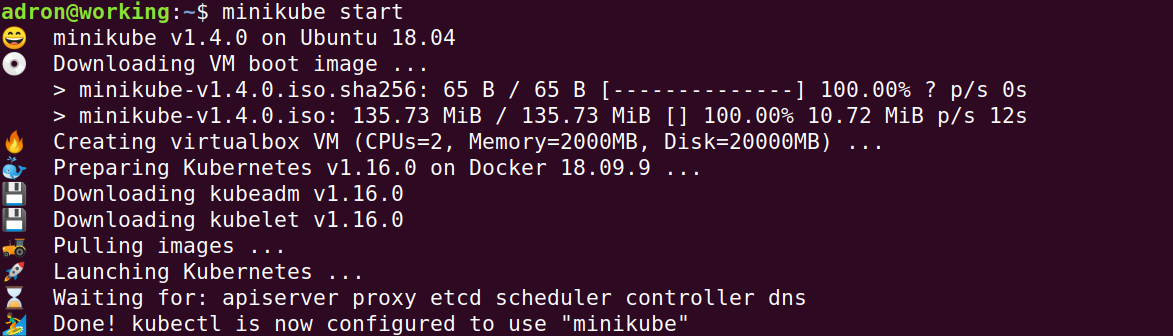
minikube start will start a minikube instance, pulling images, resources, kubelets, kubeadm, dashboard, and all those resources.

00-starting

3: Stopping Minikube

minikube stop brings the minikube service to a stop, allowing for restart later.

09-stopping-minikube

4. Deleting Minikube

minikube delete will delete the minikube. This will delete any of the content or related collateral that was running in the minikube.

01-delete

5. Restarting after Delete

minikube start this is the way to restart a minikube instance after you’ve stopped the instance. It’s also the way start a minikube, as shown above.

03-restarting-after-delete

6. Starting a Named Minikube

If you want a named minikube instance, use the -p switch, with a command like minikube start -p adrons-minikube.

04-minikube-with-name

7. Starting & Using the Dashboard

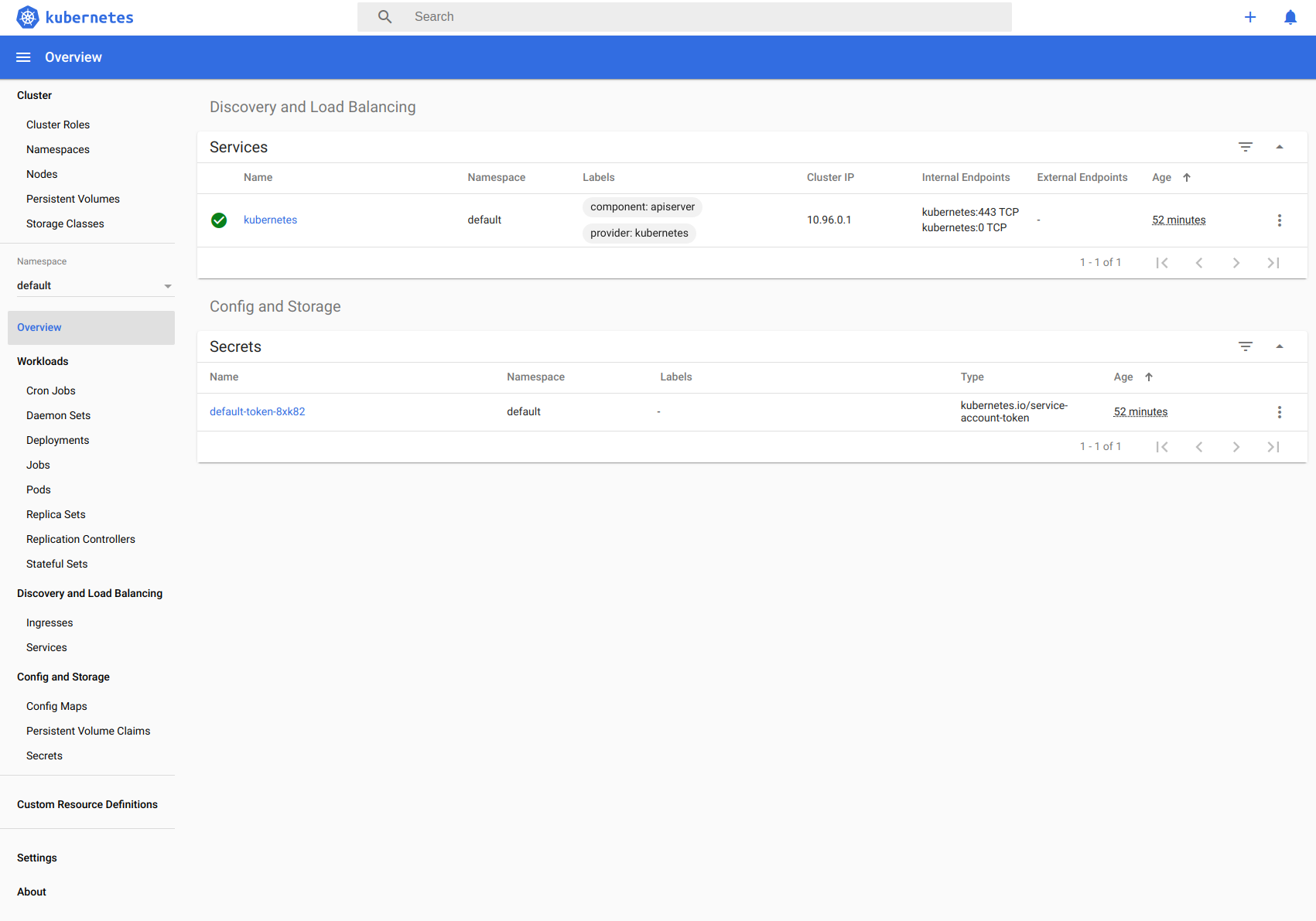
To check out the dashboard, that pretty Google dashboard for Kubernetes, run minikube dashboard to bring that up.

05-starting-dashboard

06-minikube-dashboard.png

8. Status!

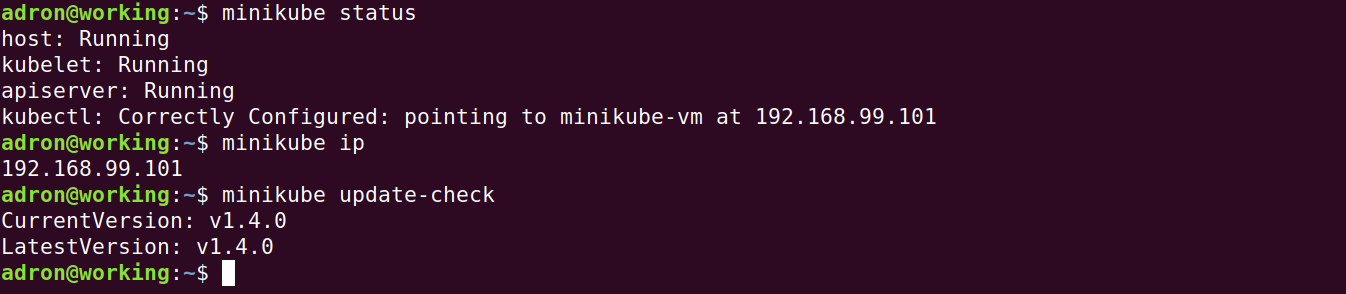
To get a quick update on the current state of the minikube instance just run minikube status.

07-other-minikube-commands

9. Starting Minikube sans a Virtual Machine

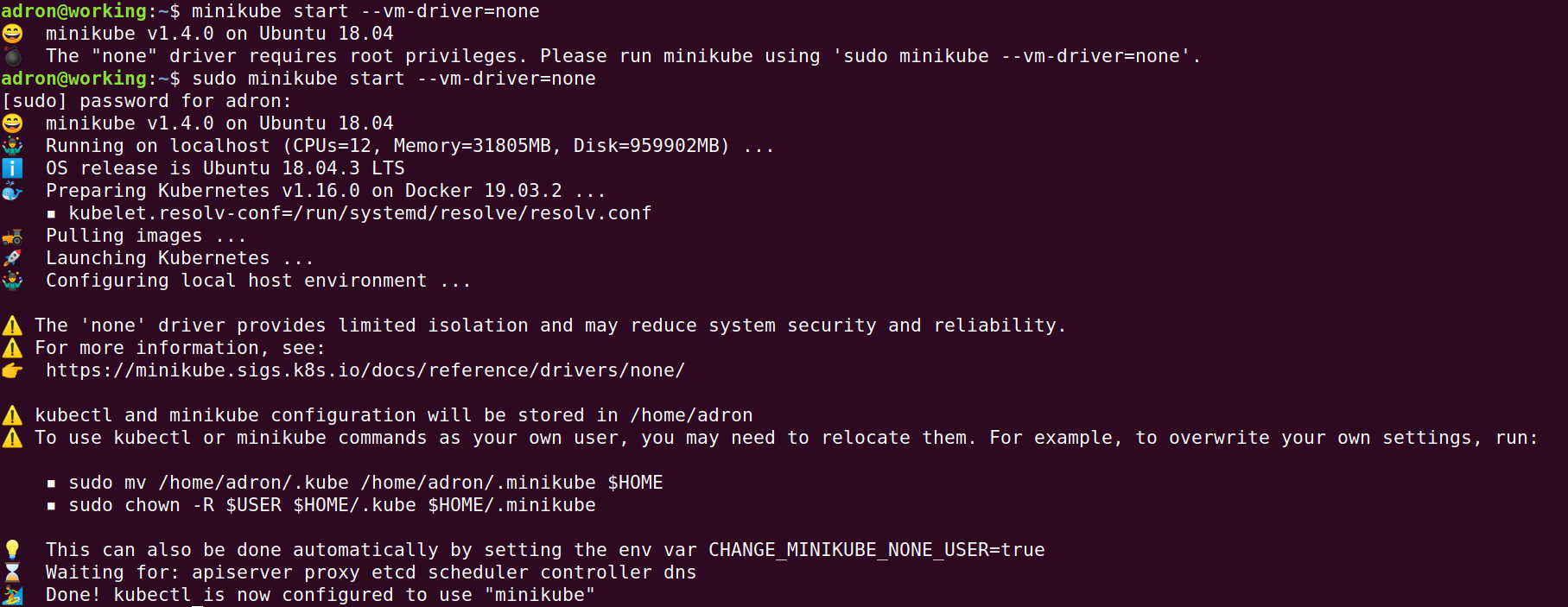
This is, albeit I may be mistaken, this is a Linux only feature. Run minikube start --vm-driver=none and it’ll kick off a minikube right there on your local machine.

09-minikube-no-vm-started.png

References:

Join the Apollo Beta for FREE! Help the Databass!

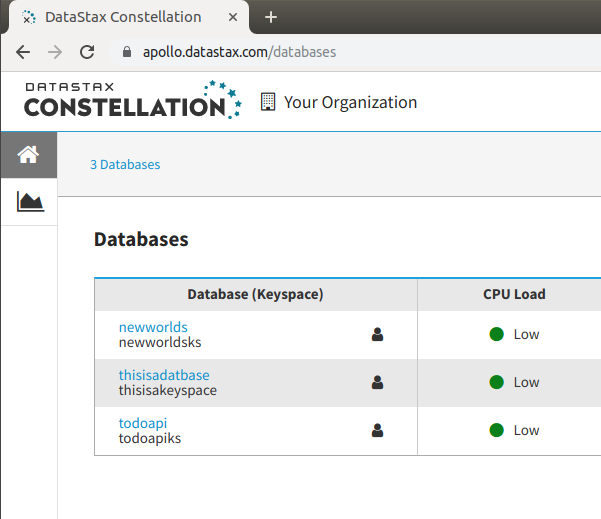
Hello to all the data curious, database lovers, and sciency datamungers! I have a small favor to ask of you all. At DataStax we just opened up our Apollo service i.e. “Apache Cassandra as a Service” i.e. DBaaS offering and I’m looking for people that want to test drive the database! Now, you don’t have to actually tell me you’re using it or anything, but I’d love to know if you are. Maybe we could even chat about your experience using it.

To get started:

  1. Sign up here.
  2. Create a database here.
  3. Pick a driver here.  [C#/F#, Node.js/JavaScript, Java, C++, and Python] – I added F# cuz ya know, that’s how F# works and all, you just use the C# driver and BOOM, you’ve got F# access!!
  4. Write CQL and execute the database!
  5. Profit!

Alright, where profit is that’s when you let me know what works for you and what doesn’t. Feel free to comment here, ping me via Twitter @adron, or via the response form here, or however you’ve got to message me. I’d be super stoked to chat!

Getting Started Specifics

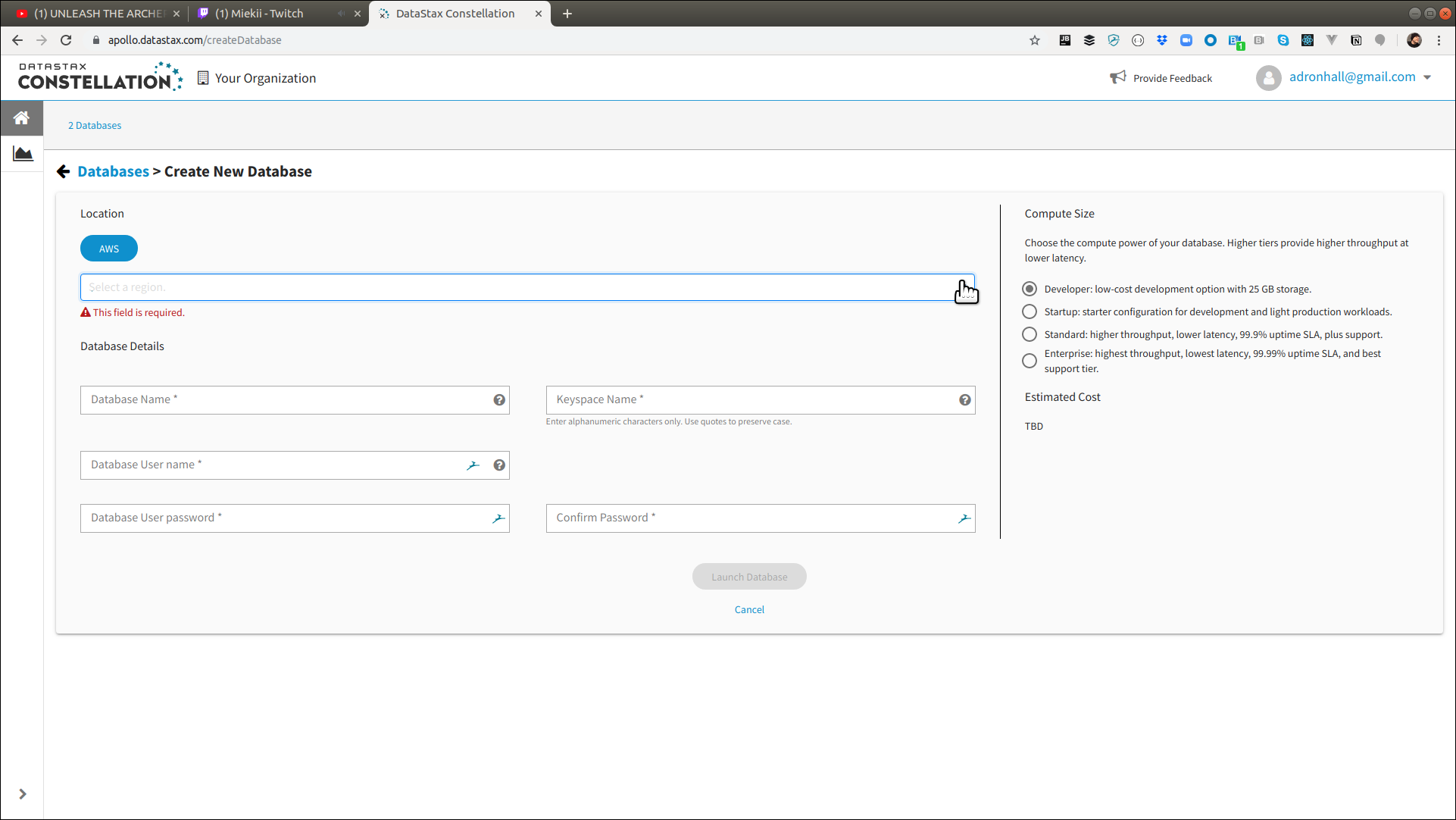
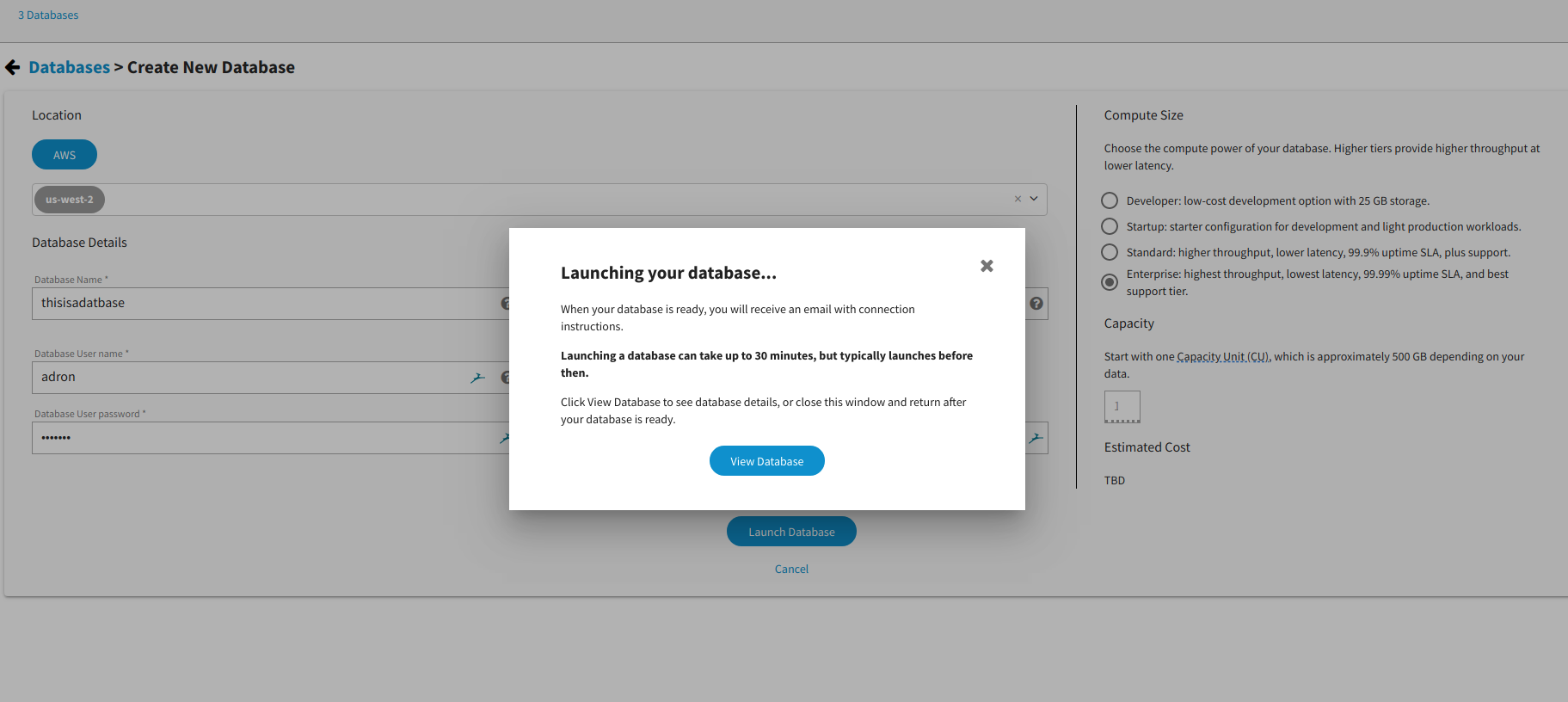
To create a database, once you’ve got an account, just navigate to https://apollo.datastax.com/createDatabase and you’ll get prompted with the following screen.

apollo-create-database

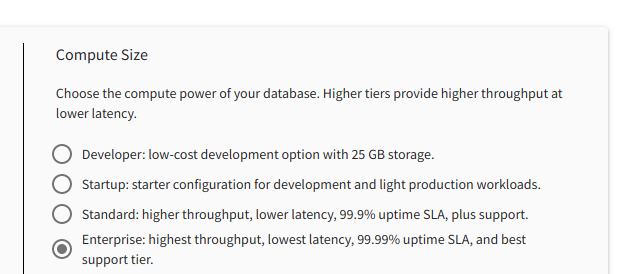
Currently during beta we have AWS as the provider option, and you can choose between Developer, Startup, Standard, and Enterprise. Each offering various configurations and future prospective SLA’s and such.

asdf

Once you have the database name, keyspace, user name, and you password set, click on Launch Database and the spin up of the multi-node database will begin. You’ll be greeted with a message notifying you that it’ll take a little bit of time for the database to spin up and an email will be sent once it is done. Enjoy a coffee in the meantime.

prompt

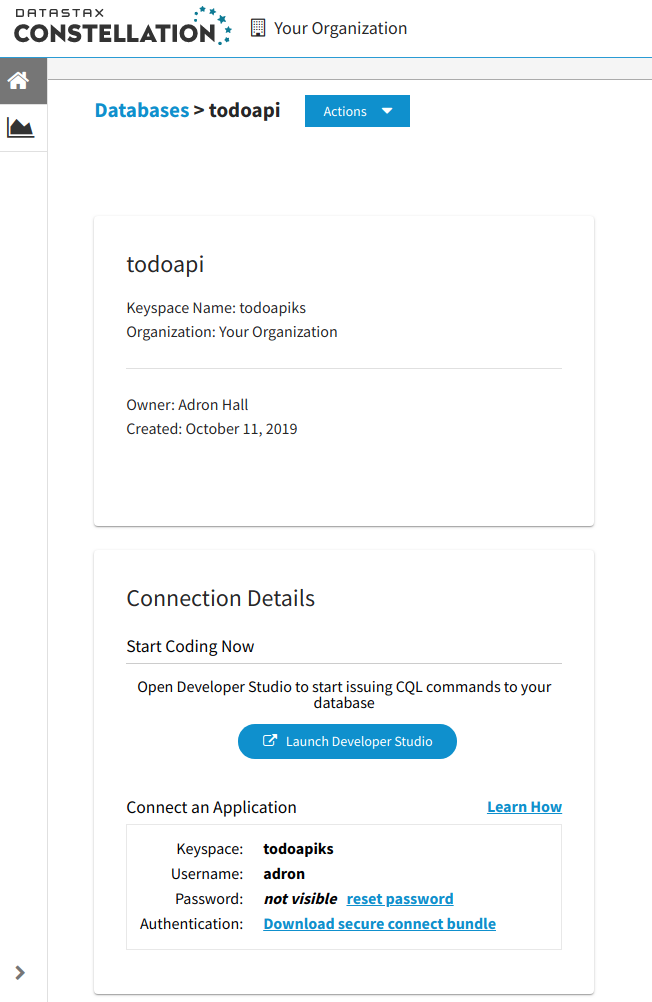
Once the database spins up there are two key sections on the database page. First, there is the connection details. They’re located in the bottom left of the database page.

database-connection-details

If you click on the “Learn How” you’ll get directly linked to the docs pages with multiple examples of how to get connected to the database you’ve just created. You can also reset your password here and retrieve the security bundle (it’s a tar/zip file) that you’ll need to authenticate any applications with.

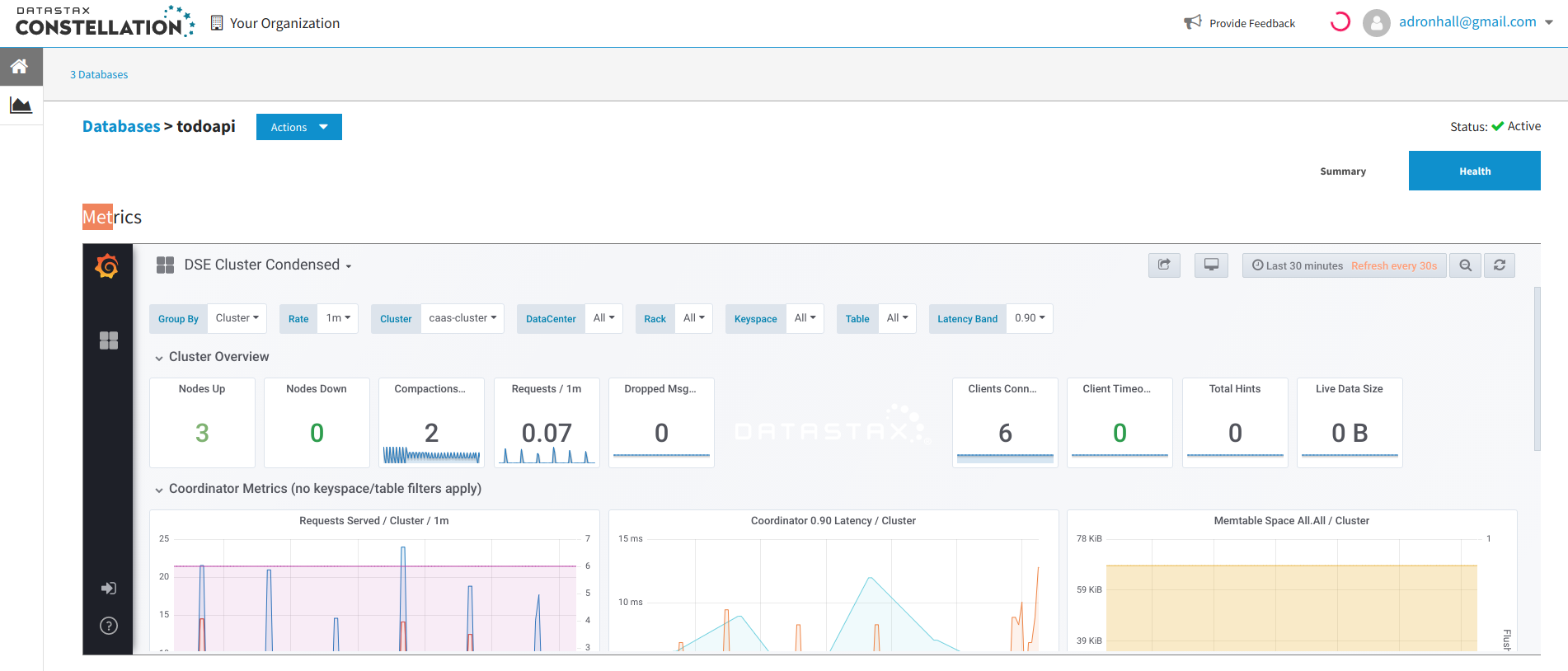
The other part that can be really helpful, especially as you do any development or testing with your database is the grafana dashboard. It’s on the Health tab of the database page.

grafana-metrics

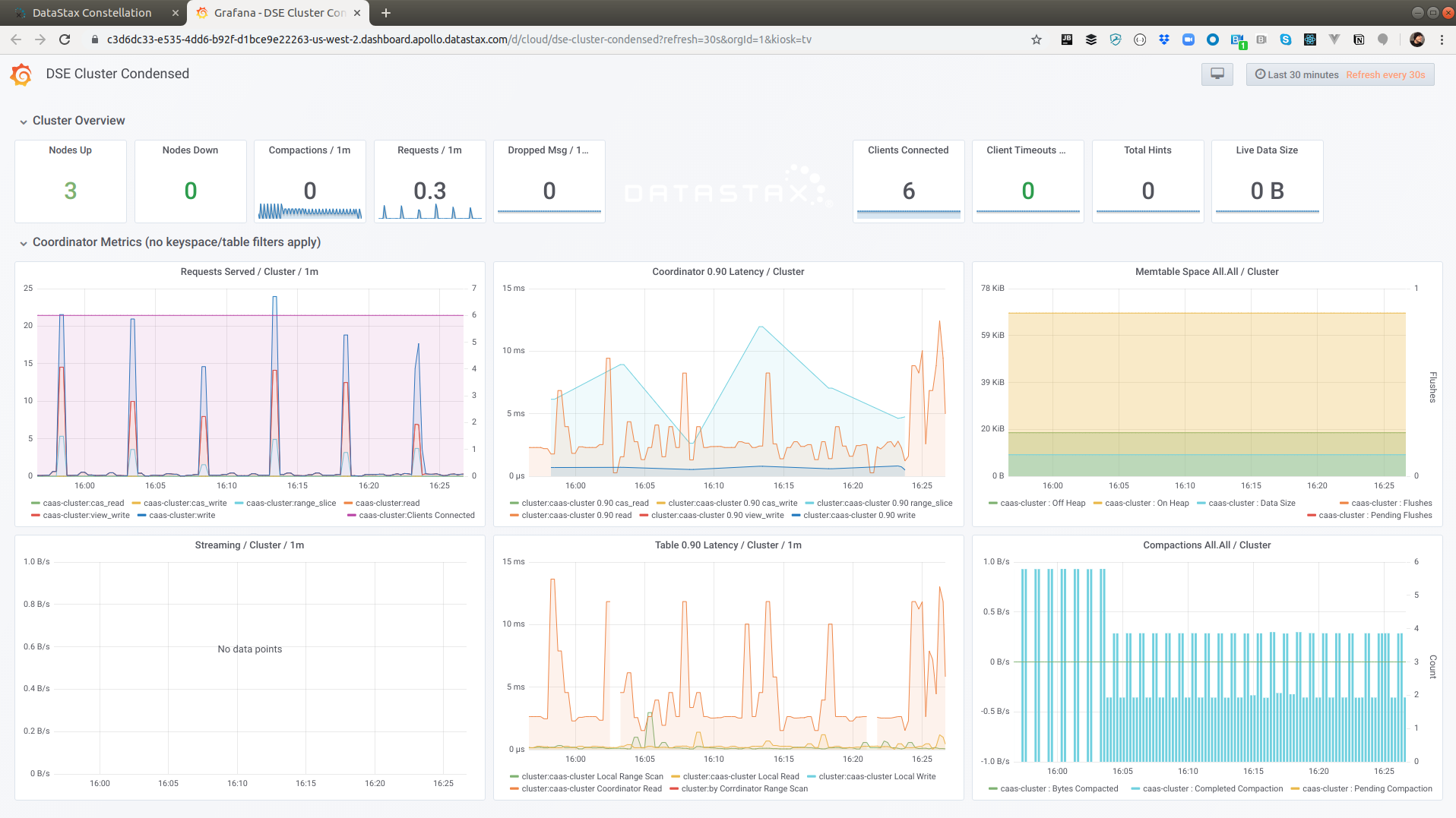
A trick that I used, to get an easier and full screen view of all the metrics, is to inspect the page right at the metrics, within that you’ll find the iframe in which to get the link specifically to the Grafana metrics. They look pretty nice broken out of frame! As you work through queries and such keep an eye on this for extra insight.

broken-out

Any other thoughts, contemplation, or otherwise do get in touch!