Analytics with Webtrends

I decided to write up a short bit on web analytics 101 finally.  What I’m going to cover here will traverse over data points retrieved from 3 different reports that can be pulled via Webtrends Marketing Lab Analytics OnDemand Offering.  Keep in mind, this is an extremely minimal amount of data I?m collecting, as it is only my tech blog which doesn?t have much traffic.  As your traffic bumps up there are a lot of other data points that you can collect that provide actionable steps toward increasing sales, traffic, etc.  This entry will cover these basic reports and how I use the data to orient my blog toward my readers (and of course me, because I enjoy it).

The Pages Report
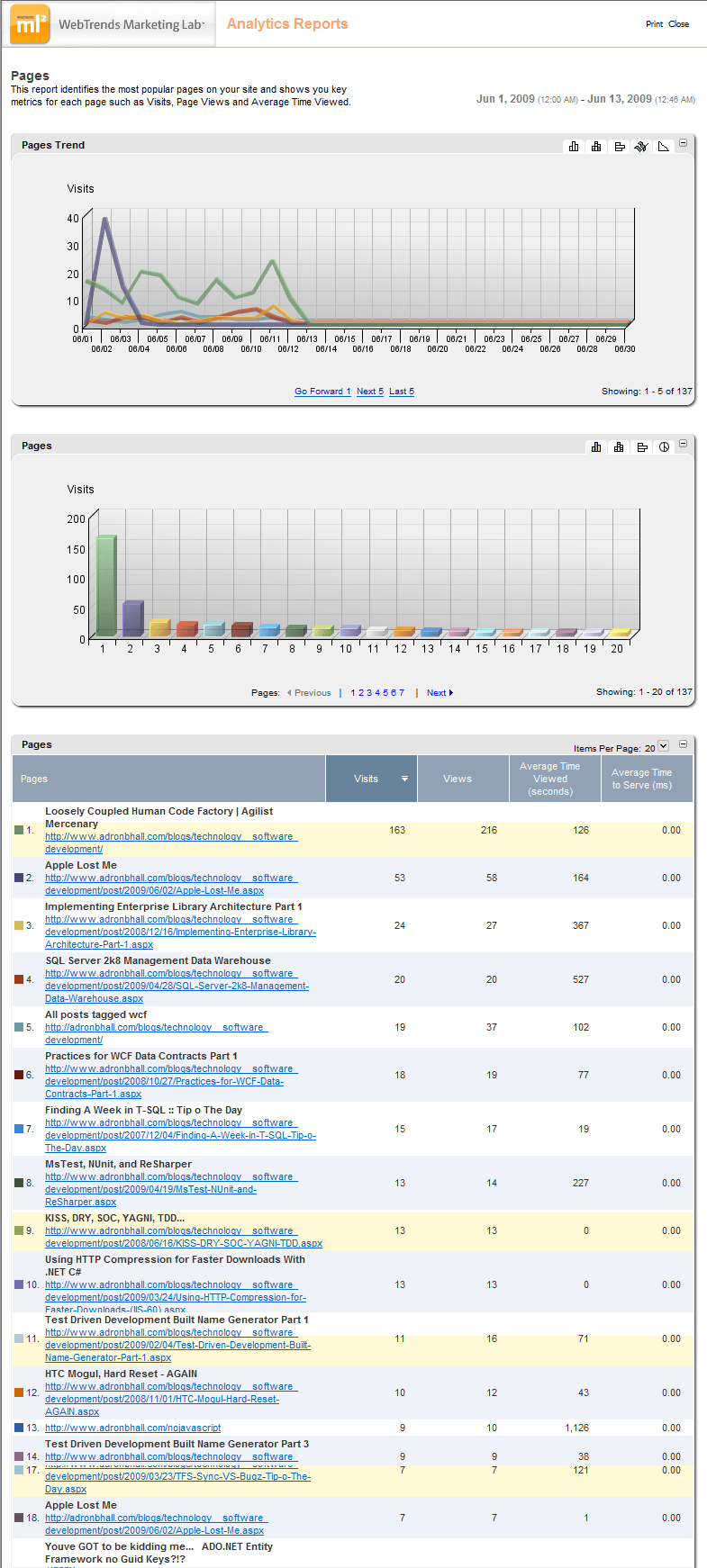
The pages report is a vital place to start. One thing I always do is eliminate the initial root domain from the results.  The reason behind this is that removing that, places a more appropriate view of the graphs in relation to actual page views among the individual views.  Usually the root has so many more views & visits than any other page that the results will be heavily skewed toward the root.  Thus removing that puts a more representative view of the results on display.  This is easy to do, just merely click on the Visits or View number for the root domain page and click, a menu will popup that will allow you to select “less than” this result.  That will remove the single root page and boom, results are now spread solely against the backdrop of actual pages.

The All Entry Pages Report
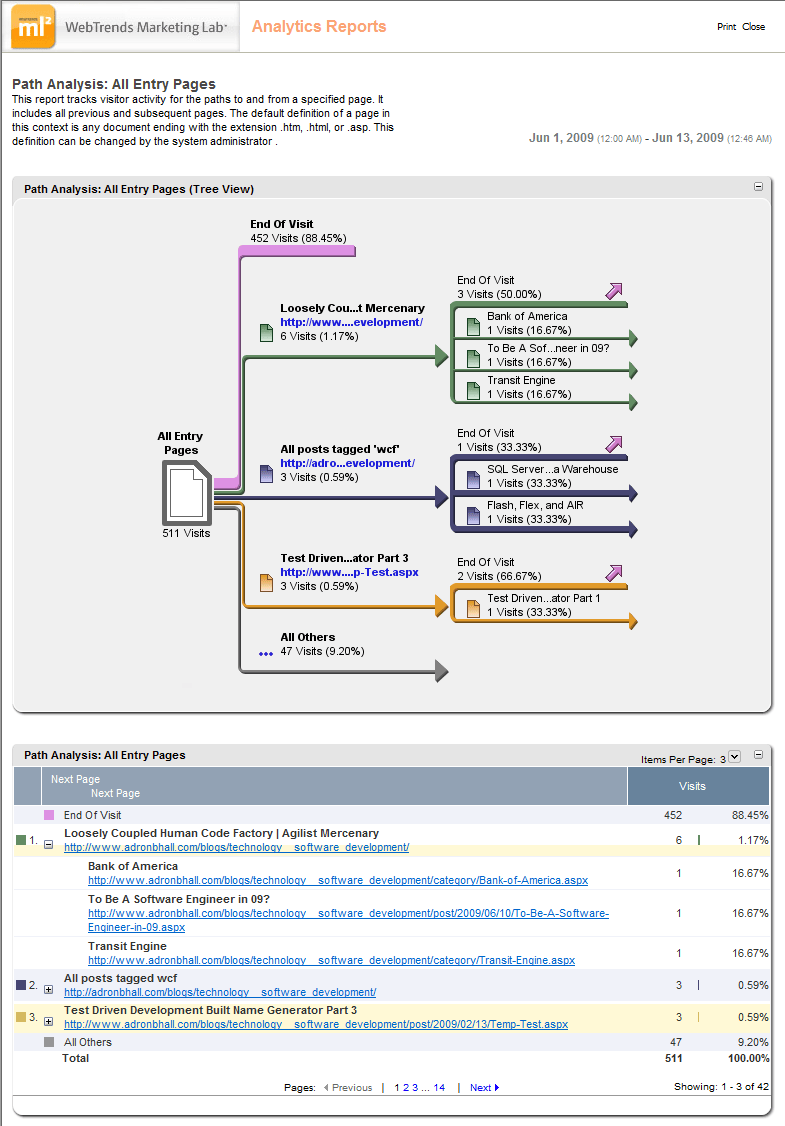
This report I really dig.  The path analysis chart is golden.  There is some similar data with the Pages Report but this really shows the path in which users are entering the site.  It provides an immediate point of recognition for the analytics analyst to get immediate insight into the navigation users’ take when coming to the site.  This is something that marketing, designers, developers, and anyone working with a website ? especially e-commerce ? must keep up with to assure the website is utilized efficiently.  If pages aren?t being hit that are high priorities, the appropriate actions need to be taken, and this report shows that with about 3 seconds of review.

The Overview Dashboard
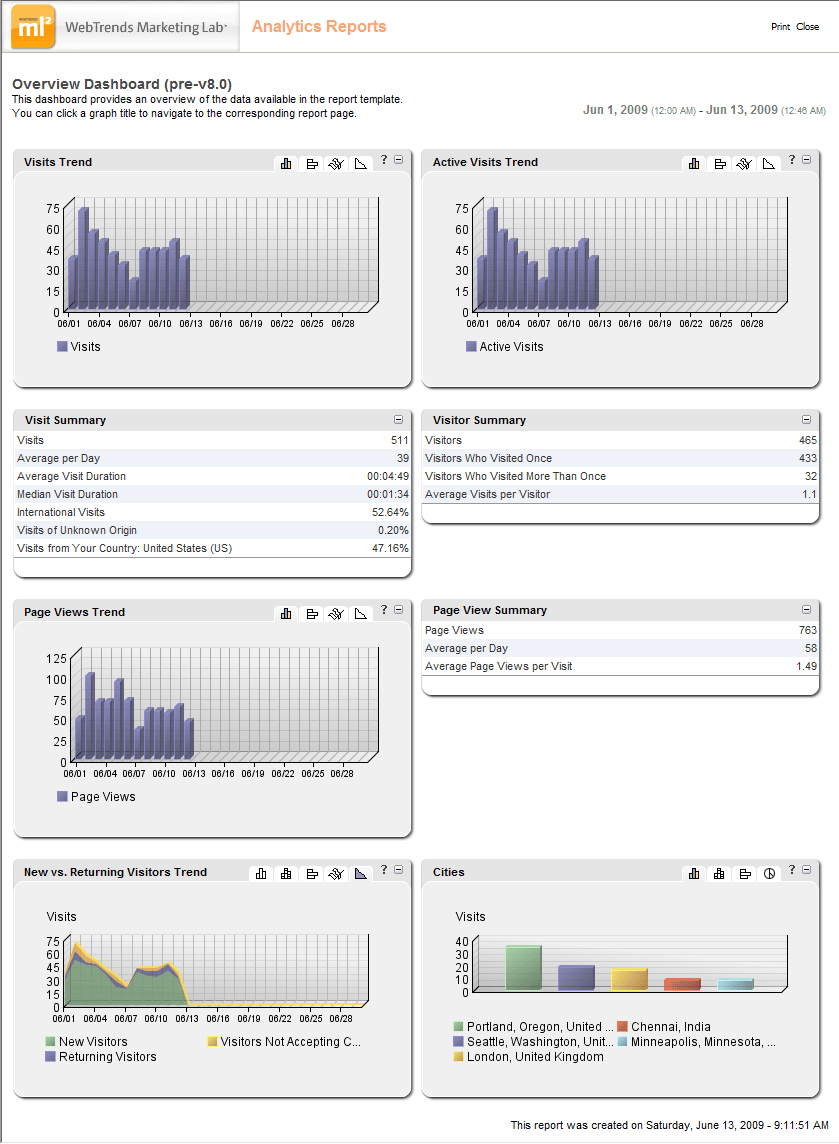
I have a love and hate relationship with dashboards.  Dashboards are a necessity for getting quick insight into data points, but often cause one to ignore further investigation into various data segments.  In all of the reports above, when the traffic is heavy further investigation is almost always mandatory for true insight into what is going on with a site.  This report provides a way to find out where one should investigate and in what order.  Are your new versus returning visitors numbers off?

@cloudcamppdx

Attended Cloud Camp PDX today.  Great overall conversation, with a lot of familiar faces & people of the Portland brain trust participating.

The conference started off with a large group gathering in the main cafeteria room.  There was an unpanel put together with a few cloud gurus.  After a round of questions the main sessions where laid out and everyone started out to the break out session.  Open session conference topics ranges from couchdb to cloud security, to the glorious tips and tricks of Amazon.  Overall a great bunch of discussions really breaking down what a cloud is and what a cloud does.

Overall a lot of fun, great food, and good people with great minds.  One has to love to Portland tech scene.  If there was ever a reason for a company to locate in Portland, this room full of talent discussing the bleeding edge of technology is a prime reason.

After that we all broke into second set sessions.  I went to the “Is Cloud Computing a return to the time share, maintenance model, and what does that mean?”.  I have to say, I don’t think it will ever be an honest return to truly dumb terminals and server focus, it will continue to be mixed.

That was it for me, being the host I had cleanup and such, so hope all had fun.  I had a blast as I tend to at nerd events.  All in all, a good day.

Excel Spreadsheet Tests :: Tip o' The Day

While working through some of the Excel scenarios lately I’ve come upon some more ways to test Excel.

Create an Excel Application instance with the default workbook.  Doing this will drastically speed up your tests.  Do this in the fixture setup & assign it to a property of the test class.  This way, no more startup and tear down of the Excel object for each test.

public Application ExcelApplication { get; set; }

[TestFixtureSetUp]
public void CreateExcelAppAppropriately()
{
    ExcelApplication = new Application();
    ExcelApplication.Workbooks.Add(Type.Missing);
    ExcelApplication.Visible = true;
}

.csharpcode, .csharpcode pre { font-size: small; color: black; font-family: consolas, “Courier New”, courier, monospace; background-color: #ffffff; /*white-space: pre;*/ } .csharpcode pre { margin: 0em; } .csharpcode .rem { color: #008000; } .csharpcode .kwrd { color: #0000ff; } .csharpcode .str { color: #006080; } .csharpcode .op { color: #0000c0; } .csharpcode .preproc { color: #cc6633; } .csharpcode .asp { background-color: #ffff00; } .csharpcode .html { color: #800000; } .csharpcode .attr { color: #ff0000; } .csharpcode .alt { background-color: #f4f4f4; width: 100%; margin: 0em; } .csharpcode .lnum { color: #606060; }

That will give you a good kick start when you end up with a few dozen or more tests.  Starting up and killing the Excel Instance on each test can be brutal in overall performance.  For the shutdown of the tests, as long as you have clean code and don?t have odd Excel threads or something running off everywhere, the fixture shutdown can be as simple as below.

        [TestFixtureTearDown]
        public void QuitExcelAppAppropriately()
        {
            foreach (Workbook workbook in ExcelApplication.Workbooks)
            {
                workbook.Close(false, false, Type.Missing);
            }
            ExcelApplication.Quit();
        }

.csharpcode, .csharpcode pre { font-size: small; color: black; font-family: consolas, “Courier New”, courier, monospace; background-color: #ffffff; /*white-space: pre;*/ } .csharpcode pre { margin: 0em; } .csharpcode .rem { color: #008000; } .csharpcode .kwrd { color: #0000ff; } .csharpcode .str { color: #006080; } .csharpcode .op { color: #0000c0; } .csharpcode .preproc { color: #cc6633; } .csharpcode .asp { background-color: #ffff00; } .csharpcode .html { color: #800000; } .csharpcode .attr { color: #ff0000; } .csharpcode .alt { background-color: #f4f4f4; width: 100%; margin: 0em; } .csharpcode .lnum { color: #606060; }

One other thing I like to do is add a boolean value that sets the Excel instance to stay visible and not close after the tests.  I create a private bool and then set it in any test I?m currently working with.  When I?m done I just remove the assignment and let it default to false.  This way the Excel instance doesn?t stay open for the build & tests on the build server.

private bool reviewExcelPostTests;

[TestFixtureTearDown]
public void QuitExcelAppAppropriately()
{
    if (reviewExcelPostTests)
        return;

    foreach (Workbook workbook in ExcelApplication.Workbooks)
    {
        workbook.Close(false, false, Type.Missing);
    }
    ExcelApplication.Quit();
}

.csharpcode, .csharpcode pre { font-size: small; color: black; font-family: consolas, “Courier New”, courier, monospace; background-color: #ffffff; /*white-space: pre;*/ } .csharpcode pre { margin: 0em; } .csharpcode .rem { color: #008000; } .csharpcode .kwrd { color: #0000ff; } .csharpcode .str { color: #006080; } .csharpcode .op { color: #0000c0; } .csharpcode .preproc { color: #cc6633; } .csharpcode .asp { background-color: #ffff00; } .csharpcode .html { color: #800000; } .csharpcode .attr { color: #ff0000; } .csharpcode .alt { background-color: #f4f4f4; width: 100%; margin: 0em; } .csharpcode .lnum { color: #606060; }

That’s it for my Excel tips today, I’ll have some more coming in the near future.