As mentioned in my last blog entry, I have been on the hunt for some good charting displays. I found visifire and here is the quick setup & display of some initial reports. I used some sample data via trusty Webtrends Analytics 9 API, since we have a bit of example data about the office. ; )
Before even getting started, I am using Visual Studio 2010 beta2. If you don’t have access to this then your screen shots will appear a good bit different then mine, or simply you will not have the same screens I do at all.
First I downloaded the files needed. The zip with the assemblies has the following files.

- GPL v3.txt and License.txt are text files about the respective licensing of the charting assemblies.
- Bin – This folder has the actual assemblies for Silverlight and WPF.
- Samples – This folder has, simply, samples in it.
Within the Bin folder there are four files.

I’m not really keen on their naming conventions, as the naming seems to be here or there, but it is easily understood. I would rather just see something along the lines of Visifire.Charts.Sl.dll and Visifire.Charts.Wpf for instance. But hey, one should not complain, these controls are awesome.
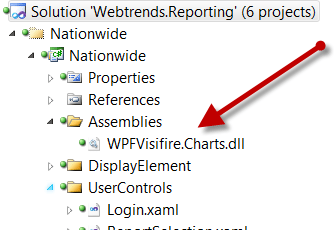 Next I added the assembly to another folder within the project I intend to use the charts in. In this particular case, the project is a WPF Project, so I am just adding the WPF assembly.
Once you add the assembly make a reference to that assembly the way you would normally make the reference.
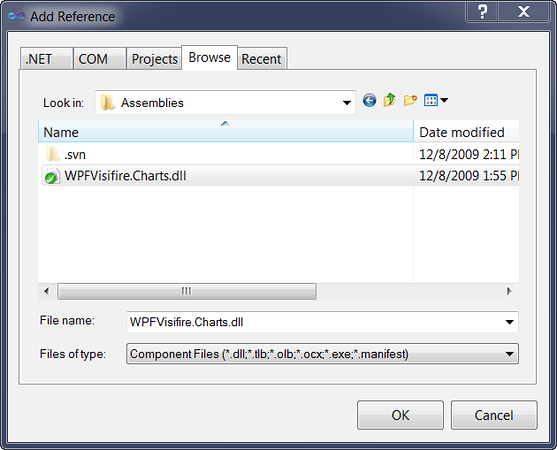
Now that we have the appropriate assemblies referenced we?ll throw some basic reports into a WPF User Control. The next part of this process is were things get a little interesting. Our next step is to go back out to the visifire site and use the report designer. When you navigate to the report designer you will see this view.
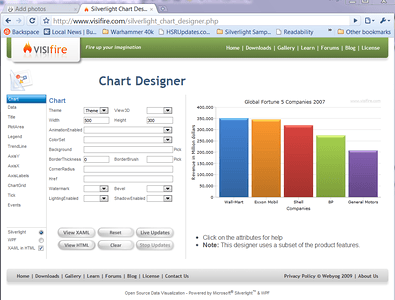
Over on the left hand side of the designer there are various properties for the reports; Chart, Data, Title, PlotArea, Legend, TendLine, AxisY, AxisX, AxisLables, ChartGrid, Tick, and Events. Just below those menu items there is a radio button to select Silverlight or WPF. Click on the WPF radio button.
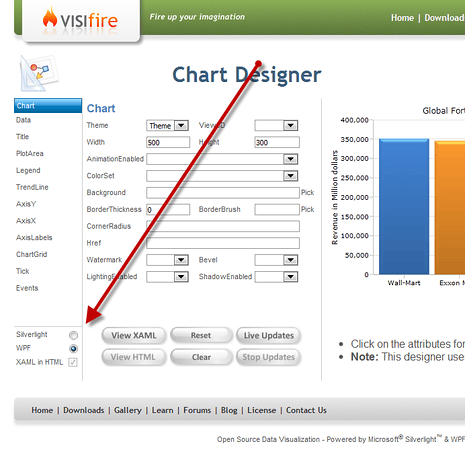
I enabled a few others options. For a complete duplication of the changes I made, check out the XAML snippet below. I made some changes after the initial designer work was done. My best practice is to set the basic report, a few data points, and then start working with it in Design Time & XAML view in VS 2010. Otherwise the designer may redraw something and you want have an undo option.
 <vc:Chart xmlns:vc="clr-namespace:Visifire.Charts;assembly=WPFVisifire.Charts"
                  Grid.Row="2" Grid.Column="0" Grid.ColumnSpan="2"
                  Height="300" BorderThickness="0" Theme="Theme3" View3D="True" AnimationEnabled="True" ColorSet="VisiBlue" LightingEnabled="True"   >
            <vc:Chart.Titles>
                <vc:Title Text="Visit Trending" FontSize="16" FontStretch="SemiCondensed" FontWeight="Bold" TextAlignment="Center" />
            </vc:Chart.Titles>
            <vc:Chart.AxesY>
                <vc:Axis Title="Total Visits" AxisType="Primary" />
            </vc:Chart.AxesY>
            <vc:Chart.Series>
                <vc:DataSeries RenderAs="Column" AxisYType="Primary" >
                    <vc:DataSeries.DataPoints>
                        <vc:DataPoint AxisXLabel="1/1/08" YValue="351139" />
                        <vc:DataPoint AxisXLabel="2/1/08" YValue="345254" />
                        <vc:DataPoint AxisXLabel="3/1/08" YValue="318845" />
                        <vc:DataPoint AxisXLabel="4/1/08" YValue="274316" />
                        <vc:DataPoint AxisXLabel="5/1/08" YValue="277349" />
                        <vc:DataPoint AxisXLabel="6/1/08" YValue="351139" />
                        <vc:DataPoint AxisXLabel="7/1/08" YValue="345254" />
                        <vc:DataPoint AxisXLabel="9/1/08" YValue="318845" />
                        <vc:DataPoint AxisXLabel="10/1/08" YValue="274316" />
                        <vc:DataPoint AxisXLabel="11/1/08" YValue="297349" />
                        <vc:DataPoint AxisXLabel="12/1/08" YValue="237349" />
                        <vc:DataPoint AxisXLabel="1/1/08" YValue="353139" />
                        <vc:DataPoint AxisXLabel="2/1/08" YValue="385989" />

                        <vc:DataPoint AxisXLabel="3/1/08" YValue="435989" />
                    </vc:DataSeries.DataPoints>
                </vc:DataSeries>
            </vc:Chart.Series>
        </vc:Chart>
.csharpcode, .csharpcode pre { font-size: small; color: black; font-family: consolas, “Courier New”, courier, monospace; background-color: #ffffff; /*white-space: pre;*/ } .csharpcode pre { margin: 0em; } .csharpcode .rem { color: #008000; } .csharpcode .kwrd { color: #0000ff; } .csharpcode .str { color: #006080; } .csharpcode .op { color: #0000c0; } .csharpcode .preproc { color: #cc6633; } .csharpcode .asp { background-color: #ffff00; } .csharpcode .html { color: #800000; } .csharpcode .attr { color: #ff0000; } .csharpcode .alt { background-color: #f4f4f4; width: 100%; margin: 0em; } .csharpcode .lnum { color: #606060; }
You will notice I also added a bit of sample data. In my actual XAML form things are setup as shown below.
<Window x:Class="ClientApp.PrototypeReportView"
        xmlns="http://schemas.microsoft.com/winfx/2006/xaml/presentation"
        xmlns:x="http://schemas.microsoft.com/winfx/2006/xaml"
        Title="PrototypeReportView" Height="500" Width="500">
    <Grid Background="Black">
        <Grid.ColumnDefinitions>
            <ColumnDefinition></ColumnDefinition>
            <ColumnDefinition></ColumnDefinition>
        </Grid.ColumnDefinitions>
        <Grid.RowDefinitions>
            <RowDefinition Height="Auto"></RowDefinition>
            <RowDefinition Height="Auto"></RowDefinition>
            <RowDefinition Height="*" />
        </Grid.RowDefinitions>
    </Grid>
</Window>
.csharpcode, .csharpcode pre { font-size: small; color: black; font-family: consolas, “Courier New”, courier, monospace; background-color: #ffffff; /*white-space: pre;*/ } .csharpcode pre { margin: 0em; } .csharpcode .rem { color: #008000; } .csharpcode .kwrd { color: #0000ff; } .csharpcode .str { color: #006080; } .csharpcode .op { color: #0000c0; } .csharpcode .preproc { color: #cc6633; } .csharpcode .asp { background-color: #ffff00; } .csharpcode .html { color: #800000; } .csharpcode .attr { color: #ff0000; } .csharpcode .alt { background-color: #f4f4f4; width: 100%; margin: 0em; } .csharpcode .lnum { color: #606060; }
Under the </Grid> and above the </Window> tags I added the chart XAML above. Now simply run the application and view the chart. Mine shows up as shown below.
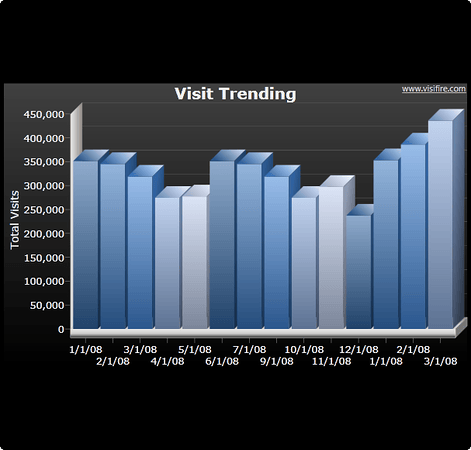
The data I plugged in is some sample data from the Webtrends DX Web Services. In the near future I am intending to hustle up some connections to actual Webtrends DX Web Services, so I can show how to wire up to some live, changing, or even real time data.