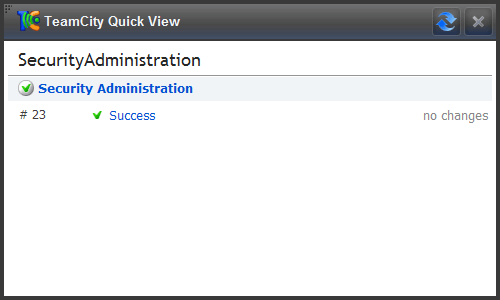
Starting a new project always requires a certain amount of setup, one of the primary goals of any development group these days should be continuous integration. This is something that is not expensive or time consuming to setup. Recently for a grand price of about zero dollars (except for my regular pay, so I suppose not truly zero dollars) I setup Team City, started a build process going, and got back to coding and research on next steps all within about 3-4 hours. Mind you, two of those hours was stuck on a dumb problem because I “clicked” the wrong option in a drop down box.
NOTE: Click on any of the images for a solid full size image via Smugmug.
Get Visual SVN Installed.
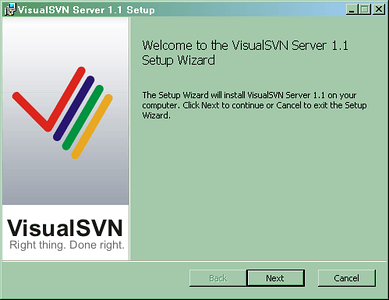
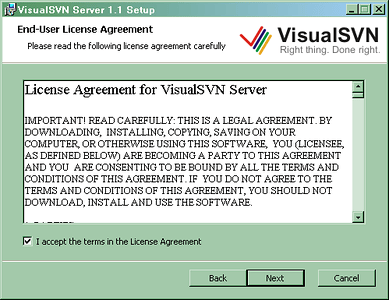
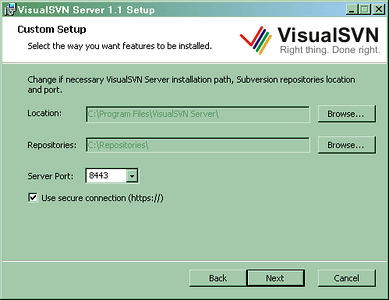
As with most things, just leave the port as is. INHO
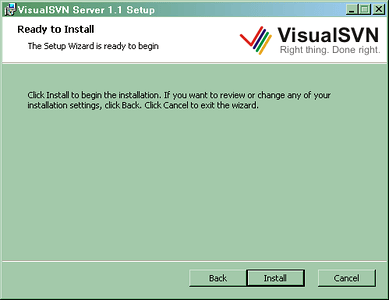
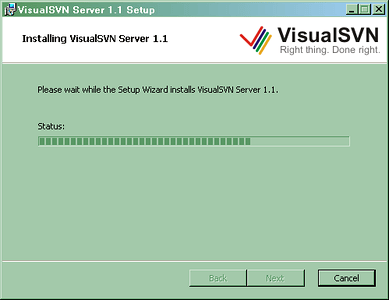
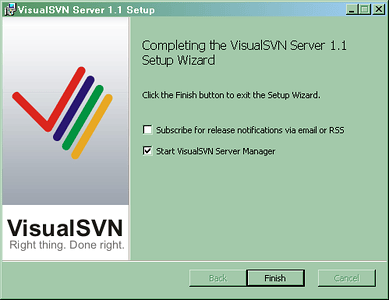
Go ahead and leave the “Start VisualSVN Server Manager” checked so we can add a repository and all that good stuff.
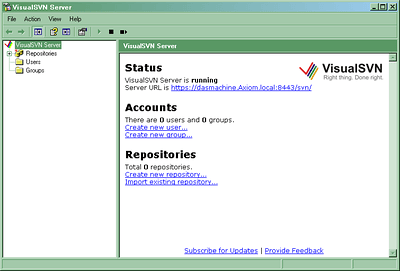
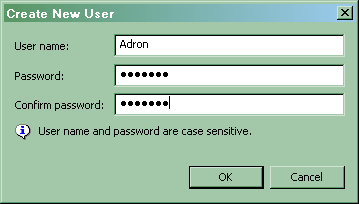
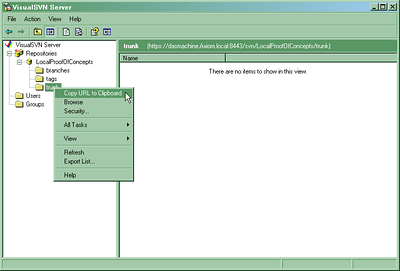
This is the Visual SVN Microsoft Management Console plug in. By far this is one of the most .NET friendly, Visual Studio friendly ways to use Subversion. Go through and add your users, make sure one of them is your build account, and the respective groups that you want. Once you are done adding the accounts and groups add a Repository.
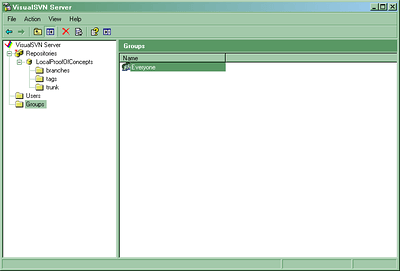
Notice once you add a repository that there are three directories within the repository.
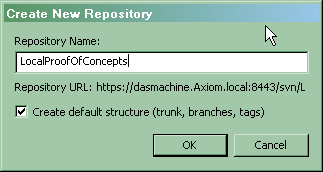
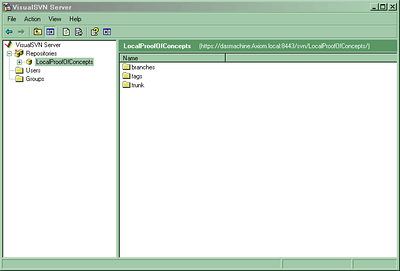
Once you get your repository created right click on it to get the “Copy URL to Clipboard” option. This definitely beats needing to remember the path.
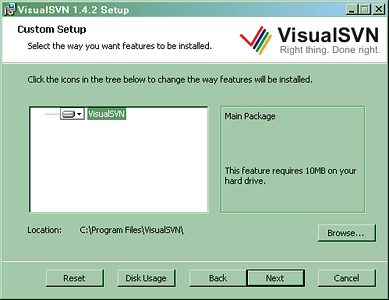
Once you do this make sure to add the Visual SVN UI to get the integrated VS.NET features.
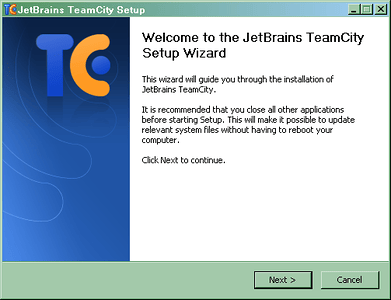
Next thing needed is the build server itself. Grab TeamCity from the JetBrains Site.
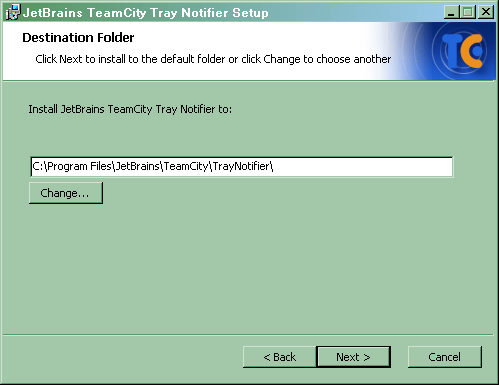
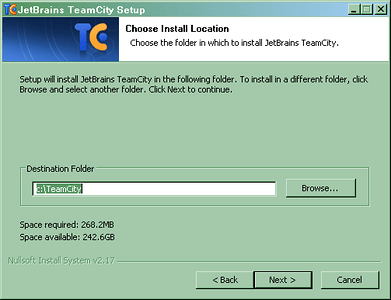
As usual I go with the default c:\TeamCity for installation. I suppose if one wanted to follow closer to Microsoft standard installations they could go with c:\Program Files\TeamCity.
Leave everything here as is, unless you have something special in mind for you installations.
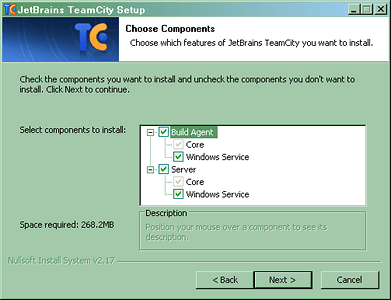
This is just fine too, no reason to change it.
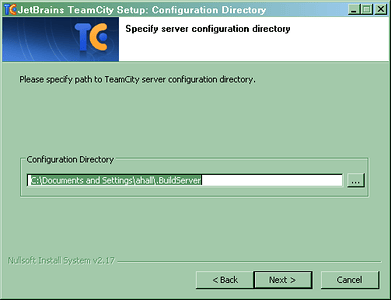
For you security grognards, go ahead and stick it on whatever port. Hopefully though, security protects the build server externally of the server. There is no real reason to have a build server like this wide open for small group development. So better just to keep this server behind a firewall and just keep it setup with defaults.
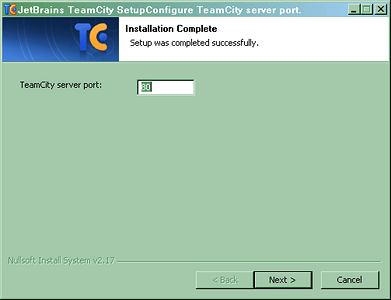
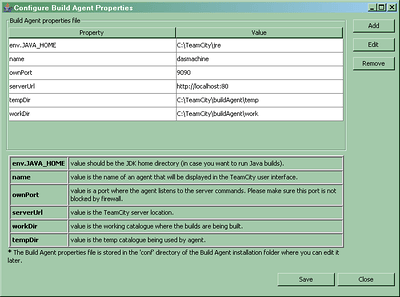
This screen I’m not 100% sure what the reason for it displaying at this point is. These things are good defaults, so leave em’, hit save, and keep moving along.
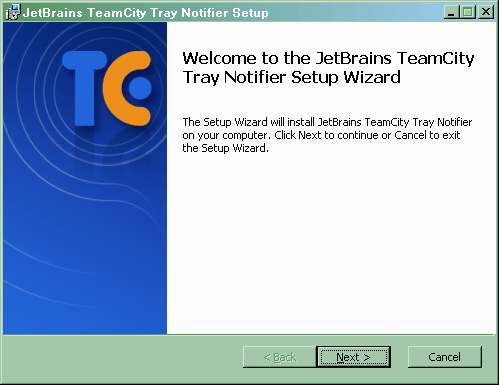
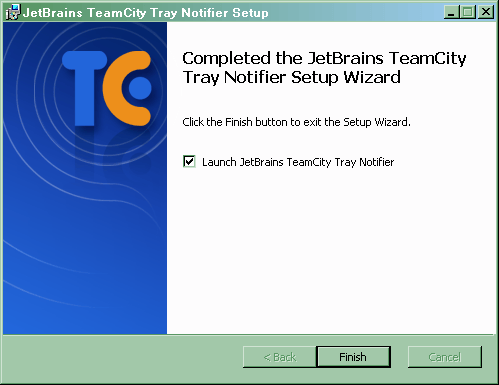
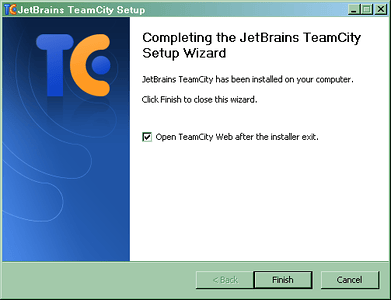
Starting the services will not require a reboot or anything like that. Jetbrains did an A grade job of the installation process for this software.
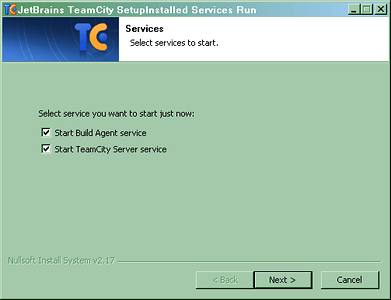
I always just leave the default check so that I can be sure the server and site are setup and running appropriately.
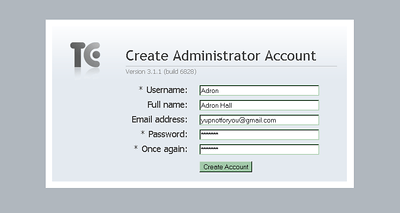
After you agree to the license the initial, one time only, Administrator Account Creation screen appears. So create your account and you’ll be sent straight to the functional administration site.
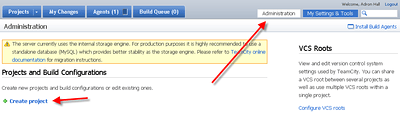
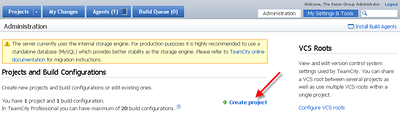
Now it is time for the build process setup. This is the good stuff. If you’re working on this via the local server, after you click on Administration (red arrow below points to it), the path is usually http://localhost/admin/admin.html for local setups. So it is handy to bookmark this URI. The little red arrow below points to where the Create Project button/link/function is. Click that and we’ll get rolling.
I just
stuck this in here, because I don’t see things right in front of my face sometimes. Once you have one project already, the Create Project button moves to center screen (at least in FireFox). So don’t forget that and then not see it when you need it.
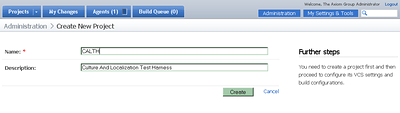
Name the new project, no description necessary, but always good to have one anyway.
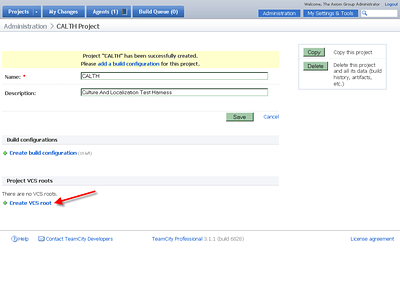
If you don’t create a VCS root now, it will prompt during the build configuration setup. Since I don’t want any extra steps, I always just setup the VCS root first.
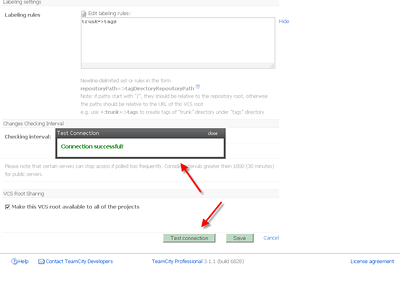
Enter the appropriate settings, check the screen shot below with the red tagged items for examples.
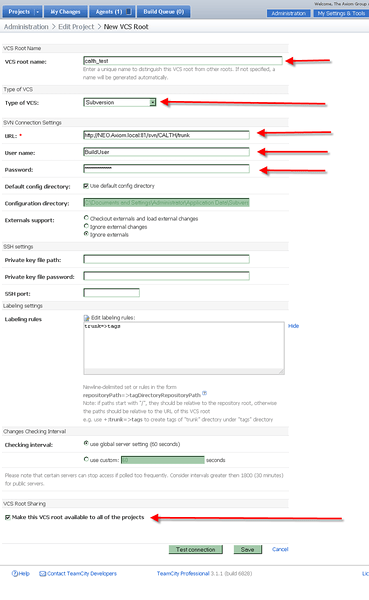
Once the connection information is in place, hit the “Test Connection” button toward the bottom to verify. A nifty little modal AJAX type dialog pops up to verify a good connection.
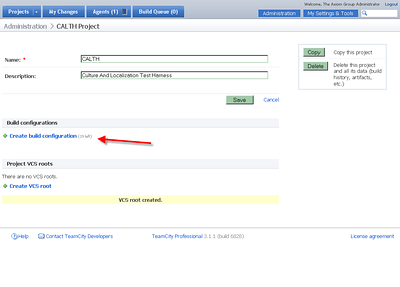
Go back to the project screen and click on “Create build configuration”. I found it somewhat confusing that the VCS root isn’t displayed below after creation, at least in the order I did the configuration. Maybe this is actually a bug, but I think somehow I circumvented the process somehow. Anyway…
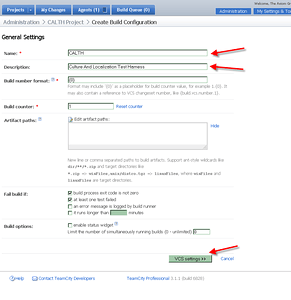
The rest is a pretty straight forward next, next, next type of browser/web based wizard. First you’ll setup the general settings as below…
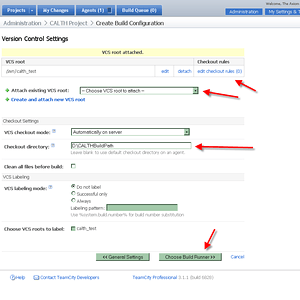
…then link the build runner up to the version control system setup earlier…
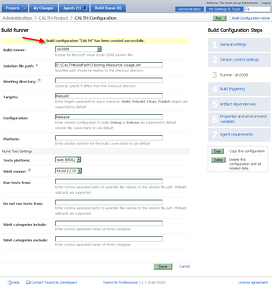
On the build configuration screen there is really isn’t much to fill out. Select the sln2008 Build Runner option. This will let you point this at a particular *.sln file of a solution to get the entire solution to build.
On the final screen hit done and you’re ready to go. Click on the upper right hand side on the run button. Then click on the Projects tab at the upper left hand side. This doesn’t particularly seem intuitive at this point in the process, but it is how the app seems to work. ( I highlighted this part as many seem to just scan over some key parts, namely this one )
![Smile [:)]](/emoticons/emotion-1.gif) Cheers!
Cheers!
After my ramblings, if you want to read more there are dozens of other blog entries on the topic. Each of these entries Some of these entries I’ve included, so read away…
…and of course the actual product(s) and processes used.

Technorati Tags: ReSharper,TeamCity,Continuous Integration,CI,Build,Subversion,VisualSVN,Integration,Visual Studio
del.icio.us Tags: ReSharper,TeamCity,Continuous Integration,CI,Build,Subversion,VisualSVN,Integration,Visual Studio